

Inbox
Go from insight to action quickly with top leads in your inbox.
What is an Inbox?
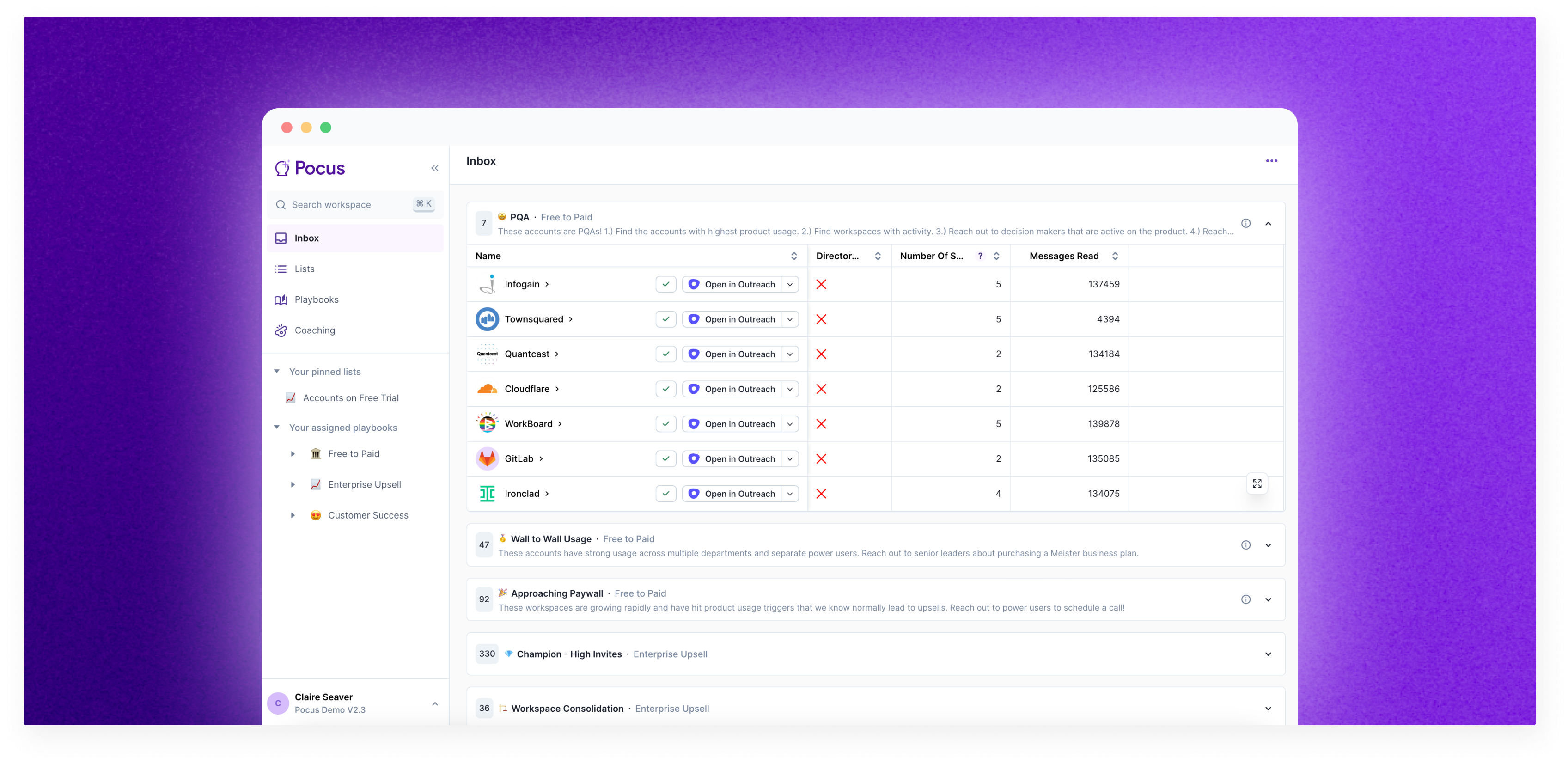
We built the Inbox as an even easier way to see your highest priority leads with clear instructions for the next best action.
After defining Playbooks, your reps will start to see relevant leads land in their inbox, depending on what Goals they have been assigned. Each rep’s Inbox will only show leads for Goals assigned to them. This is where all of the work that RevOps, leadership, and your broader team has done will allow you to go from insight to action very quickly.
How reps use the Inbox
Within your inbox, there is a different section for each of the different playbooks that are running. Reps can see at a high level all the relevant information they need or drill down further by clicking on the user or account name.
Everything about how a playbook is presented in the inbox (e.g., instructions, data columns, actions) is configurable in Playbook settings by admins.
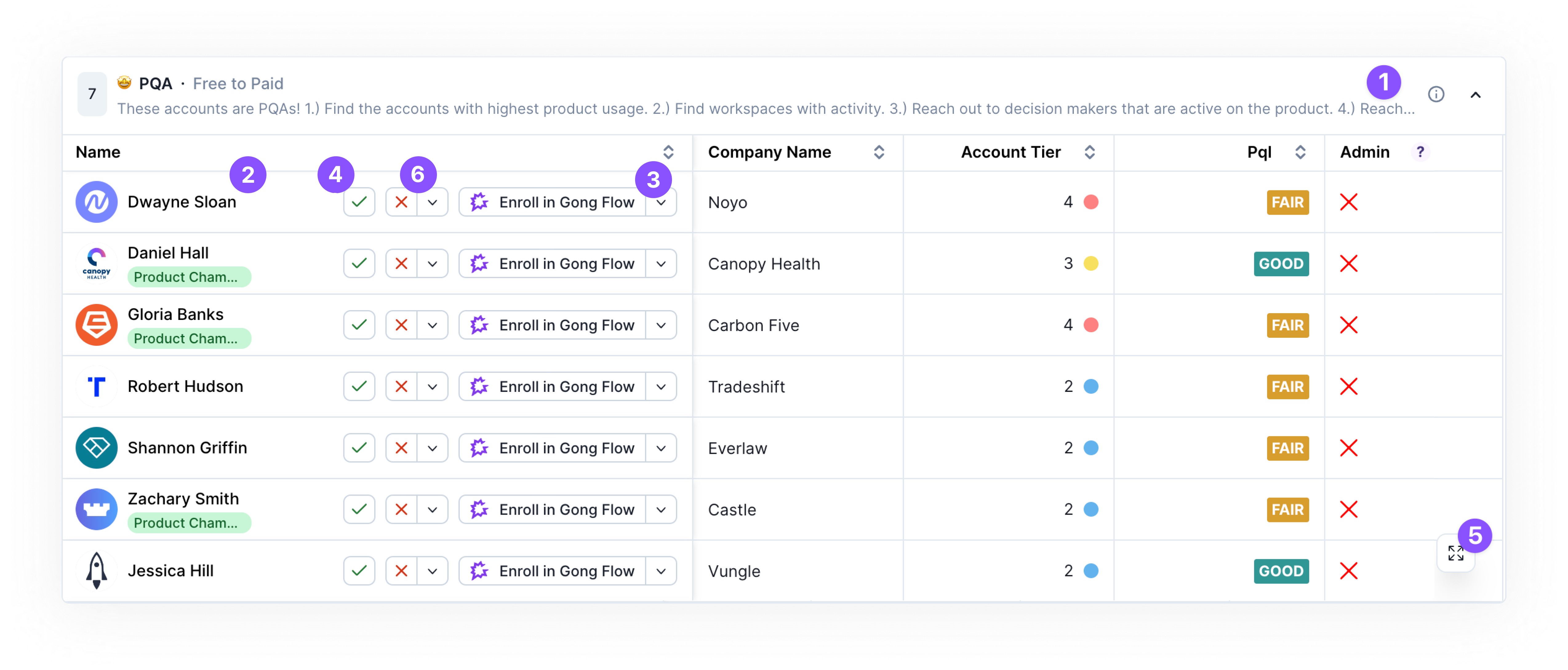
For this example, the playbook shown is PQA in the Free -> Paid Goal. You can see there are 7 accounts surfaced to our user.
Daily prioritized list of leads
Directly from this inbox, the rep can:
- 1️⃣ Learn how to action the surfaced records
- Review all the data about the leads by scrolling through the presented columns
- 2️⃣ Dive into insights about the account by clicking to the record
- 3️⃣ Take quick action like updating the CRM, creating a deal, adding to a marketing or sales engagement sequence and more.
- 4️⃣ Once you’ve finished working the lead, click the check button to mark the lead as done. Depending on the settings of your workspace this will remove that lead from either that one playbook or all playbooks for all users for a set period of time (default 30 days).
- See a lead that isn’t qualified? Click the
Xto disqualify (6️⃣). This removes the lead from the playbook for the whole workspace for the set duration just like Mark Done. Use the dropdown arrow to provide additional reasoning behind the disqualification. This feedback is incredibly helpful to workspace admin as they make iterations on playbooks - Only want to remove it for yourself? Use a 😴 Snooze action.
- Make a mistake? Hop to your action history to undo any Mark Done/Disqualify actions
- See a lead that isn’t qualified? Click the
Act in bulk with multi-selectIf you want to take action on more than one account at a time, you can use multi-select. Instead of having to click each account individually, you can hover over the avatar, click, and then you have the ability to select many or even select all (1️⃣) and take action (2️⃣). Note: Links cannot be opened in bulk.
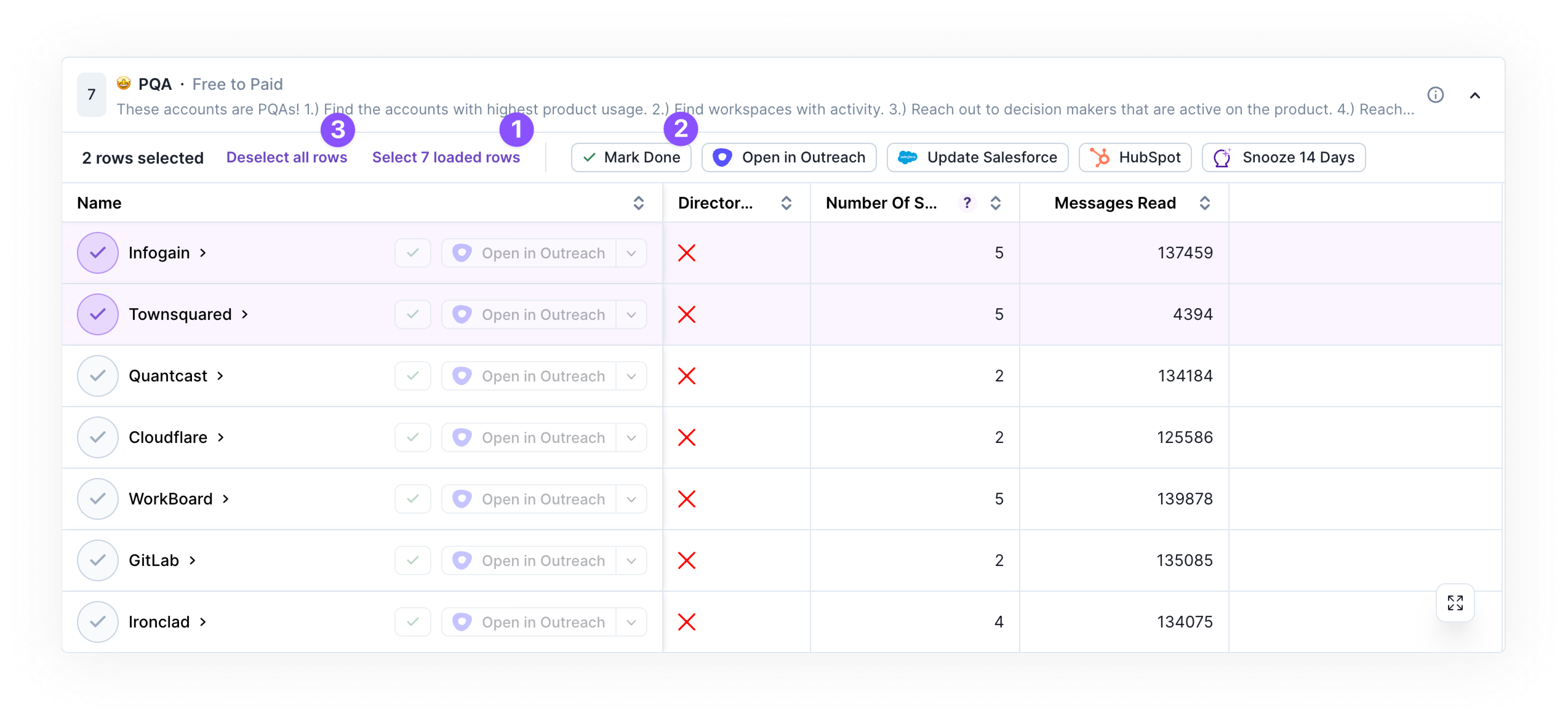
A more granular view of Your Inbox
Drill in further
If you would like to temporarily apply a filter or add new fields to your inbox like you can in a list, you can do this by clicking the expansion button (5️⃣) in the bottom right corner of the inbox as shown below. You can also take action from this expanded view.
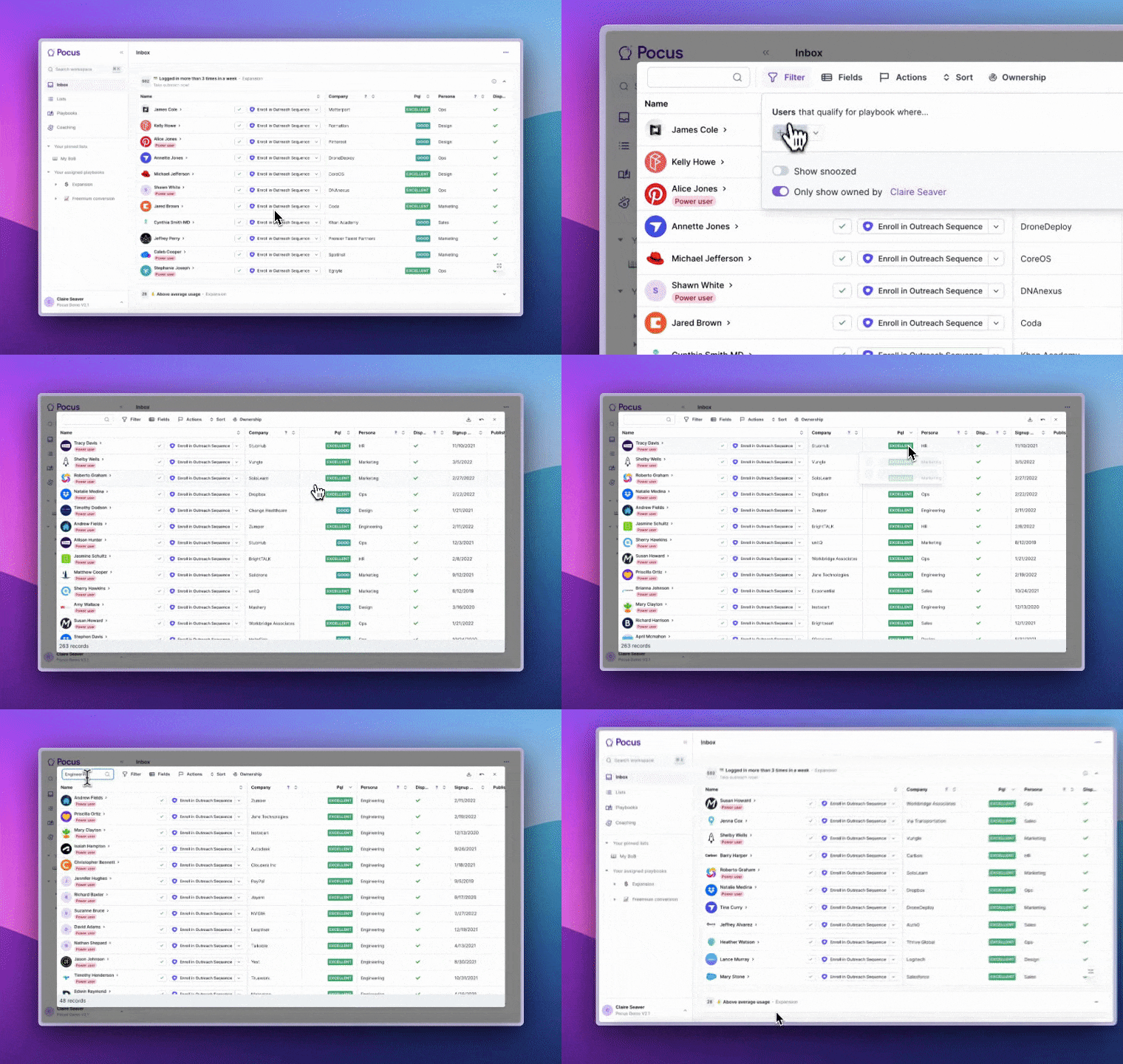
Once done viewing the contents of the inbox with your new filters and fields you can close out of the expanded view by clicking the X in the top right.
Note:These filters and fields will not apply to the un-expanded inbox and will not be present the next time you open the expanded inbox view. Have a field you always add or feedback on the filter? Reach out to your workspace owner to request it be added.
Individual Playbook Overview
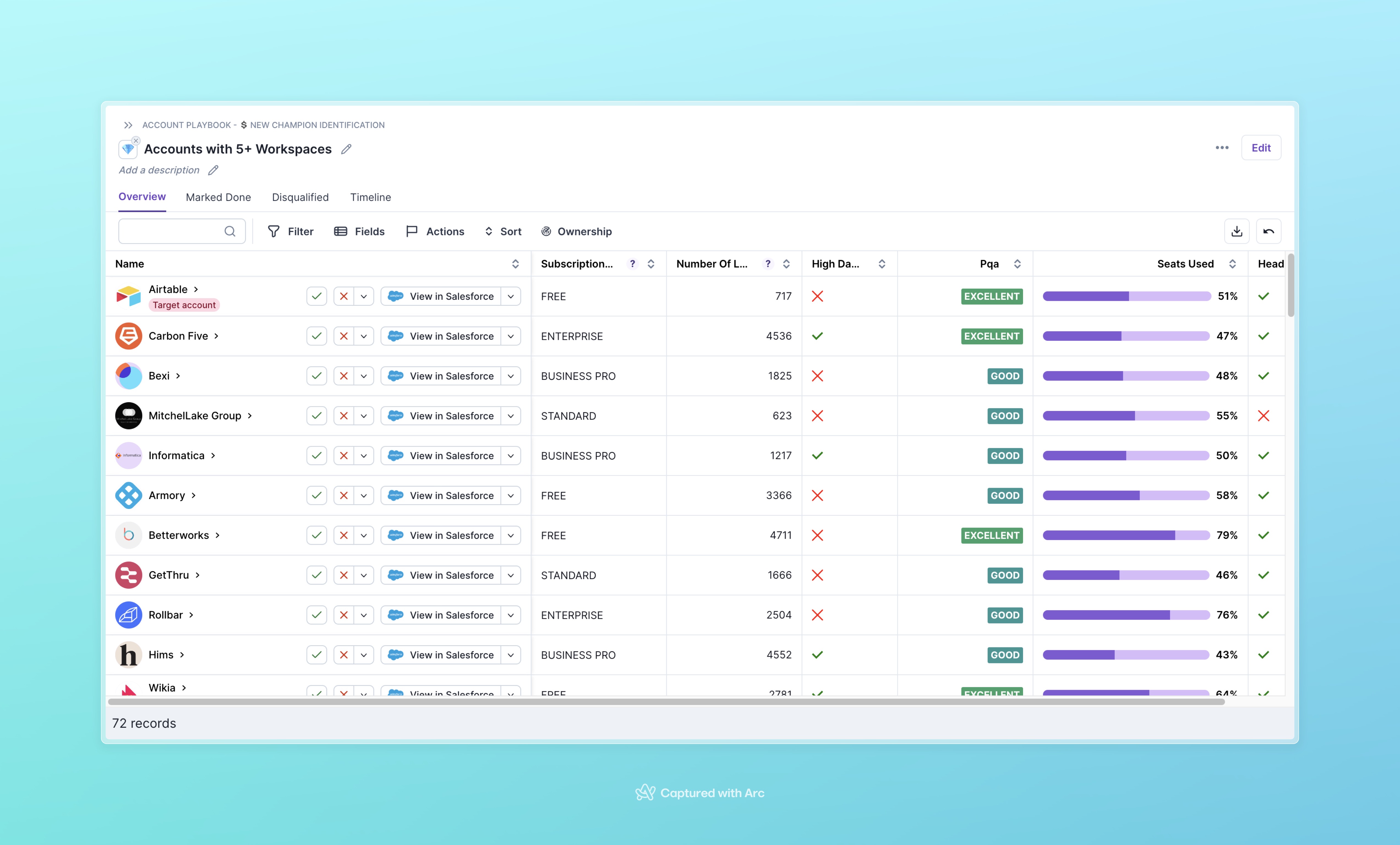
Want to quickly navigate to one playbook? Click on the title of a playbook in your inbox or sidebar to land on the Playbook Overview page. Here you'll be able to work leads just like the inbox, and add additional filters, sorts, fields like the preview above. This page also has some helpful data around the history of the playbook.
Marked Done / Disqualified
Use these tabs to see which records in your assigned book have been Marked Done or Disqualified. This is particularly helpful if you share a book with another team member to see what may have come through for them. You can also re-qualify any leads from here or undo any accidental buttons clicks you may have done.
Timeline
See how many leads have been flowing through this inbox historically.
Tip:RevOps+ users can use the Overview page to quickly toggle between different reps views by using the Ownership filter. Note this filter is disabled for Reps.
FAQs
Why does my Inbox look different than others?
Your Inbox may look different than other reps based on a few factors: you only see playbooks inside of the goals that you have been assigned. You also only see records that you are assigned
What happens when something is marked as done?
The same account can actually show in multiple playbooks. Depending on how you've configured your settings, marking done in one place will actually “mark done” that account in every playbook in that goal. Or it will just mark done for this specific playbook. Take a look at your settings to see which is true. Learn more about Mark Done / Disqualify.
Updated over 1 year ago