

Drilldown Overview Sections
There are several types of sections and widgets you can add to a drilldown page. These can be configured with relevant data and rearranged according to relevance.
Header
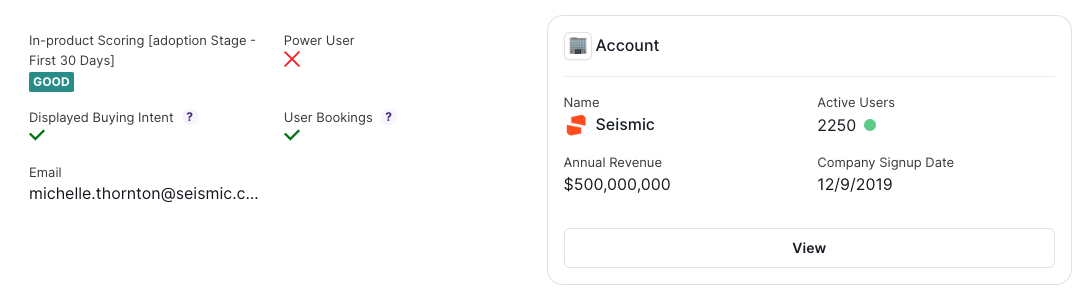
The header is the default section at the top. You can add frequently referenced fields like firmographic data (employee count, country, etc) or basic user details (email, job title, etc).
You can also add an Associated Object Card, which can display at-a-glance information about an an associated object. For example, if you’re creating a User-based Drilldown, you might be interested in seeing the User’s associated Account and important information about that Account.
To add an Associated Object Card:
- Click the wrench icon in the top right of the Header section and select “Show associated object card.”
- Select the associated Object you want to show and add any relevant fields.
Recent Activity
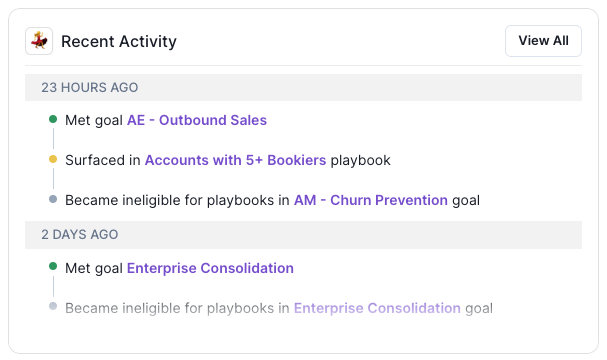
Add a Recent Activity widget to see a preview of what has happened with this record:
- Which Playbooks the record was enrolled in
- Any Goals met by that record
- Any Actions taken in Pocus on that record (i.e added to sequence, snoozed, marked done)
Clicking view more navigates to the Recent Activity tab which shows the entire feed.
⭐ Added bonus: Power your account based workflows with ease. See activity within associated objects. For example - activity at the account level will also show a roll up of activity for users within that account.
Info
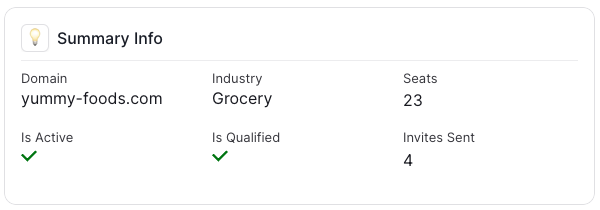
Add an Info section to display one or more data points about an object. The info section can display any type of data (number, date, text, boolean(true/false), etc.). Name your info section to draw attention to different types of data (e.g., subscription information, enrichment data, etc.)
Metrics
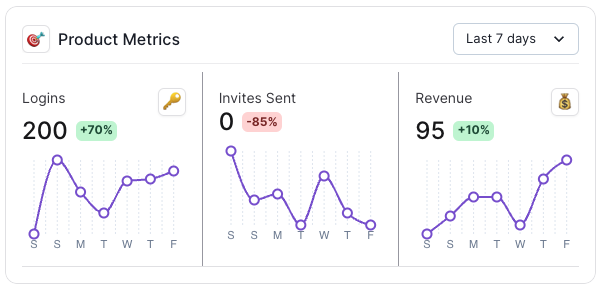
Add metrics section to highlight important numerical data points and their trend over time. End users can control the look back period for the historical data when viewing a Drilldown (e.g., Last 7, 30, 90 days)
Table
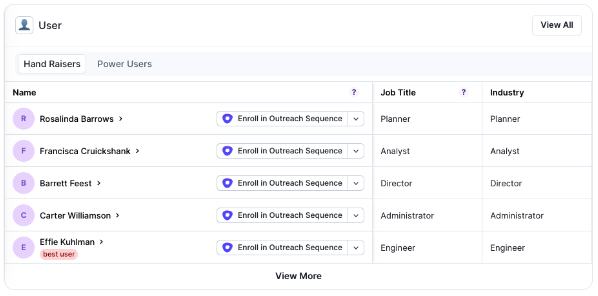
Add a Table section to insert a detailed table view of related data, like the workspace that an individual user is associated with, or the users that roll into a single workspace. Pocus users can click the items in the table to open up another Drilldown unique to that object. Everything about the table can be customized - fields, sort, filter, actions. Think of this as a mini Lists.
List
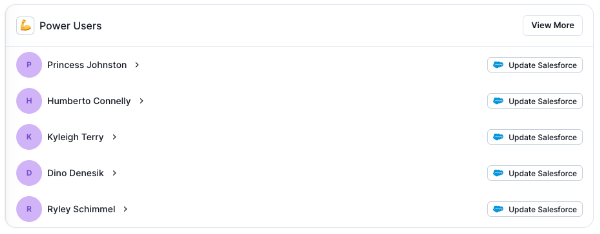
Add a List section to highlight a handful of key users, associated opportunities, or other related objects. List sections are useful for minimally displaying related objects, while Tables work better for detailed information with multiple columns.
Embed
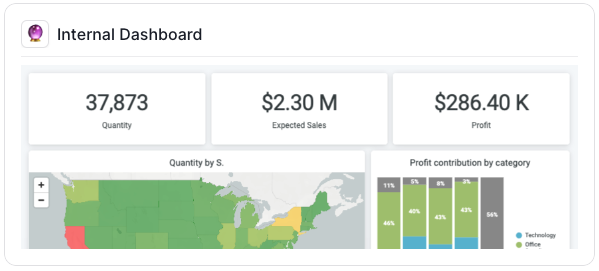
Add an embed section to surface visualizations and other info from third party tools. Once selecting the widget all you will need is a URL or HTML plus a selected identifier for the relevant Pocus instance.
Want to embed Pocus?If instead of the above, you are interested in embedding Pocus in a third party, we currently only support embedding Pocus in Salesforce.
Updated over 1 year ago