

Hubspot Actions
You can flexibly create, update, and upsert records into Hubspot with the `Update Hubspot' action in Pocus. We can use this to access default and custom objects, including all fields that are authorized for write access in Hubspot. If you're interested in creating new Contacts from the Prospecting tab or from our AI features like AI Strategy, AI Alerts, or the Pocus Chrome Extension, head down to the Creating new Contacts when Prospecting with AI section.
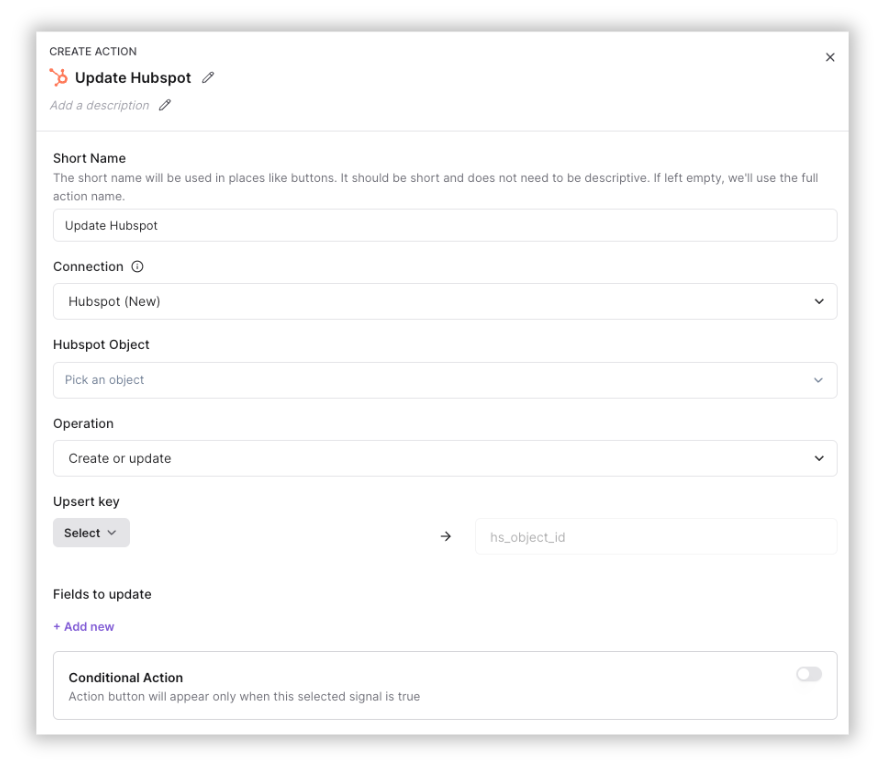
Here's how you configure a Hubspot action
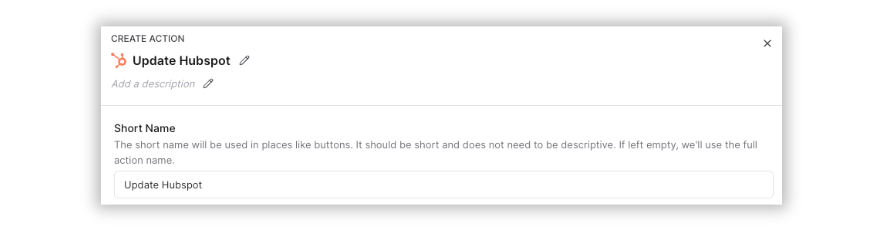
1️⃣ Name the action - The top-level name is the long version of the action name; this one can be more descriptive. Below there is a section where you can add a description of the action and what it does. The short name is the name that will be displayed on buttons in Pocus.
2️⃣ Pick an object - Select from a list of all objects in your connected Hubspot instance. If the object type you're searching for is missing, it may not available for the Pocus integration user to write or update via API. If the object type you're searching for is a custom object, enter the Hubspot ID for the custom object and add it as a new Object.

3️⃣ Select an operation - There are three operation types available in Hubspot:
- Create new: create a net new record in Hubspot, passing in the configured data from Pocus
- Update existing only: search for an existing Hubspot record based on the Hubspot ID, and update the configured fields
- Create or update (upsert): search for an existing record to update based on the Hubspot ID, and create a new record if it doesn't already exist

4️⃣ Select upsert key - If you are updating or upserting existing records, you'll need to indicate a Hubspot ID field in Pocus that will be used to look up the existing record in Hubspot.

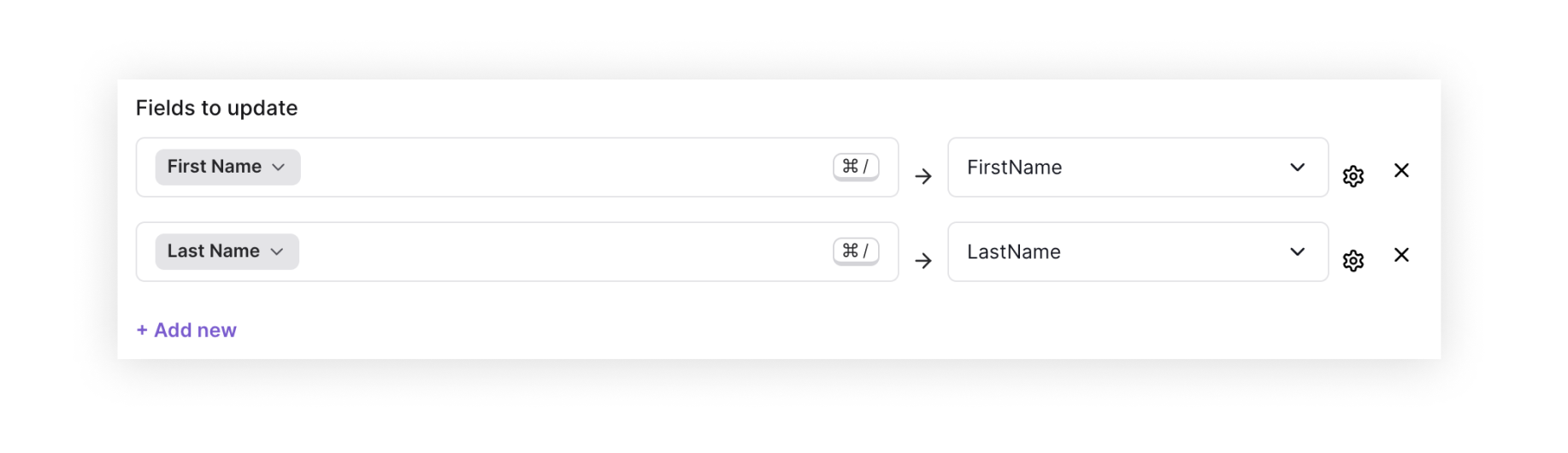
5️⃣ Configure fields - Select fields from Pocus that you want to update in Hubspot, then map them to existing fields on your Hubspot object.
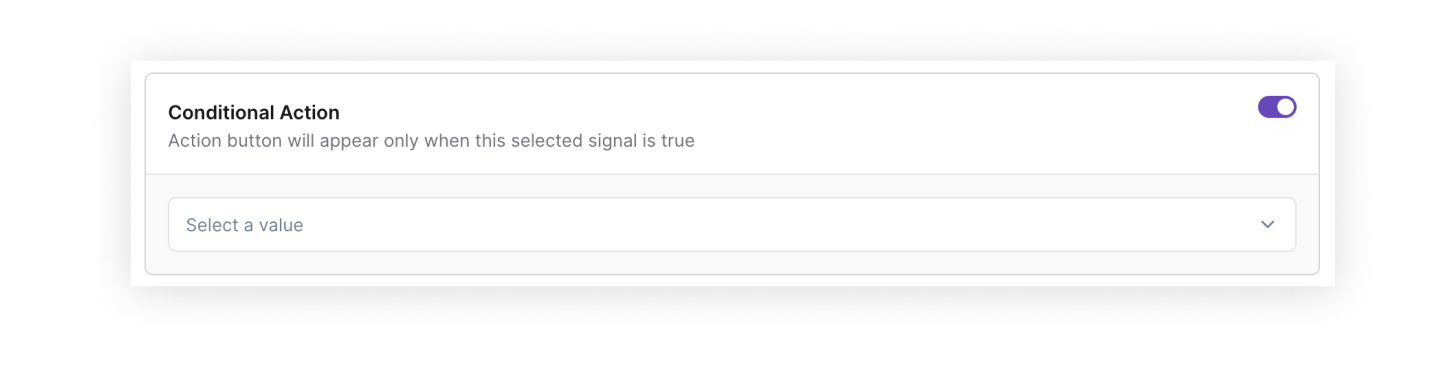
6️⃣ Conditional action - Pocus allows you to make actions conditional; this means the action button will appear only if a certain condition is true. You can set the condition via a signal.
Creating new Contacts when Prospecting with AI
When you discover a new prospect inside Pocus—whether you’re prospecting in-platform, reviewing AI Strategy insights, triaging an AI Alert, or browsing with the Chrome extension—you can push that person directly into HubSpot. Under the hood, Pocus stores these leads in a custom object called Pocus LinkedIn Profiles. Until you choose to sync one of these profiles, it’s not tied to any existing HubSpot record (so we can’t assume there’s a matching HubSpot ID).
To configure an action that will create a Contact in Hubspot from our Prospecting & AI features, you'll follow similar steps as above on the Pocus Linkedin Profiles object, with a few key differences.
1️⃣ Head to the Pocus Linkedin Profiles object Navigate to the Actions tab and create a new Update Hubspot action.
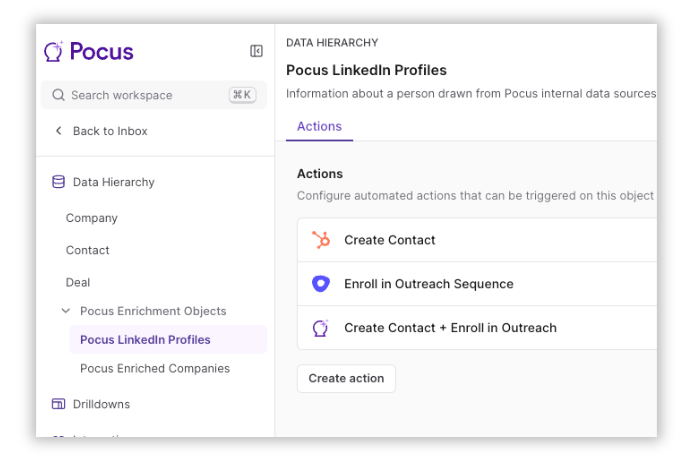
2️⃣ Name the action - The top-level name is the long version of the action name; this one can be more descriptive. Below there is a section where you can add a description of the action and what it does. The short name is the name that will be displayed on buttons in Pocus.
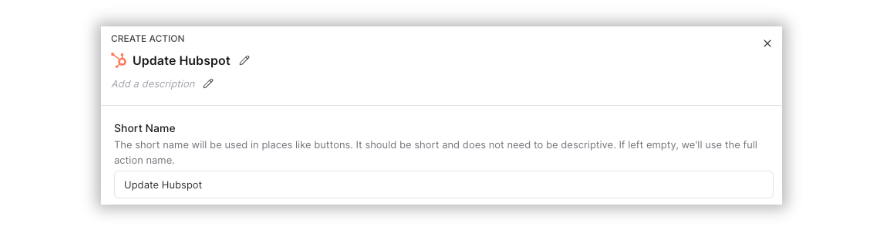
3️⃣ Pick the Contacts object - Select "contacts from the list of all objects in your connected Hubspot instance.

4️⃣ Select the Create new operation - Since Pocus stores these leads in a custom object called Pocus LinkedIn Profiles under the hood, it’s not tied to any existing HubSpot record yet (so we can’t assume there’s a matching HubSpot ID).

5️⃣ Configure fields - Select fields from Pocus that you want to update in Hubspot, then map them to existing fields on your Hubspot object.
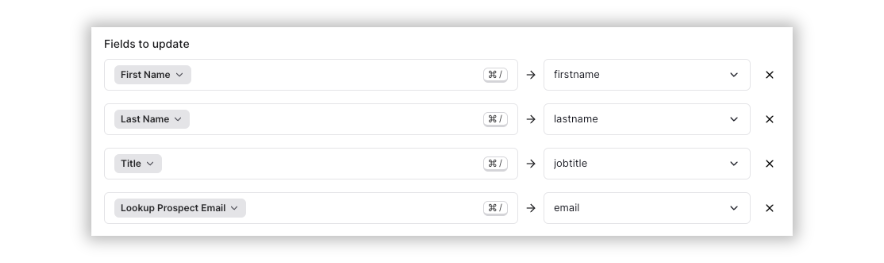
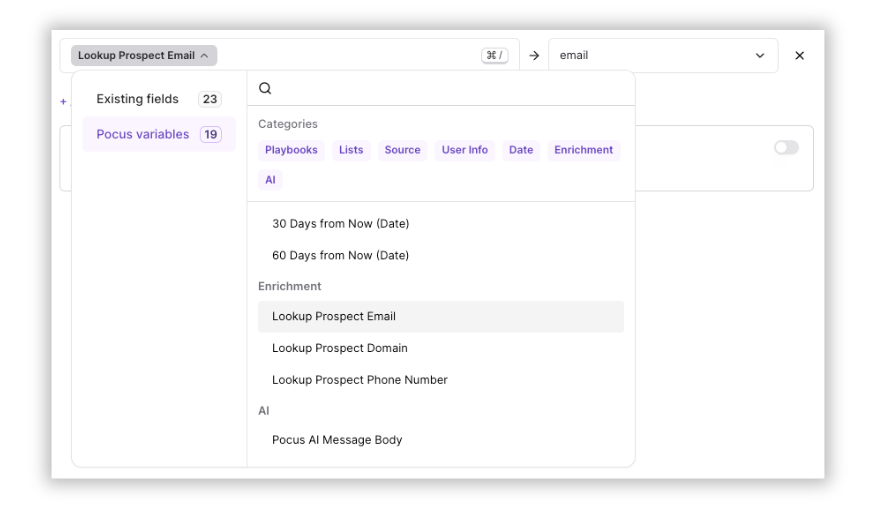
For the Email field, you'll need to map the Lookup Prospect Email field, which can be found under Pocus Variables.
6️⃣ Conditional action - Pocus allows you to make actions conditional; this means the action button will appear only if a certain condition is true. You can set the condition via a signal.
You'll now see the Hubspot icon in the Prospecting tab and across all of our AI features. When you click that icon, a new Contact will be created in Hubspot.
How HubSpot Automatically Handles Duplicates
HubSpot uses the email address as the primary key for contacts. When you create a new Contact from Pocus, HubSpot:
- Matches on the Email property.
- Updates the existing record if that email exists.
- Creates a new record only if no existing contact has that email.
HubSpot automatically deduplicates contacts using email addresses—so even if you click “Create Contact” multiple times on the same profile, HubSpot will only ever maintain one record per unique email.
Updated over 1 year ago