

Webhooks
Take action in a variety of 3rd party tools using Webhook actions
Why Webhooks?
Webhooks allow users to push any Scores, Signals, or Fields within Pocus to an external source. Allowing you to spread the insights you generate in Pocus to a variety of third-party applications.
Setting up a Webhook Integration
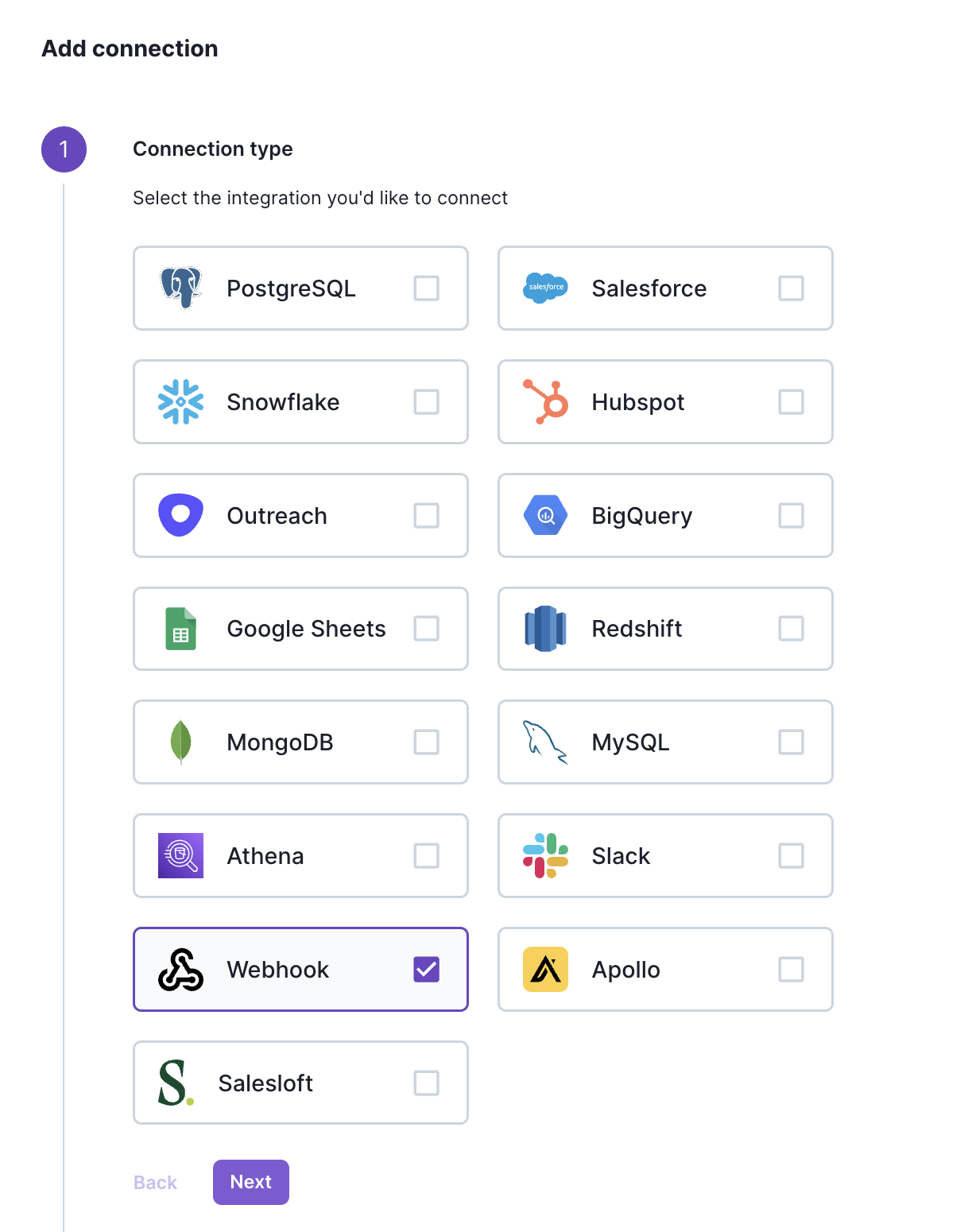
- Navigate to Integrationsin Workspace Settings (or type
CMD + Kand search forIntegrations). - Click Add a Connection
- Select Webhook and give it a name.
- Paste the Webhook URL from the other platform. Add HTTP headers if desired. Then click Finish and Add Configuration
Note*: Make sure it is a catch hook, meaning it's always open and waiting for the request that will trigger.*
Configuring a Webhook Action
Navigate to the Workspace Settings page. Select the Object where you'll add your new action. Navigate to the Actions tab. Click Add an action at the bottom of the page.
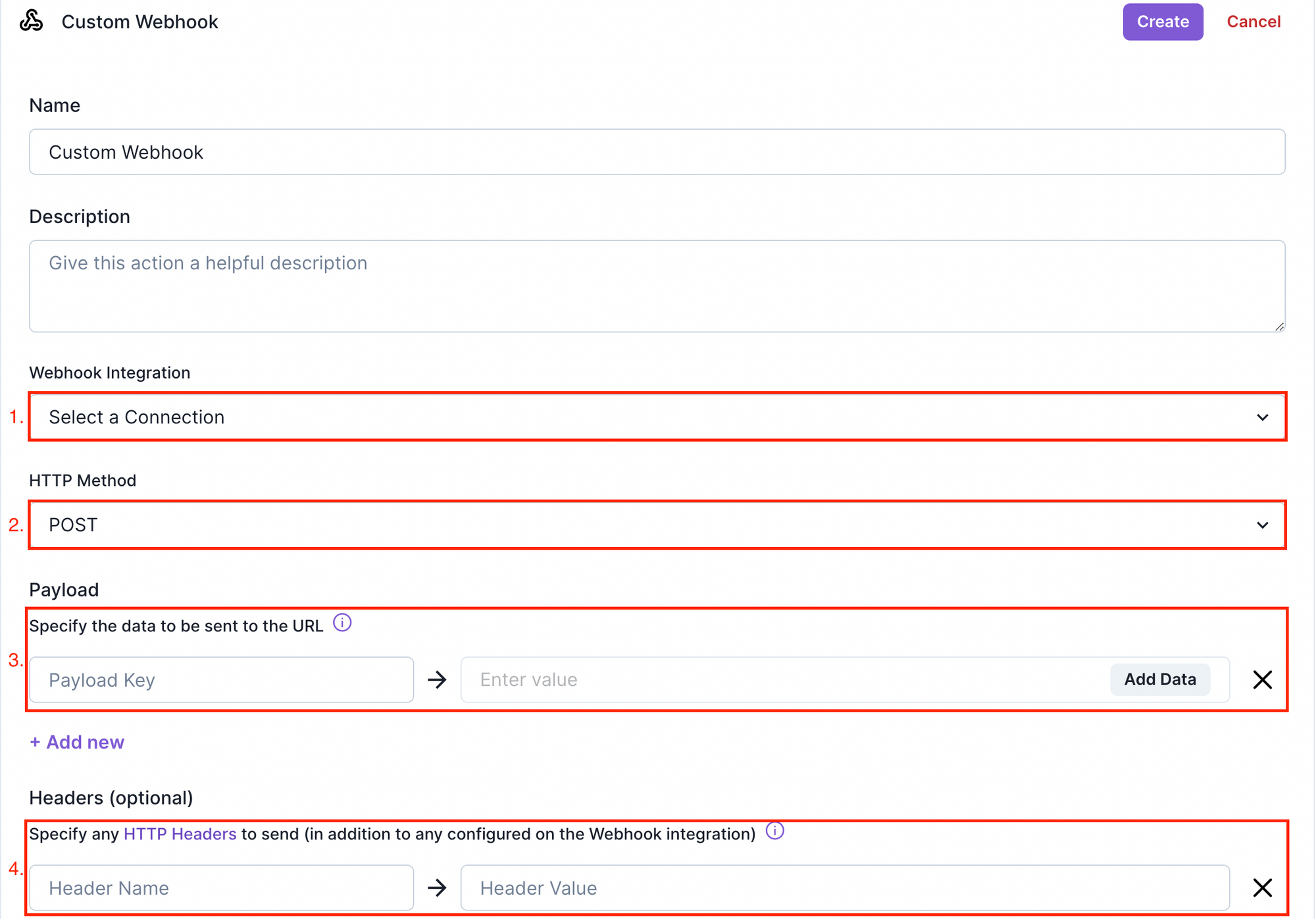
In addition to the Name and Description sections, there are three required and one optional setting:
1️⃣ Select the Webhook Integration that this action will target from the integration configured above.
2️⃣ For HTTP Method select POST
3️⃣ Enter the Payload for the request.
Payload key: The key your destination is expectingValue:The string or data point value to pass to your destination. This uses our dynamic string component that allows you to build values that include strings, field values, and dynamic variables.
Note: If your platform is a bit strict here, just make sure that the shape of these payload keys match your destination.
4️⃣ Optional - Add HTTP Headers
Using the Webhook Action
Add this action anywhere throughout your workspace––manually invoke it in a List, Playbook, or Drilldown, or use tech touch automation to fire it off regularly.
Updated over 1 year ago