

User Management
Keep your usage data secure with additional security features and permissions
Admins have the ability to invite, edit, and remove user permissions from Pocus in the User Management section of Workspace Settings. This section also contains additional security features around SSO, Audit Logs, and Security settings.
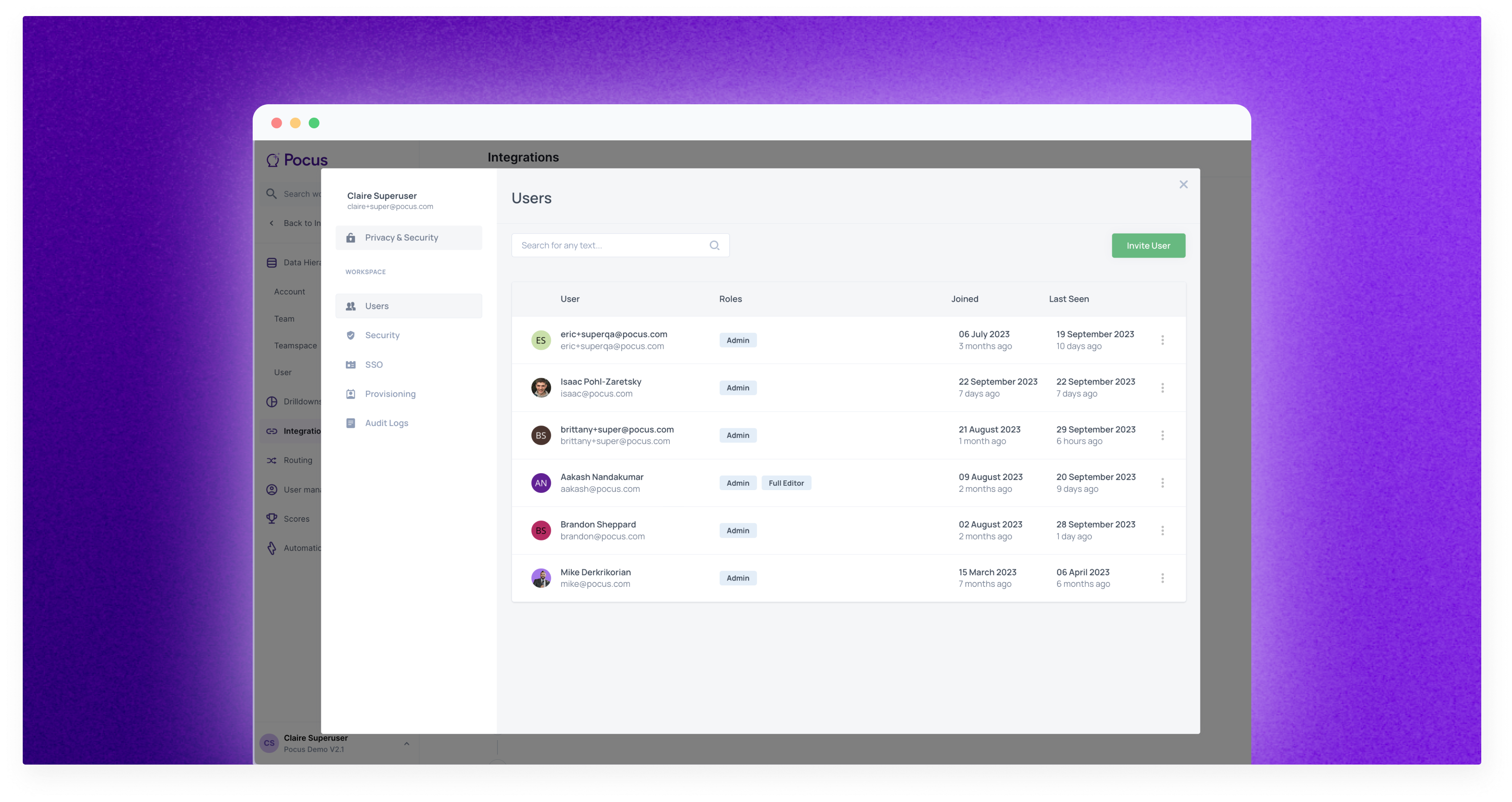
Inviting Users
Navigate to your Workspace Settings here or by clicking your name in the bottom left corner and selecting Workspace Settings.
- Click User Management in the left-hand menu and the User Management page will open.
- Click Users in the left-hand menu of the User Management page.
- To invite a new user, click on the green Invite User button. From here you can grant the new user different roles and supplementary permissions. Only Admins have the ability to invite new users.
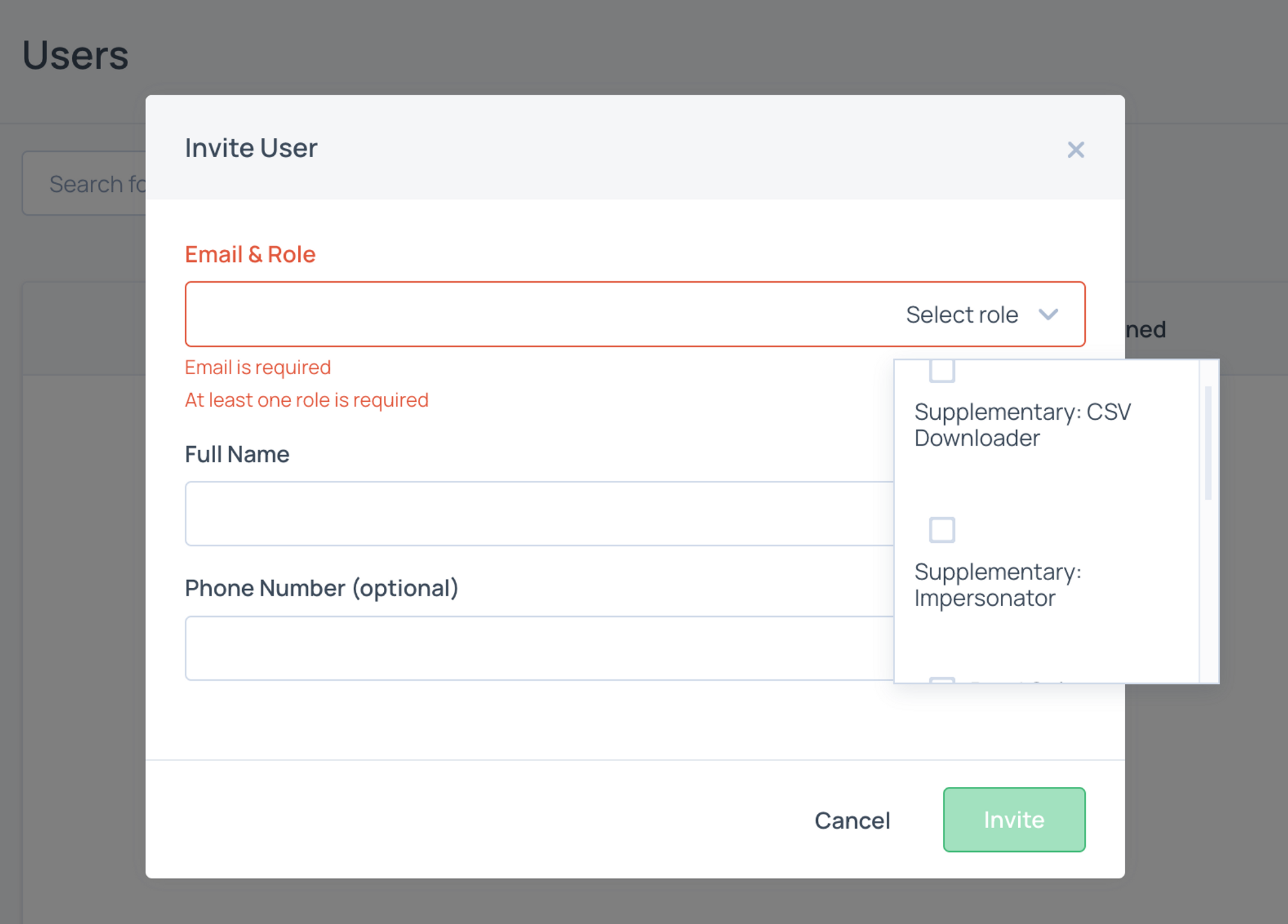
Users will receive an invite email to claim their account. Be sure to check your Spam Folder in case!
Users will show as Pending approval until they have accepted the email invitation.
Accessing Pocus
By default, users will use a Magic Link sent to their email to authenticate and access the Pocus platform. Additional methods of authentication can be configured including passwords, Google SSO, MFA, and 3rd party SSO/SAML providers like Okta can be leveraged. Reach out to your Pocus support team to enable.
Removing Users
To remove users, click on the three-dot menu and click Delete User. Okta SCIM is supported for enterprise customers to manage the addition and removal of users.
Updated over 1 year ago