

Hubspot
Pocus connects to Hubspot to both pull in relevant CRM data around contacts, companies, deals, marketing engagements, etc. and pass back updates to records as activity happens in Pocus. This article dives into configuring the read and write integration.
Setting up the Hubspot integration in Pocus
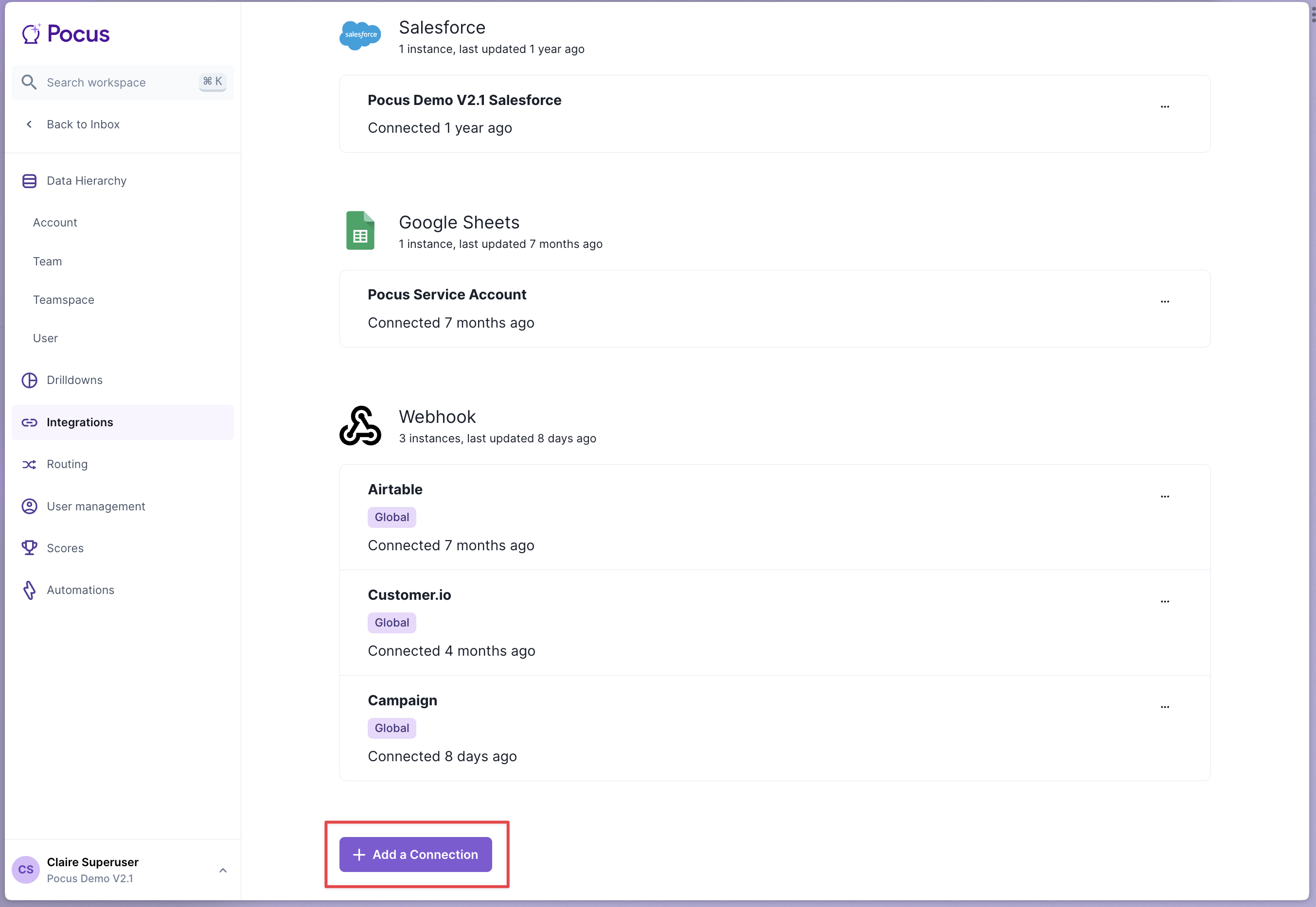
- Navigate to the Pocus Integrations Page and press Add a Connection
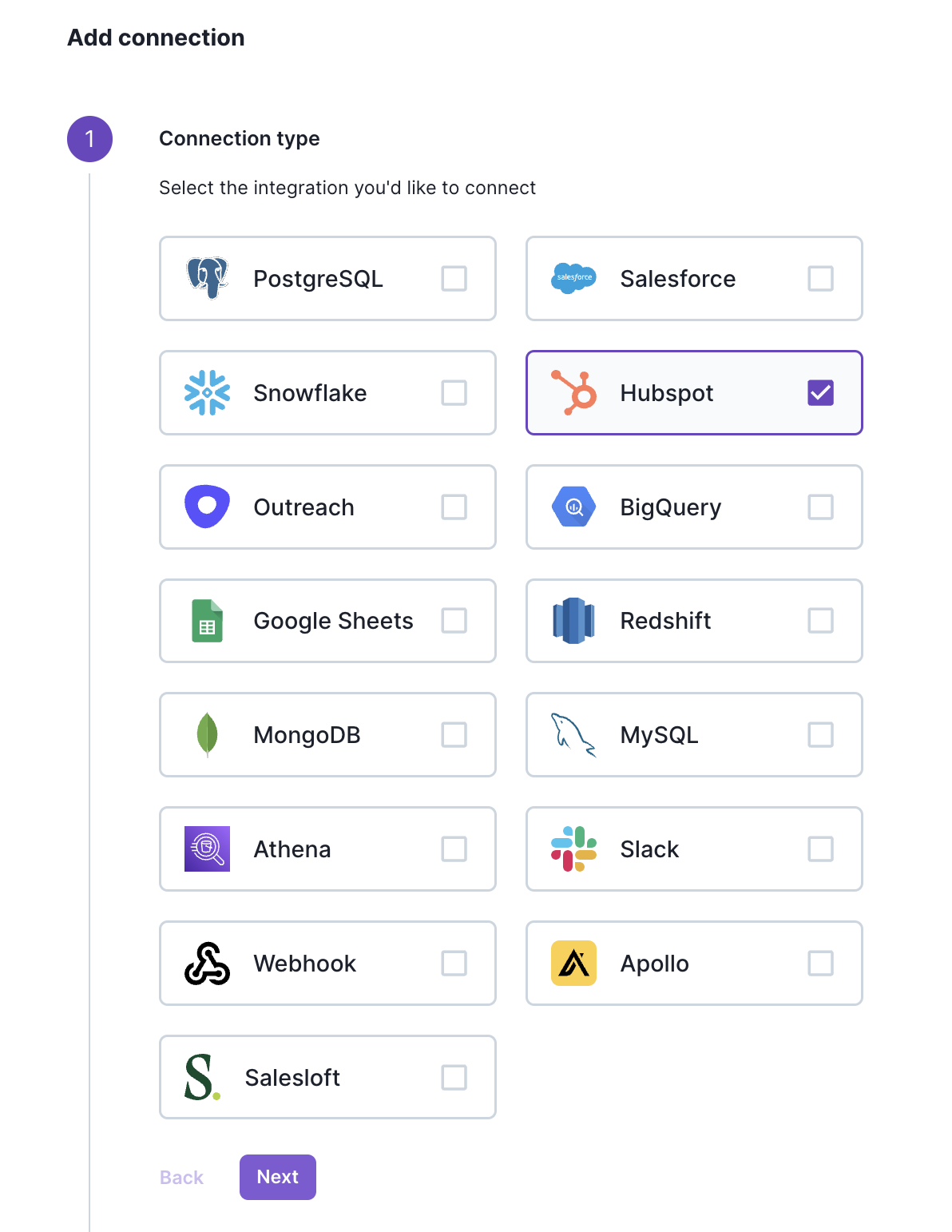
- Select the Hubspot connection type and press Next
- Enter the name for this Hubspot instance and press Next. It can be helpful to include the name of the user that is authenticating (e.g., Integration Hubspot User, Alexa's Hubspot)
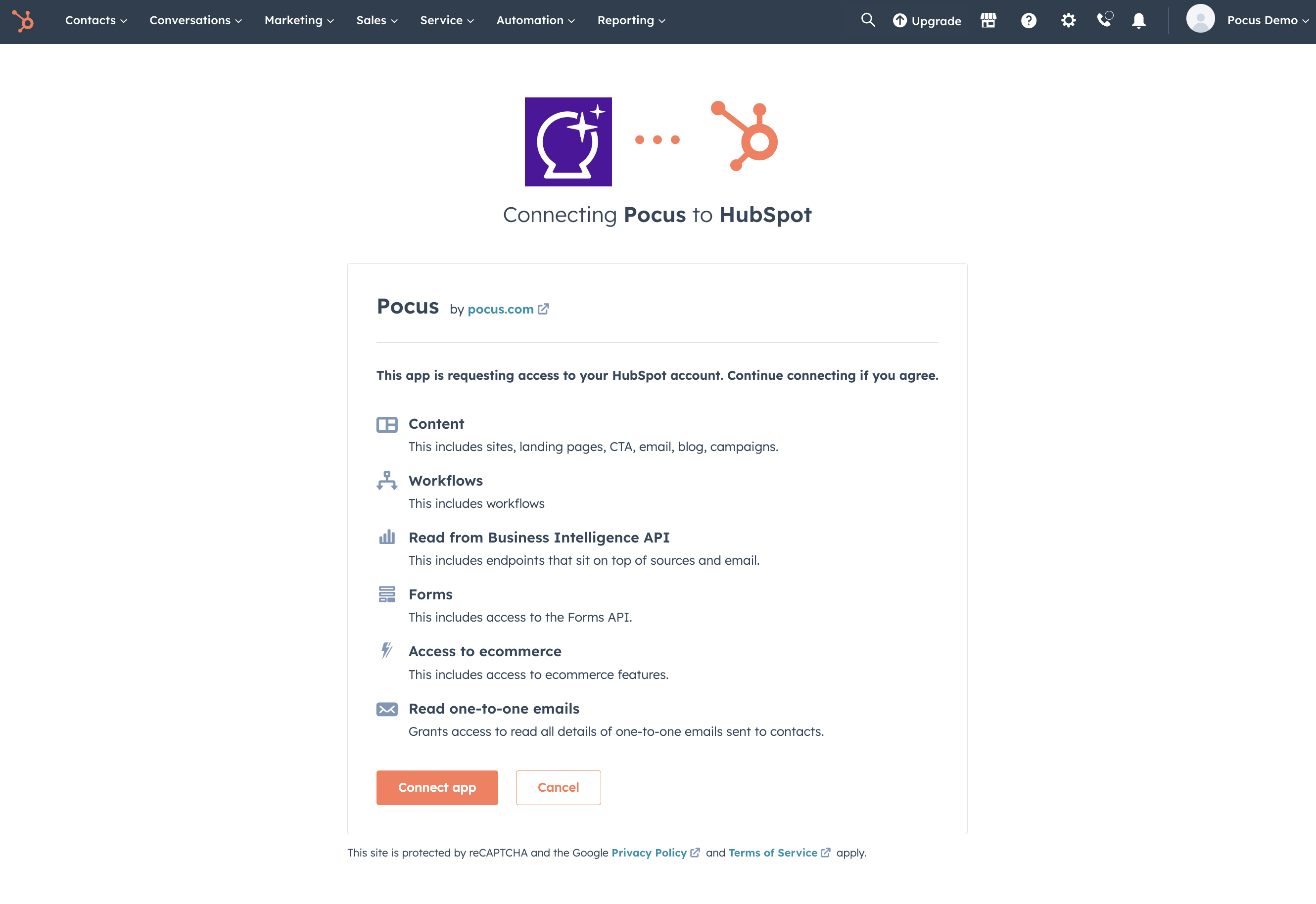
- Press Login with Hubspot and, when prompted, log in with your Hubspot credentials, then hit "Allow"
Validating the Hubspot connection with Pocus
-
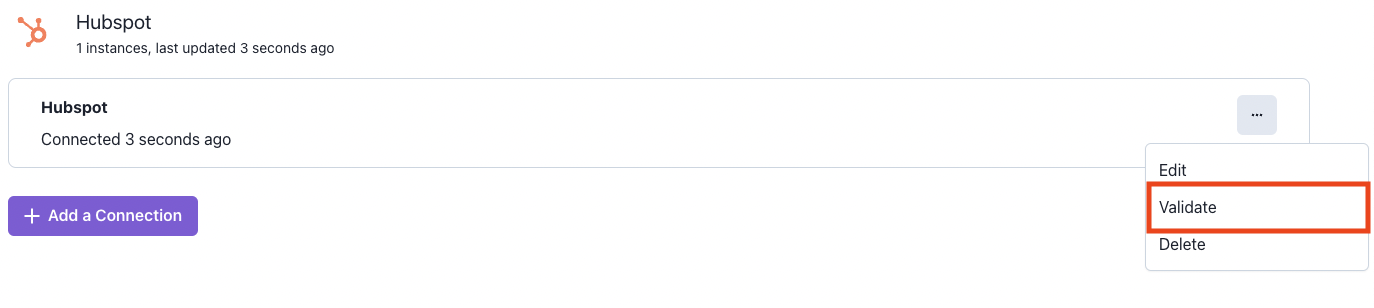
Navigate to the Pocus Integrations Page, and press the menu button next to the newly created Hubspot connection
-
Press the Validate button
If the connection with Hubspot is set up correctly, you will see a green notification at the bottom of your screen. If an error appears, please contact our team for assistance!
Updated over 1 year ago