

Slack Alerts
Slack alerts allow reps to get notified when new items enter their inbox. They’re a helpful way to keep users informed with what actions they need to take in Pocus without needing to remember to check their inbox every day.
How it looks
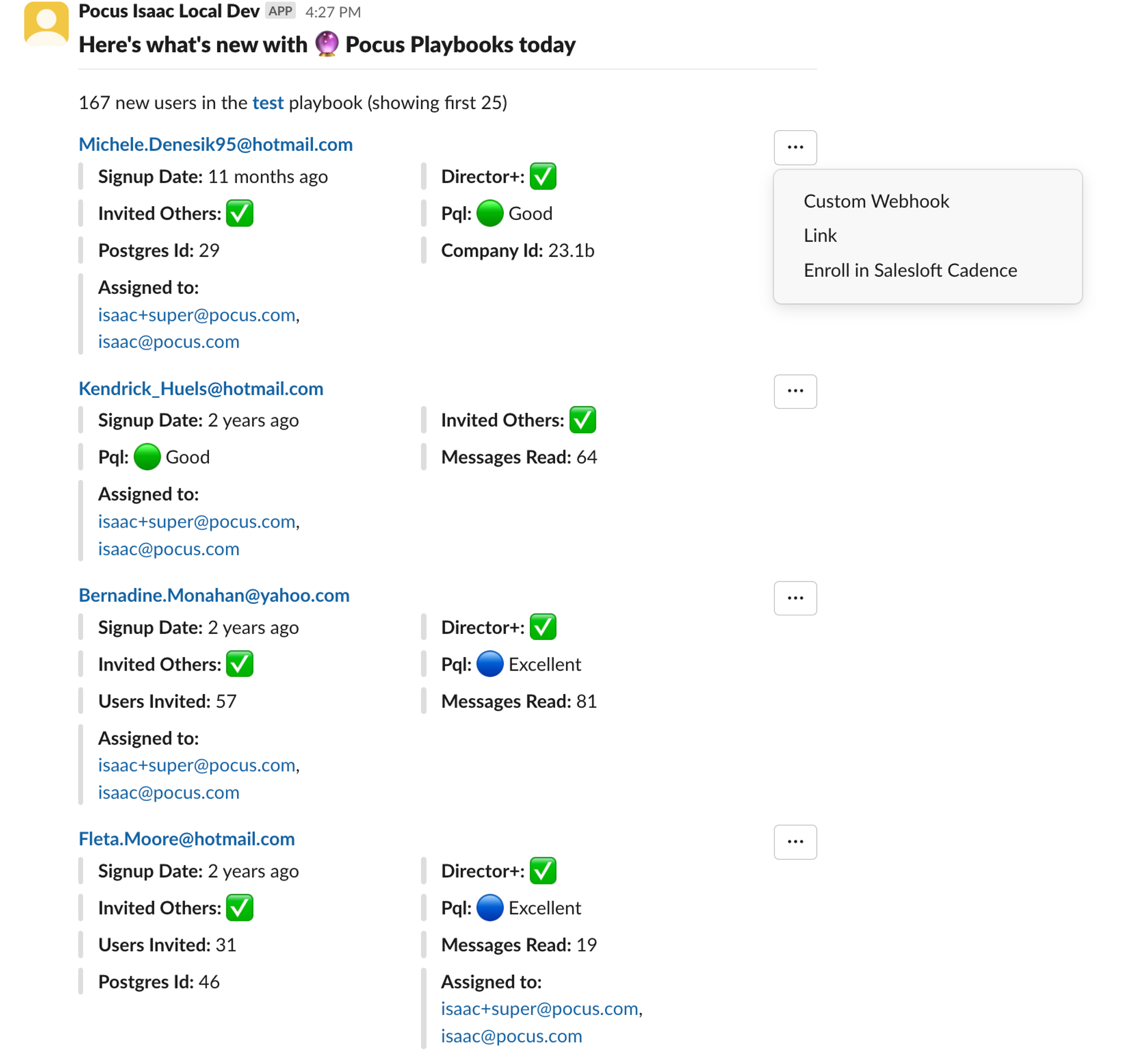
- Each alert will only include up to 25 rows per playbook to avoid overwhelming Slack.
- Actions taken from Slack alerts will redirect the user to the Pocus app where that action will be performed. This means that tracking/attribution and logs for actions taken from Slack work the same as if the action was taken from within the product
- Formatting from the product will be respected in Slack alerts
Where messages get sent
- DMs
- By default, all users are opted-in to receiving DMs from Slack alerts.
- An individual user can opt-out of Slack DMs by typing
/pocus disable-alerts. They can re-enable alerts later on by typing/pocus enable-alerts.
- An individual user can opt-out of Slack DMs by typing
- By default, all playbooks will be included in Slack DMs. The
includeInSlackDmscolumn on thePlaybooktable allow us to enable or disable individual playbooks from appearing in Slack DMs. Currently, there is no way for customers to configure this on the frontend (ping #core-product-feedback if you find you’re often needing to do this!) - Users will only get alerts if they are assigned to a playbook with new activity. If the user isn’t part of a playbook or if nothing has changed in the playbook, no alerts will be sent to them.
- By default, all users are opted-in to receiving DMs from Slack alerts.
- Summary channels
- Each playbook can have a summary Slack channel configured in the Playbook UI. This public channel will receive Slack alerts for all new items in that
- A single playbook can have messages sent to a summary Slack channel and user DMs.
Configuring Slack Alerts
-
Integrate Pocus with Slack
Please see steps here
-
Schedule the Alerts
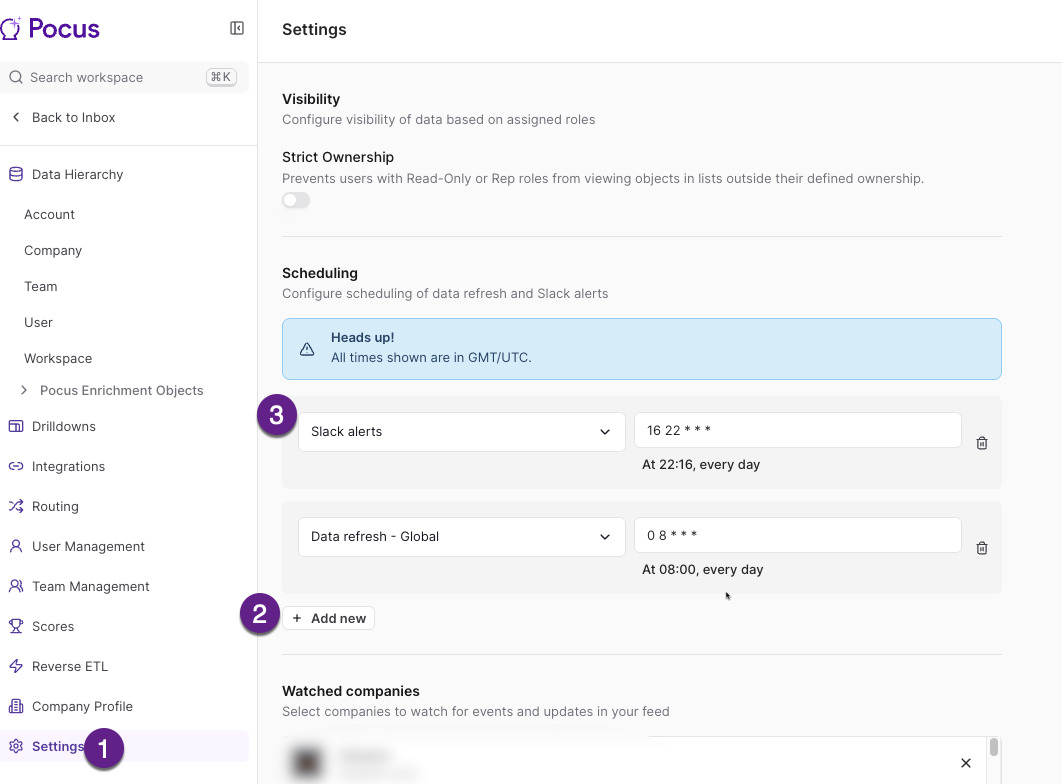
From the main Pocus workspace menu, choose Workspace Settings, then select Settings. Click Add New to add a new schedule. Choose Slack Alerts for the schedule type. The run time can be adjusted if desired.
-
-
Configure the Playbook(s)
Slack alerts are configured per playbook. From the Playbook editor, edit the Surface In Inbox step to configure the slack alerts. Steps in detail can be found in the Surface In Inbox documentation.
Updated over 1 year ago