

Navigating Pocus
Get acquainted with your Pocus workspace and clicking around.
When you first log into Pocus, you'll land in your Inbox. This is just the launchpad for you to start your day. Learn more about all the other functionality of your Pocus workspace and how to get there.
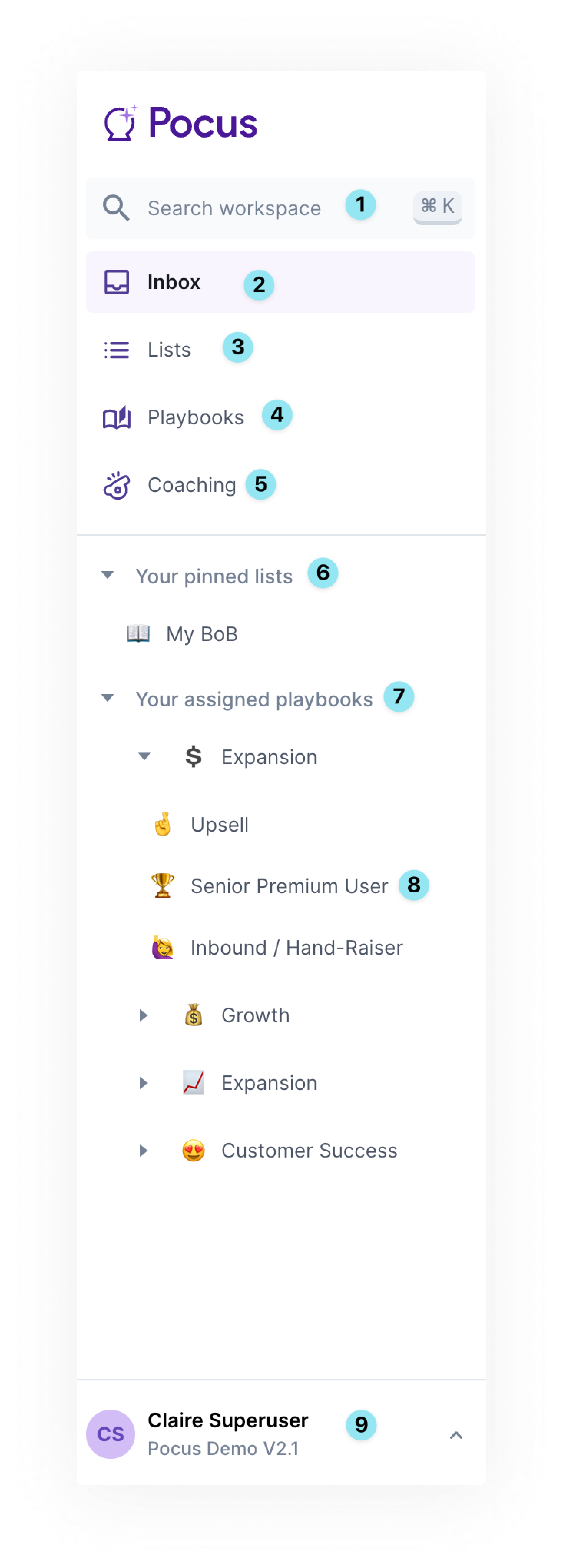
- Search: As an alternative to using the
CMD+Ksearch shortcut, you can do lookups from this search bar as well - Inbox: This opens up the results of the playbooks you are assigned. This option is selected in our screenshot above and we can see the results of “Director+ Users Inviting Others" and “Interesting Recent Signups” in our main window.
- Lists: View all lists in your workspace
- Playbooks: View all workspace playbooks. You will only be able to make edits here at specific permission levels.
- Coaching: Get insight into how many leads and opportunities other users have closed out, or need to close out. This option will only be present for users with admin permission or supplementary coaching permission.
- Your pinned lists: These are lists from the overall list page (#3) that you have pinned for easy access. This section will be custom to your setup.
- Your assigned playbooks: These are the Goals and associated Playbooks that have been assigned to you by your workspace administrator.
- Individual Goal (e.g., Expansion): Clicking into a goal will give you an overview of the performance Reporting for that Goal.
- Individual Playbook (e.g., Senior Premium Users): Clicking into a playbook will give you a full-page view of that playbook’s results. Once in this full-page view, you will also have the option to see the playbook results for different owners and enter the playbook settings.
- Workspace Settings: Clicking on your user name will open a menu that let's you navigate to Workspace Settings, Support Documentation, Impersonation, and Log Out.
Search and navigate quickly with keyboard short cutsWhile you can search for particular object instances by using the search bar in the top left of the inbox view, the
cmd+kshortcut also allows you to navigate to different areas in your Pocus workspace.To read more about the functionality of this feature please refer to Search Article
Too much going on? Collapse the nav by clicking the <
button at the top.
Updated over 1 year ago