

Actions
What is the insight without a fast way to take action? Learn how to set up actions and quick links throughout your Pocus workspace.
Why create Actions?
Part of the power of Pocus is being able to go from insight to action quickly. Pocus makes it easy to work with your other tools, whether through an outside link, or an action that automatically updates your CRM or enrolls them in a sequence.
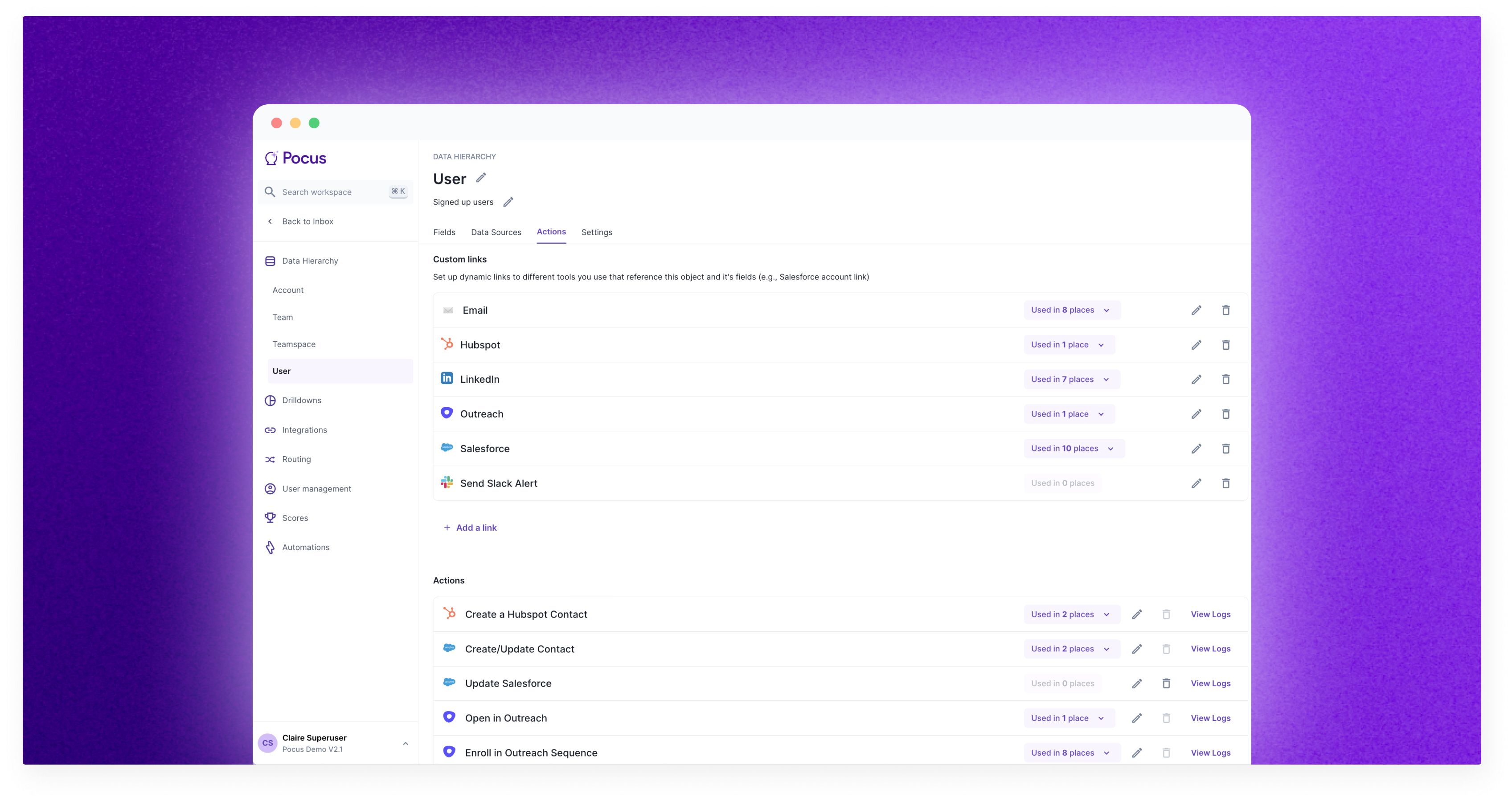
Different types of Actions and Buttons
To configure an action, go to the settings for the object where you want that action to be performed. In the screenshot above, we're creating actions on the User object. This will be all of the buttons or actions available whenever a User is presented throughout the workspace––drill-downs, playbooks, lists.
Custom Links
The first kind of action button that can be configured is Custom LInk. Custom Links allow reps to easily access your other tools (e.g., Salesforce, Hubspot, Internal Admin, Stripe, Zendesk, Gmail).
Building Custom Links
To build a Custom Link combine data points and plain text into our dynamic string field. Let's go through some common examples:
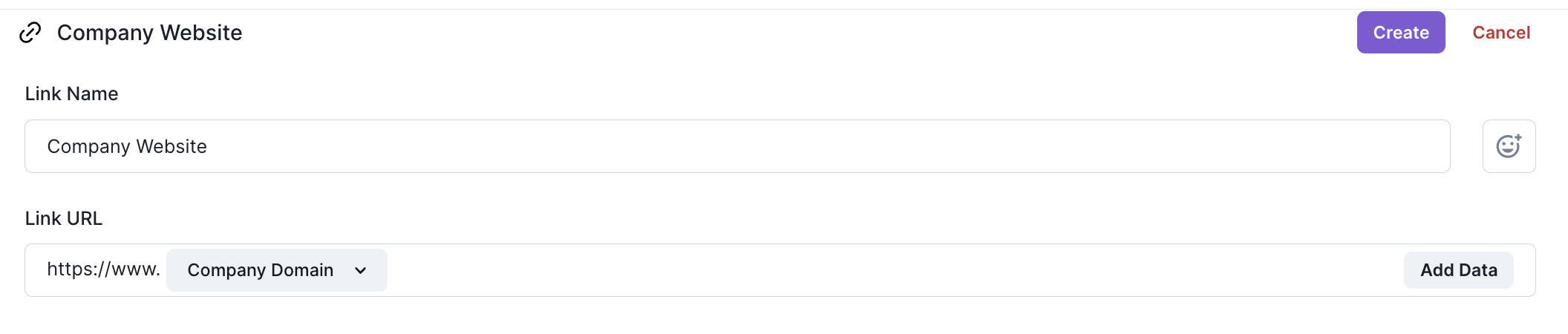
- Company Website
If you have a field in your data that is already returning thecompany_website, you can simply include that field by clicking Add Data. Note: if the domain has no headers, you'll want to include anhttps://www.in front of the data point.
-
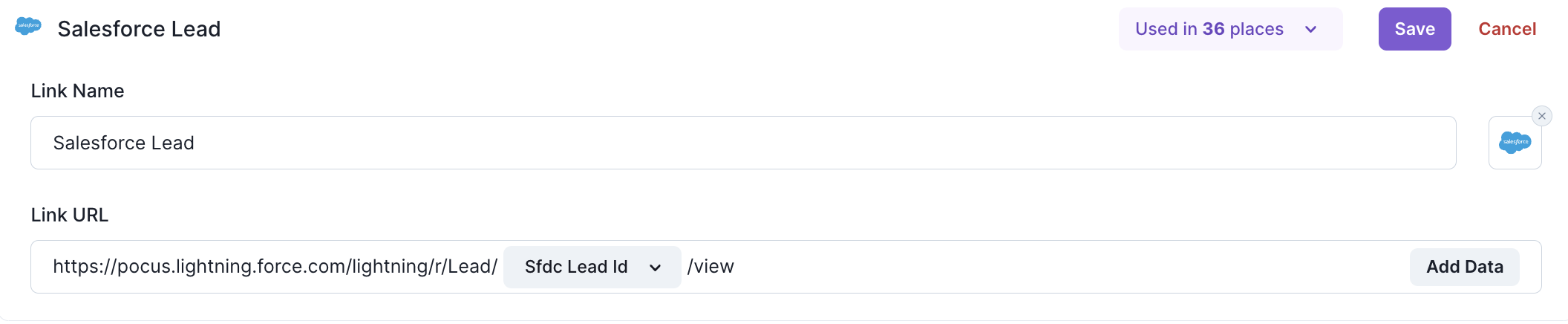
Salesforce
Salesforce URLs follow the same format and can be easily built with the relevant SFDC Object Ids. The below example is for opening a Lead in Salesforce. You can see the URL format ishttps://+sfdc-hostname+.lightning.force.com/lightning/r/+Object/+{{Object Id Field}}+/view
An easy way to check this is to visit a Lead in your SFDC instance and confirm the shape of the URL.
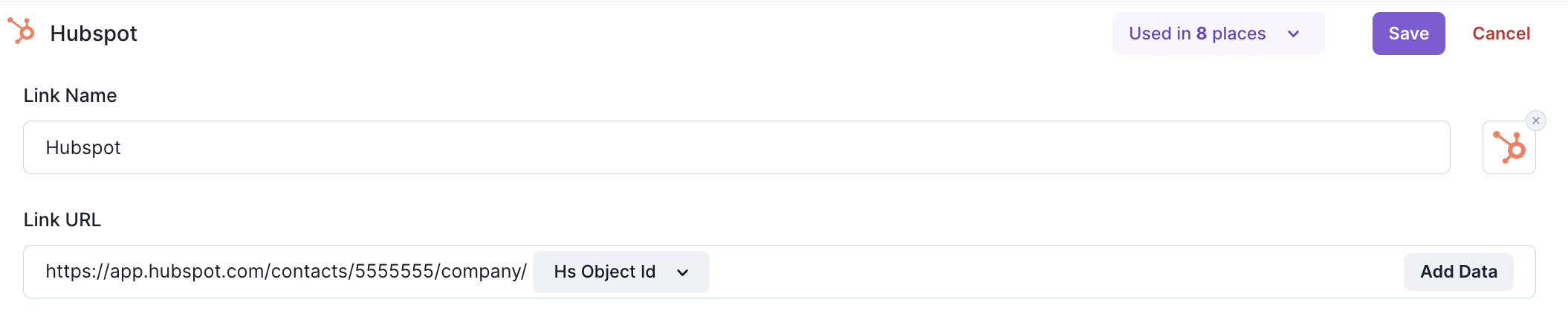
- Hubspot
Hubspot URLs follow a similarly consistent format. The below is an example of opening a Company object in Hubspot. You can see the URL format ishttps://app.hubspot.com/contacts/+Hubspot Workspace Id/+Hubspot Object Name/+HS Object Id
- Gmail
To open email you can use a simplemailto:{{email field}}link to open your native mail client. To force open Gmail, however, use the following link structure.

These links can be customized further to include a pre-written header and email body. href="mailto\:[[email protected]](mailto:[email protected])?subject=Testing out mailto!&body=This is only a test!
- Stripe
If you're pulling in your Stripe Customer Ids build the URL - https://dashboard.stripe.com/customers/StripeCustomer Id Field - LinkedIn
If you have a user's LinkedIn profile URL as a field that can be used here. If not, here are some handy search URLs to build off of your data to get quicker access to LinkedIn and LinkedIn Sales Nav.
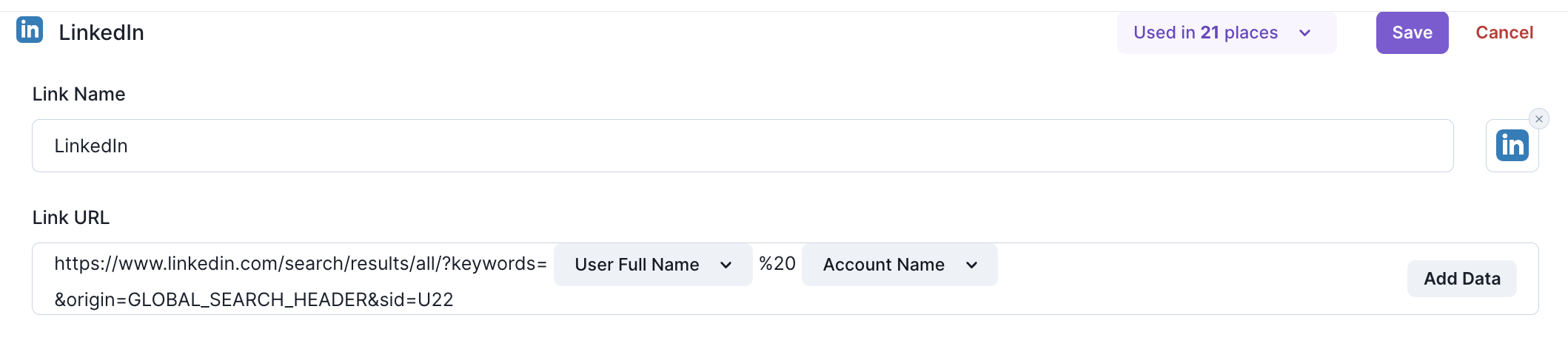
Regular LinkedIn Search Link

LinkedIn Sales Nav Search Link
💯 😄 👍 EmojisAdd emojis to make it easy to identify where this link is going. Don't see a relevant emoji, we're always open to requests 😄
Using Custom Links
Whenever links are used throughout the product, they will open in a new tab for the user. If a tab doesn't open, confirm that the link you've built has the correct http headers.
Links may be grayed out on a given record. This happens if any of the data required to build the URL is not available. For example, if there is no SFDC Lead Id on the record, you would see the below message.
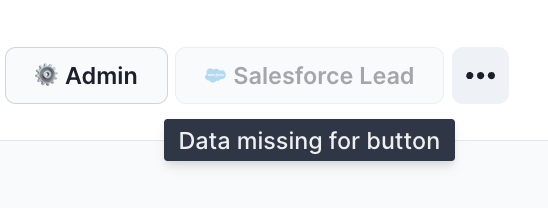
Links can only be clicked on one object at a time. When performing a bulk select, you'll see that links are not available options.
Actions
Actions, as opposed to links, can fire off updates to third-party tools without having to leave the Pocus platform. Actions can be manually invoked by an end-user clicking a button, or automatically through a tech touch playbook. To configure a new Action clickAdd an actionand see all the available actions. Here is documentation on all the different actions that we support.
- Salesforce Actions
- Hubspot Actions
- Google Slides
- Update a Google Sheet
- Webhooks
- Snooze
- CRM Sync
- Apollo Actions
- Outreach Actions
- SalesLoft Actions
Action Container
Action containers allow users to invoke multiple actions with a single click of a button. Want to create a contact in Salesforce and simultaneously enroll them in an Outreach sequence? Place both of those pre-configured actions inside of an Action Container.
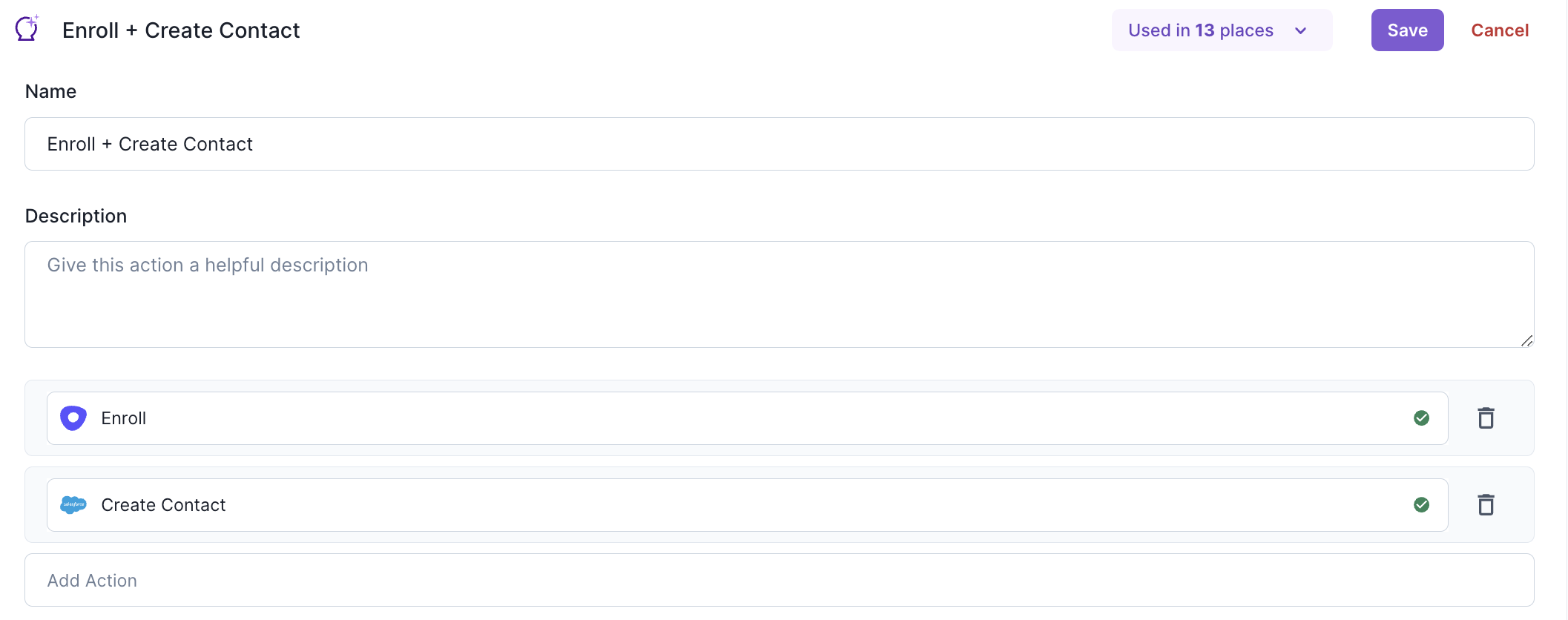
Note: Action containers will be run at the same time and are not dependent on one another. If one fails, the other can succeed as they are not blocking.
Action Logs
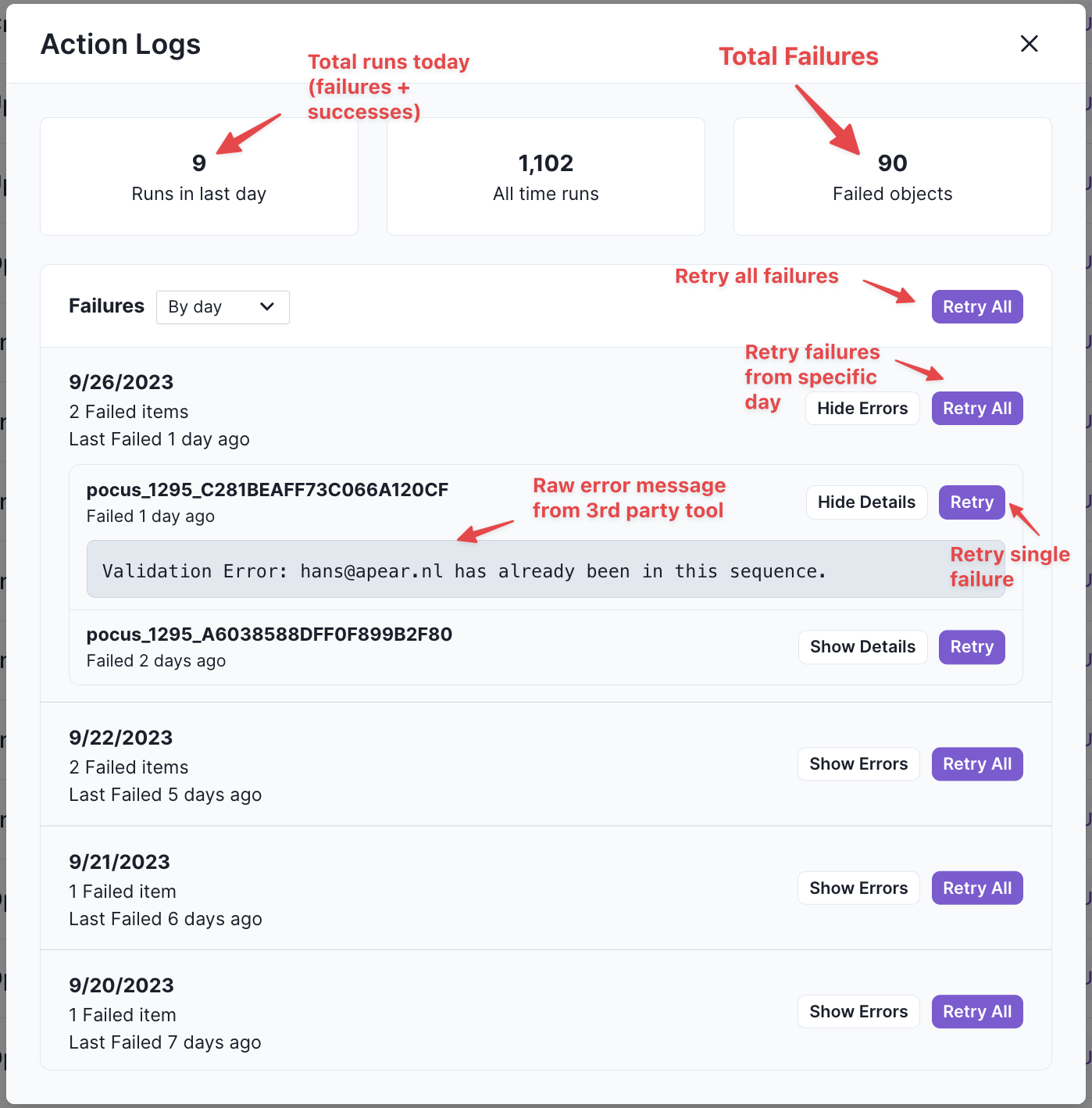
Action logs in Pocus show how many times an action has been invoked, if there have been any failures, and the details of those failures. Failures can be retried as batches or individual retries from the logs.
To access logs for a specific action, click the View logs button next to the edit button for that action

Here is a breakdown of data presented in the Action Log modal. Note: At this time you can't see the logs of your successes, just the total volume of successes that have been run.
Conditional Actions
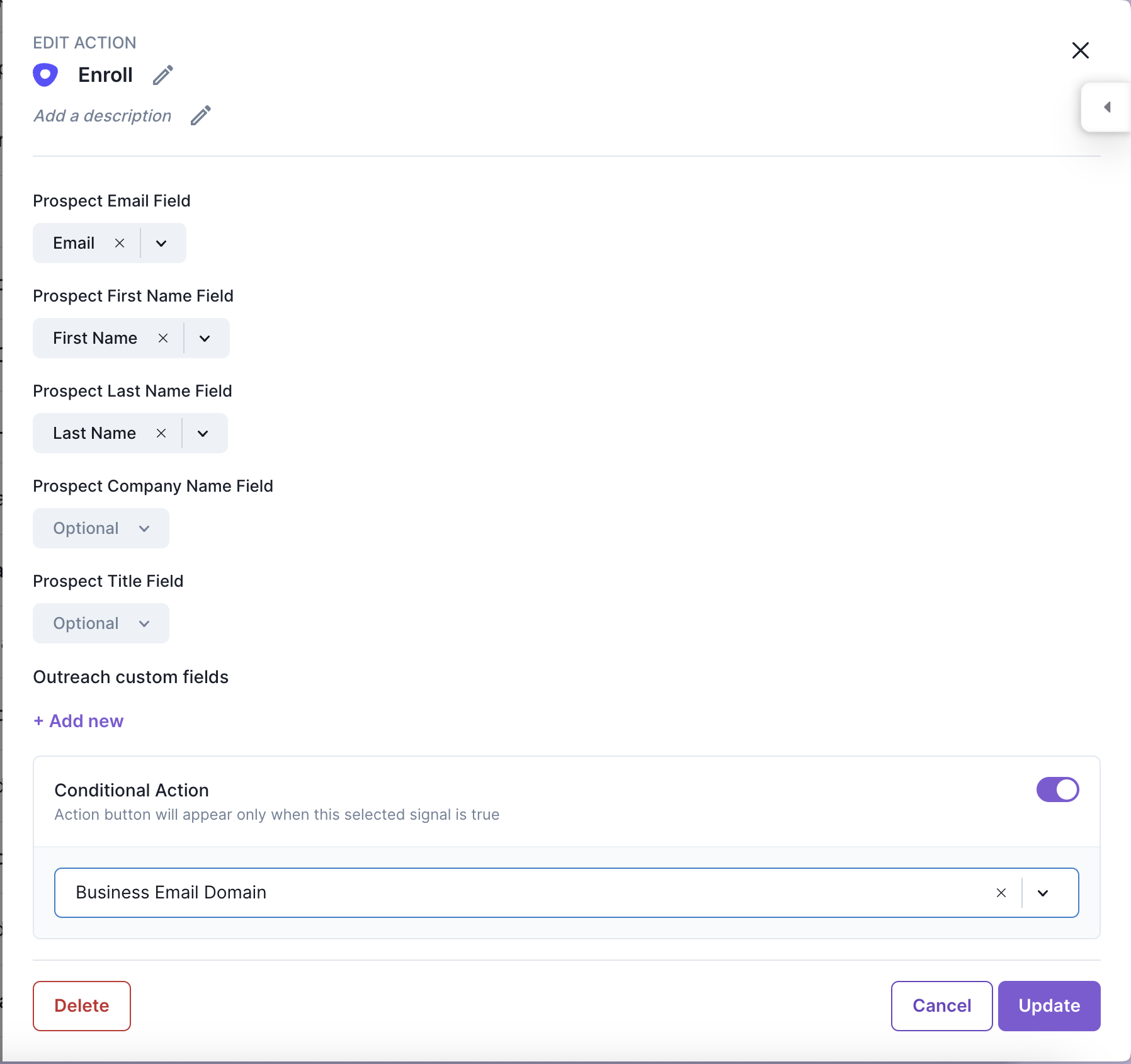
You can set any action to be a conditional action such that it will only ever be presented to Pocus end-users in their Inbox, Lists, and Drilldowns when the selected signal is true.
1️⃣ Open the acton you want to edit
2️⃣ Toggle on Conditional Action
3️⃣ Select from your available Signals. Note: The button appears when the Signal conditions are true and is hidden when they are false.
For example: If you do not want to allow users to enroll users in a Outreach sequences when their email is a gmail.com or other personal email, you can toggle your Enroll in Outreach action to be conditional selecting the Business Email Domainsignal.
Conditional actions only apply to the button being present in the Pocus UI. They are not respected for automations at this time.
Updated over 1 year ago
What’s Next
Explore more details on specific action configurations.