

Update a Google Sheet
Learn how to send data from Pocus out to a Google Sheet
Google Sheets and Pocus
The Google Sheets action dynamically adds a new row to a designated G-Sheet from an object record in Pocus. Google Sheet actions can happen automatically or by clicking a button to push one or more records to the sheet manually.
Want to invite an ad hoc list of users to an event happening? Create a Google Sheet action to push users and their relevant information over to a sheet that can power your e-vite.
Want to keep an automated log of everyone getting surfaced in a playbook? Use a Google Sheet action in a tech touch to push new records automatically every day.
Configuring The Action
- Navigate to the Actions tab for the object whose data you want to pass to Google Sheets. Then select
Add to Google Sheetfrom the+ Add an actionmenu - If you haven’t already done so, you’ll be prompted to create a Google Service account. Click the purple
Addbutton to set one up.
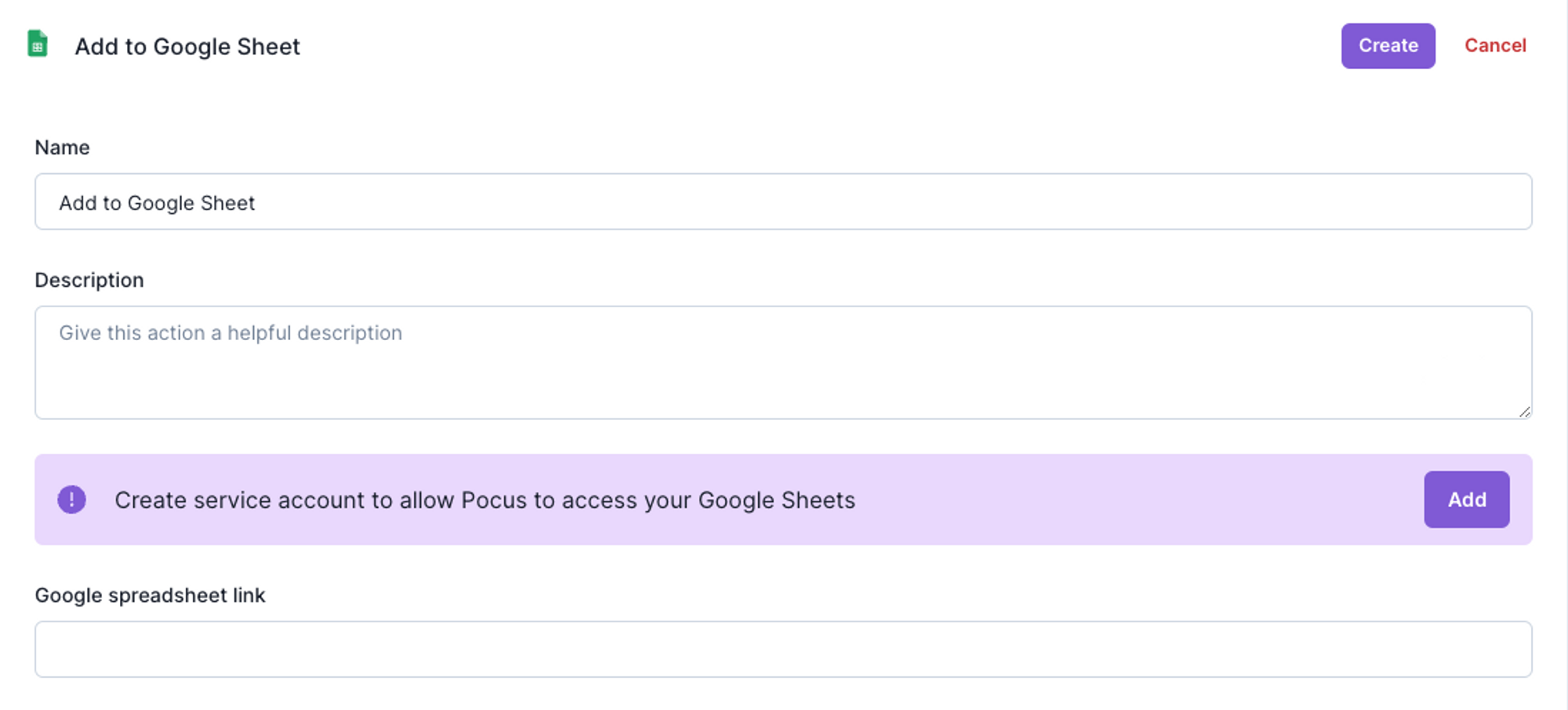
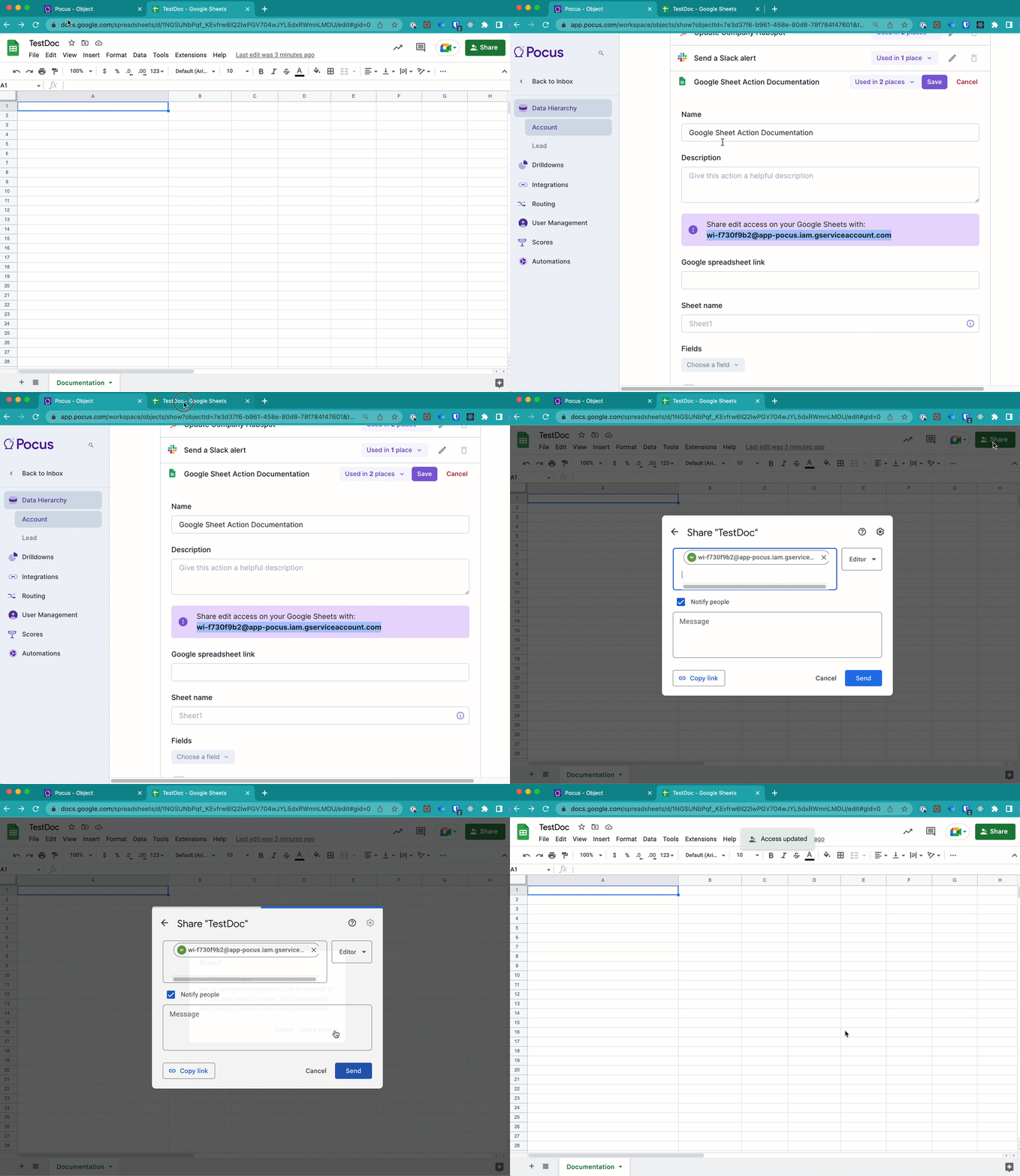
- Once that is set up, you’ll see an email address for the service account. Go to your destination sheet and ensure that this email address has edit access to the sheet.
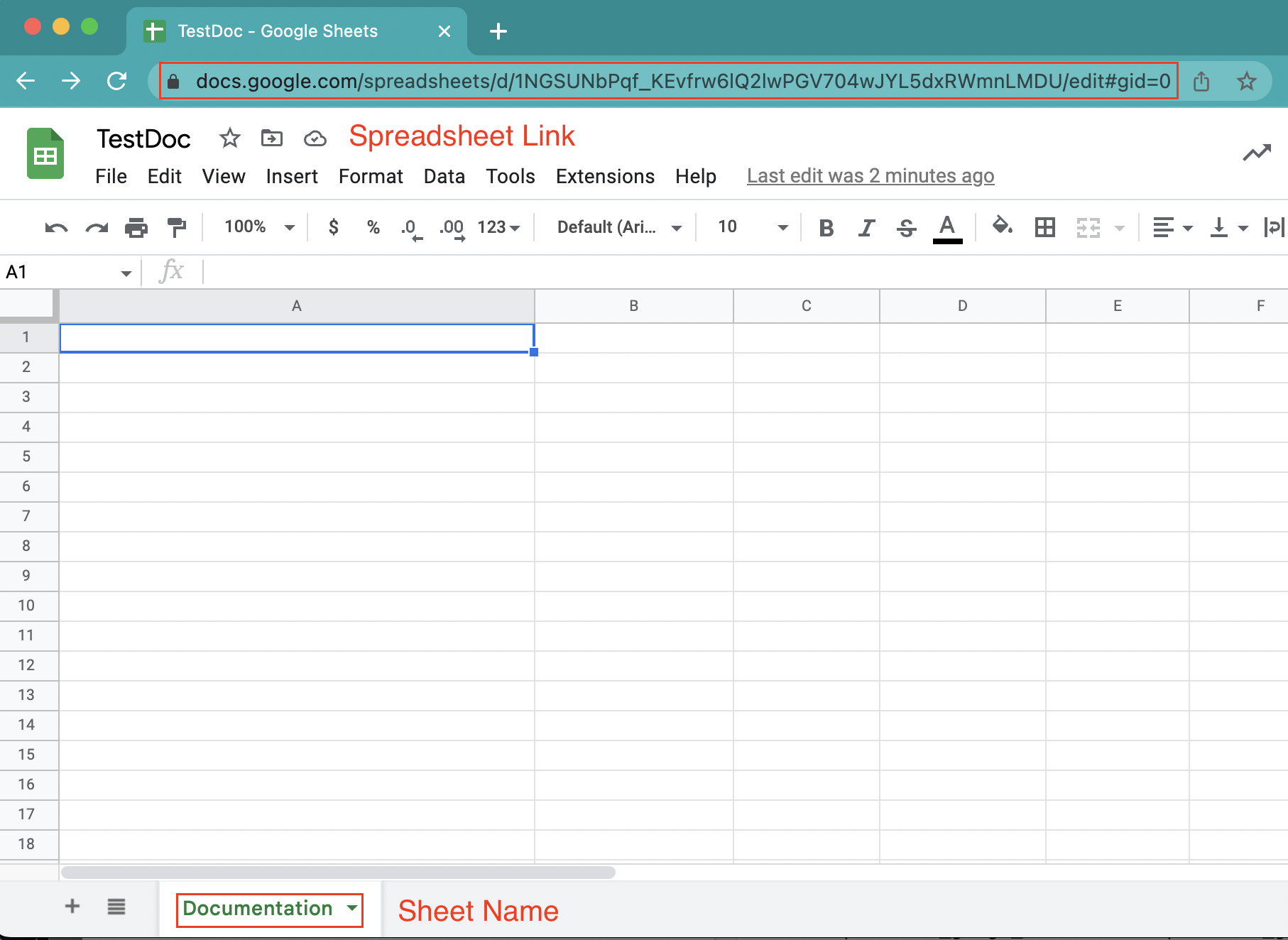
- Now add the Spreadsheet link and the Sheet name, these can be found on your Google sheets in the areas highlighted below
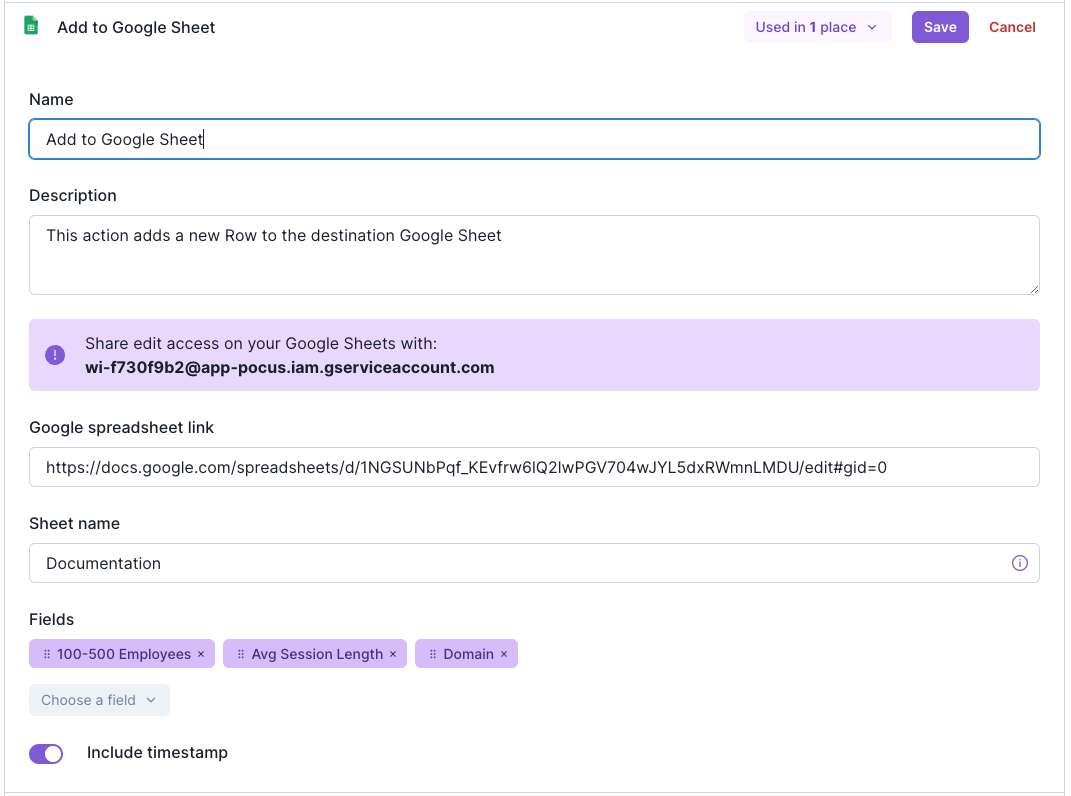
- Once populating these values, select the fields you would like to be pushed to your Google Sheet. If you would like to include the date and time that your values were pushed to your Google Sheet, toggle on the "Include timestamp" switch at the bottom of the action. This setting will result in the activation timestamp being populated as the final column. You can also include the “pocus ID” for each item the action is invoked on. The Pocus ID is a unique identifier for every object record in Pocus so can be used as a new “key” for each row in your destination Google Sheet.
Column OrderThe left to right order of your fields will determine the columns they are added to in your Google Sheet. In the configuration above, "Domain", will be added to column C.
To change the order of these fields you can drag and drop them by clicking and holding the textured section at the left of the field.
Once filled out, your settings should look similar to the below.
Action creates new rows onlyThis action only creates new rows. Invoking it twice on the same row in Pocus will result in the selected fields being added to your destination Google Sheet twice.
Updated over 1 year ago