

Drilldowns
Learn how to build custom dashboards designed to help you dive deeper into your data.
Drilldowns are custom dashboards that appear when you click on an individual object from a list or within your inbox. They’re designed to help you dive deeper into your data and take action accordingly. Read on to learn how to access and configure Drilldowns.
What are Drilldowns?
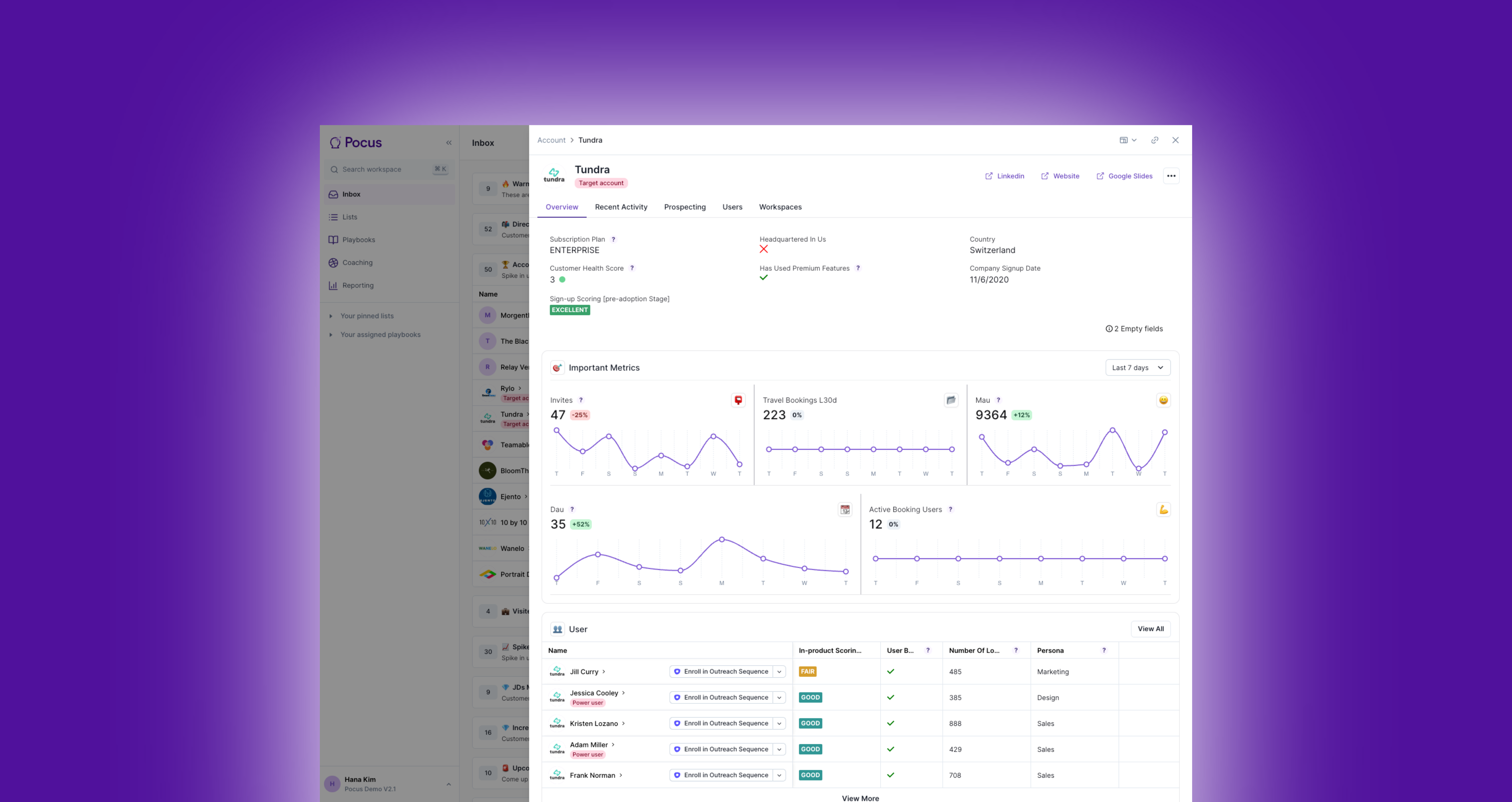
A Drilldown is a configurable dashboard that shows you insights about a particular account, user, or any other type of data important to your organization.
Each Drilldown is made up of a custom combination of widgets that display data about a record and allow users to take action. A few examples of what you can build into your Drilldown using widgets:
- Visualize metrics like product usage and user growth over time
- View a list of top users within an account
- Enroll a contact in an Outreach sequence
- Update a record in your CRM
Drilldowns can contain data that’s directly tied to an object and data that’s related to an object.
For example, let’s say Workspaces and Users are relevant to your business, and workspaces can contain many users. In a Workspaces Drilldown, it may be helpful to see additional data about the Workspace (e.g., workspace activity, total user count, buttons to view the Workspace in another platform) and data related to the workspace (e.g., individual users within the workspace, power users within the workspace).
Pocus’ flexible data model and Drilldown customization options make this visibility possible!
Accessing Drilldowns
Drilldowns slide out as an overlay when you click on an individual object within the inbox or a list view. When a user, account, workspace, or other object becomes ready for outreach, open the Drilldown to dig deeper – learn why it’s worth looking into and use the insight to drive more personalized conversations, timely outreach, and thoughtful engagement.
You can access and configure all Drilldowns through Workspace Settings or hop straight there with CMD + K. Most workspaces will have default Drilldowns automatically set up for each object.
Create a New Drilldown
From the Drilldowns page in Workspace settings:
-
Click the Add a Drilldown + button
-
Name your Drilldown and select the object (or data type) that you’d like to build a Drilldown for.
A User Drilldown will be accessible in a User-based list or User-based Playbook, while an Account Drilldown will be accessible in an Account-based list or Account-based Playbook.
-
Click the Create button and begin configuring your Drilldown.
Pro TipWe recommend building custom Drilldowns for each team or user type using Pocus and only showing data and actions relevant to their work and goals. For instance, you may wish to configure different Drilldowns for your SDR, AE, and CS teams.
Edit an Existing Drilldown
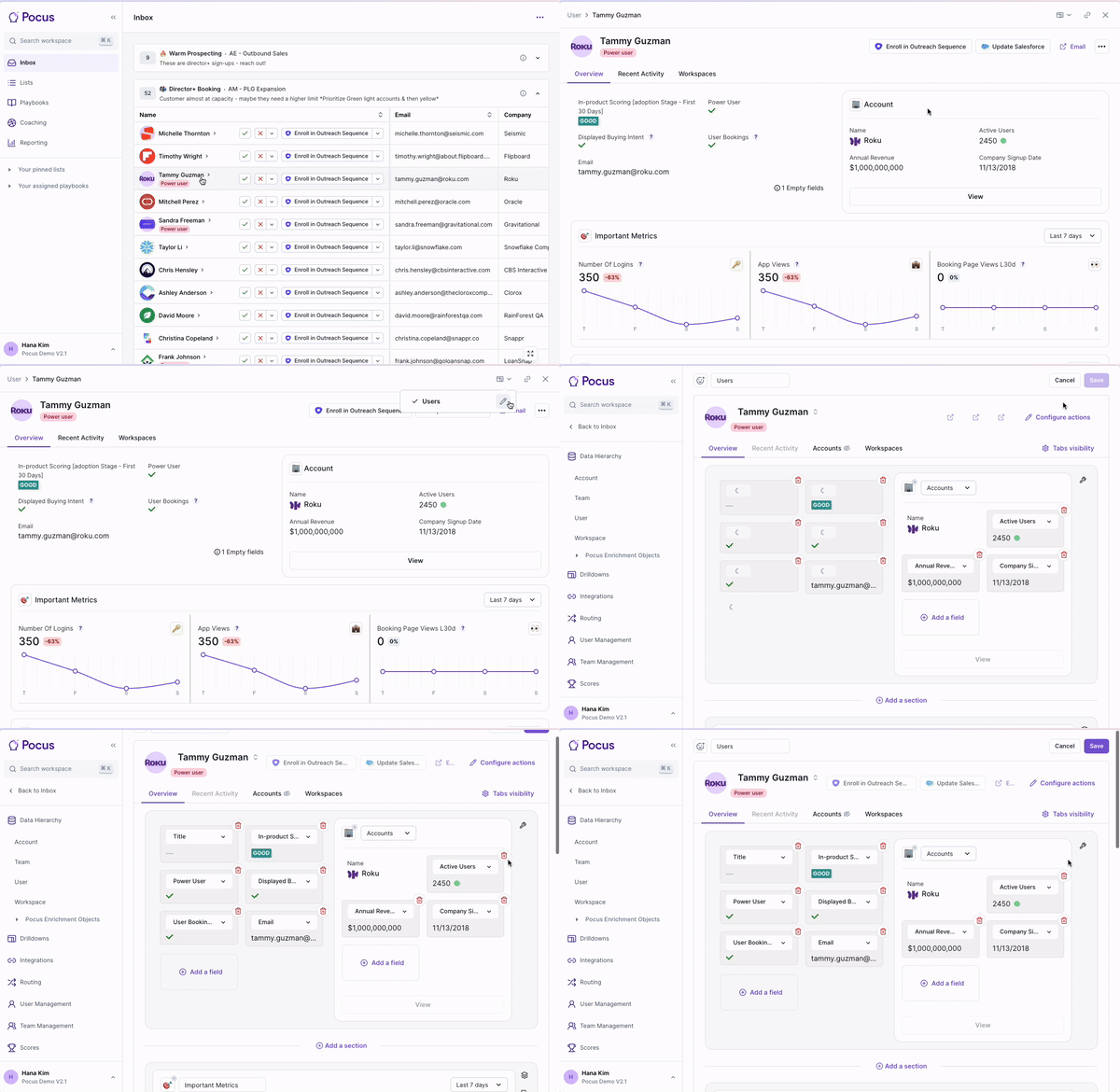
From the Drilldowns page in Workspace settings, click the pencil icon on the Drilldown you’d like to edit.
You can also edit an existing Drilldown when it’s open in the inbox or a list. To edit, click block menu and the pencil icon in the top right corner of the Drilldown.
Configure a Drilldown
Now the fun begins! You can start configuring your Drilldown by customizing Sections or Tabs and by adding Actions
Configure Sections
You can add, reorder, duplicate, or delete Sections within the Overview tab of the Drilldown.
- To add a Section, click the Add section buttons between sections.
- To reorder Sections, click the layers icon in the stack of icons at the top right corner of each section.
- To duplicate a Section, click the copy icon in the stack of icons at the top right corner of each section.
- To delete a Section, click the red trashcan icon in stack of icons at the top right corner of each section.
Configure Tabs
You can control the visibility and order of Tabs by clicking the Tab Visibility button at the top right of the Drilldown editor.
Individual tabs can be configured by clicking into the relevant Tab and editing from there.
Configure Actions
You can add Actions directly to the Drilldown by clicking the Add an action button at the top right corner of the Drilldown editor. You can add the same actions here as you would to a Playbook or List.
Preview dataYou can choose from several records for preview data as you build out your Drilldown. Want to see a specific account or user as you configure the Drilldown? Open up that account Drilldown and click in to edit directly.
Using Drilldowns in Lists, Inbox, and Search
Having different Drilldowns for a single object can be helpful when different teams are interested in different data points. You have control over which Drilldown opens from the various locations in the Pocus product.
Switch Drilldown in a List
Click the three-dot menu in the top right corner of any List. Click Switch Drilldown Templateand select the Drilldown you’d like to begin seeing as you click through data in your list.
Assign Default Drilldown in a Playbook
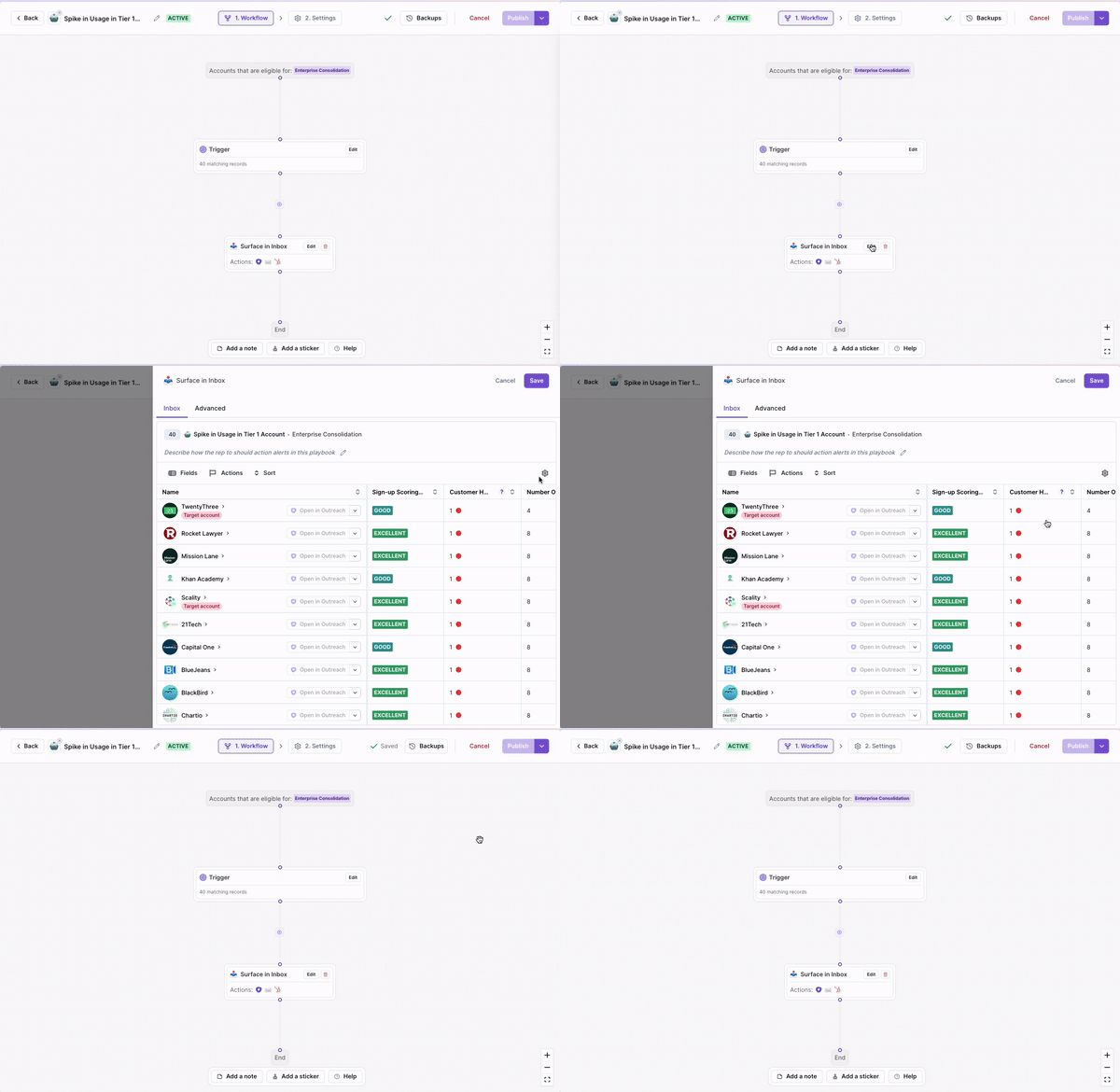
When editing a Playbook, you can select the default Drilldown to open when users are interacting with records from the Playbook in their Inbox.
From the Playbook editor:
- Click Edit on the Surface in Inbox action.
- Click the gear icon at the top right corner of the Inbox preview.
- Select the Drilldown you'd like to use. Individual users can always switch between Drilldown views by clicking the block menu in the top right of any open Drilldown.
Set Default Drilldown for Search
When using the "Search Workspace" search in the top left of the home page, or the cmd+k shortcut for workspace search, selecting a result will open an object's set default Drilldown. To set the default Drilldown for an object, go to your workspace settings, select the object and go to the Settings tab. There you will find a drop down selector labeled "Default Drilldown."
Updated over 1 year ago