

Okta SCIM
How to configure Okta SCIM in Pocus
Create a Okta SCIM connection in Pocus
- Navigate to the Pocus workspace settings, then click on the "User Management" button.
- Navigate to the "Provisioning" section, and click the "Add New" button.
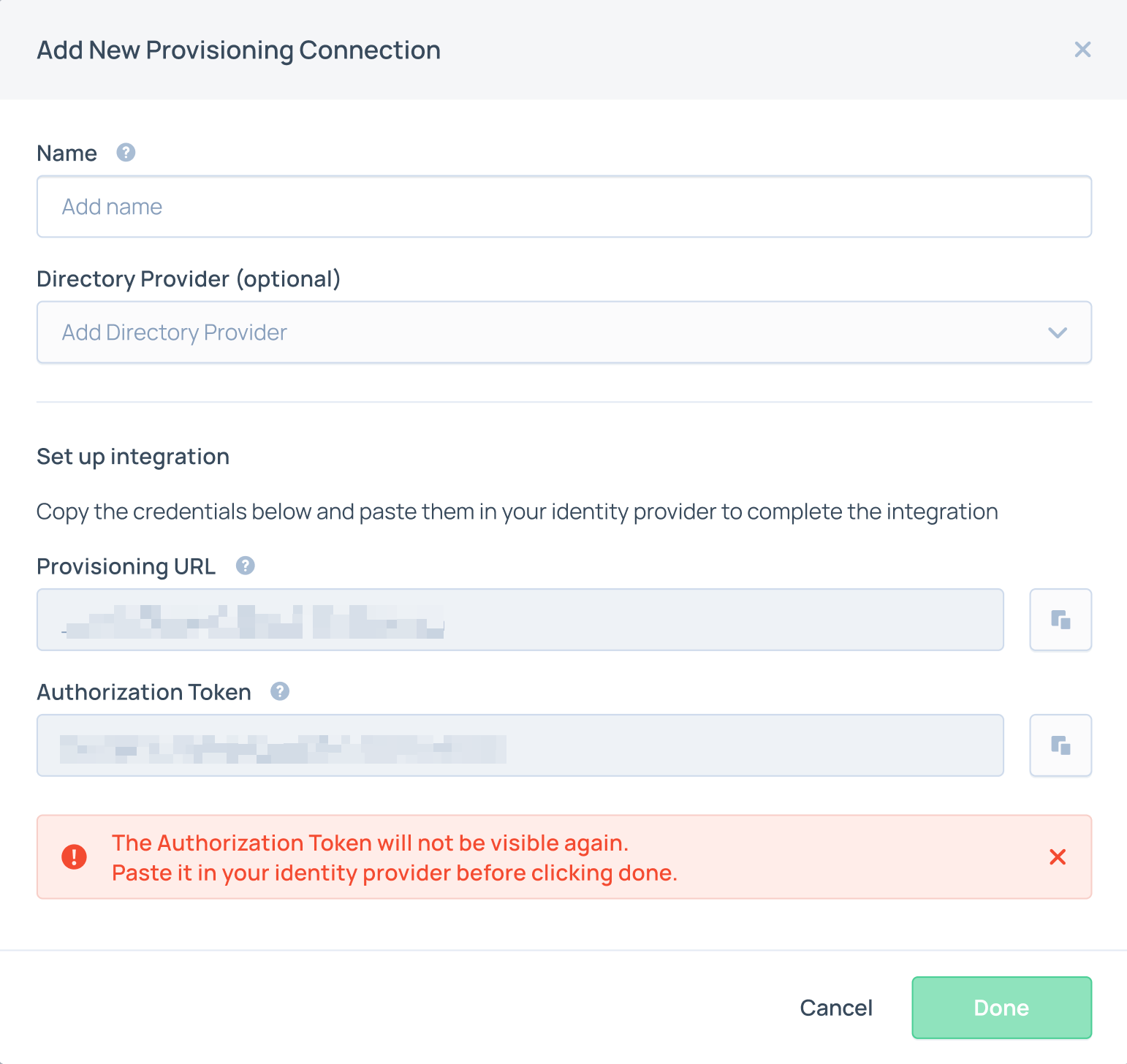
- Select Okta as the directory provider and add a connection name
- Copy the provisioning URL and authorization token.
- Open the Pocus application in Okta
- Enable SCIM provisioning in App Settings.
- Go to the Provisioning tab in the app
- Enter the provided Provisioning URL for the "SCIM connector base URL" field
- Enter "userName" as the Unique identifier field for users
- Enable all available supported provisioning actions except for "Import groups".
- Change the authentication mode to HTTP Header and enter the Authorization Token as the token.
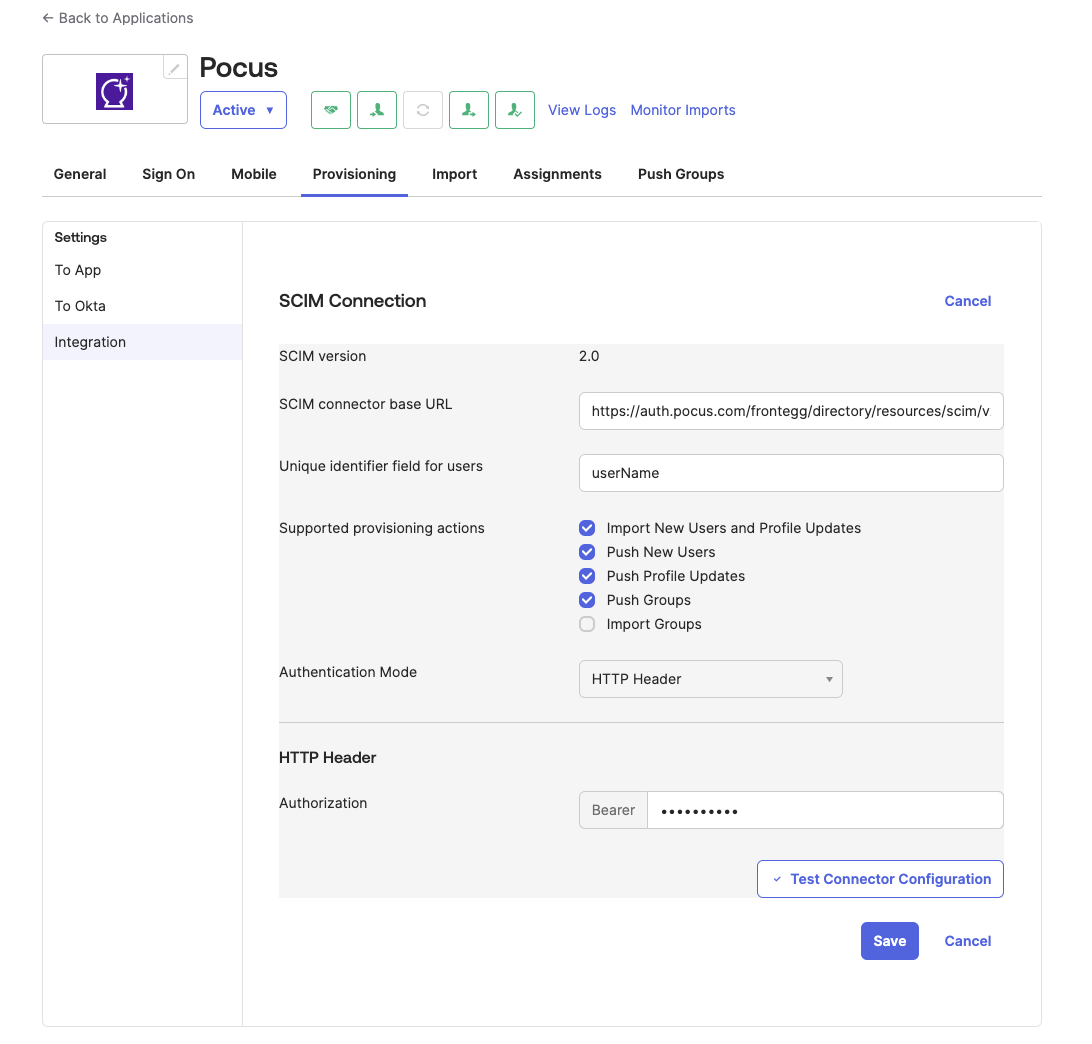
- Click Test API Credentials to ensure it's set up correctly
- When you get a success message, click "Save to apply"
- A few more options will now appear under the Provisioning section
- Select "To App" in the left-hand menu
- Choose desired settings
- Click Save to apply
Updated over 1 year ago