

Version Control for Playbooks
Learn about how version control works as you edit and configure Playbook Workflows.
Backups & Versions
Every time you edit a playbook, Pocus makes a new version. When you publish those edits, that new version goes live. You can still access historical live versions using the Backups drawer. Here you can see logs of the changes made (1️⃣), as well as restore old versions of the playbook (2️⃣).
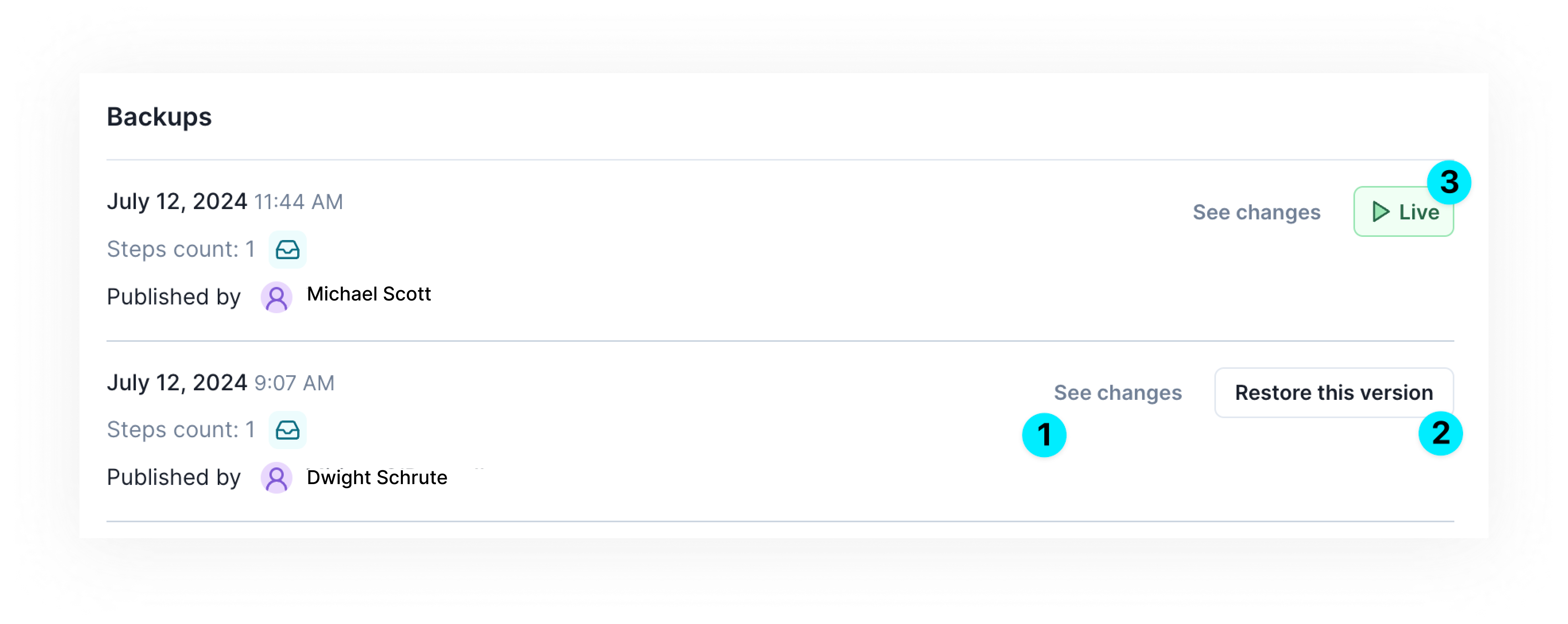
When you restore an old version (2️⃣) of a playbook, it will recreate that version as a new draft for you to publish.
States
- Unpublished
- When you first create a playbook, it is in an unpublished state and there are no live versions.
- Pocus saves the changes you make to this unpublished draft, but no reps will see it in their inbox and no data will run through our playbook processor.
- Active
- Playbook is active and running.
- If it has a Surface in Inbox action, reps are seeing records and they are getting refreshed on every workspace refresh (default daily).
- Draft
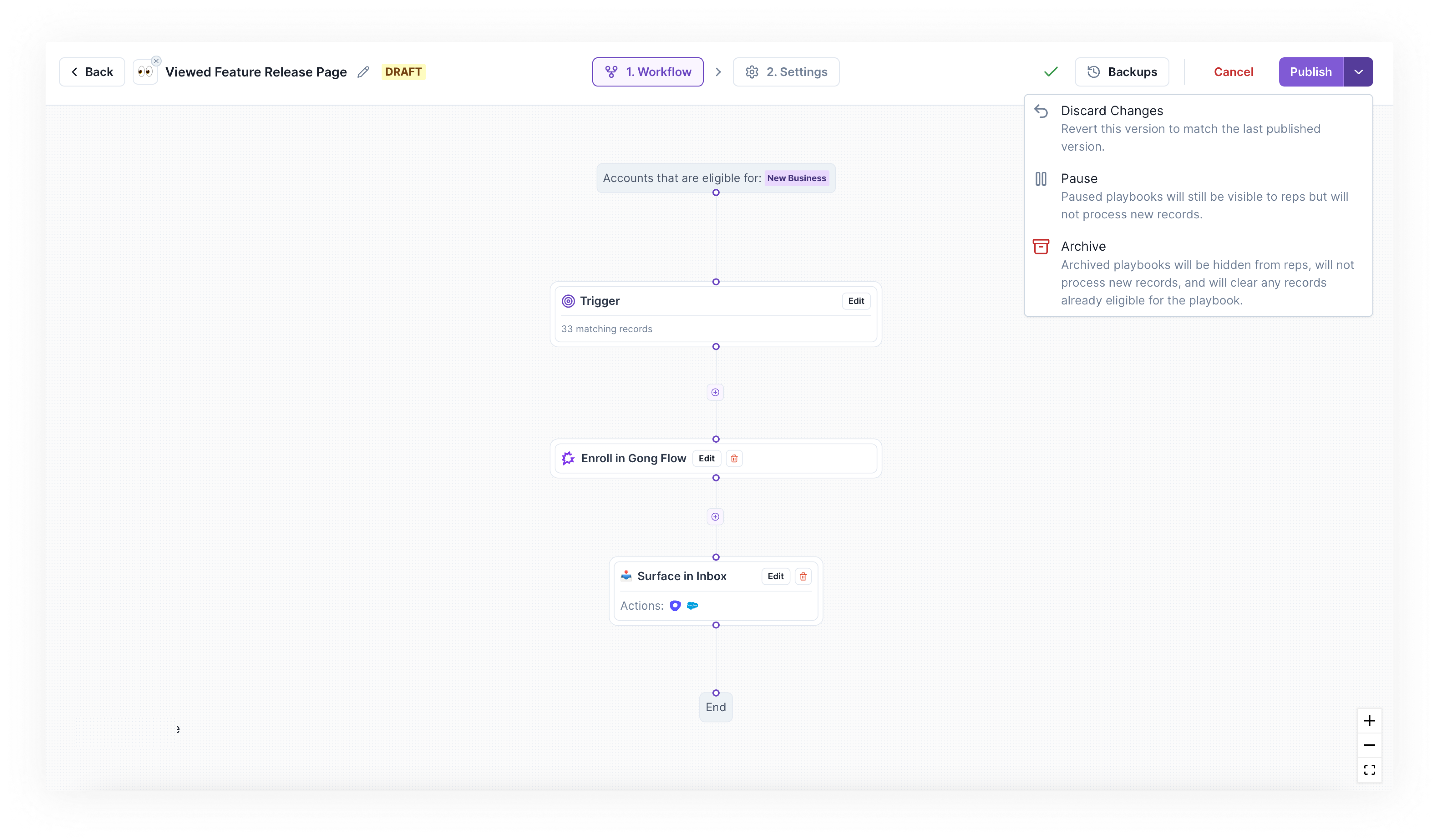
- The current version you are working on is a draft. All changes will be saved, but edits will not be made live until Publish is clicked.
- What reps see in their Inbox will be the results of the active Playbook, and your draft version will not impact the live Inbox.
- Paused
- Keeps playbooks in the reps' Inboxes, but prevents new records from entering the workflow.
- This state allows reps to continue working existing records in a Playbook, so it is recommended if you are undergoing a data migration or if there's an issue with your queries.
- Note: When paused, no automatic refreshes will occur in the workflow (i.e., newly ineligible records will remain in the inbox, newly converted records will not be logged)
- Archived
- Turns off the workflow, so no new records are added and existing records stop moving through the workflow.
- This state also hides Playbook from reps Inboxes.
- We recommend archiving previously used Playbooks instead of deleting them, since archiving will allow you to view reporting and historical activities.
Updated over 1 year ago