

BigQuery
Creating a service account for Pocus
Pocus uses a Google Cloud service account to authenticate with BigQuery. This section will explain how to create such an account. You must have admin permissions on Google Cloud in order to create a service account.
- Navigate to the service accounts page on Google Cloud Platform, and ensure that the correct project is selected.
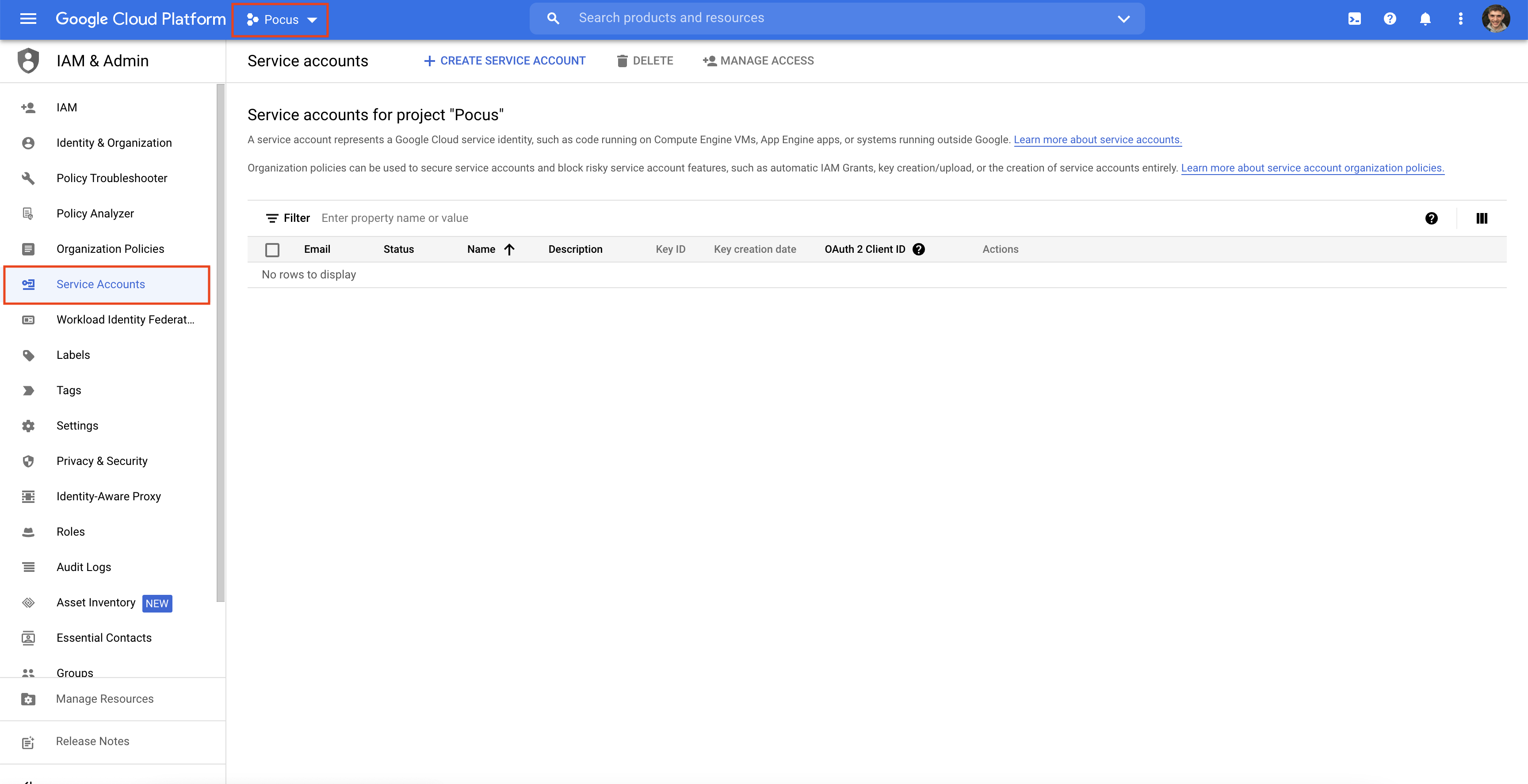
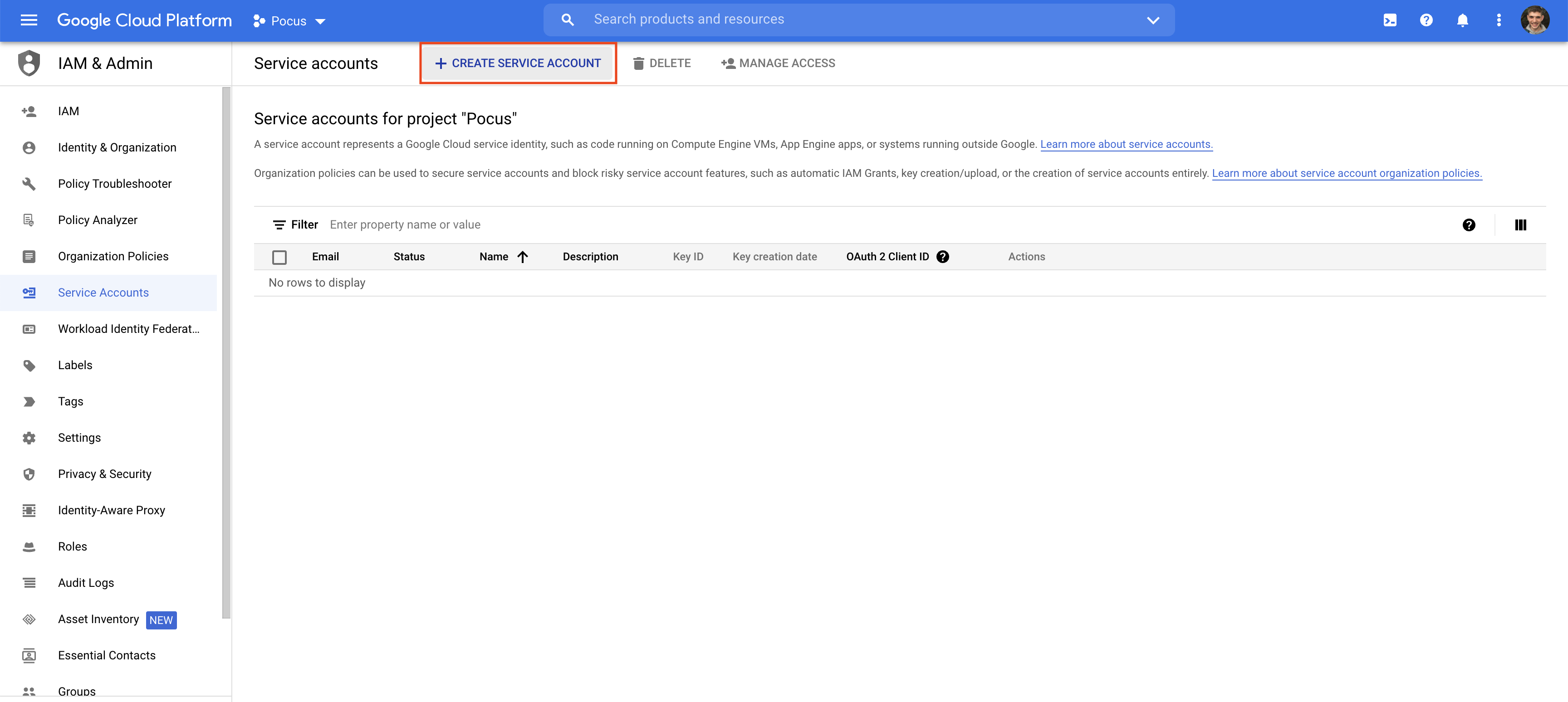
- Click the Create Service Account button at the top of the screen
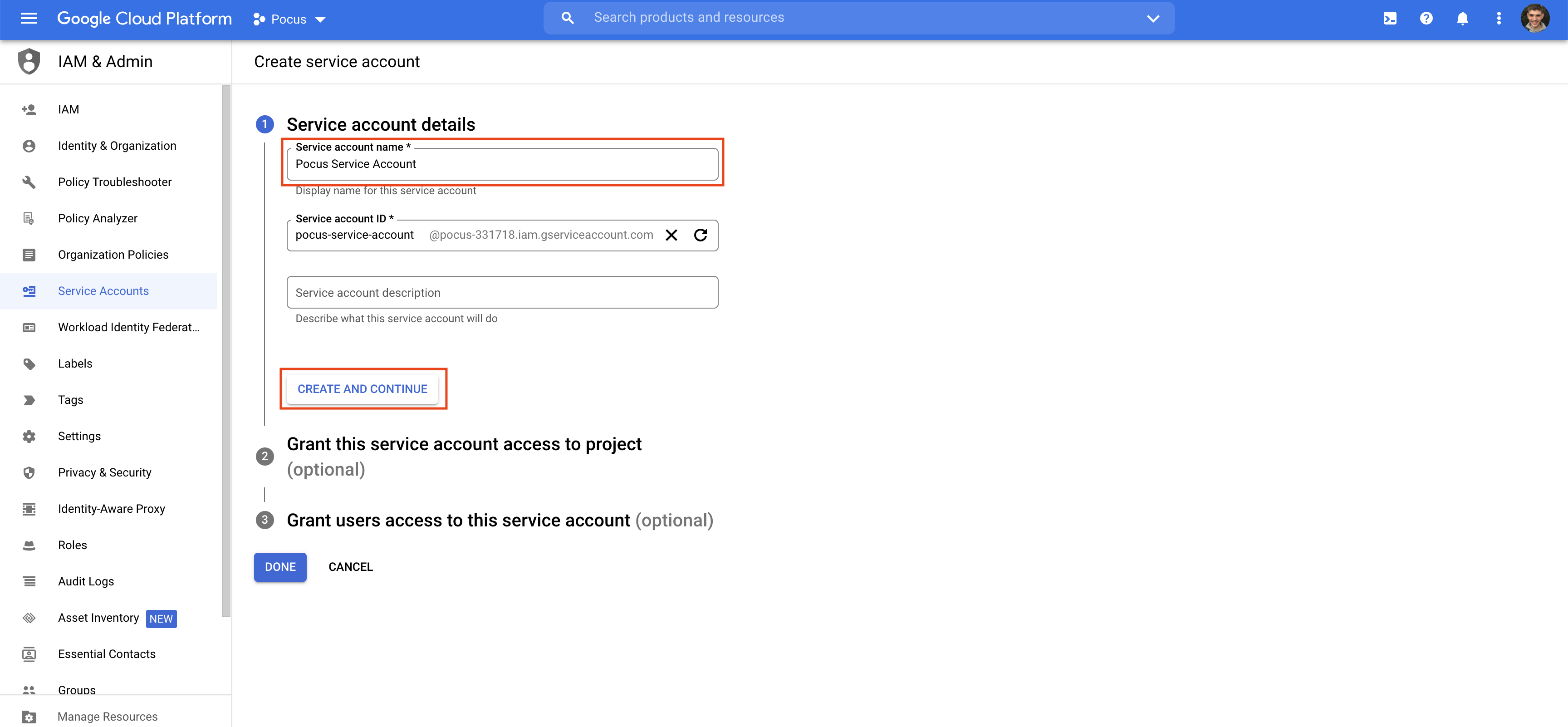
- Enter a name for the Pocus service account, optionally add a description, click the Create and Continue button.
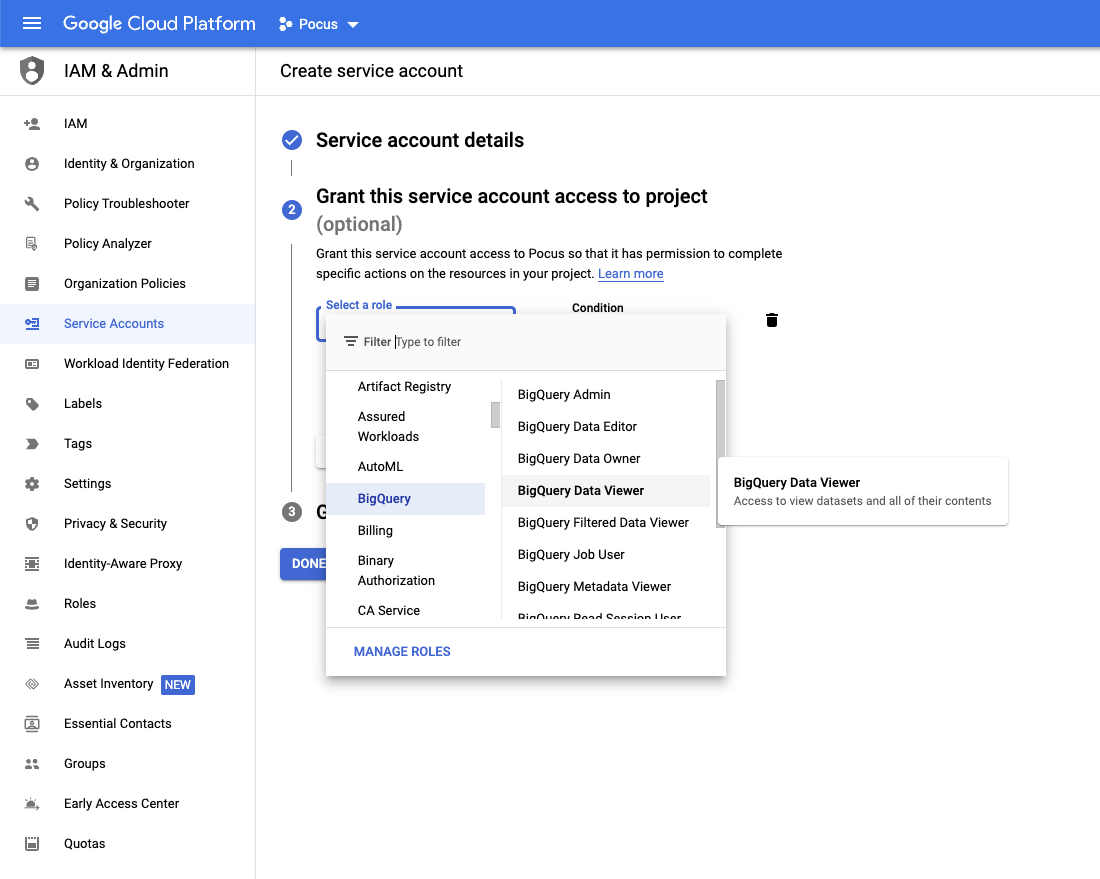
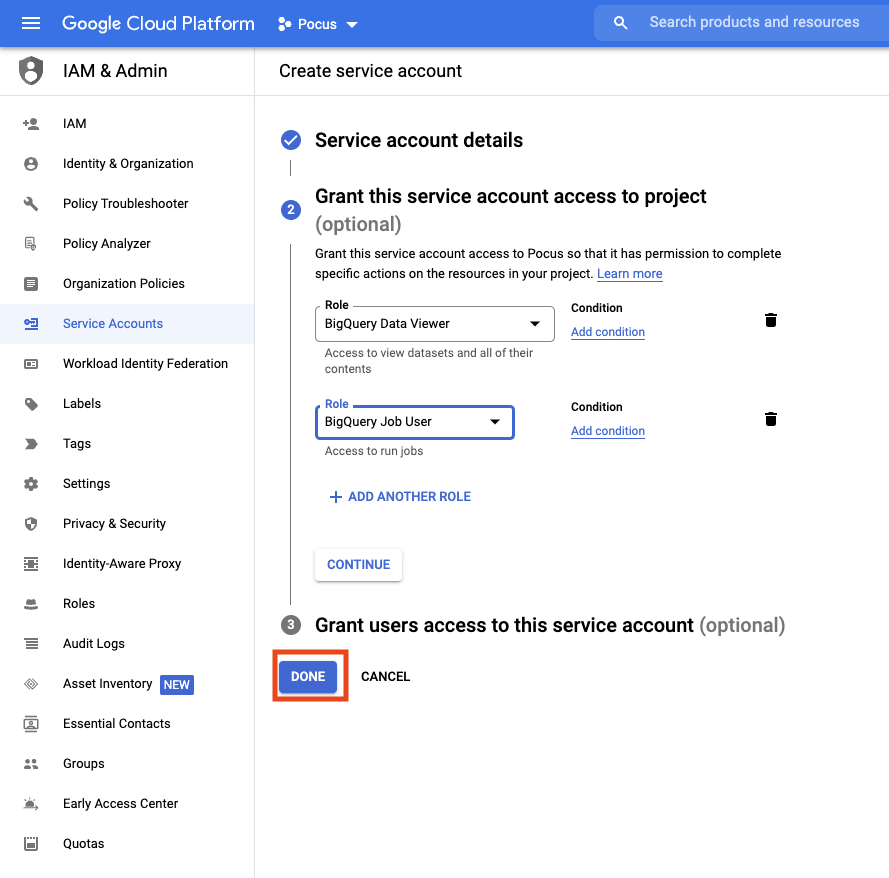
- Add two Google BigQuery predefined roles to the service account:
- BigQuery > BigQuery Data Viewer
- BigQuery > BigQuery Job User
Once both predefined roles have been granted, you may press the "Done" button
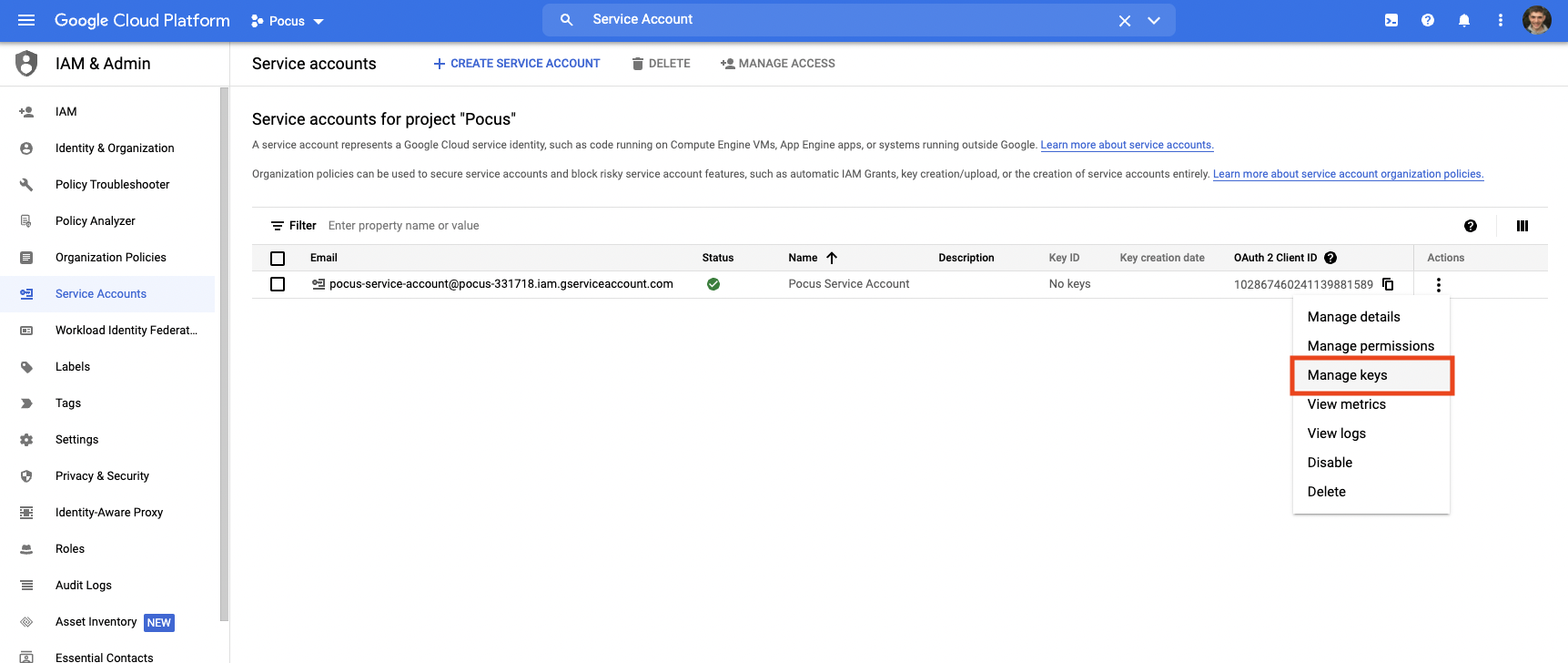
- From the Service accounts page, click on the actions dropdown for the newly created service account, and press "Manage keys"
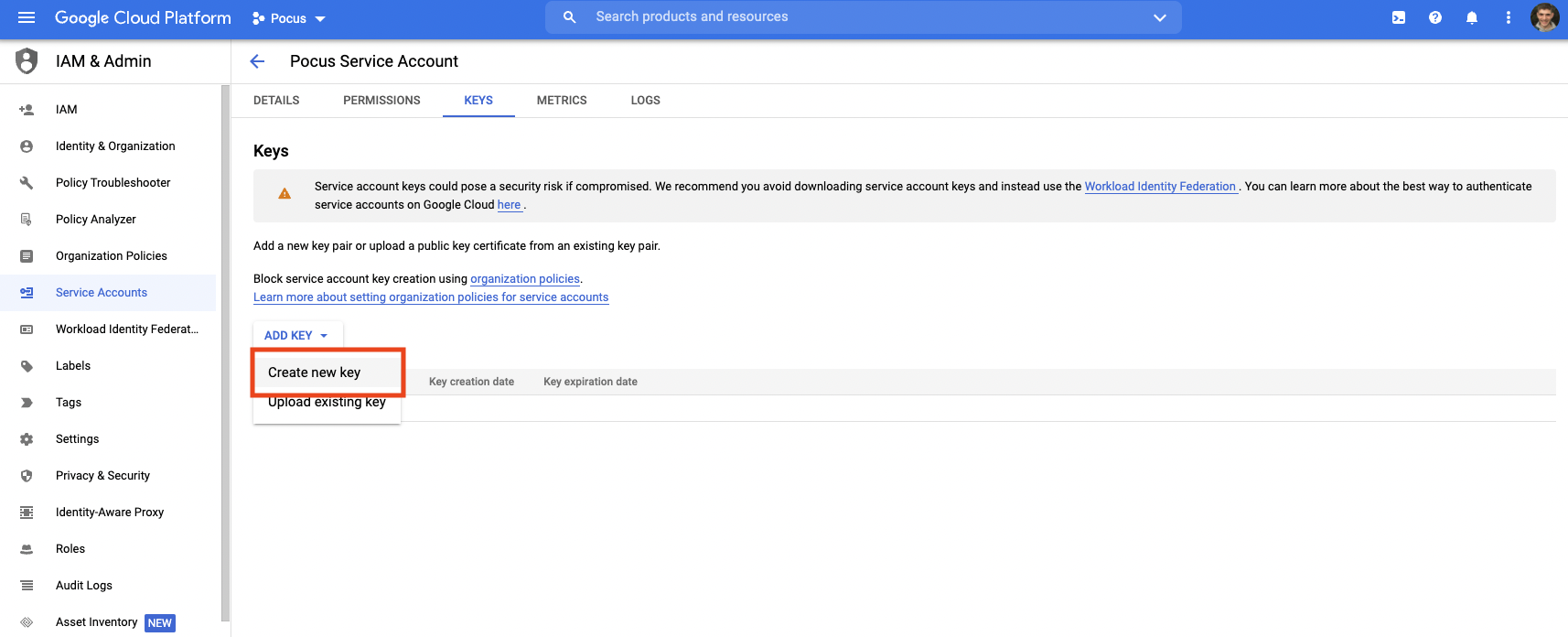
- Press Add Key > Create new key
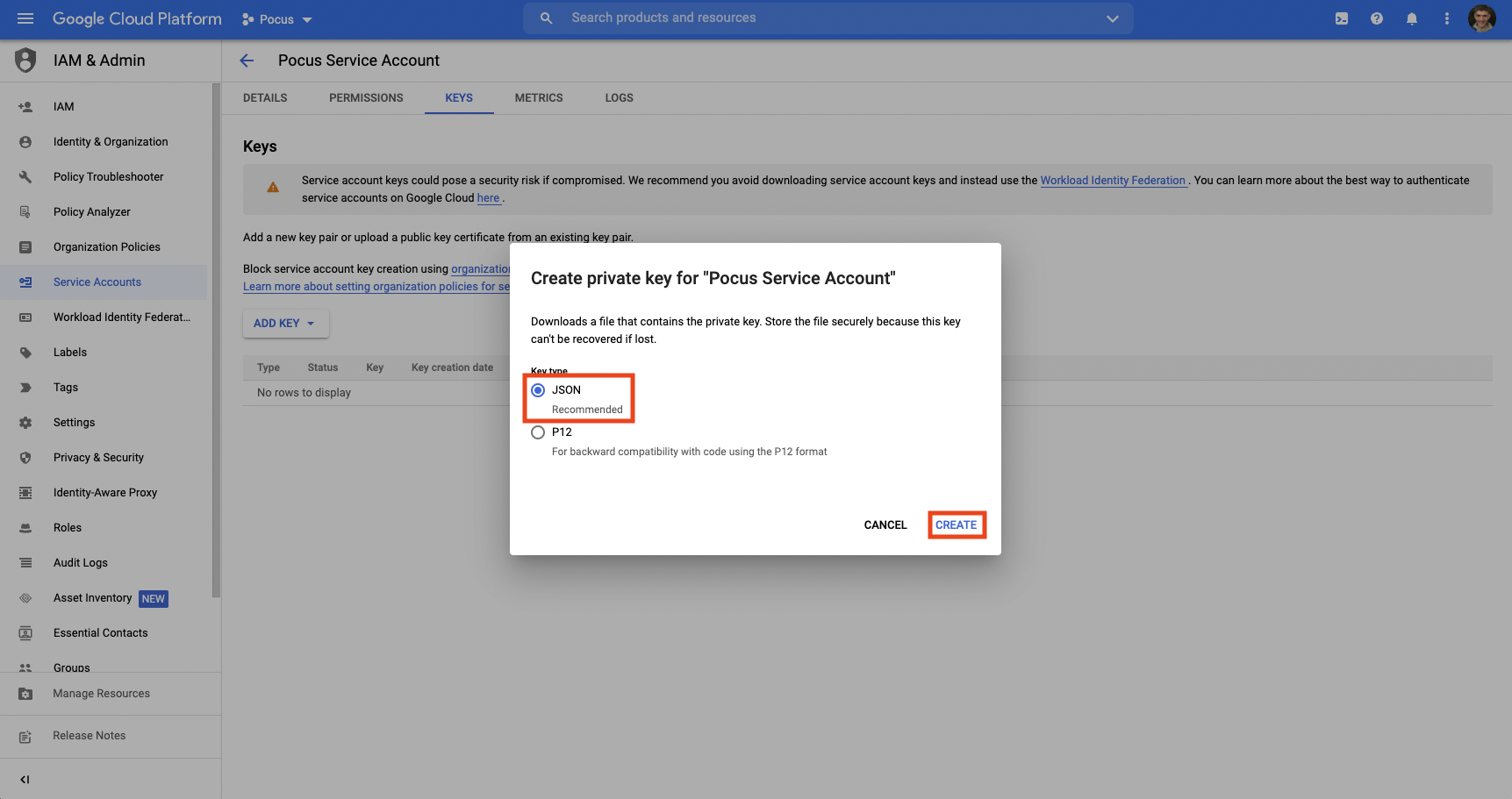
- Ensure JSON is selected, and press Create. A file will be downloaded to your computer, which you will need in the next section.
Setting up BigQuery connection in Pocus
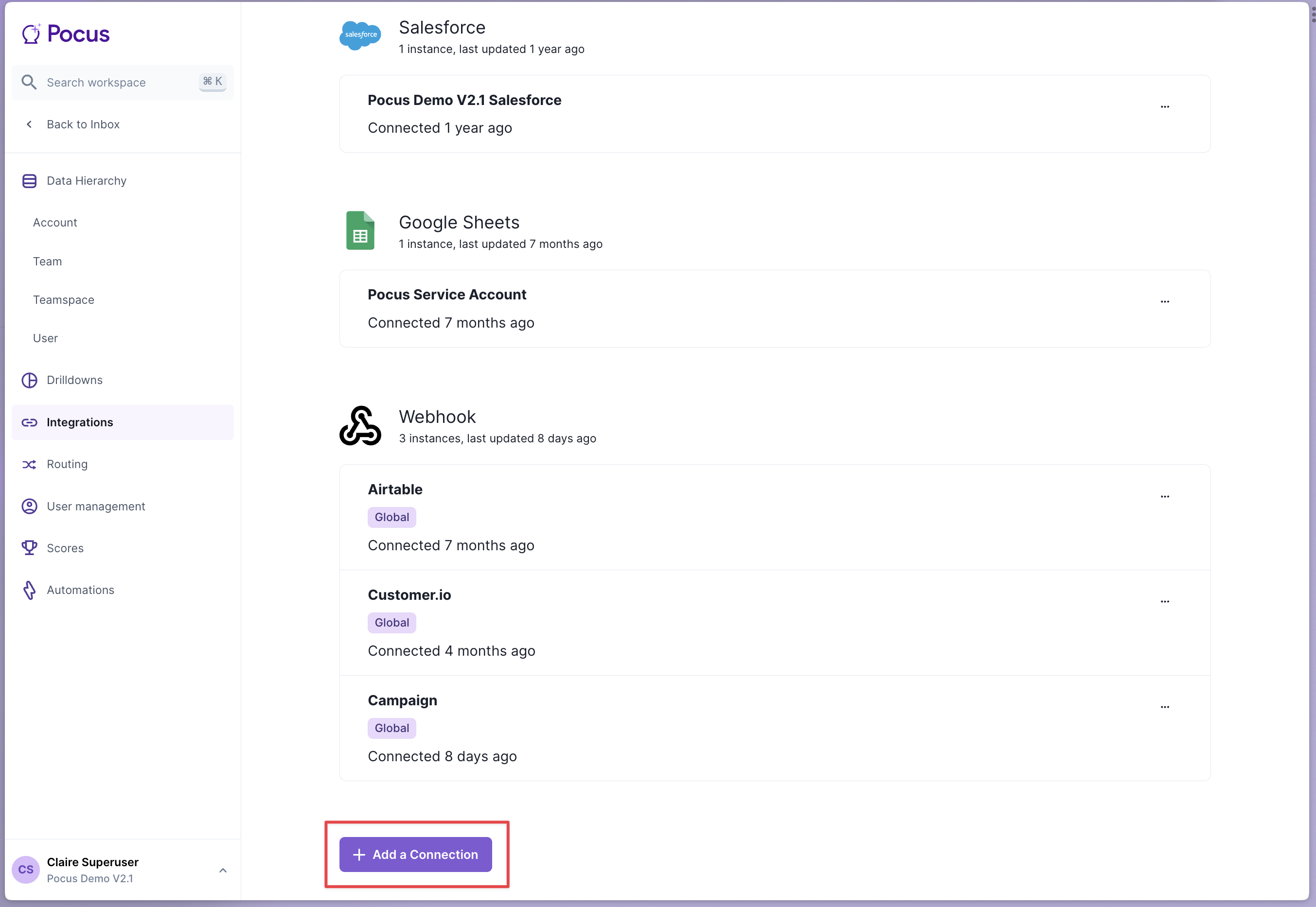
- Navigate to the Pocus Integrations Page and press Add a Connection
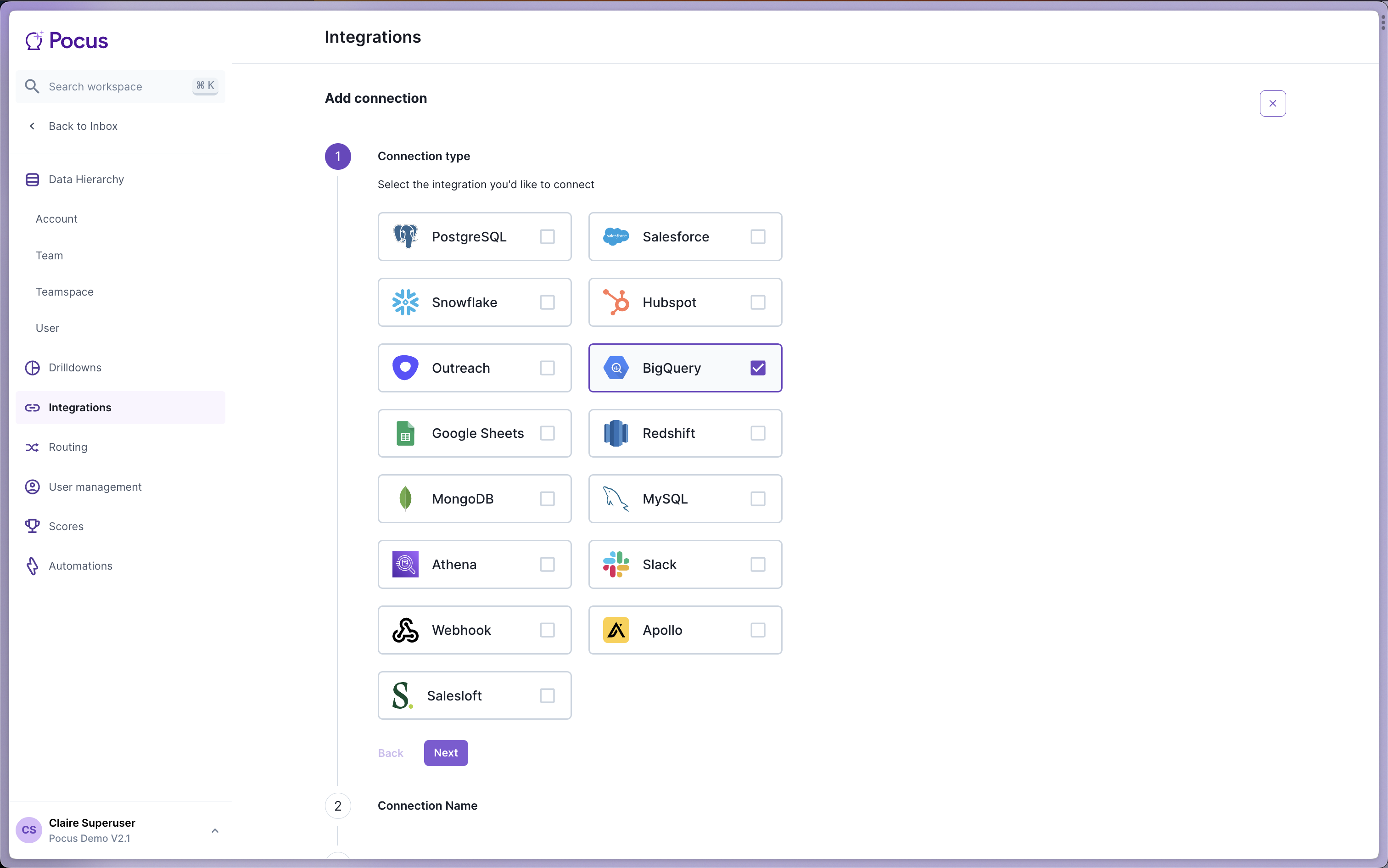
- Select the BigQuery connection type and press Next
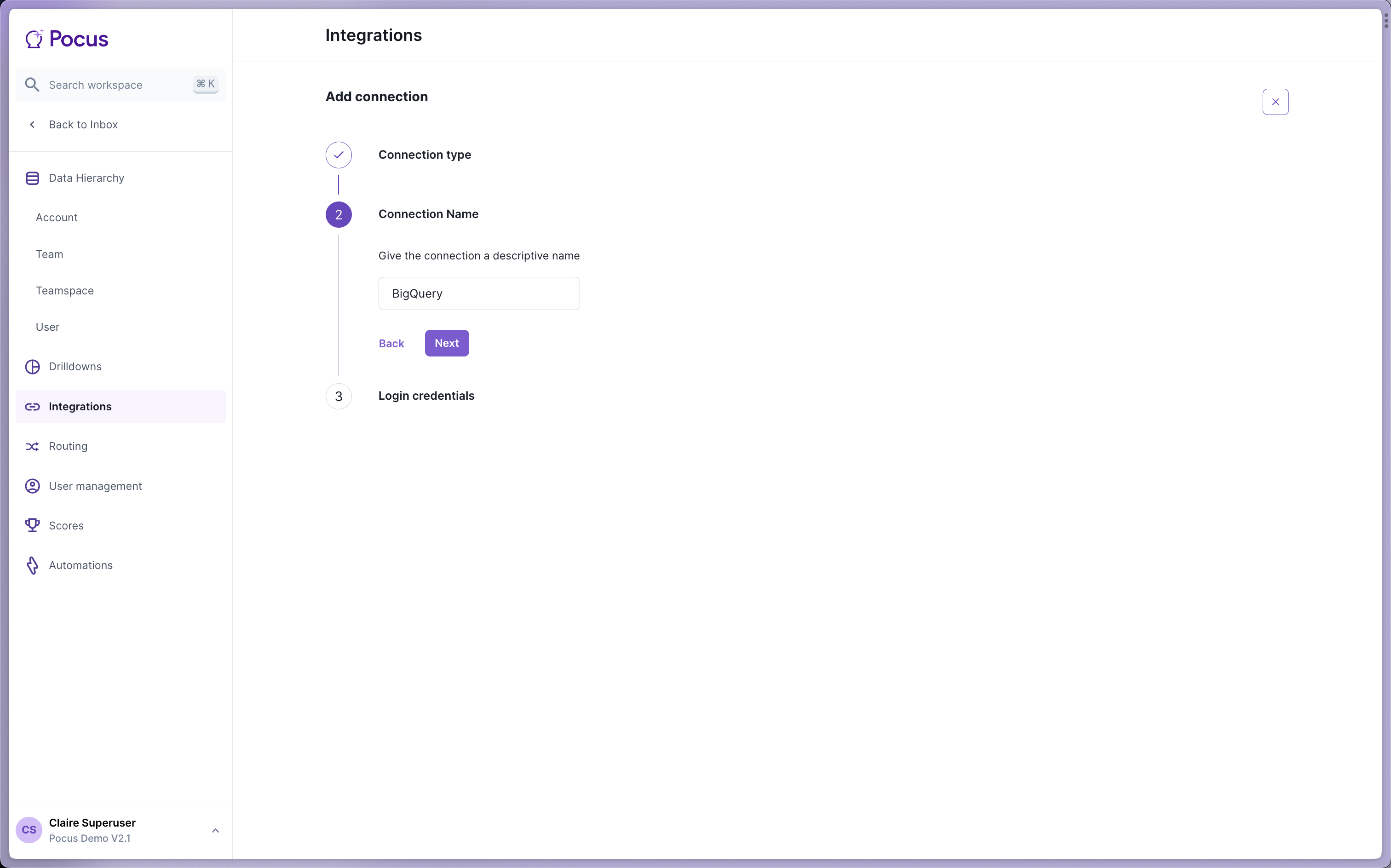
- Enter a name for this BigQuery integration (something like
BigQueryis fine) and press Next
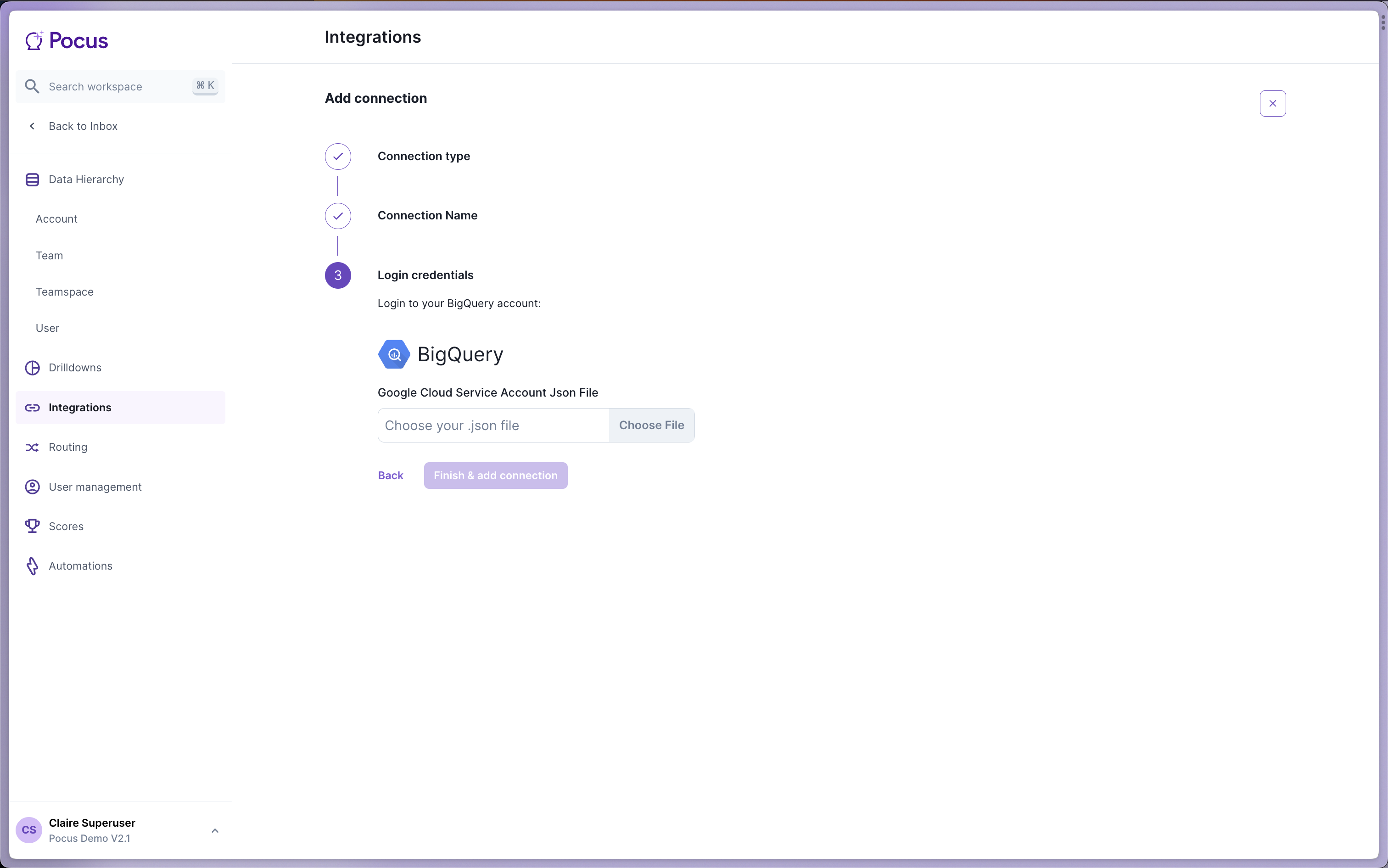
- Click Choose file and select the service account file we generated in the last section. Then, press Finish & add connection
 > ☁️ IP Whitelisting
The dedicated IP for your workspace is provided in the credentials form. If required, ensure this IP is whitelisted as all queries will come from this IP.
- Once the connection is validated (see next section), you should delete the private key from your computer. The service account private key is sensitive, and it should not be left in your downloads folder.
Validating the BigQuery connection with Pocus
- Navigate to the Pocus Integrations Page, and press the menu button next to the newly created BigQuery connection
- Press the Validate button
If the connection with BigQuery is set up correctly, you will see a green notification at the bottom of your screen. If an error appears, please contact our team for assistance!
Updated over 1 year ago