

Athena
Learn how to pull in data from Athena into Pocus.
Create an AWS IAM user for Pocus
Pocus uses an AWS IAM user to access your data in Athena. This section will explain how to create such a user. You must have access to the AWS account in which your Athena data lives, and permissions to create IAM users in this account.
-
Login to the AWS console and navigate to the IAM console:
https://console.aws.amazon.com/iamv2/home
Click on “Users” and “Add users”

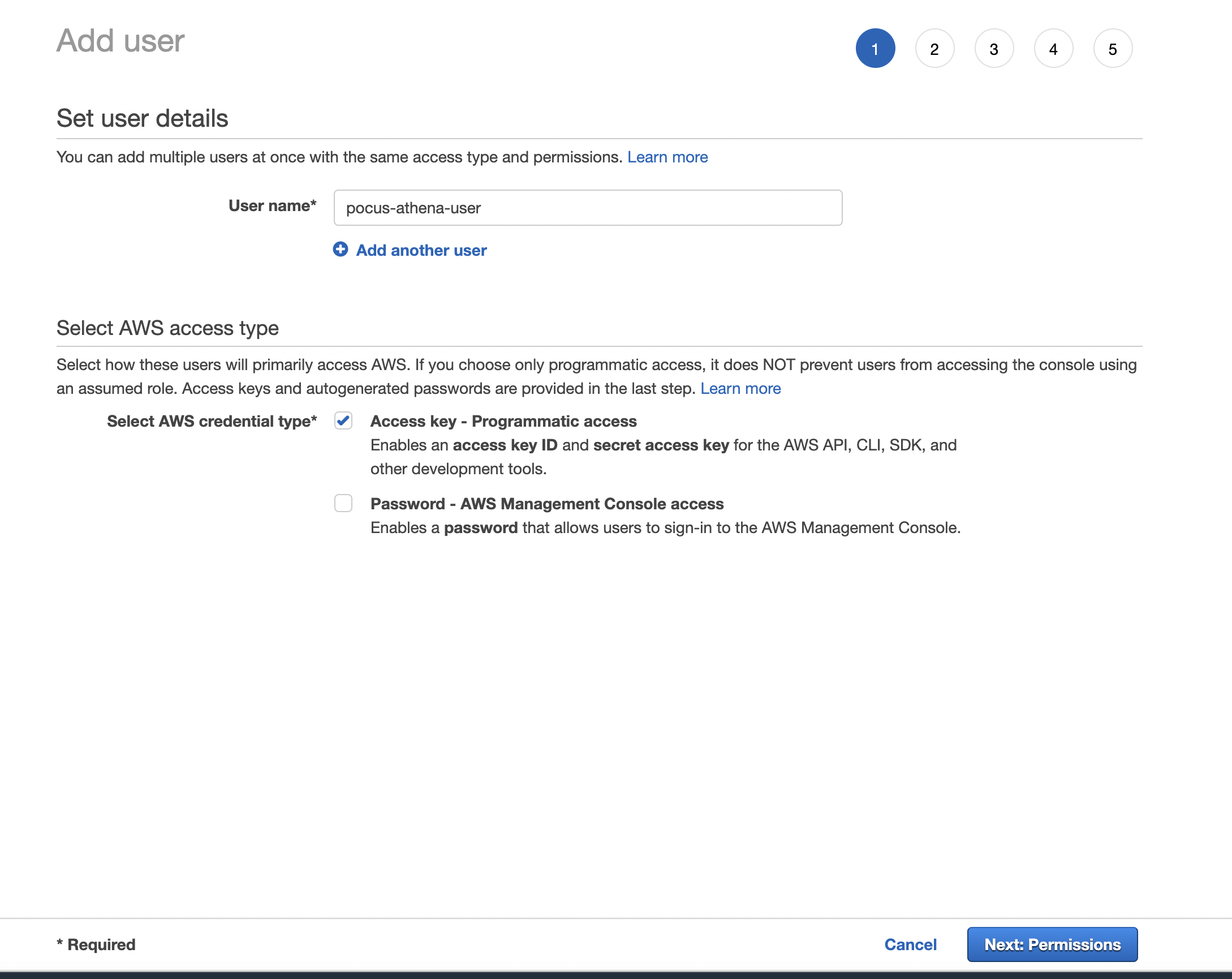
- Give the IAM user a name and ensure “Access key - Programmatic access” is checked
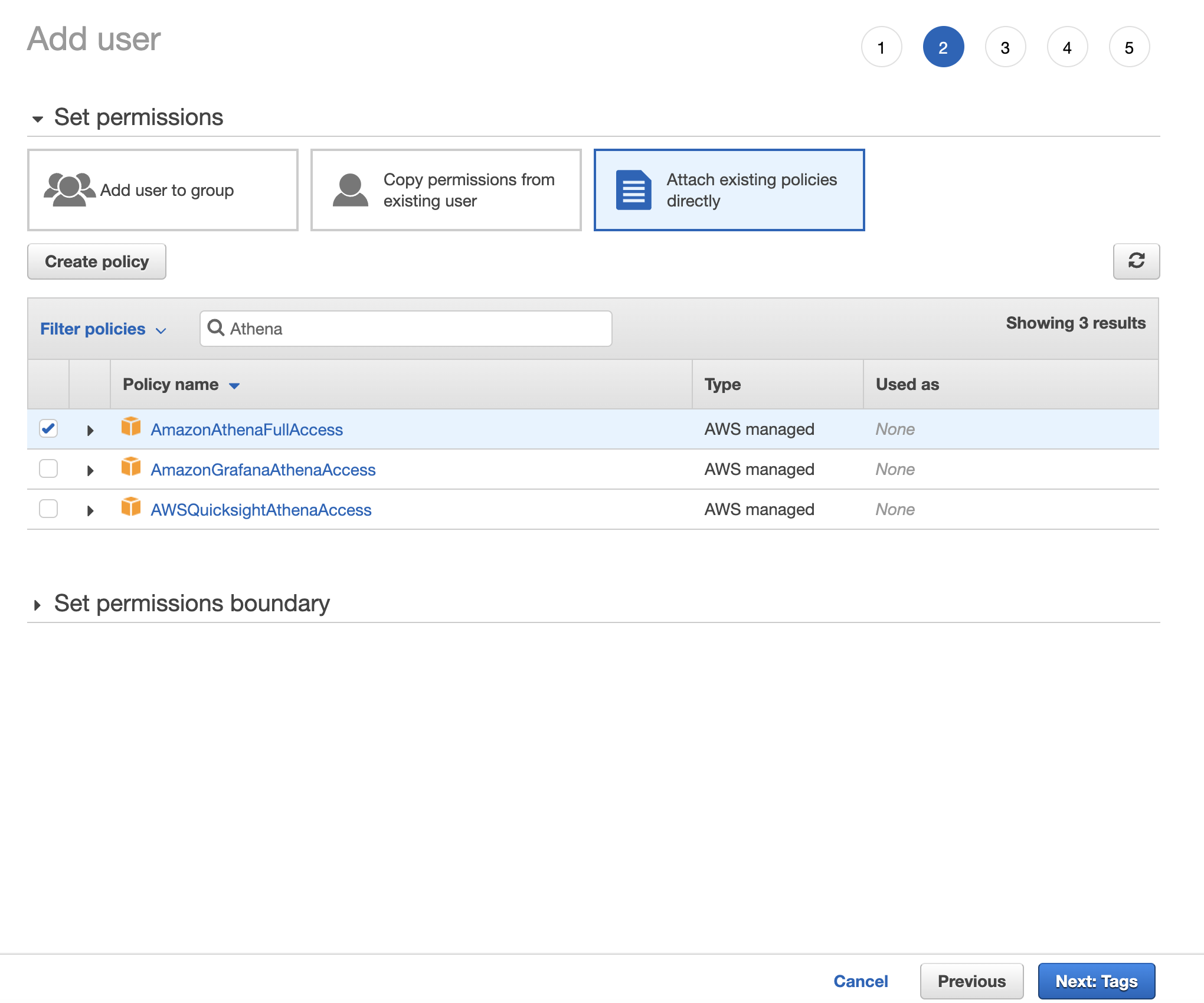
- On the next page, give this user permissions to access Athena. The
AmazonAthenaFullAccessIAM policy contains the necessary permissions.
- Add any desired tags, and continue through the review page.
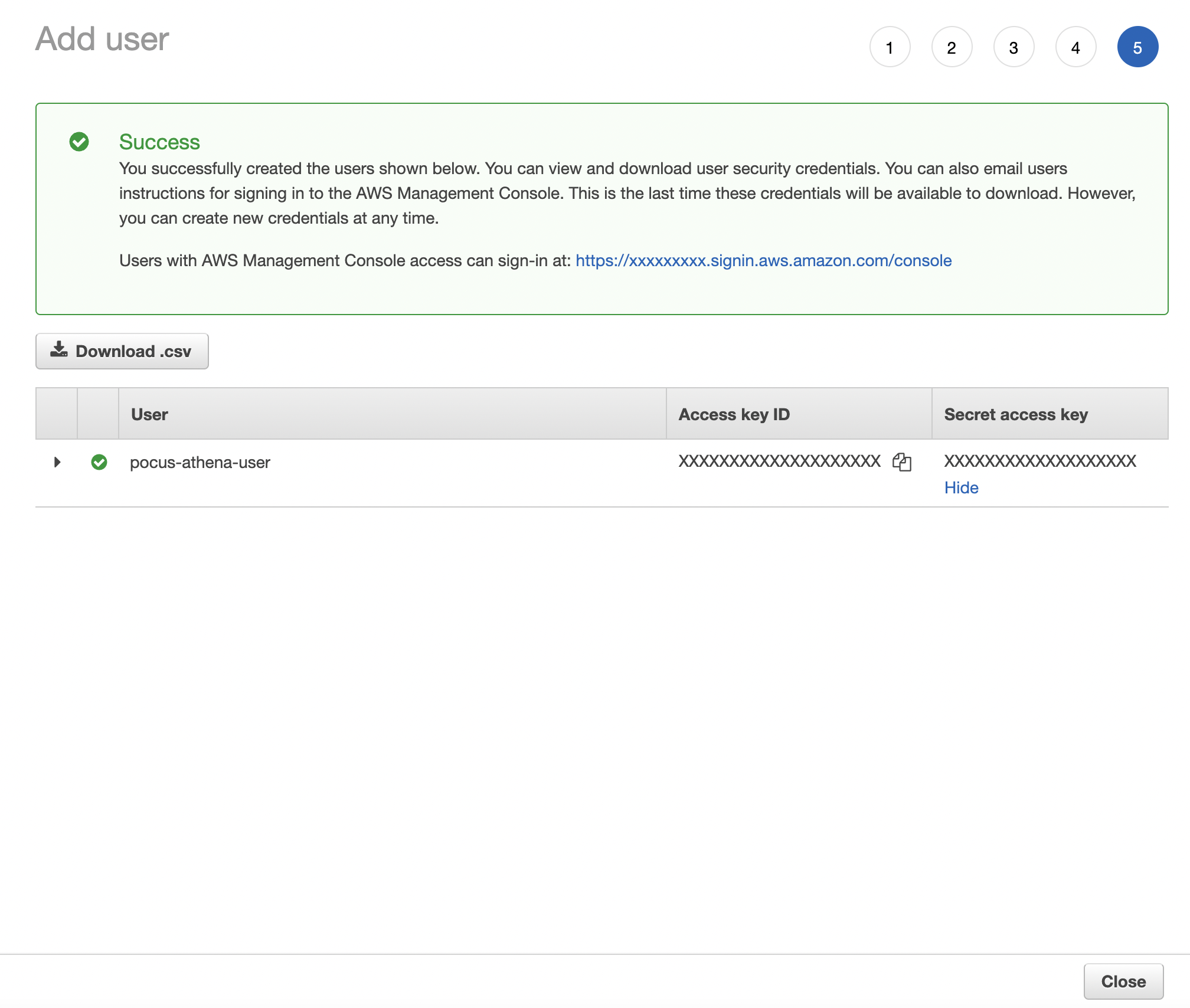
- Once the user is created - note down the Access Key ID and the Secret Access Key. Pocus will use these keys to authenticate with AWS Athena.
Setting up an Athena connection in Pocus
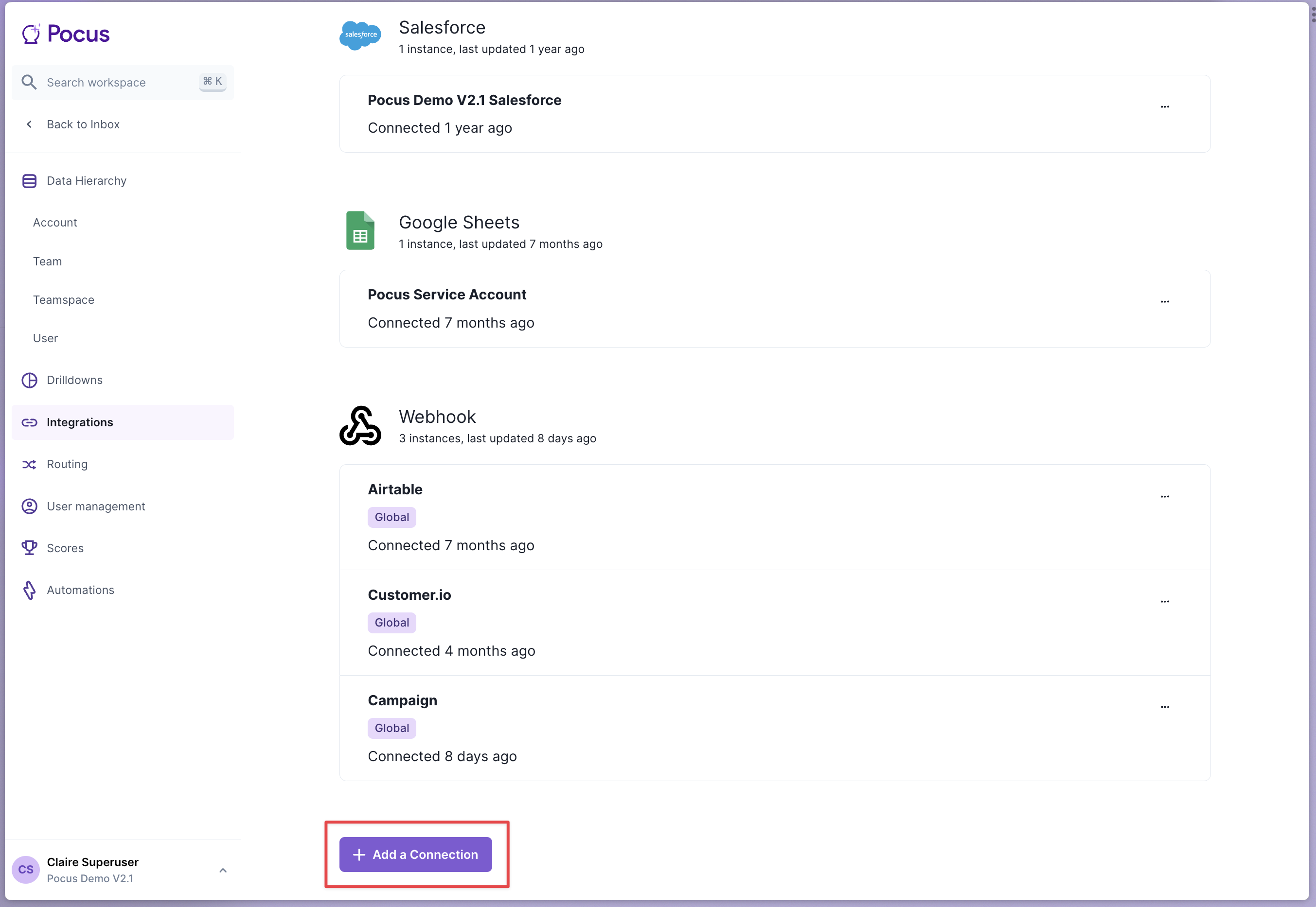
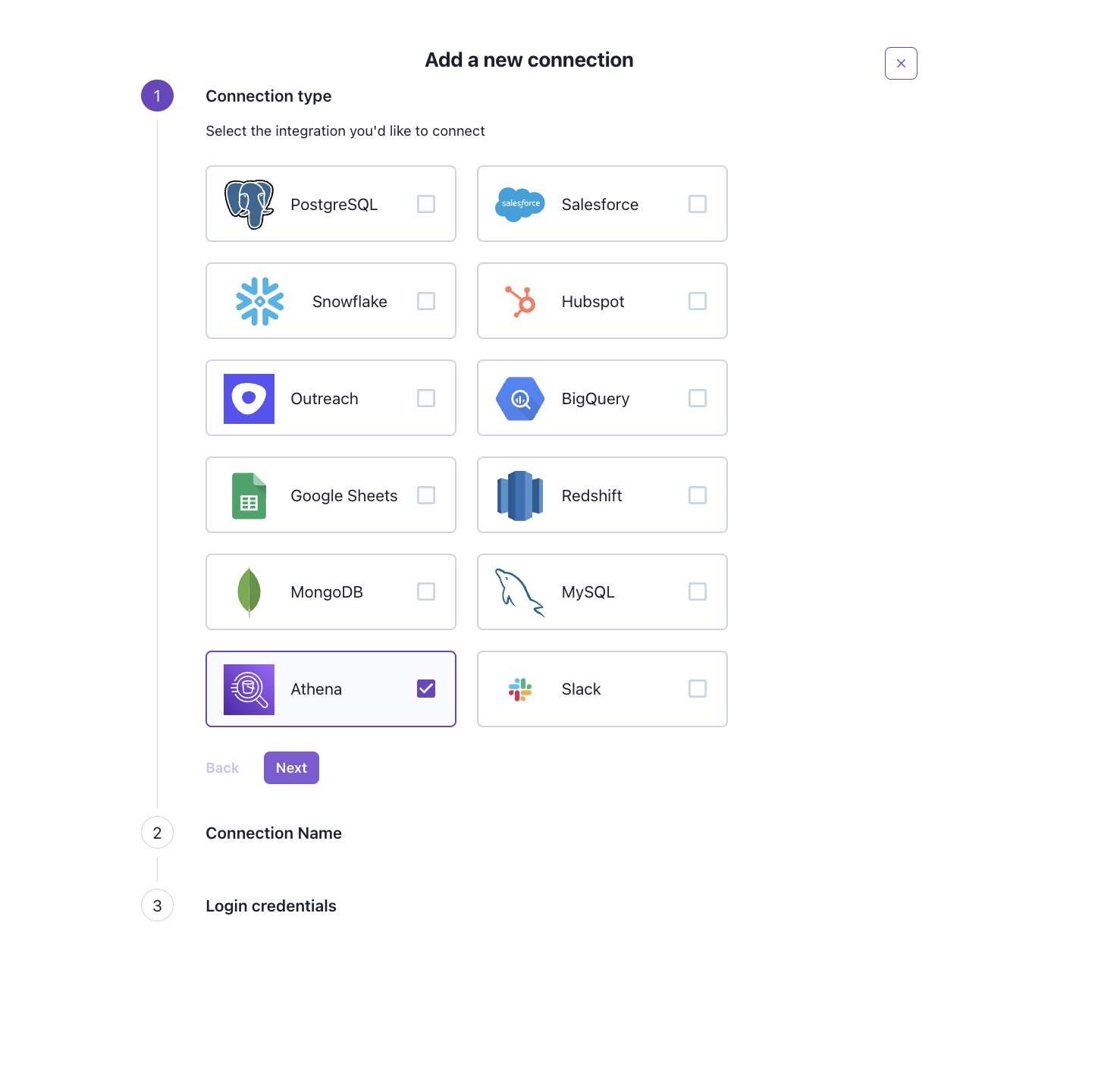
- Navigate to the Pocus Integrations Page and click Add a Connection
- Select the Athena connection type and press Next
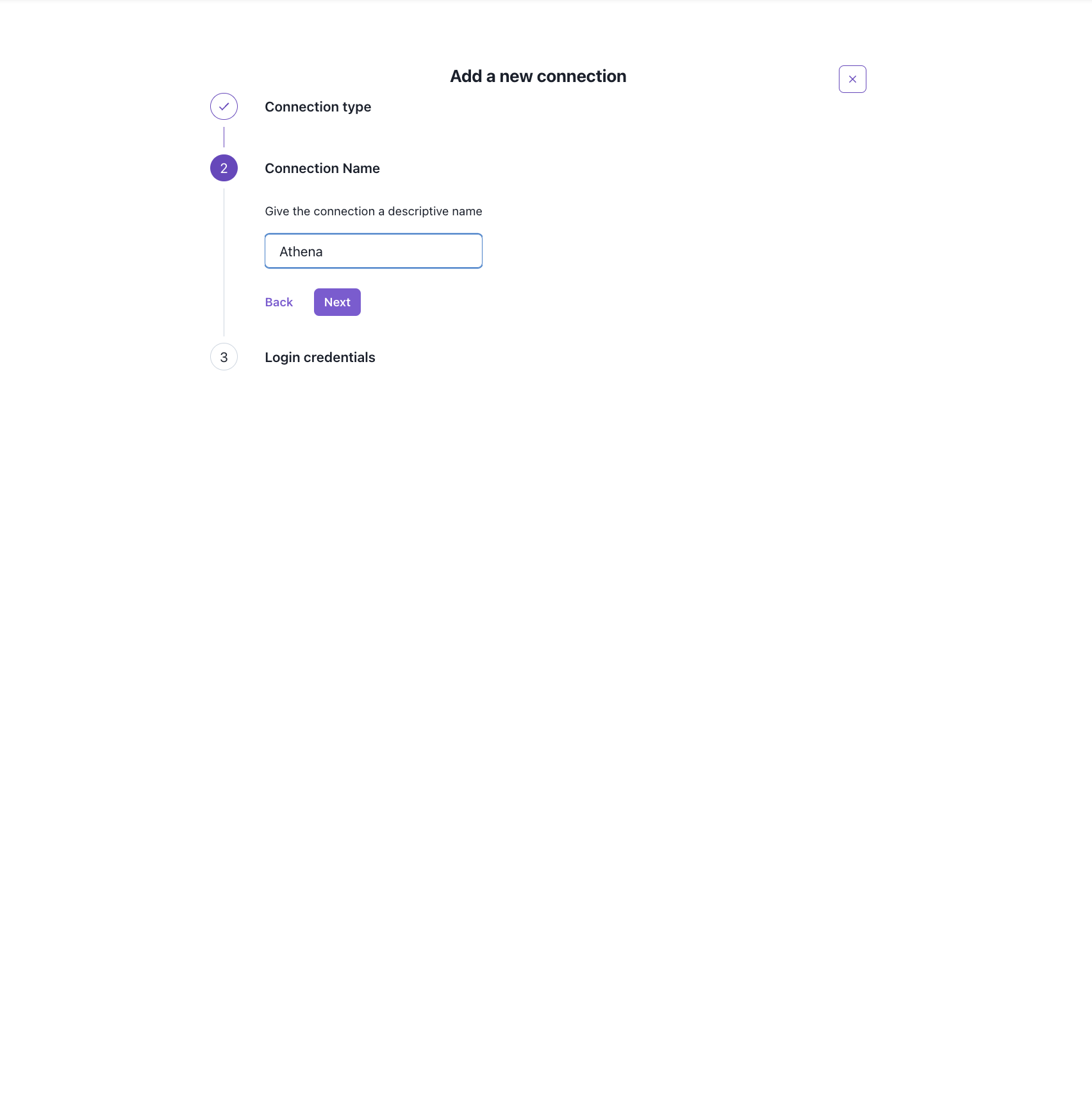
- Enter a name for this Athena integration and press Next
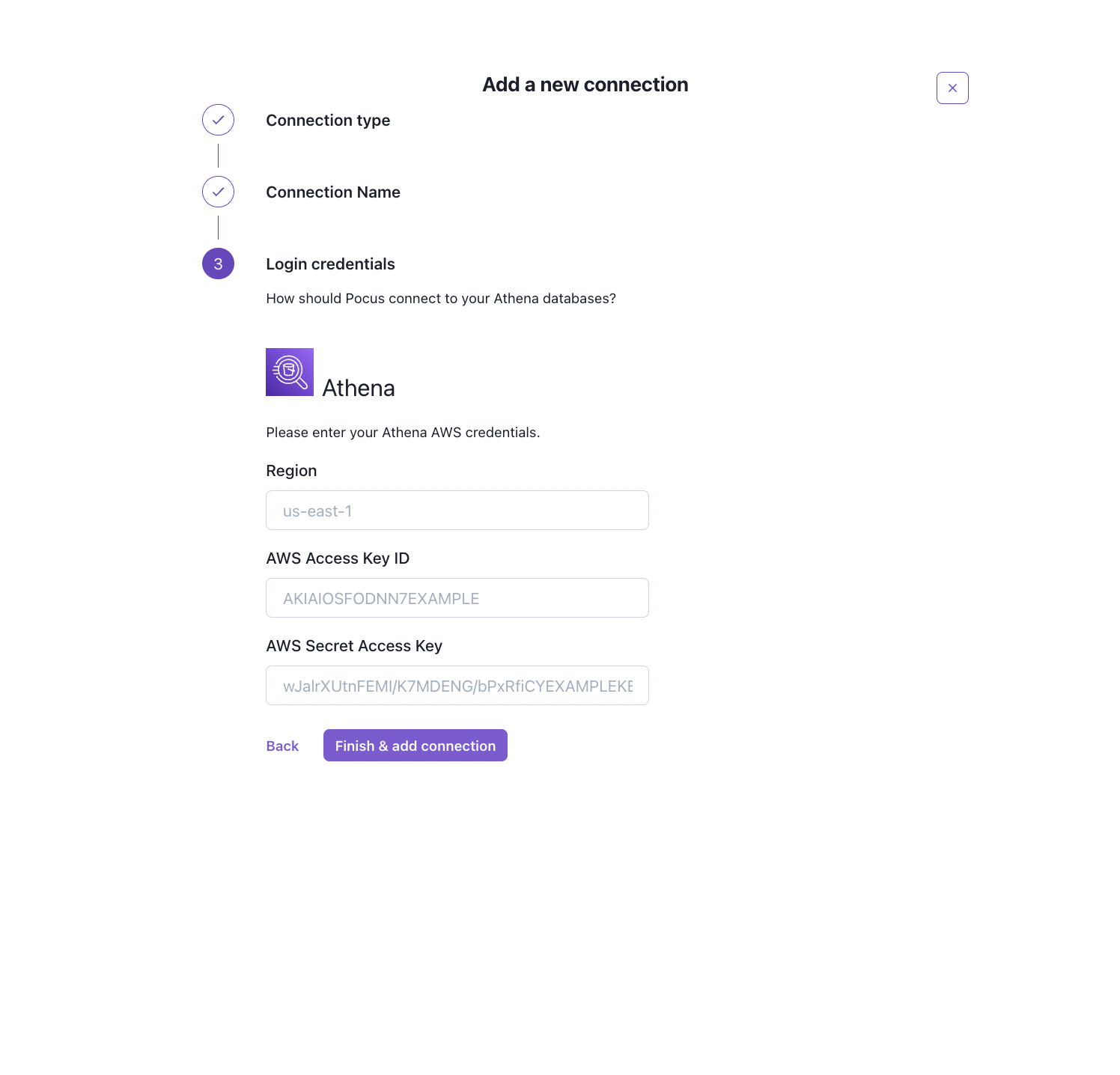
- Fill in the following information:
- Region: the AWS region (for example,
us-east-1) in which your Athena data is located - AWS Access Key ID: the access key for the IAM user we created in step (1)
- AWS Secret Access Key: the secret key for the IAM user we created in step (1)
IP WhitelistingThe dedicated IP for your workspace is provided in the credentials form. If required, ensure this IP is whitelisted as all queries will come from this IP.
Validating the Athena connection with Pocus
- Navigate to the Pocus Integrations Page, and press the menu button next to the newly created Athena connection
- Press the Validate button
If the connection with Athena is set up correctly, you will see a green notification at the bottom of your screen. If an error appears, please contact our team for assistance!
Updated over 1 year ago