

Automate via Tech-Touch
Power workflows on their own or to supplement rep activities with Playbook Automations
Playbooks can be run to trigger flows automatically or they can be run to surface leads to reps when you want some sort of human touch (or both!). Let’s dive into these Auto-magical Playbooks.
What is an Automation?
Automations are exactly what they sound like - a way to automatically run an action based on insights surfaced in Pocus. An automated action can be added as a step to an existing Playbook Workflow that’s surfacing leads to reps or created as a stand-alone step in a Playbook running in the background. You can trigger automated Outreach sequences, push data to your CRM, update a Google Sheet, and more with automated Playbooks.
How to add Automated Action(s)
Step 1: Add an Action step
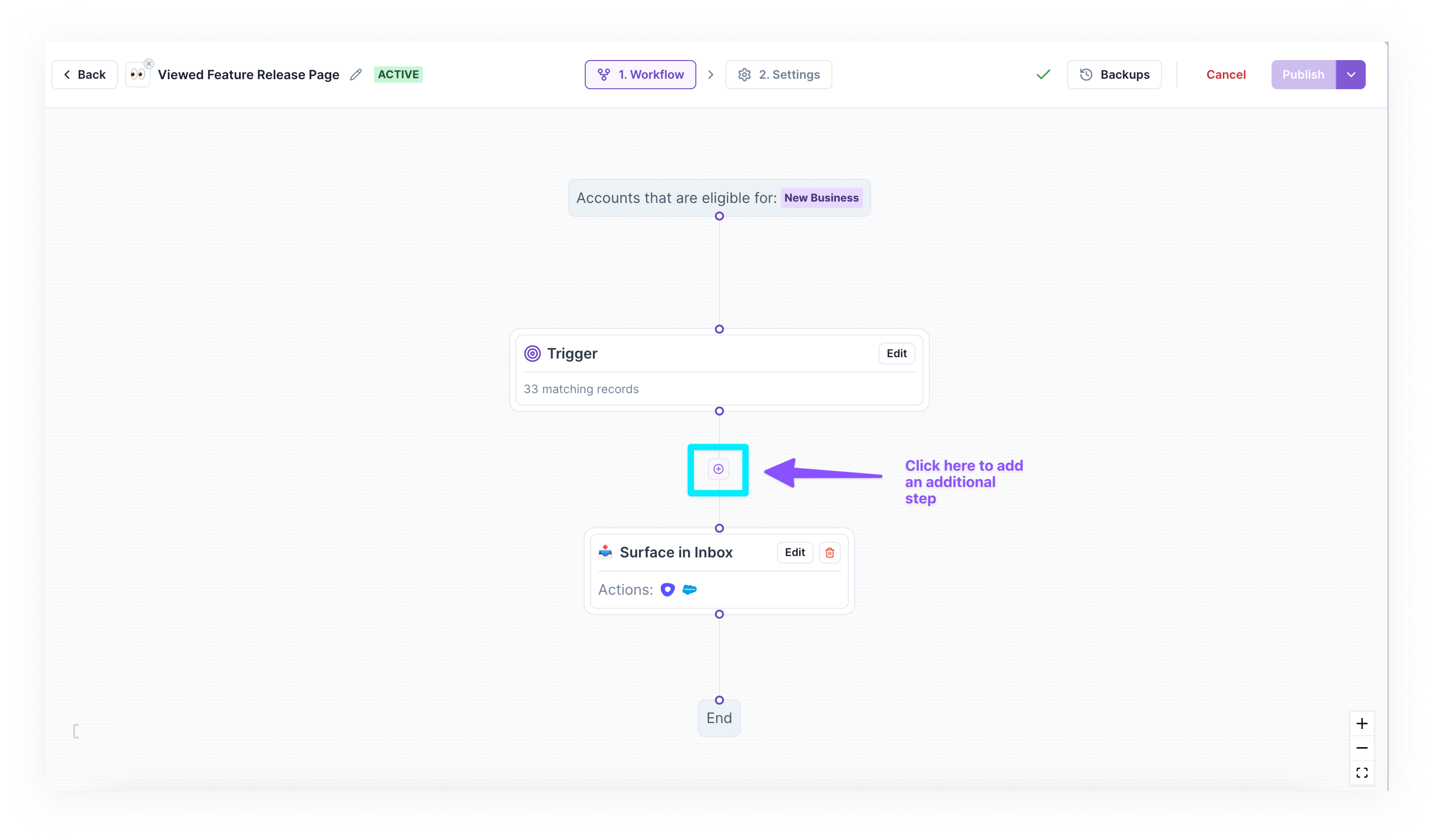
Click the ➕ icon after the Trigger to add an Action step.
- You can add multiple automated Action steps, which will fire in the order they’re added.
- If you want records to also Surface in Inbox, you can finish building the Playbook Workflow by configuring that final step.
- If you want to automate the entire Playbook Workflow, without having a rep action on records, you can delete the Surface in Inbox step and replace it with a ✅ Mark Done step.
Step 2: Select an Action
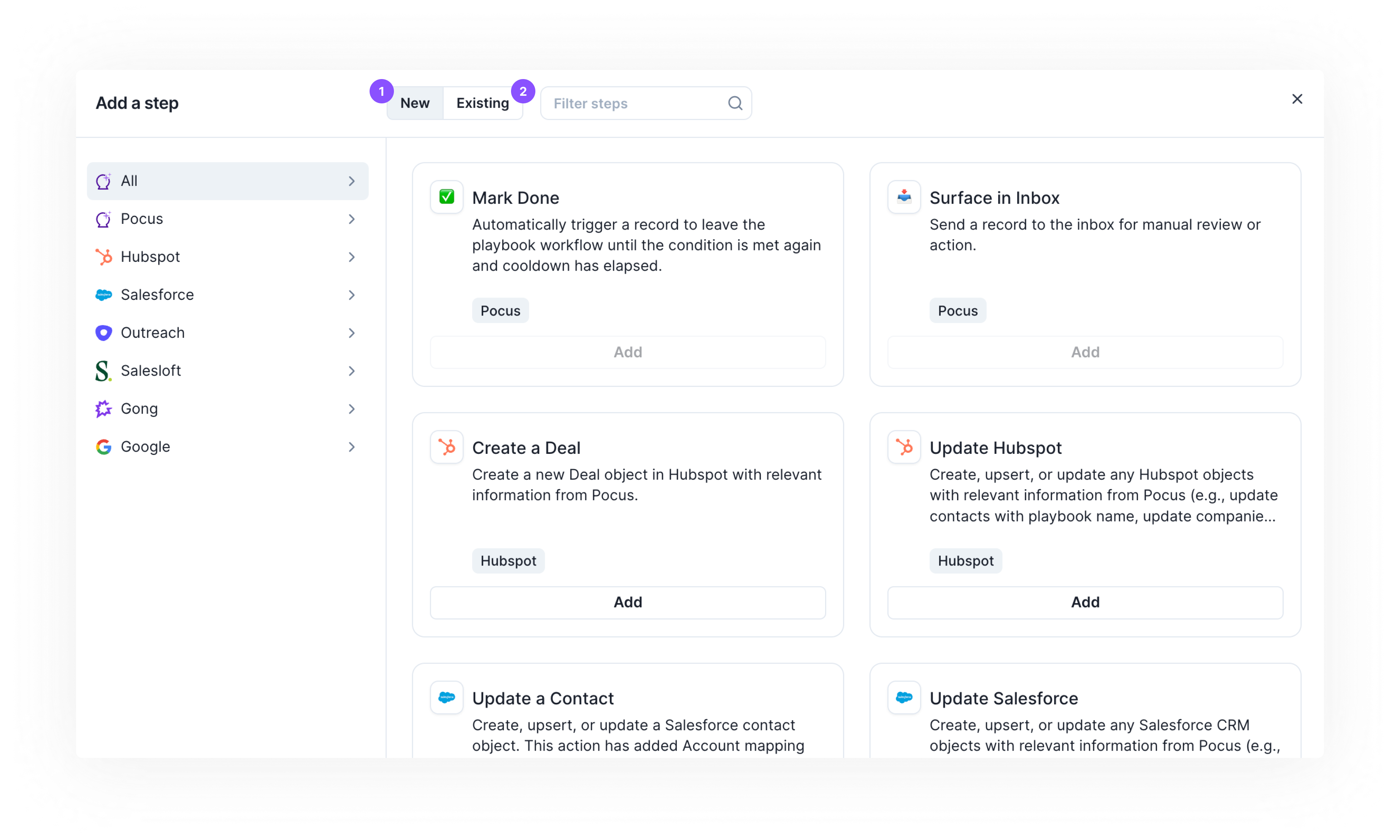
You will be prompted to add Action steps from a library of new and existing Actions. Click Add on the Action you’re interested in inserting into the workflow.
- 1️⃣ New Actions will include out-of-the-box Pocus actions and additional logic steps like ✅ Mark done and Surface in Inbox or give you the opportunity to configure other 3rd party actions.
- 2️⃣ Existing Actions will include all Actions on the surfaced objects that have already been configured (e.g., used in other playbooks, lists, drilldowns). Making edits here will edit the pre-configured action globally throughout Pocus.
Step 3: Configure the Action
Set up your Action exactly the way you want it, then hit the Update button to save the Action settings. Ensure any action that is automated has the necessary additional settings.
Rinse and repeat to add additional Actions and make your Playbook Workflow even more powerful!
FAQs
- When will automations runs?
- Automated actions will run will trigger when a record hits the trigger and the Goal criteria. This will happen during the workspaces scheduled refreshes.
- I have added automations to a playbook but they did not run for all records. Why would this be? Automations will not retroactively run for records that were already surfaced in an inbox. If you add an automated step to an existing published playbook, you will need to manually invoke the action step for everyone currently in the inbox. Automations will run for new new records moving forward.
- Does the order matter?
- The actions will run sequentially through the workflow. The default setting is for all steps to proceed to the next even on failure, although this is configurable.
- I can't seem to save an automated workflow. What could be wrong?
- A fully automated workflow needs to end in a Mark Done step in order terminate the workflow and set the cooldown period. Ensure that step is added at the bottom of the workflow.
- How can I see what failed?
- While there are no direct logs for an Automations overall performance, logs for the action itself can be found in Action Logs.
Updated over 1 year ago