

GSuite
Pocus connects with GSuite tools like Sheets and Slides as both a source of data and a destination for actions.
Setting up the Google integration with Pocus
To create this integration you will need a Google Cloud service account key. This key is what allows Pocus to authenticate your Google Cloud account.
Setting up with an existing Google Cloud service account key
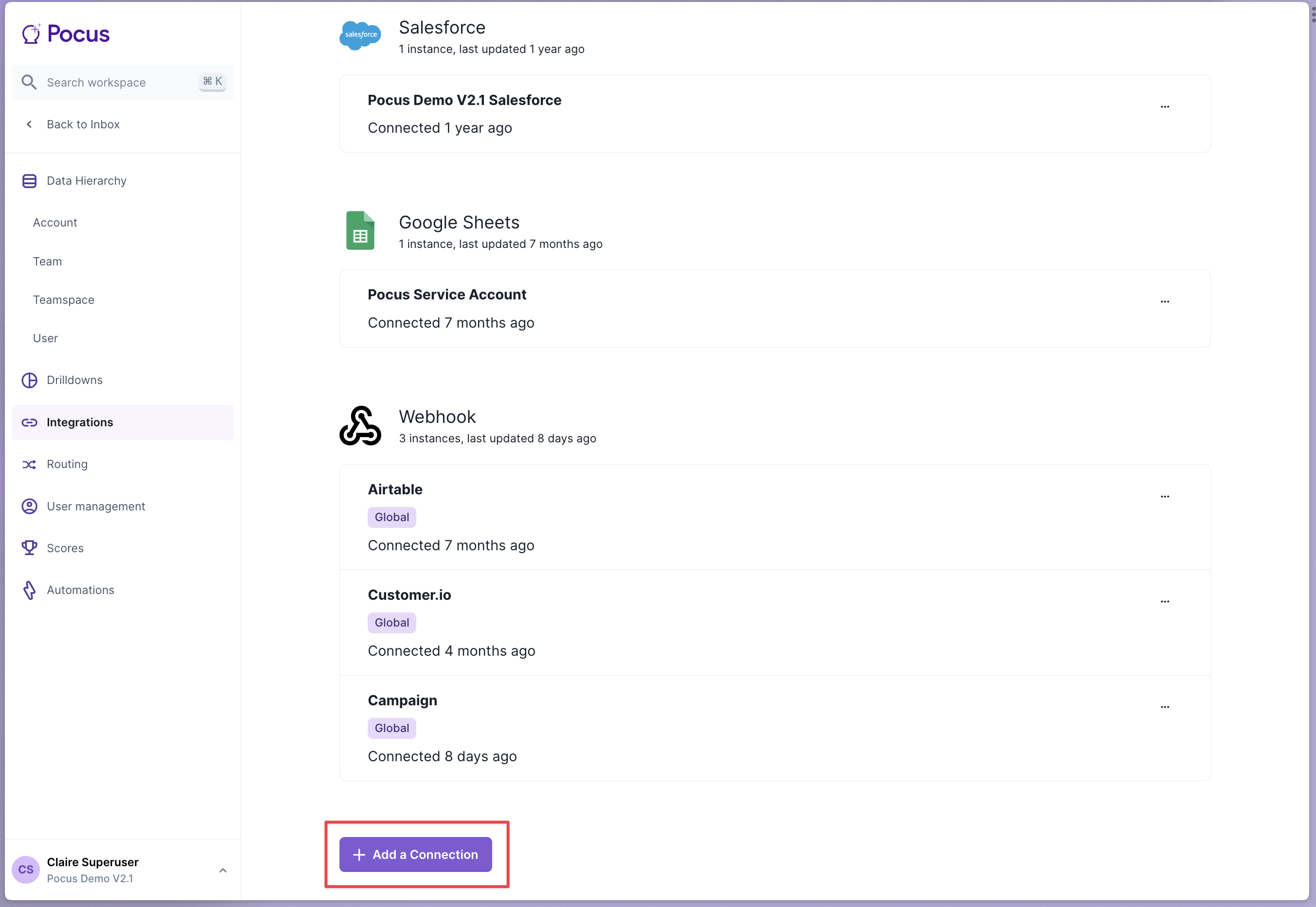
- Navigate to the Pocus Integrations Page and press Add a Connection
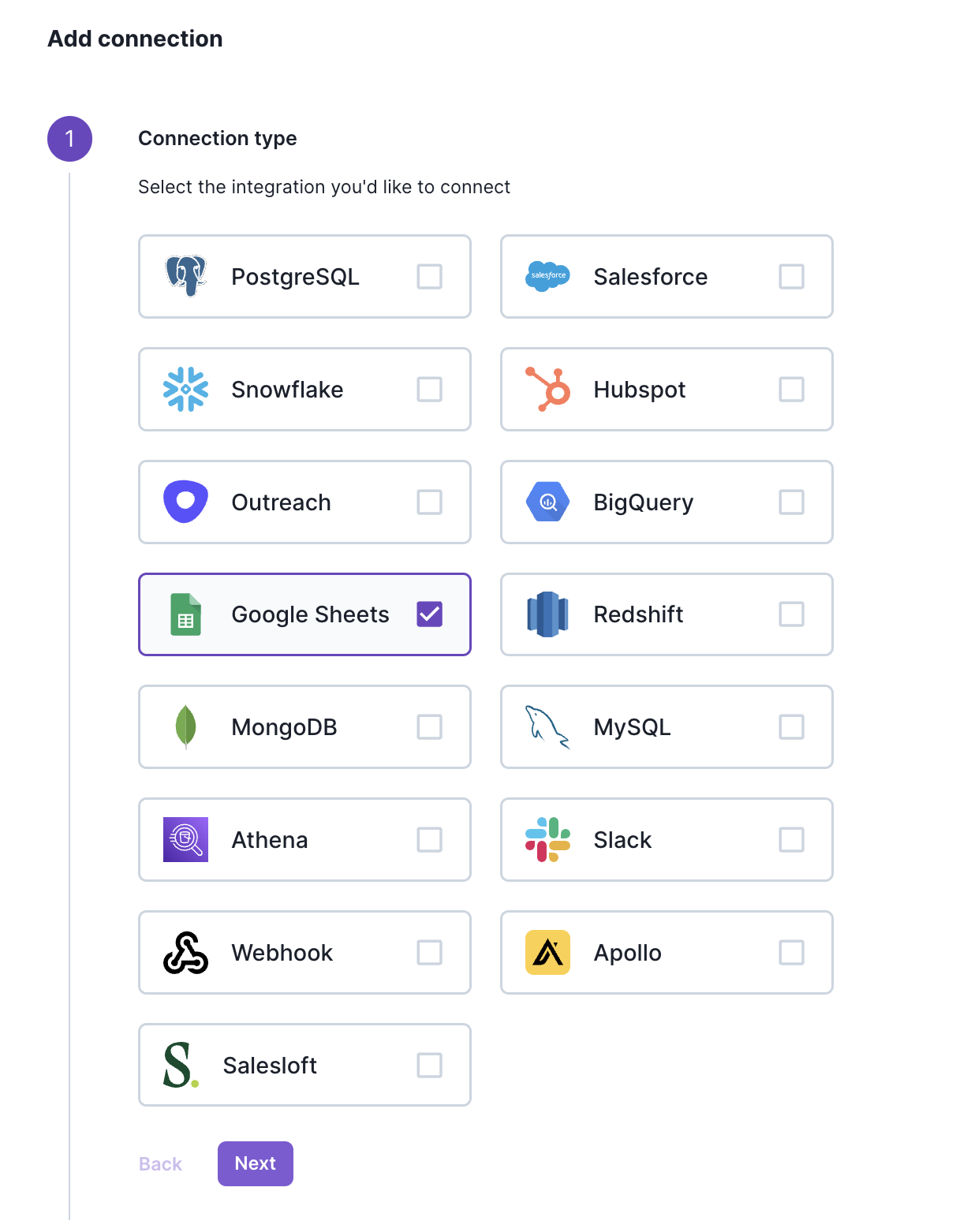
- Select the Google Sheets connection type and press Next
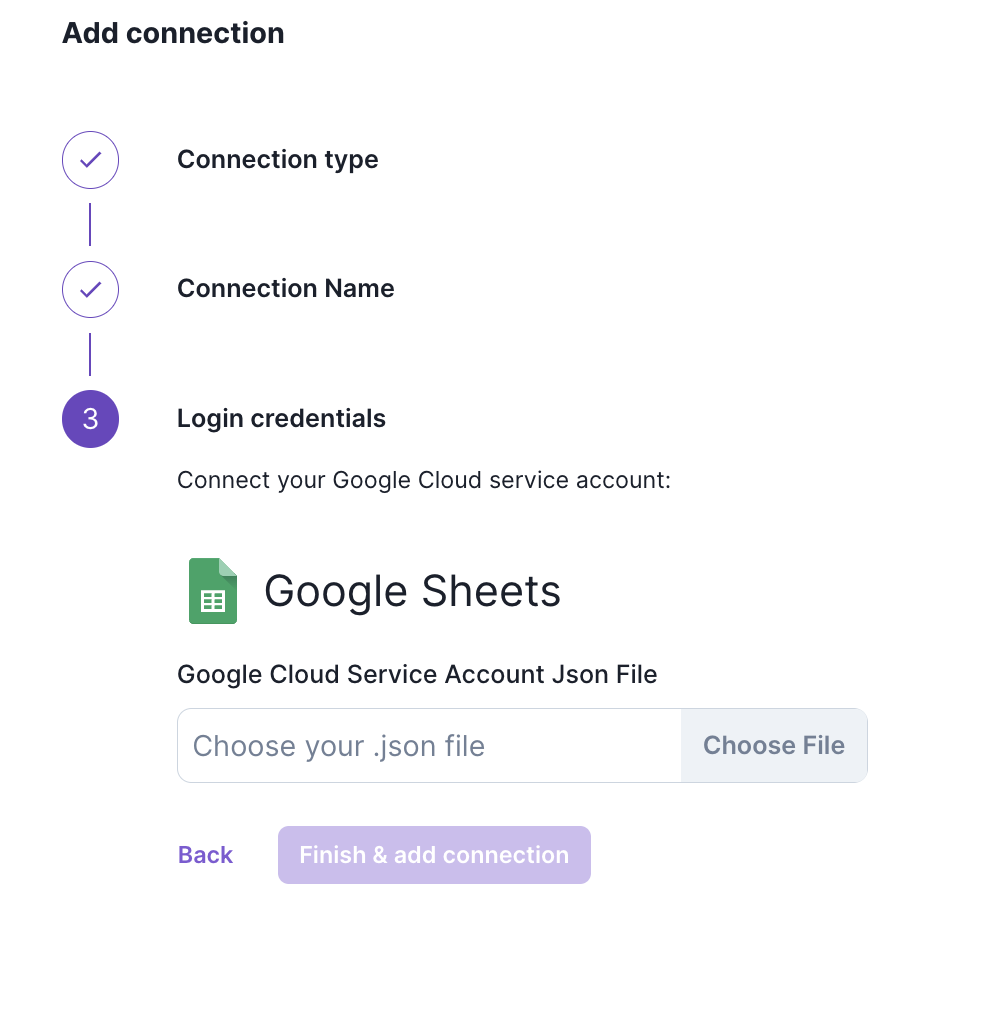
- Enter your preferred name for this new integration and press Next
- This is where you will upload your existing service account key. Once your account key is uploaded in JSON format press Finish & add connection
Generating a new Google Cloud service account
If you do not have a service account key already you can create one by following the instructions here.
Pocus can also auto-generate a service account for you at the time of configuring the Update a Google Sheetor Google Slides actions. When configuring those actions, Pocus will detect that your workspace does not already have a service account connected and prompt you to create a new one.
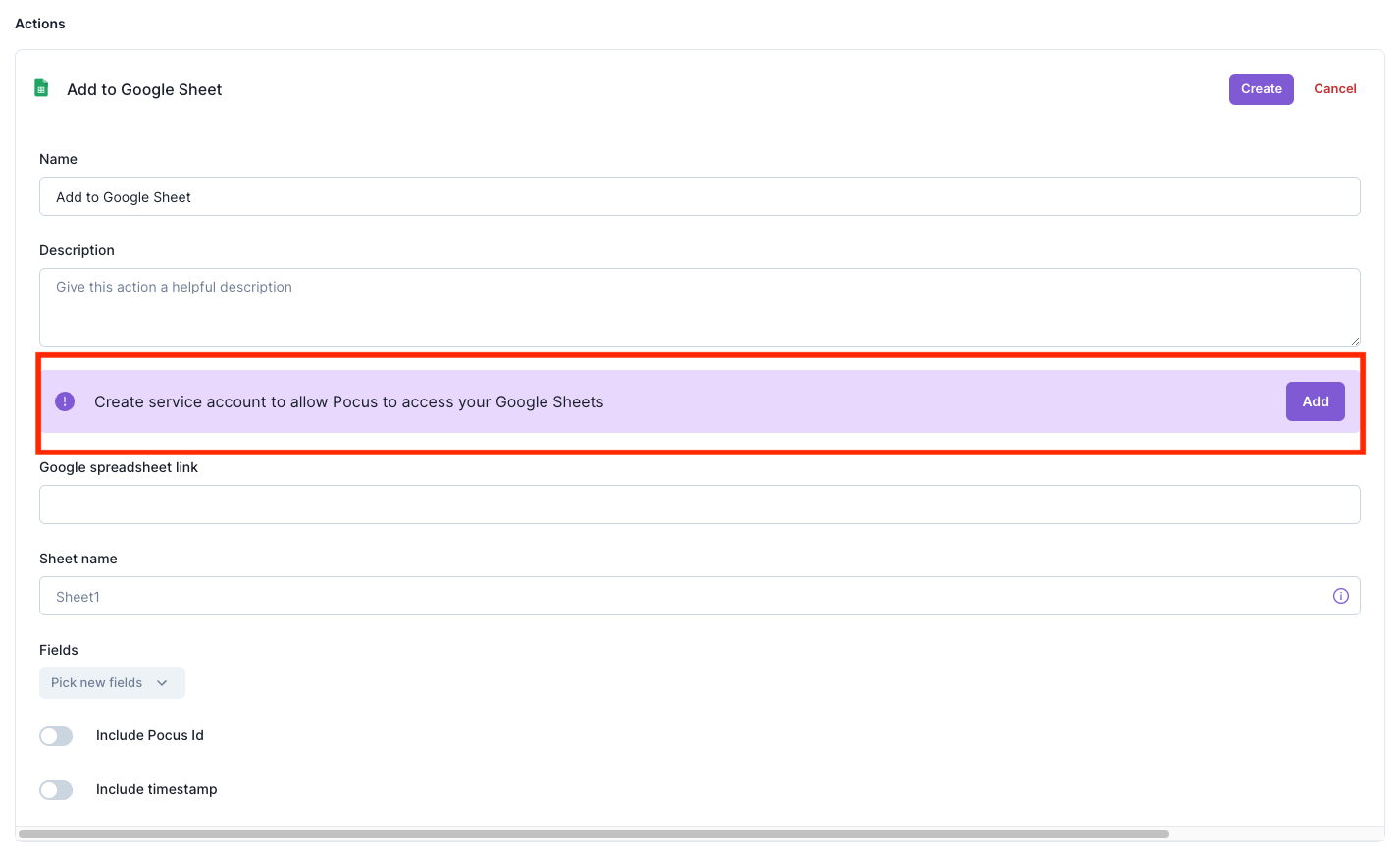
Once created you will see a new message listing the name of your Google service account.
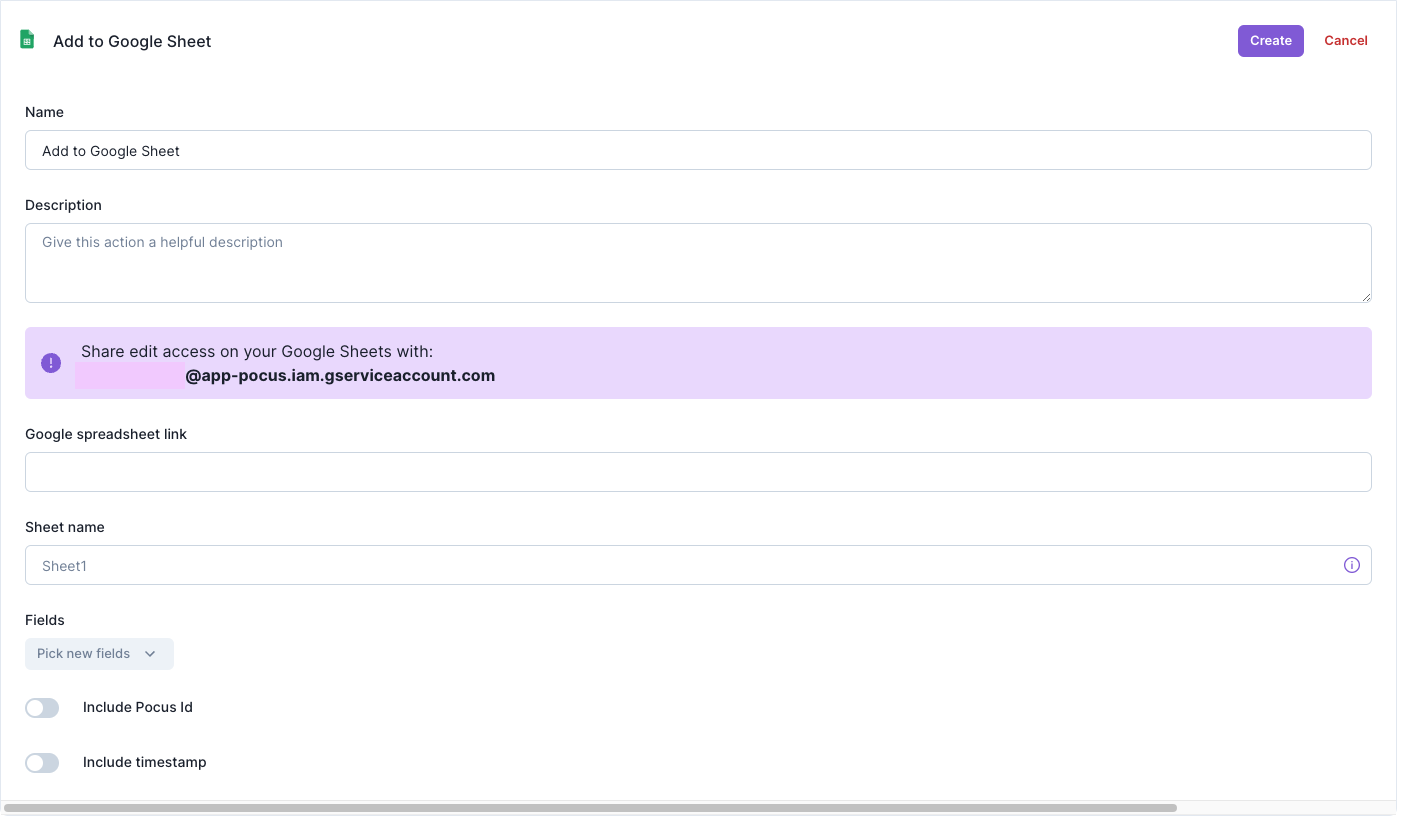
Validating the Google Sheets connection with Pocus
-
Navigate to the Pocus Integrations Page, and press the menu button next to the newly created Google Sheets connection
-
Press the Validate button
If the connection is set up correctly, you will see the green notification at the bottom of your screen. If an error appears, please contact our team for assistance!
Updated over 1 year ago