

Fields
What are Pocus Fields?
Fields are the columns brought in as a result of Pocus processing the data across your different data sources and custom queries. Fields are what are used throughout the Pocus product to select filters, columns, customize actions, etc. They are slightly abstracted from the raw query fields that exist in your data sources. This has lots of added benefits in that you can format them, rename them, add descriptions, and ultimately remap them if the underlying data source migrates or updates.
Field Management
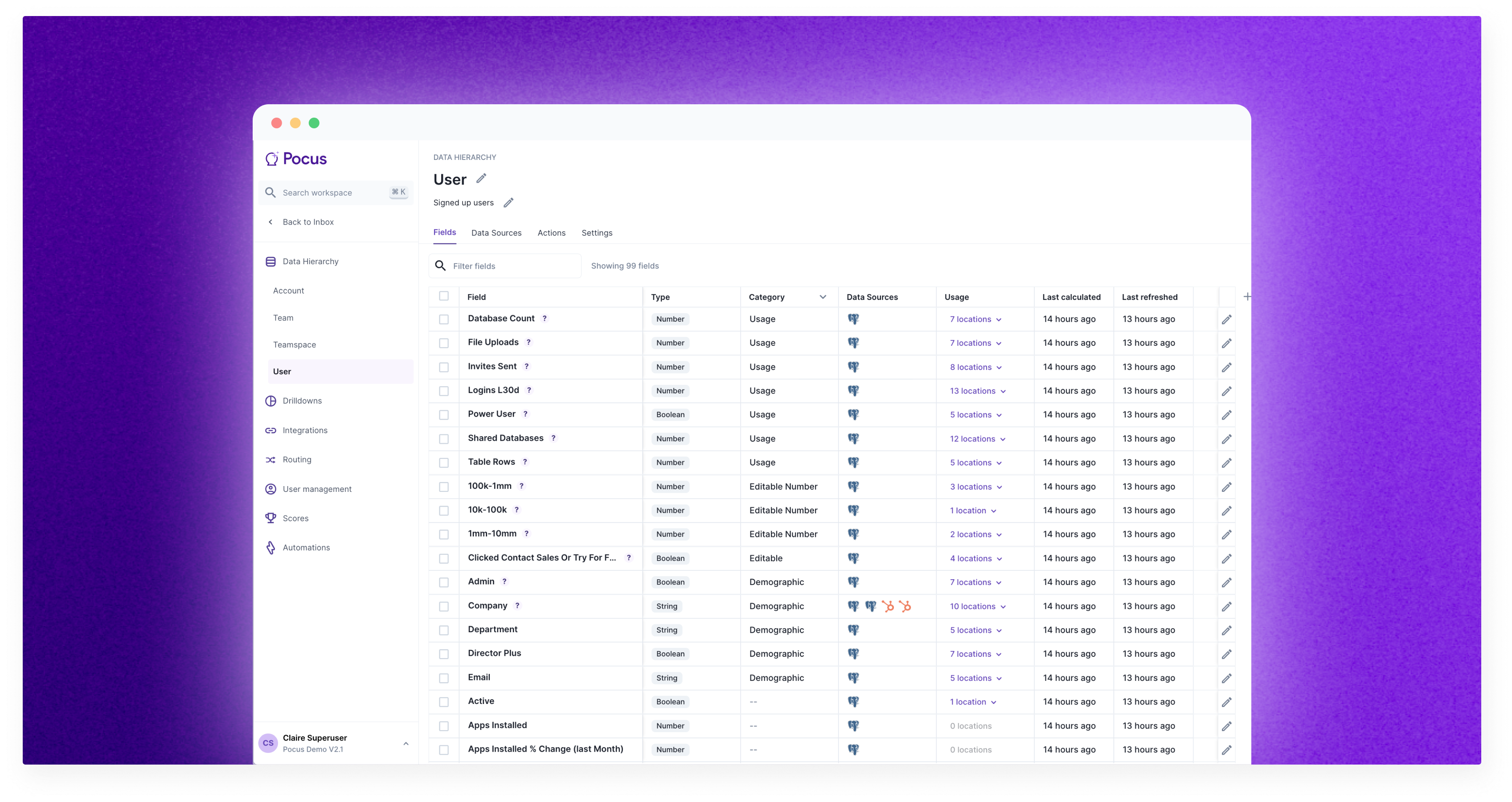
You can see information about the field or make changes like renaming, deleting, and updating data types via the “Fields” tab on an object in the Data Hierarchy.
Columns in Field Tab
Field: Shows the display name of the field which is always inherited from the original query field. We go ahead and just make it a little prettier with some title casing. This can be changed by clicking into the field settings through the pencil logo.
Description: A (?) tooltip next to the field name indicates that a description has been set. This tooltip will appear anywhere the field is used, to give end-users more insight into the definition and/or logic behind the field. This description is manually set in the field settings drawer. Pocus is happy to do a bulk upload of definitions from a DBT .yml file or internal data dictionary. Reach out to your support team.
Type: Shows what kind of data the field contains. The possible field types are
- String
- Date
- Number
- Boolean
- String Array
If you need need to convert the type of a field you can do so by clicking into the field settings and selecting the target Data Type from the drop down menu.
Category: Shows the kind of information the field contains. This is used throughout the product to make it easier to locate fields. Categories are manually created and assigned.
- To add a category to a single field, enter the field setting by clicking the pencil icon and begin typing the new category, you will be prompted to create it.
- To add a category to multiple fields, select the checkmark to the left of all desired fields and click the
Add Categorybutton at the top. This will bulk assign the category to all selected fields.
Data Sources: The logo(s) listed here indicates which data source is informing this field. If no logo is listed then there is no longer a query providing updates to this field and it should be removed or assigned a new query field via the “Definition” page in the field settings tab.
Usage: This dropdown lists everywhere in the workspace the field is being used. From the drop down you can access where the field is being used by clicking the link icon next to each field in the Usage drop down. Fields cannot be deleted until all of their usages are removed.
This table can be downloaded to make data dictionary updates easier!
Adding / Editing Field Settings
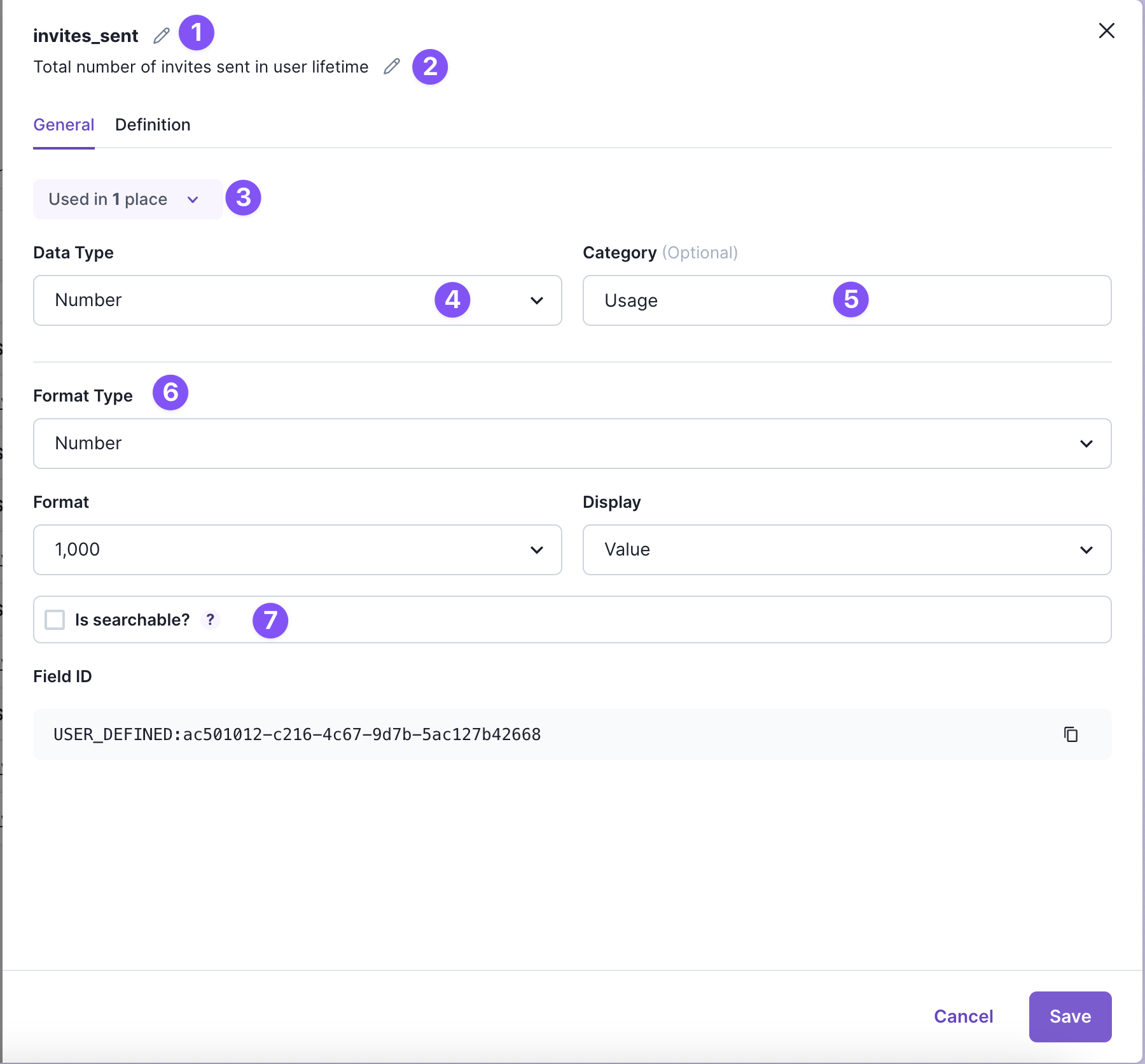
When clicking the pencil logo at the far right of the field you two tabs for the field will be surfaced General and Definition. You can edit the field name (1️⃣) or description (2️⃣) while in either of these tabs. Field Descriptions will be viewable in the field header wherever the field is listed.
General Settings
3️⃣ See field usage
Hover over the usage pill to see where the field is used throughout Pocus.
4️⃣ Change the data type of a field
Pocus will default set this to the data type of the source field; however, there may be times that you'd like to change the data type. This drop down allows for an easy way to CAST values to one of these data types:
- String
- Date
- Number
- Boolean
- String Array
Note: Only some field values can be translated to different data types (i.e. a date can be converted to String but not a Number.)
5️⃣ Set a field category
Select an existing category or create a new one by typing the new category into the field. These categories are equally helpful for user discoverable and data management.
6️⃣ Change the field formatting
7️⃣ Set a field to be searchable.
Check this setting will allow users to search by these field values in Global search. See Search Docs
Definition
The default Definition tab allows you to change the source query field or modify the field value to show historical change.
Pocus fields are automatically created when adding a field to a query and running that query. The automatically created field is by default informed by the corresponding query field. By accessing the Query Field setting you can select any existing query field to inform the field. For example if we select the “channel_id” query field in the screen shot below the company_id will actually contain the corresponding channel_id values from the “Channels <> User Join Table” query. It is very important to be sure your Field and Query Field values line up otherwise your field will contain data that does not match your field name/description!
The Modifier option allows you to surface change in field values overtime. The change “Change Last Week” option shows the difference between the fields current value and the value 7 days ago. The “Change Last Month” option shows the difference between the current value and the value 30 days ago. The Value options show this change as a real number, the percentage options show it as a percentage of the total value. To show a change on a time from other than week or month you can do so using a custom expression.
A custom expression allows you to use SQL to modify your field value. Please refer to our custom Expression docs for more information on how to leverage custom expressions or use our AI assistant!
Updated over 1 year ago