

Playbooks
Learn how to operationalize your GTM strategies by setting up Pocus Playbooks.
What are Playbooks?
Playbooks are how you operationalize different strategies or hypotheses for how you will convert users/accounts toward the goals you’re trying to drive across your organization. Think of Goals as the different motions you are running—getting someone from A to B—and Playbooks are the medium to achieving that goal.
Need inspiration?Check out Pocus’ Playbook Directory to see which Playbooks the best GTM teams are using and how to implement them.
What is a Playbook Workflow?
Playbook Workflows are the workflows you build in Pocus to give you the power to run everything from the simplest handraiser plays to complex AI powered automations. Whether you plan to have reps strategically work top leads individually or fire off automated personalized outreach, Playbook Workflows have you covered.
How to Create a Playbook Workflow
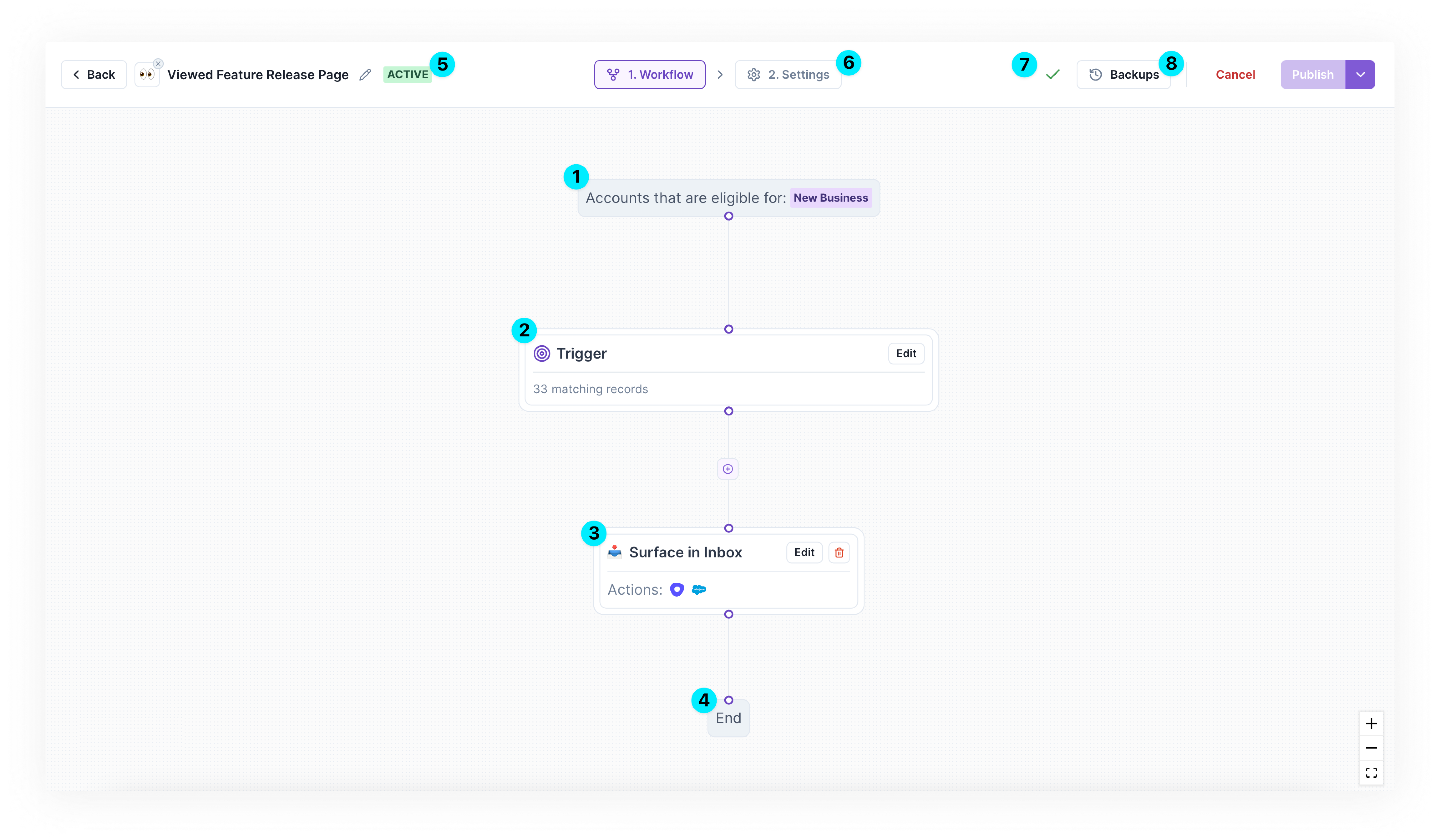
Build the Workflow
Step 1️⃣: Select a Goal
The first step to building a new Playbook is selecting the Goal that the Playbook is driving. This is how Pocus will track conversions and efficacy of this Playbook. Use an existing goal or create a new one. Learn more about Goals here.
Step 2️⃣: Start with the Playbook Workflow Trigger
The trigger defines what needs to happen to start the workflow. Before defining the trigger condition, ask yourself what needs to become true about an object for it to enter the workflow.
- Select an object
- Define a condition
- Add a description
- QA results
More trigger types coming soon, including scheduled triggers and triggers from other playbooks!
Not seeing as many results as you expect?Note that Goals are also configured with filters, so records from a Playbook must also be eligible for the Goal.
Keep an eye on Playbook volumePlaybooks are meant to be prioritized lists of surfaced leads, so be aware of the volume that is presented within these tables. If the Playbook will be surfaced to reps, It should be limited enough to be actionable.
Check out our Playbook directory for ideas or ask your CSM to enable Pocus Predicts AI for trigger suggestions.
Step 3️⃣: Add action steps
After the trigger, the world is your oyster! Add different action steps to build your desired workflow. The workflow will run in sequential order so add steps in the order you would like them to run.
Types of steps:
- Automate via Tech-Touch - Add an action step to have a 3rd-party action automatically run on any object going through the workflow. Reuse or build new actions specifically for this workflow. (e.g., Create contact, add to campaign, enroll in sequence)
- Surface to Reps - Add a surface in inbox step to present records to reps in their Pocus inbox to work manually. Define the instructions, data points they see and they should take.
- Note: there can only be one Inbox for a given workflow.
- Mark Done / ❌ Mark Disqualify - Add a mark done step at the end of any automated branch to tell Pocus that a record should exit the workflow and be removed from that workflow's Inbox.
- Branching ( Coming Soon!)
- Conditional branch - Use a conditional branch to work records differently based on some data point. For example, send director+ leads from a playbook to a reps inbox, while routing lower level leads through a marketing automation.
- Randomized split - Use to send a percentage of records down one path and another down a different. This is incredibly helpful for A/B testing the efficacy of playbooks and rep involvement.
Configure Settings (6️⃣)
Cooldown
Mark Done Across Goal? When enabled, marking done in one Playbook will mark that record done across all Playbooks inside that Goal.
ExampleSay, Wilson Saris is in both the
Decision maker with usage spikeandNew PQL userPlaybooks in theFree to paid conversionGoal. If this checkbox is selected, Mark Done in theNew PQL userPlaybook will also remove Wilson from theDecision makerPlaybook. If unselected, Wilson will continue to appear in theDecision makerPlaybook. Note: This is only within the same Goal. There is no global Mark Done.
Cooldown Duration: Set the length of time a record should be prevented from coming back into a Playbook Workflow after being Marked Done by a rep or via an automation. The cooldown duration is shared, whether the branch ended in an automation or a surface in inbox.
Salesforce Campaigns
Map Pocus playbooks to Salesforce Campaigns to configure attribution actions. Pick a Campaign name from the available dropdown. Once selected, any action that uses the internal variable {{PLAYBOOK_SALESFORCE_CAMPAIGN_ID}}will pass in the Salesforce Campaign ID of the selected Campaign for that variable. This is helpful for Create/Update Campaign Member actions for attribution.
Not seeing your Campaign name? Enter the Salesforce Campaign ID directly and save.
Save & Publish
As you are making changes Pocus automatically saves any updates to a draft version, so even if your WiFi glitches, your changes are still there. Don’t worry, they aren’t made live until you hit publish. Learn more about Version Control for Playbooks here.
- Still editing?
- You’ll see a DRAFT badge at the top of your workflow builder to indicate you are editing a draft (5️⃣).
- Hover over the check mark to see when your updates were most recently saved (7️⃣).
- Want to abandon the saved changes and revert to the live version? Click the dropdown menu next to the Publish button to discard changes.
- Ready to set your Playbook live? Hit the Publish button to make changes live for reps or to start running the workflow.
FAQs
How do I can control what Playbooks my team sees?
Which Playbooks are shown to reps is controlled at the Goal level. When a rep is assigned to a Goal they will see all of the Playbooks under that Goal where there are active records in their assigned accounts.
How do I know what Playbooks an account has been in?
Add an activity widget to an Account (or any object) Drilldown to see the history of Playbooks a record has been in. See Drilldowns
Can I reorder my Playbooks?
Yes! From your Inbox, click the three-dot icon in the top right corner, then click Sort Playbooks. You’ll be able to reorder Playbooks from the Pops up. Note: Playbook ordering impacts the entire workspace.
By default, Playbooks appear in the sidebar, directory, and inbox in order of creation group by goal. The first created goal will appear first with the playbooks inside ordered by the oldest first.
Can a user be in multiple Playbooks at once?
Playbooks are not mutually exclusive by default, so the same record can appear in multiple Playbooks at the same time. Users can, however, Mark Done a record across all of their active Playbooks so that they don’t duplicate efforts. To set this up, head to a Playbook’s settings and check the Mark Done Across Goal? checkbox. Learn more in Surface to Reps.
Updated over 1 year ago