

Apollo Actions
Learn how to take action with Apollo sales engagement
To use Apollo actions you will need to have already integrated your Pocus workspace with your Apollo account. If you have not done this, you can do so by following the steps in this article.
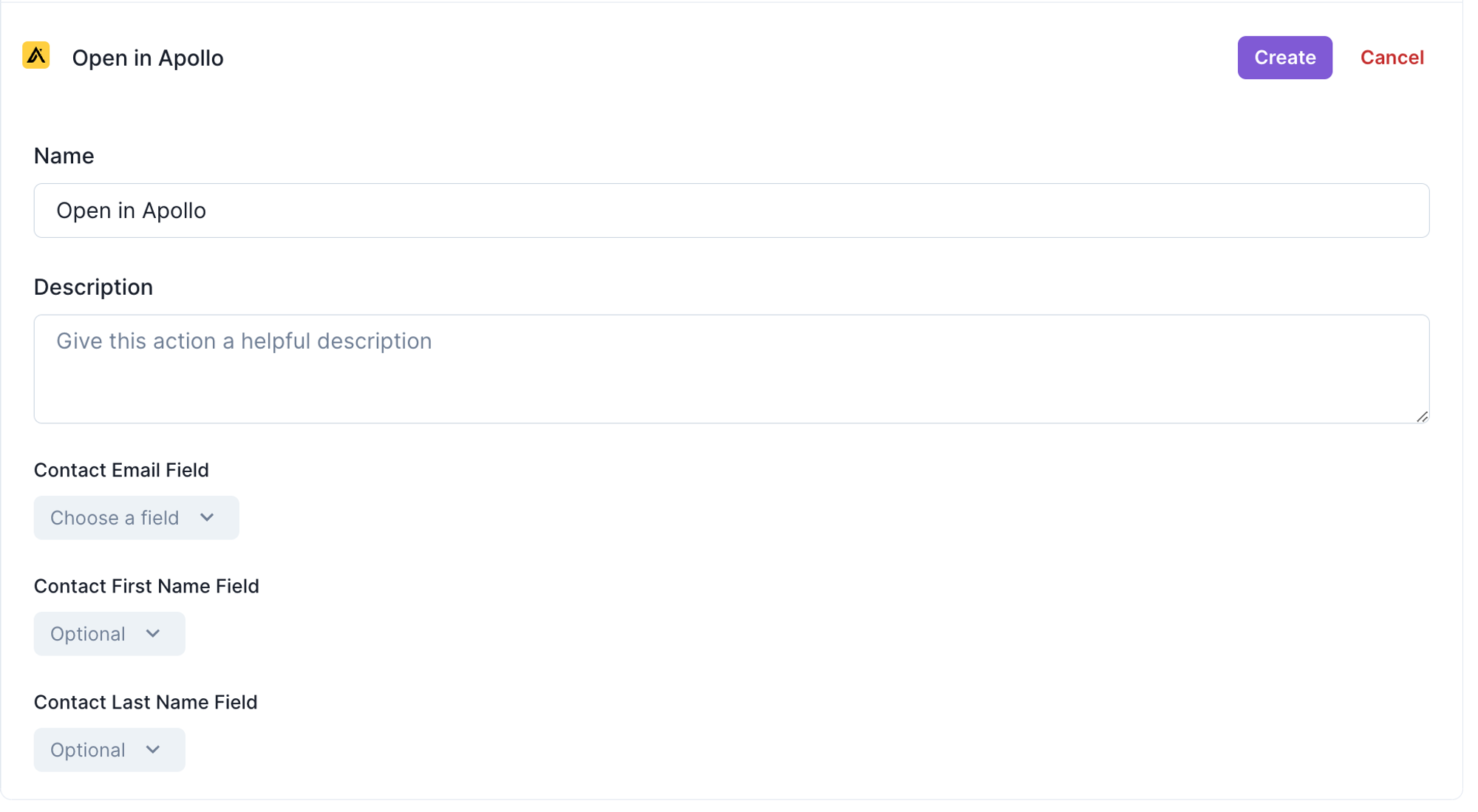
Open in Apollo
This action will open a Contact in Apollo. If the Contact doesn’t already exist in Apollo, it will create a new one. This action takes an Email, First Name, and Last Name field from the object that it is being configured on. Only email is required. Once configured, these fields will be used to identify the target User in Apollo and open their page in a new tab.
Note: When Contacts are created in Apollo from Pocus, the creation is attributed to the API, and no owner is set.
Enroll in Sequence
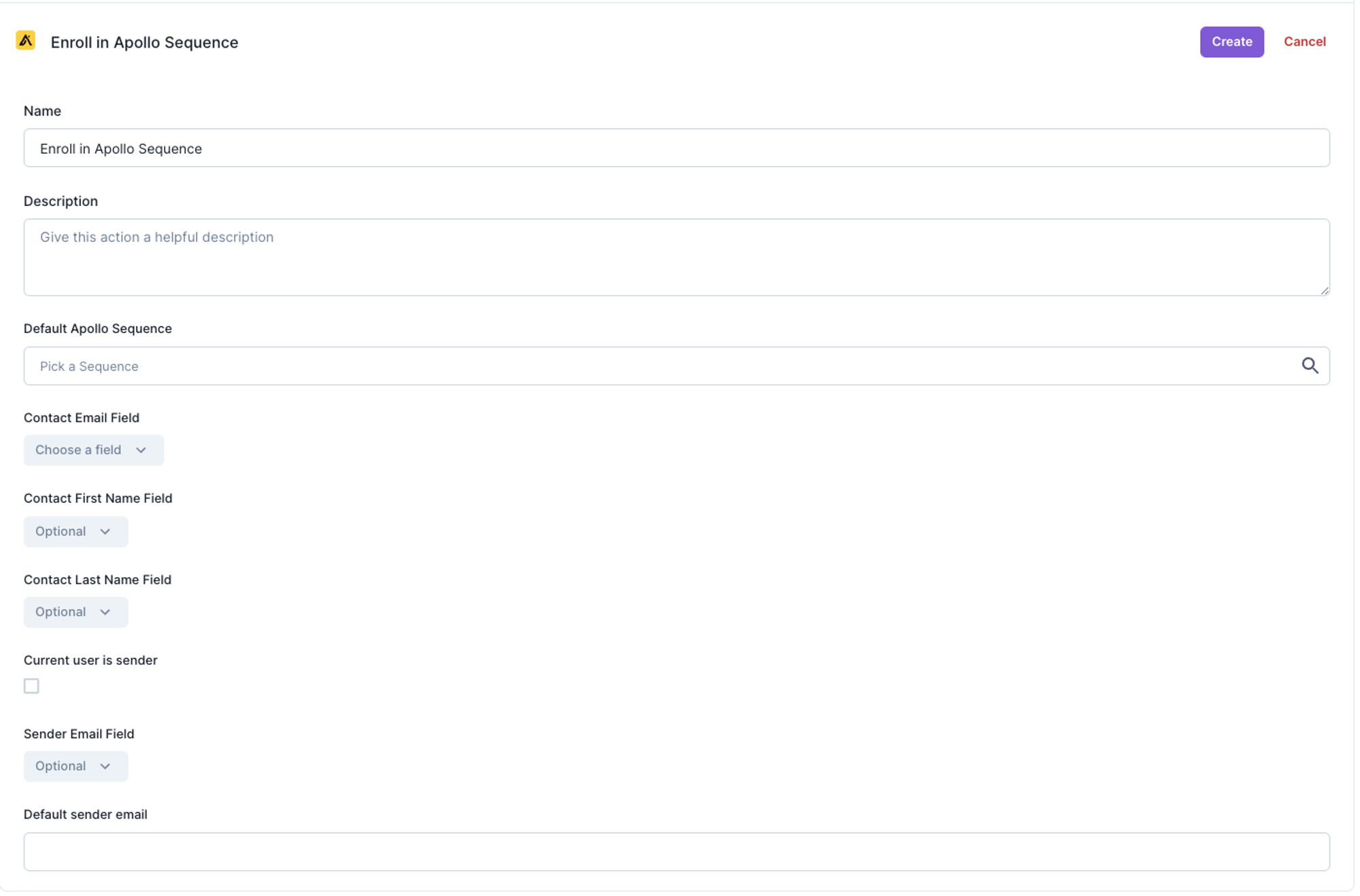
This action enrolls Contacts in Apollo sequences. If the Contact does not already exist, Pocus will create a new one just like the Open action. This action also takes an Email, First Name, and Last Name field. Additionally, you will need to select a default sequence. When invoking this action the default sequence will be the one selected but the user will have the option to select a different sequence before invoking.
Once these values are set you can configure the sender options.
- Current user is sender: This should be checked if you plan to have this action invoked manually. This option will use the invoking user’s Pocus email to lookup their Apollo inbox and enroll the selected contact in a sequence from that user.
- Sender Email Field: This option will have the action reference an owner field on the object we are configuring this action for. The email in this field should correspond to an existing user email in Apollo. In cases where this field is null and the action is invoked, the action will fail.
- Default sender email: Entering an existing Apollo account email in this field will result in all sequence enrollments originating from the entered email no matter how the action is invoked.
Using Enroll in Automations
The “Enroll in Apollo sequence” action can be invoked via a button or Playbook Automation. When using a Playbook Automation implementation, you can either use the Sender Email Field setting to have the enrollment originate from the email in that field or you can use Default Sender email to have all automated enrollments sent from one email.
💡 If you have the “current user” option selected as well as a default field, the current user will be used in all manual invocations and the default field will be used in automations.
Updated over 1 year ago