

Search
Navigate quickly throughout Pocus with powerful OmniSearch
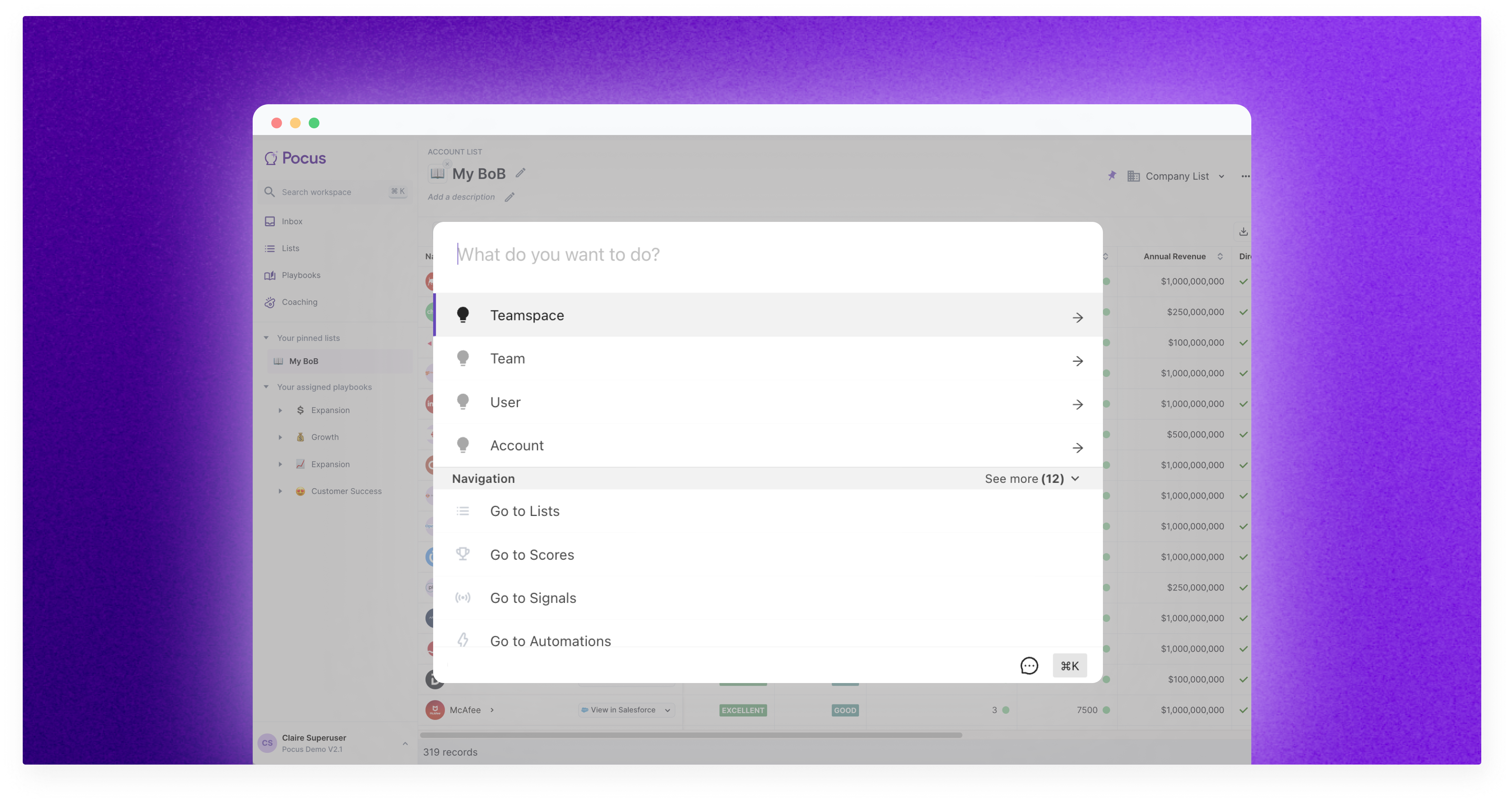
What is Omnisearch?
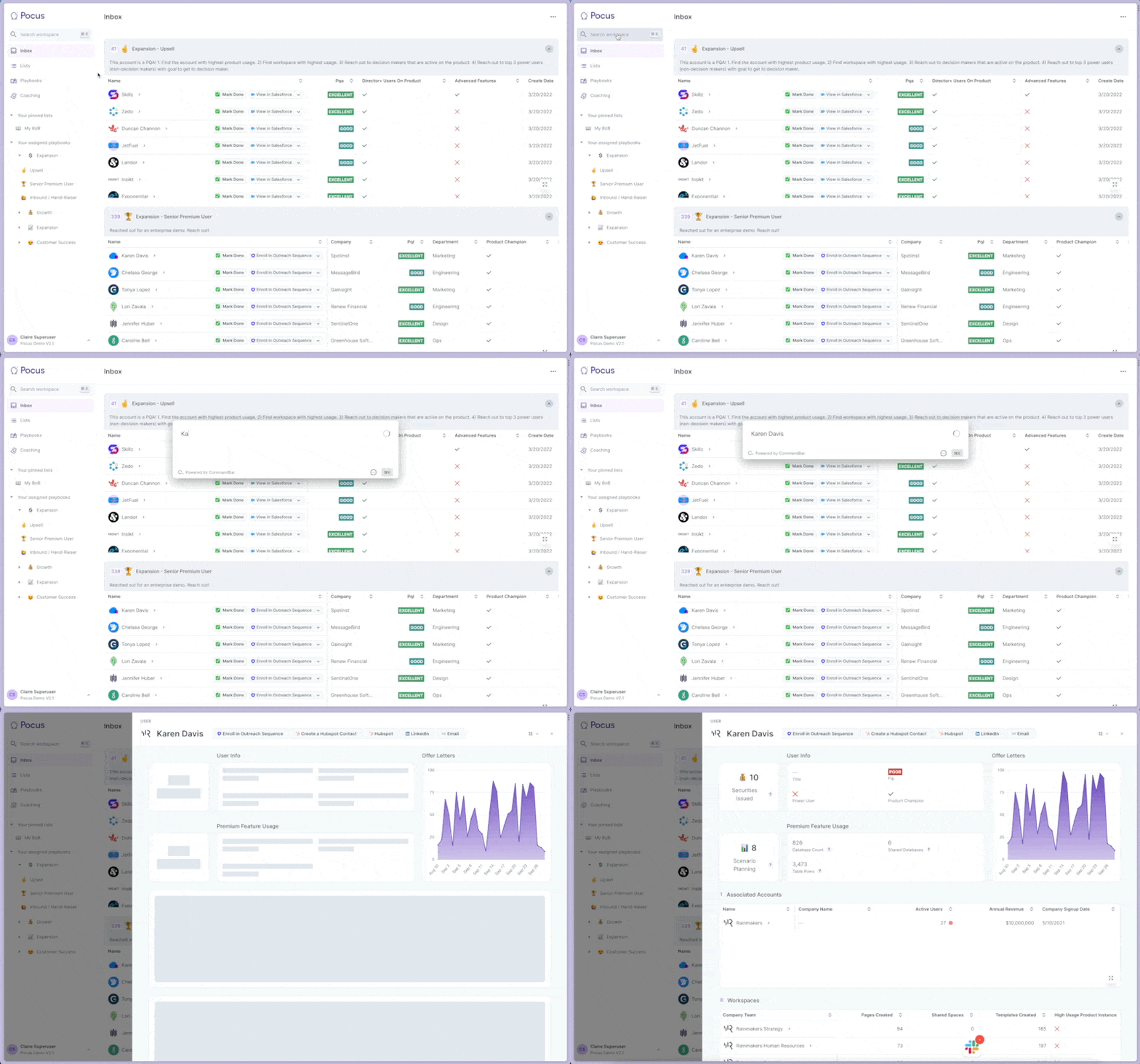
OmniSearch is the fastest way to find a user or account (or any object!) from anywhere in the Pocus workspace. Simply use Command+K or click the search icon in the top left corner and start typing. Selecting a search result will bring up the Drilldown containing detailed info for that particular object.
Use search to quickly pull up a user or an account before an upcoming sales meeting, quickly see if a stakeholder is using the product, or use it to reference data during a customer success call.
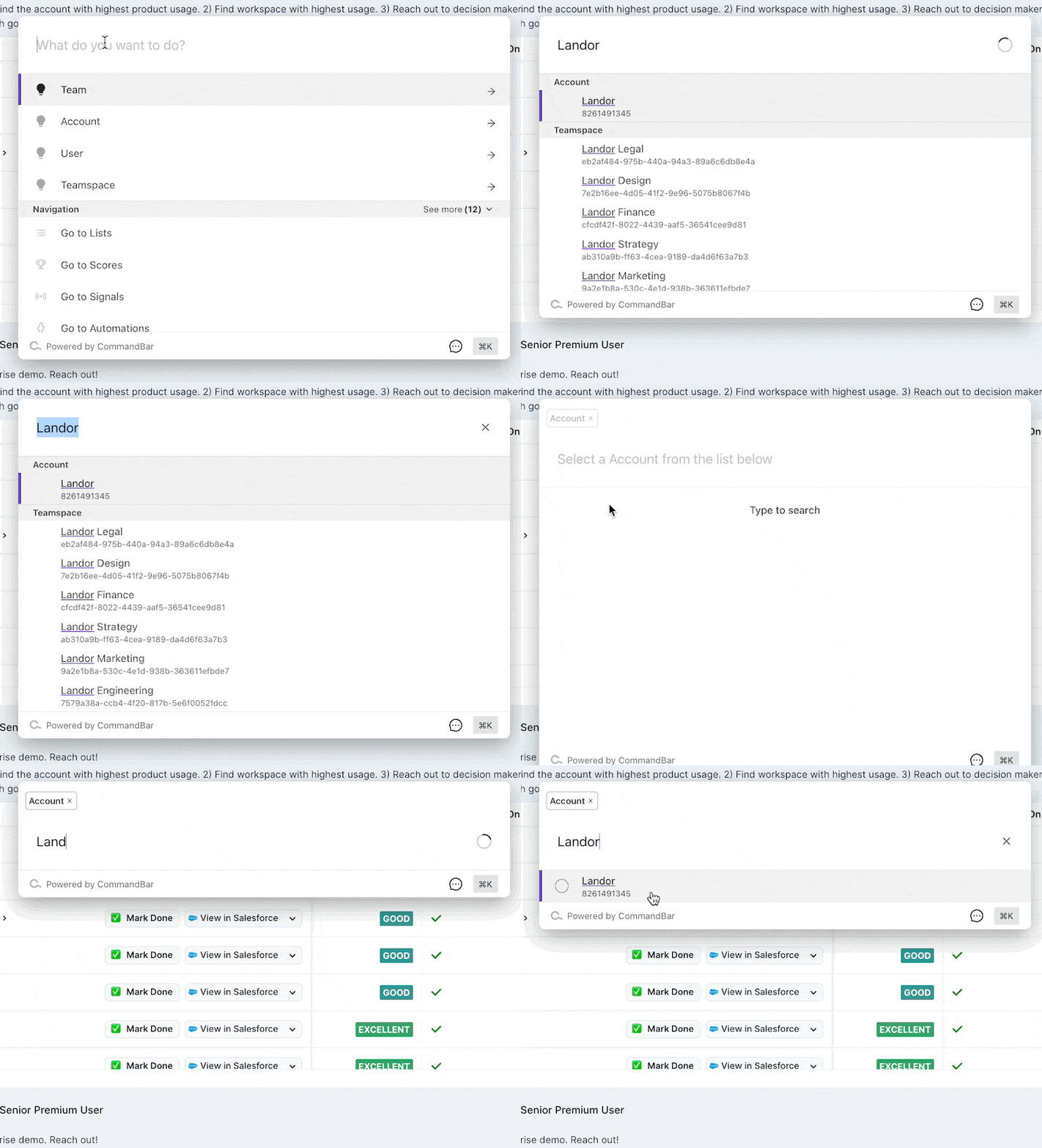
By default, OmniSearch will return the first 5 results for each object type (e.g., 5 potentially matching accounts, 5 potentially matching users…) If you would like to restrict your search to a particular object you can do so by selecting the object from the list directly below the search field to restrict your results to just that object. This will return additional results for just that object.
What can I search with?
By default OmniSearch only searches for the primary identifier of an object and the display name (what you see in the first column of every table). For example if the primary identifier of a user object is email, searching for a particular user by their user id would not turn up the user.
Configuring searchable fields
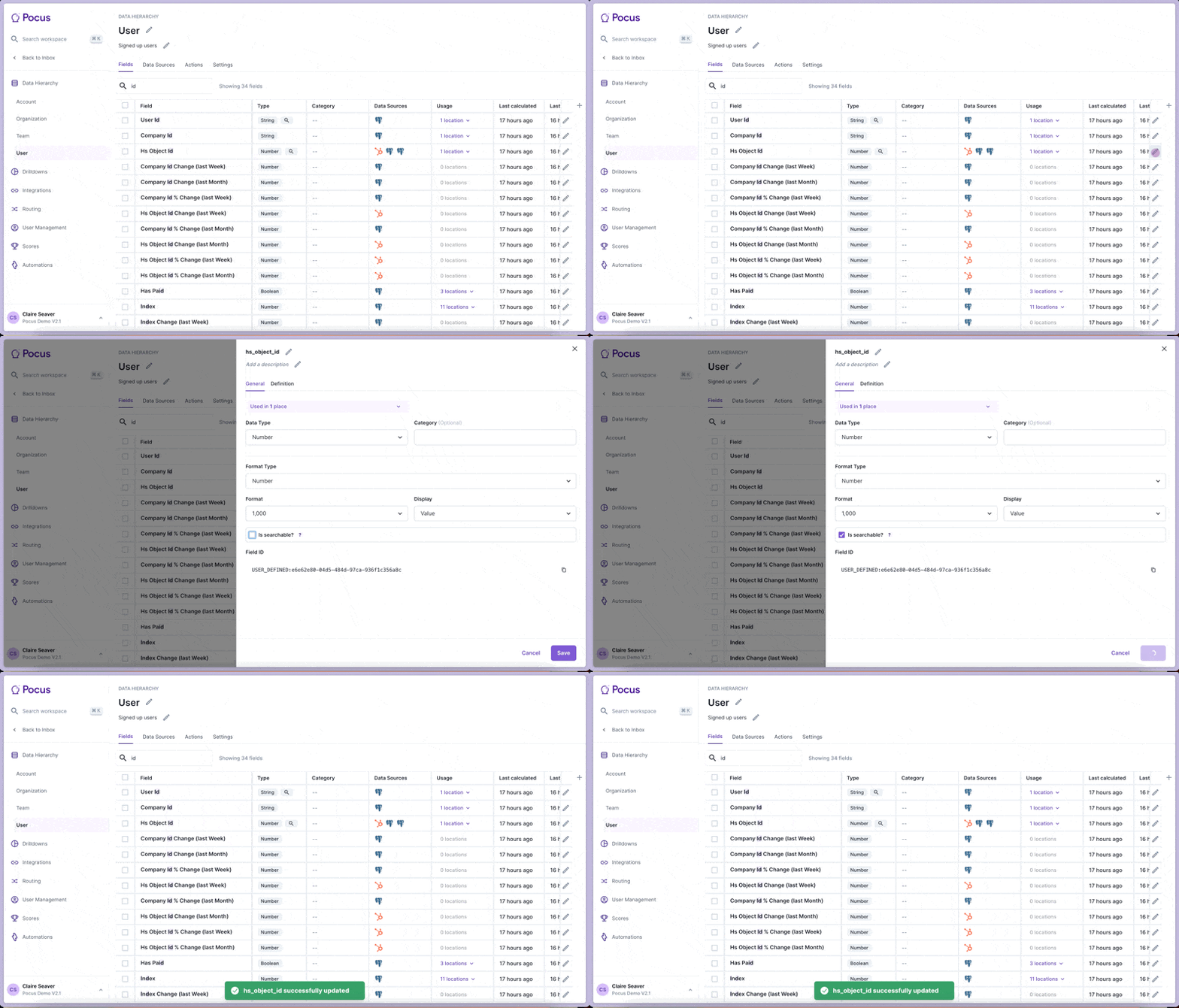
Want to search sometimes by the user_id, sometimes by name, sometimes by salesforce_account_id?Additional fields can easily be configured to be searchable. Any Pocus Editor can update a field to be searchable by selecting enable the Is searchable checkbox for that field in Workspace Settings. Once enabled a 🔍 icon will appear next to that field. See below:
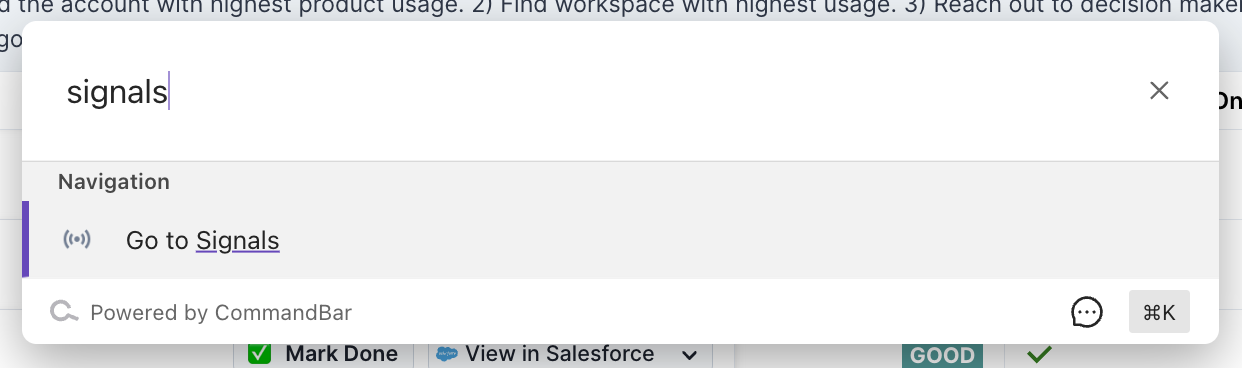
Navigate quickly with CMD + KOmniSearch can also be used to quickly navigate to different sections of the Pocus workspace. For example, instead of navigating to your signals from the home page by entering workspace settings and selecting the signals tab, bring up OmniSearch with cmd+k and select “Go to Signals”
Updated over 1 year ago