

Querying Google Sheets
Learn how to pull data from a Google Sheet into Pocus.
Grant permission
To pull data from a Google Sheet, you will need a Google Cloud service account connected. This is what allows Poucs to authenticate your Google Cloud account. If you haven't already connected one, follow the instructions in this GSuite Article.
Once the service account is connected, grant the service account email edit permissions on the Google Sheet you'd like to pull data from. You can find the Follow Google's instructions for sharing Sheets here.
Writing the query
Now that we have our integration setup, and our service account has been added as an editor to our sheet, we can start pulling information from the target Google Sheet into Pocus. To do so we will need:
- Sheet name
- Sheet URL
- Range of columns we want to pull from.
The sheet name and URL can be found in the highlighted sections shown below, here is an example sheet to confirm where these values reside.
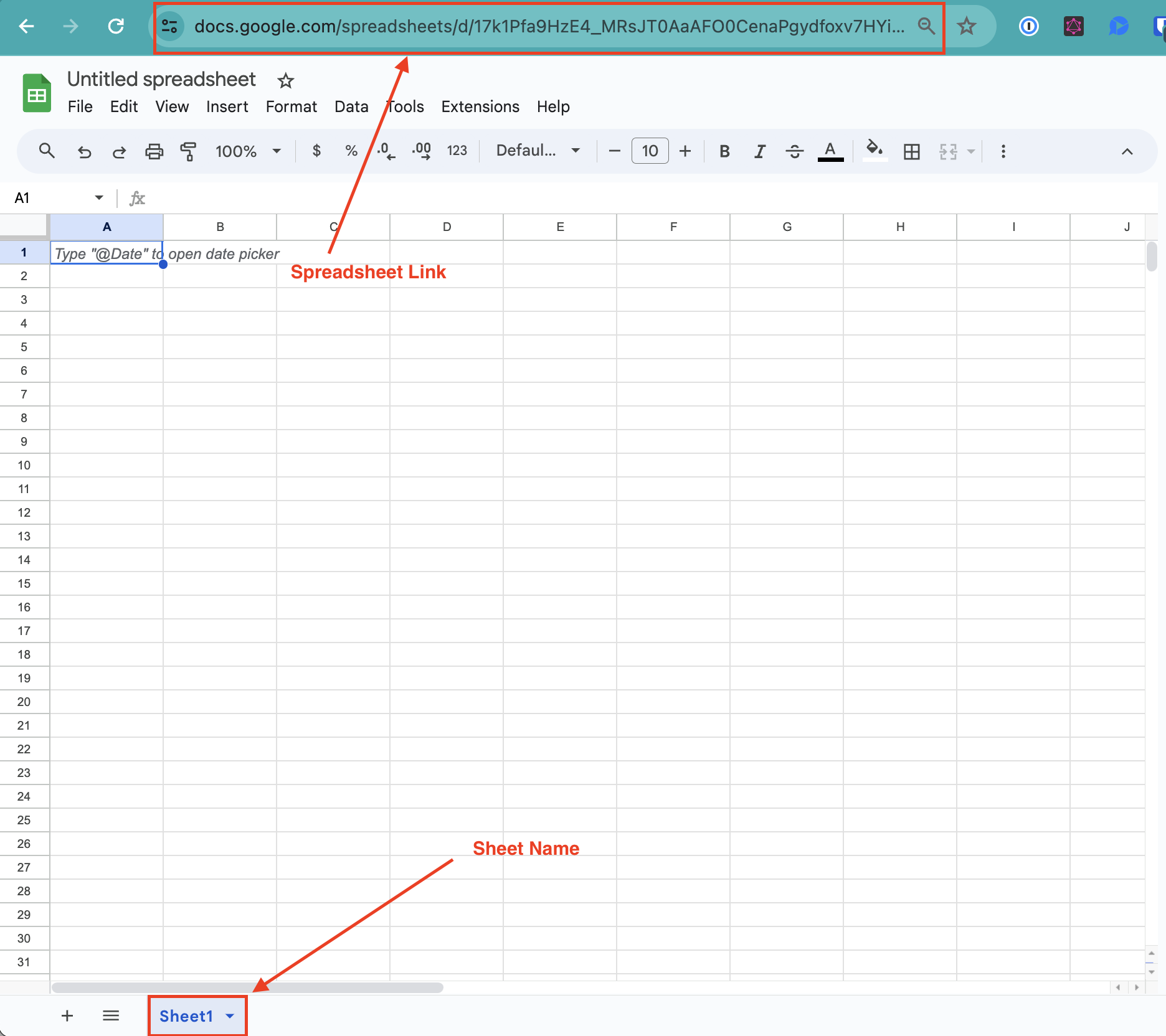
Once you have your Spreadsheet ID and Sheet Name you can add your new Google Sheet query. Upon adding the query you will be provided with the below template
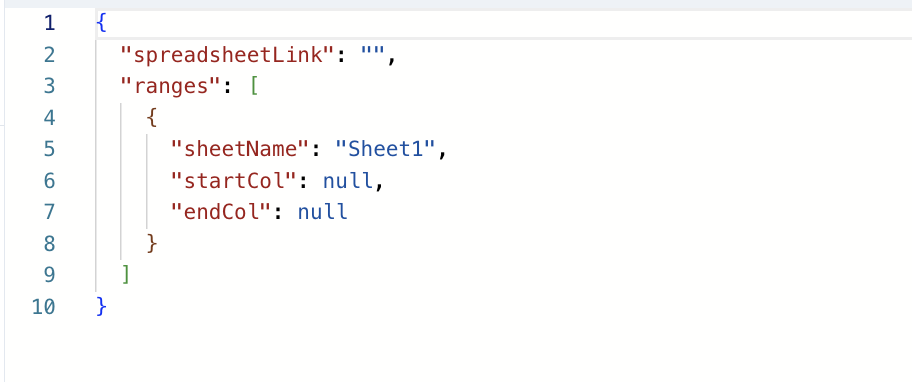
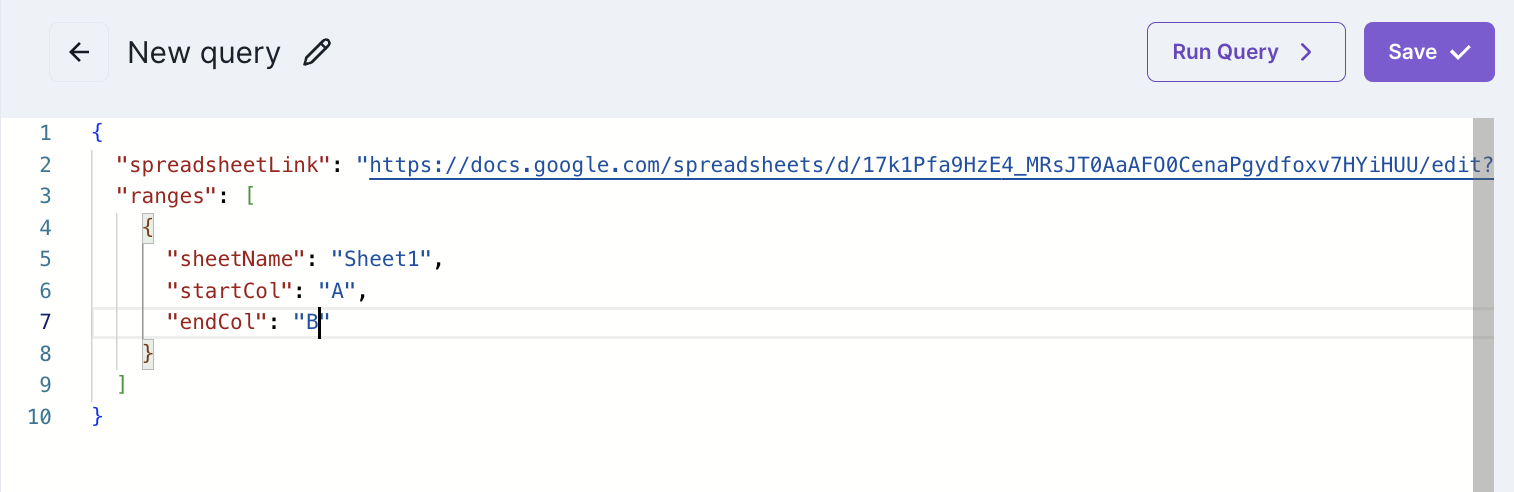
Our sheet URL and name will go between the pre-existing double quotes. If you would like to include all sheet columns in your query you can leave "startCol" and "endCol" with their default null values. If you would like a specific range of columns you will insert the letters corresponding with those columns in double quotes.
Updated over 1 year ago