

Surface in Inbox
Learn how to configure Inbox and Slack alerts to surface top leads to reps.
Playbooks can be run to trigger flows automatically or they can be run to surface leads to reps when you want some sort of human touch (or both!). Let’s dive into these human-touch Playbooks.
What does it mean to Surface in Inbox?
When you toggle on Surface in inbox, leads that qualify for the playbook will start flowing to the assigned reps.
The specific leads come through is controlled by the Goal Eligible filter, Goal assignment, Playbook trigger conditions, and Routing configuration. Dive into those articles to learn more about triggers.
There are two ways that leads can surface to reps:
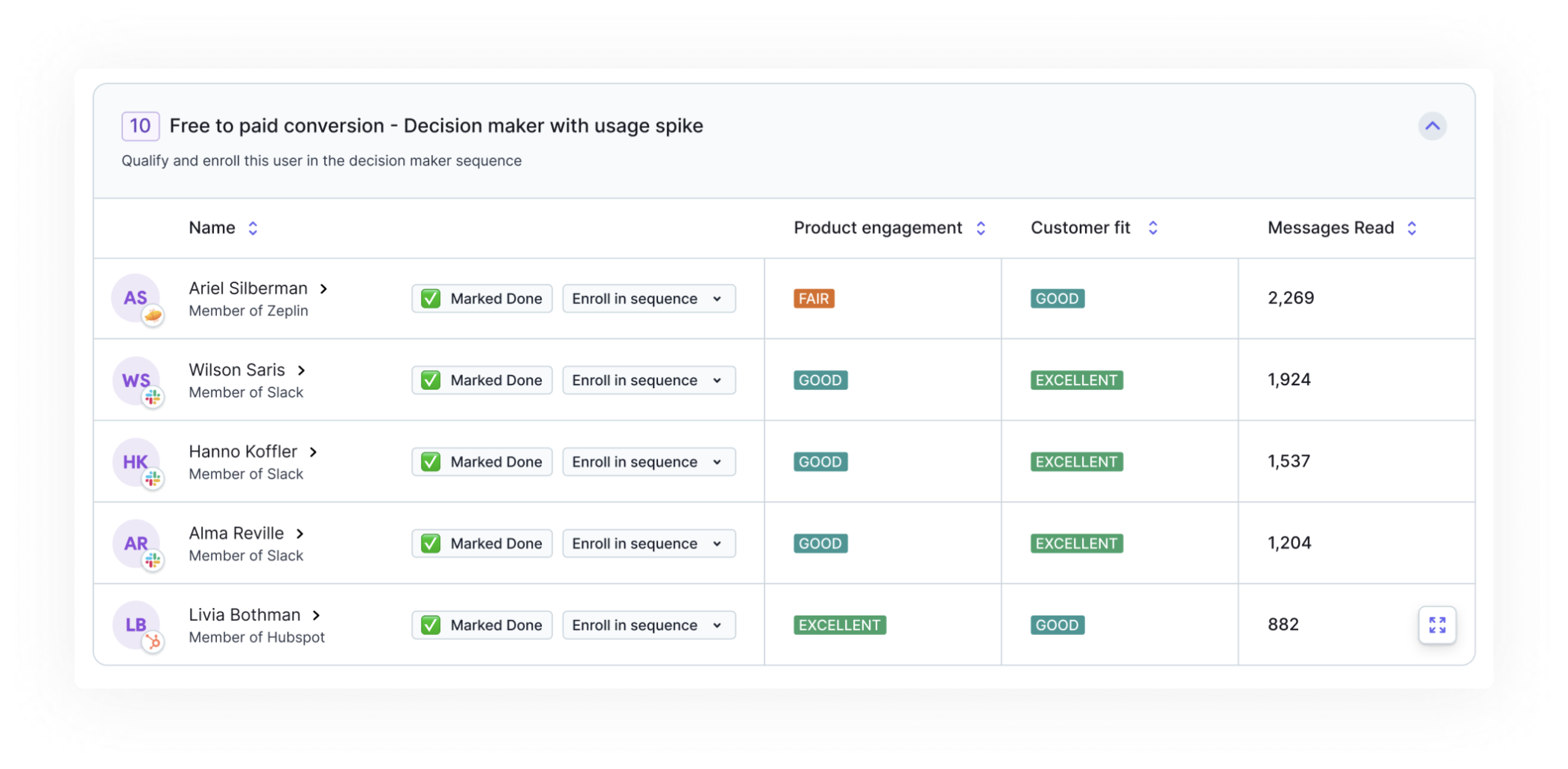
- Daily Slack digest

Pocus makes it easy for reps to act on these leads by providing all the relevant data and quick action buttons whenever a lead is surfaced. Let’s dive into configuring these alerts.
How to configure the Surface in Inbox step
Step 1: Add a Surface in Inbox step
By default, new Playbooks will include a Surface in Inbox step as the final step of the workflow.
If you’d like to add a Surface in Inbox step to a fully automated Playbook Workflow, click the ➕ icon after the final step in the existing workflow and add a Surface in Inbox action.
The Surface in Inbox must be the final step in a Playbook Workflow.
Step 2: Configure the Inbox
Click the Edit button to open the editor.
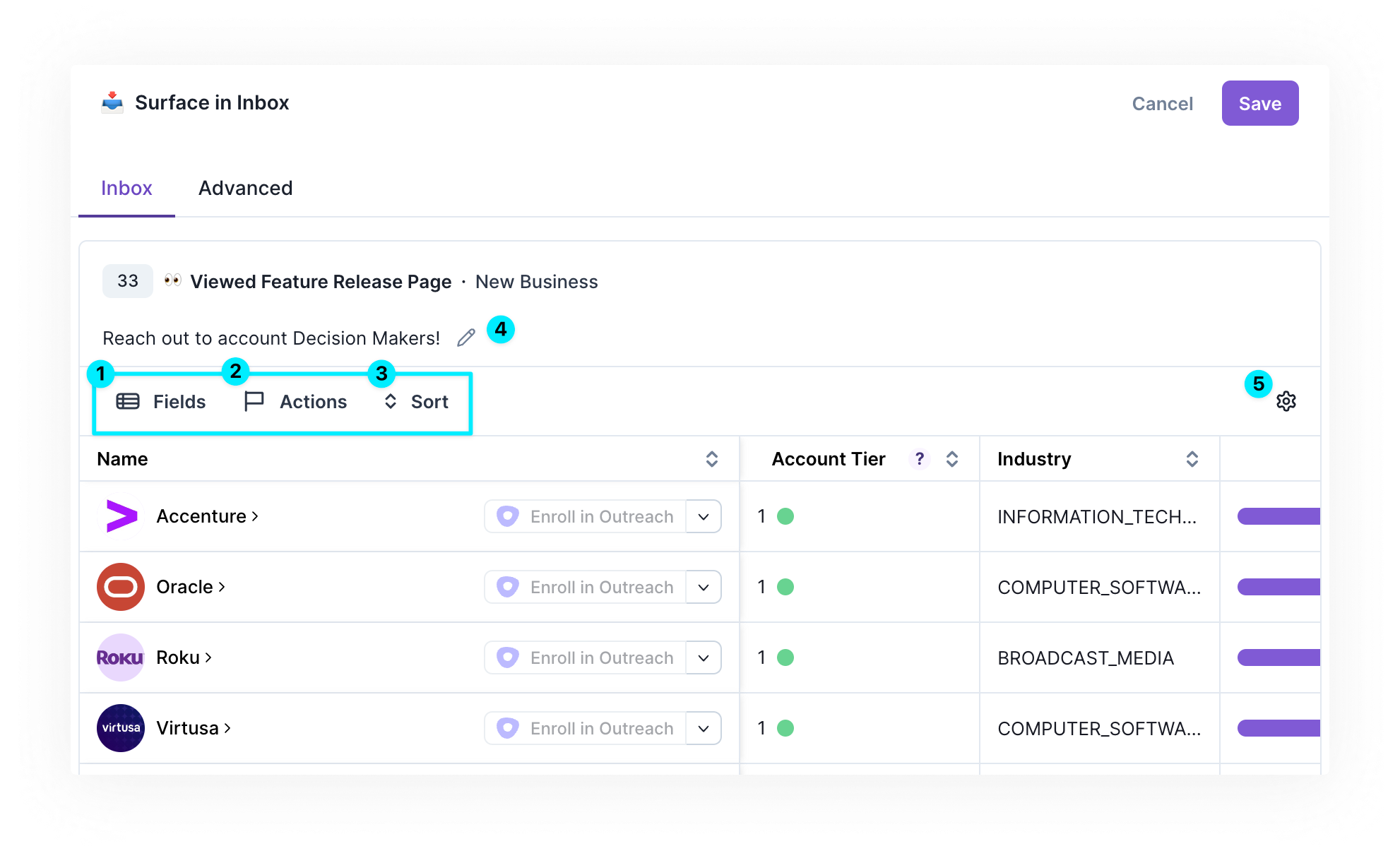
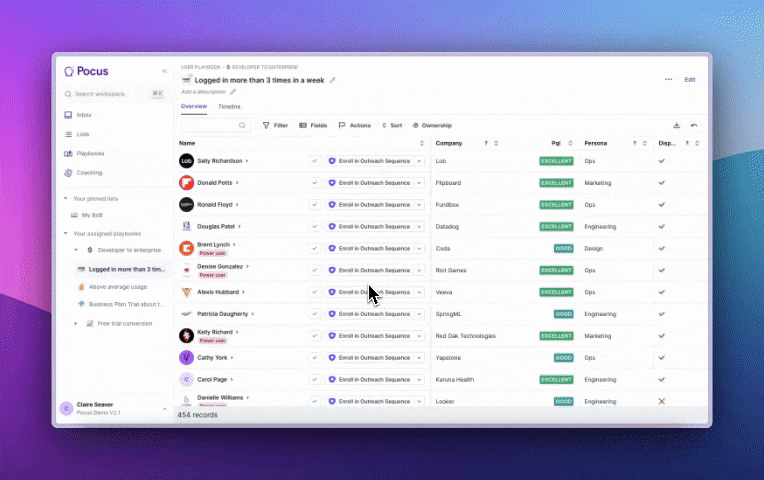
The Inbox tab in the Action editor shows you a preview of exactly what reps will see when this playbook surfaces leads into their Inboxes.
1️⃣ Data Fields: Select and reorder the data points that you want to appear as columns in the Inbox. Reps will be able to easily click to sort from these fields in their Inbox. These data fields will also be what data is presented in Slack alerts.
2️⃣ Actions: Give reps quick access to links and actions by adding action buttons here. Drag and drop to re-order. Note that the first button will appear most prominently, with the others inside a dropdown.
Mark DoneThe Mark Done action appears by default in all Inboxes. You can set certain actions to count as Marking Done by clicking the checkbox next to them. When the checkbox is enabled, if the action is successful invoked, the record will automatically be Marked Done without the rep having to click a second time.
3️⃣ Sort: Configure how records should sorted for reps when viewing this Playbook in their Inbox.
6️⃣ Rep Instructions: Make it super clear what to do! Write out instructions - as detailed as you'd like - for how reps to action this lead. Provide detailed instructions on who to reach out to for account-based plays. Link to internal playbook documentation from enablement. We've even seen Loom instructions included!
5️⃣ Drilldown: Select which view should open when a rep clicks on a record in this Playbook. This is particularly helpful if you have different views for New Logo v. Expansion accounts––trigger different views to open accordingly.
Step 3: Configure Advanced Settings (optional)
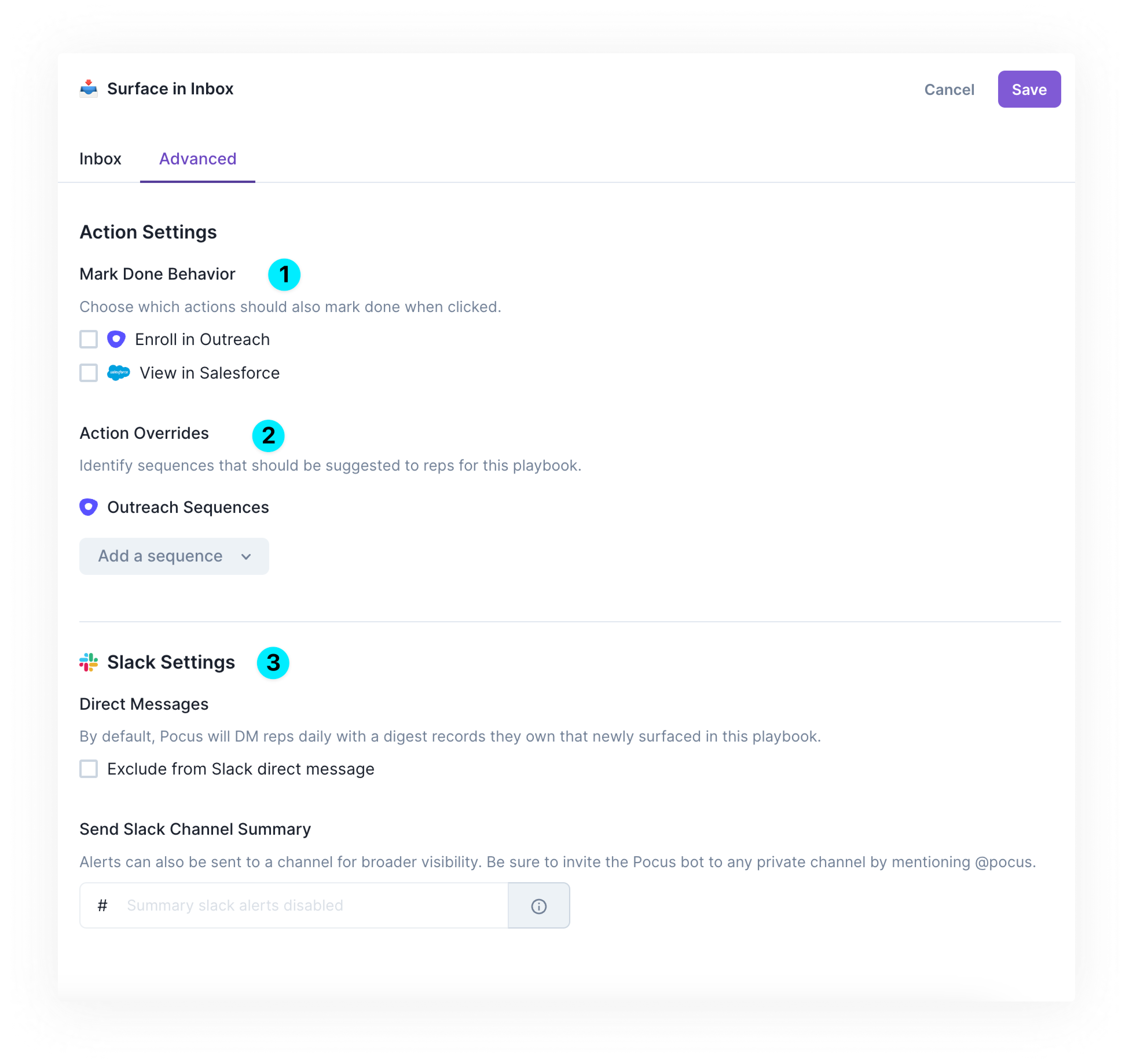
1️⃣ **Mark Done Behavior:**Choose which actions should also ✅ Mark Done when clicked. Selecting the checkbox means that when a rep clicks the corresponding action, the record will be ✅ Marked Done and removed from the Playbook.
2️⃣ Sequence Suggestions: Customize the default and suggested sequences that appear for reps in their inbox when they invoke sales engagement actions (e.g., Enroll in Outreach / Apollo / Salesloft / Gong). The first sequence selected will appear pre-selected. If you select more than one, the other sequences will appear until the Suggested category of sequences at the top of the dropdown.
3️⃣ Slack Settings:
By default, Slack notification functionality is built into all Human Touch plays. Integrate Slack with Pocus to send a daily DM of newly surfaced records to the owner of the records. Learn more.
To turn off Slack DMs, select the Exclude from Slack direct message checkbox. You can also choose to send a summary to a specific Slack channel.
Slack notifications will only work once the workspace has Routing enabled, since routing in Pocus determines who the owner is. For DMing the owner to work, they will need the Pocus app installed on their workspace.
Step 4: Save and Adjust as Needed
Once you have all settings configured for the Surface in Inbox step, save the configuration by clicking the Save button in the top right of the editor.
Updated over 1 year ago