

Data Sources
Define the data you want to bring into Pocus by configuring your different data sources
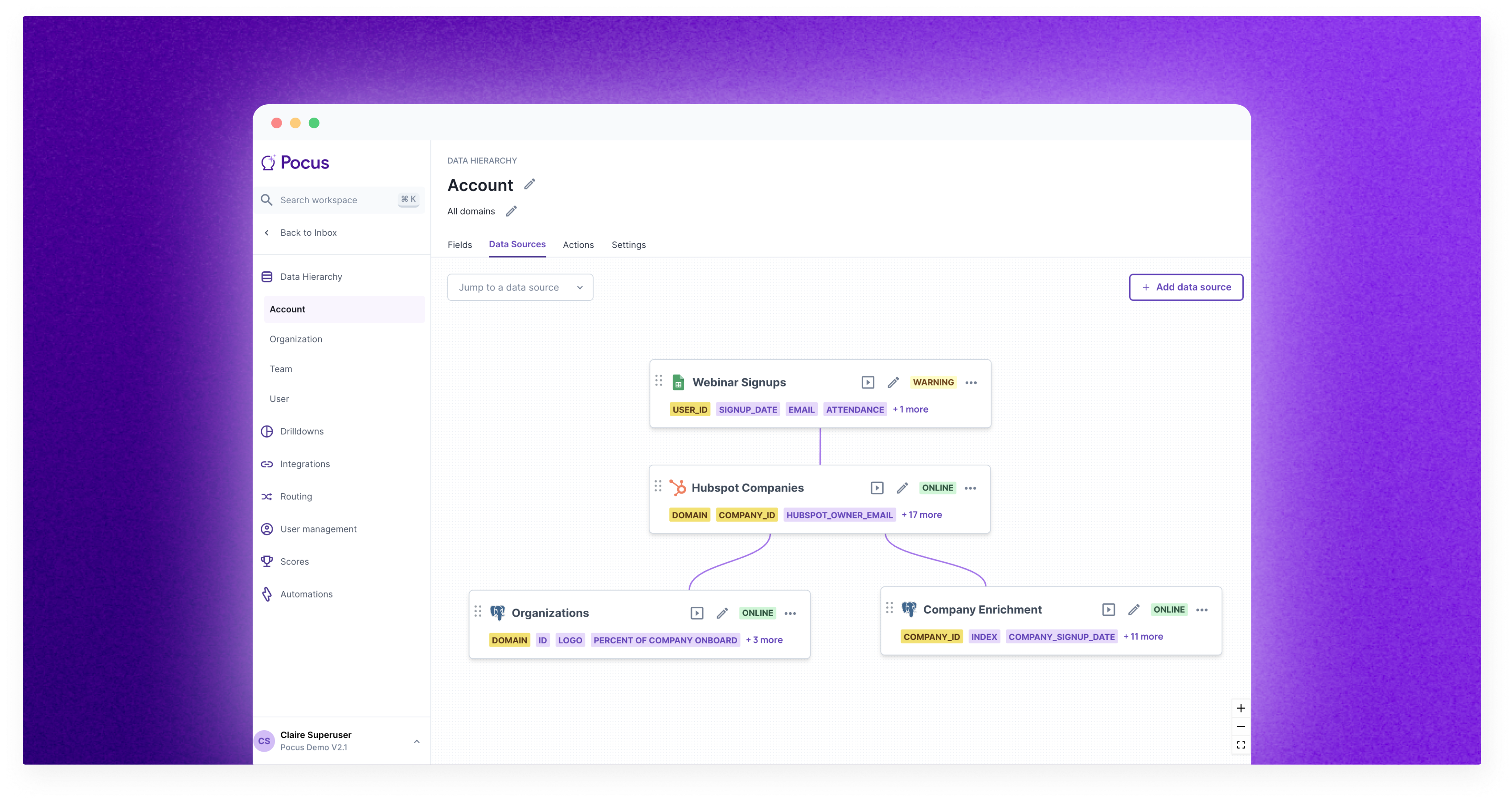
What are Data Sources?
Part of the power of Pocus is the ability to bring in data from disparate sources, merge it together, and enable GTM teams to access it as they would from a simple spreadsheet.
Data source configuration is where the magic happens! Define the exact fields to bring in from each data source––CRM, Data Warehouse, Google Sheets, and more. Configure how those sources join together, and ultimately build your GTM model for any object in your data hierarchy (e.g., Account, User, Workspace).
Creating a New Data Source
Once you select the object you want to add a new query to, click the Add Data Source button on the data sources tab.
Select the integrated data source. To add new integrations, see our integration guides. In our example below, we are going to select the PostgreSQL integration named “Demo Data.”
After selecting a data source, you will be taken to a page to write a query pulling in desired information from the connected source. What properties, identifiers, and dimensions should we pull from this data source?
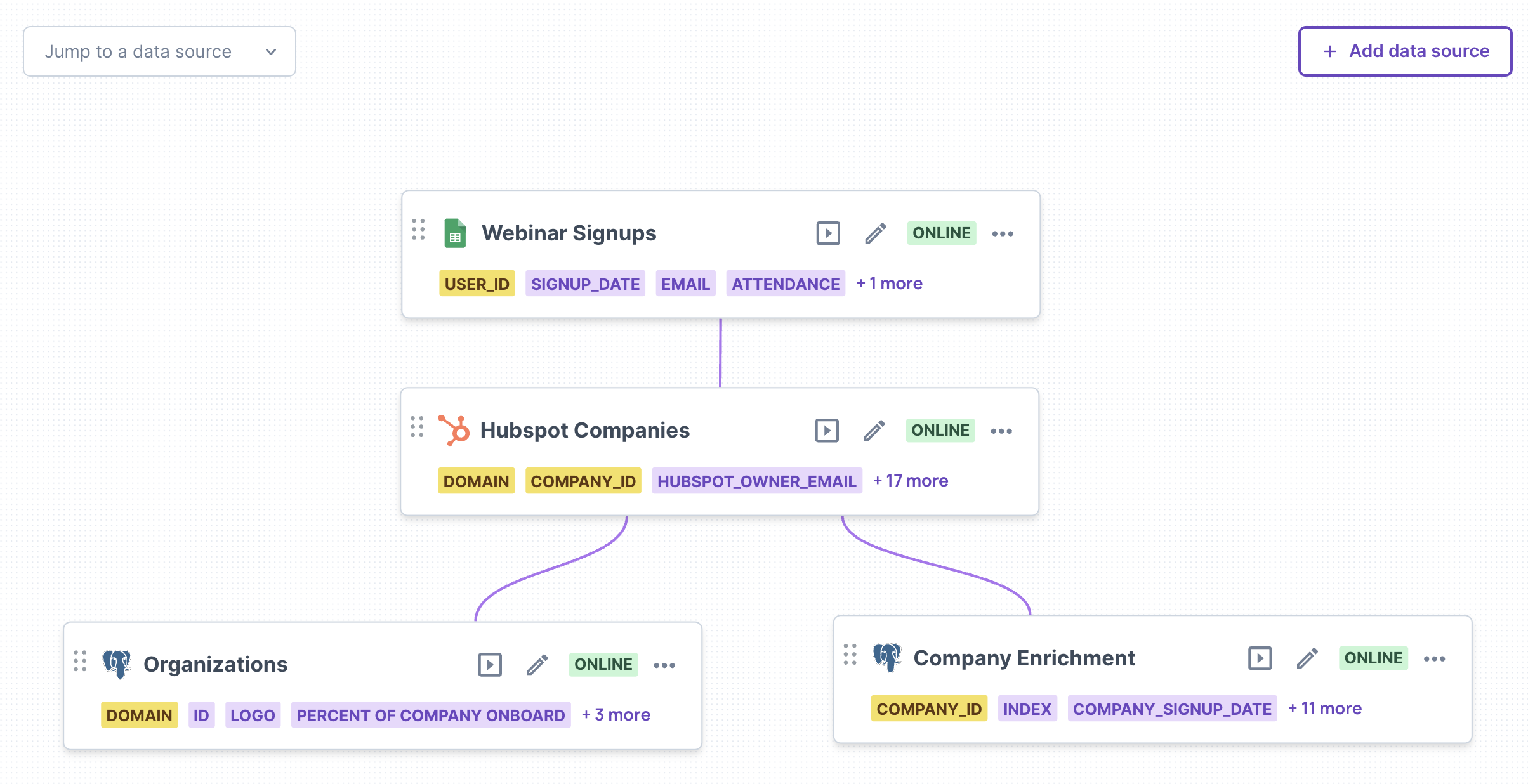
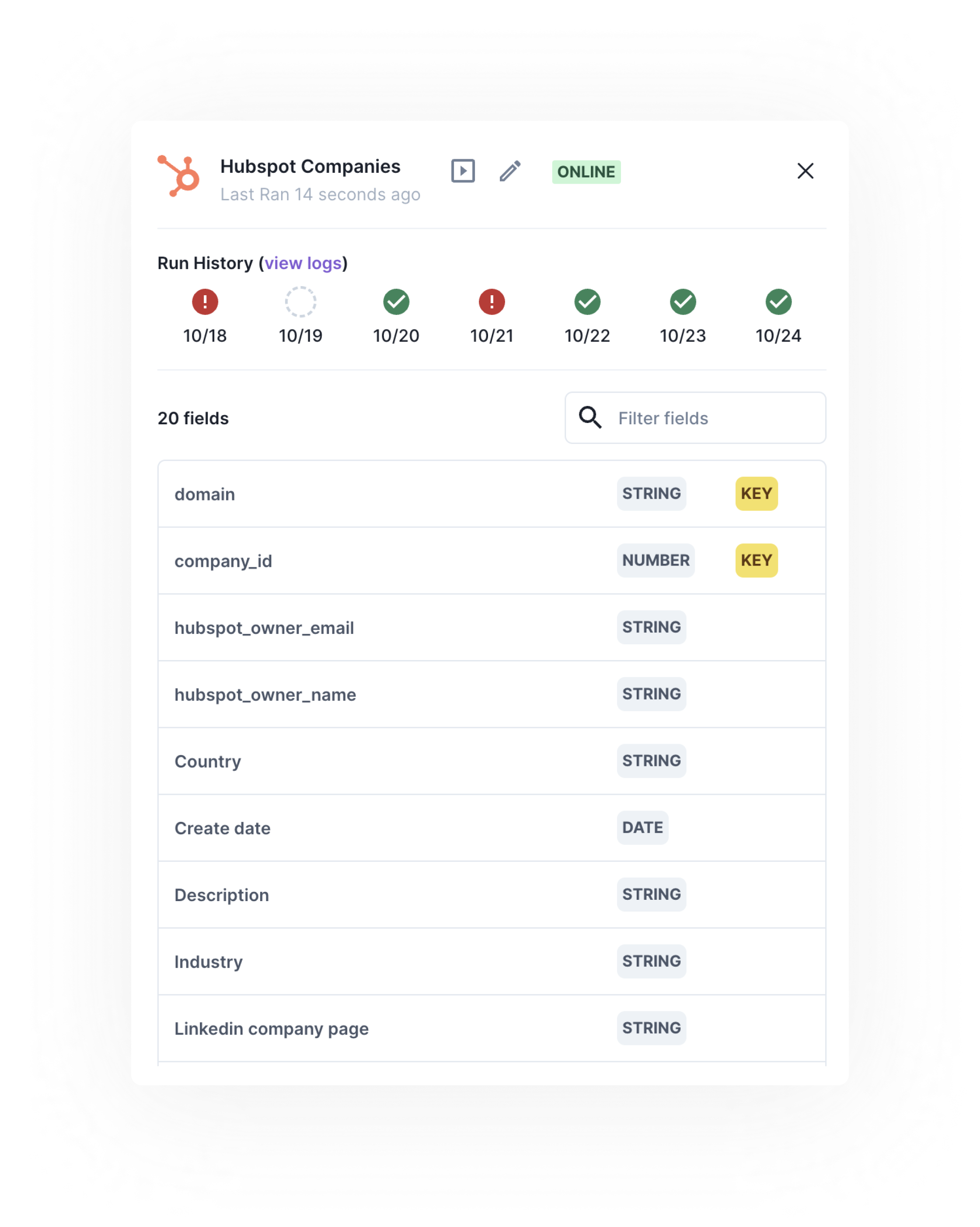
Above, we can see that there is one query pulling Company Enrichment data from Postgres. This includes COMPANY_ID, INDEX, ``COMPANY_SIGNUP_DATE and 11 other raw fields. To see all the fields, click on the node to open up a searchable side panel.
To learn more about writing these queries, see additional documentation based on data source and Data Source Best Practices.
- Querying Hubspot
- Query Salesforce
- Querying with SQL
- Querying Google Sheets
Adding a new query requires a data refresh to have that data start populating throughout the Pocus workspace.
Query Associations
If your newly saved data source is not the only one on the object, associate it with existing data sources by clicking and dragging the plus symbol to connect sources.
Once the association is made, select a field that the two data sources can associate on, more often than not this field will also be the primary key for the object. If it is not the primary key, it should be some other unique identifier you know will not have duplicates in the data source. Confirm that the fields used for association are the same data type (e.g., number, string).
Query associations require a 1:1 relationship. For example, if you have a workspace table and a pages table, where workspaces contain many tables, these cannot be joined as a 1:many query. Instead, they could be joined as a page count to workspace association that is 1:1.
If you are familiar with SQL joins this association effectively works as an outer join that is to say any item that has the primary key will be created in Pocus!
In addition to the Company Enrichment data in the example above, we are also pulling in:
Hubspot Companies- This is pulling in data points from the Hubspot API directly. It is joining withCompany Enrichmentdata via theCOMPANY_IDfield.Organizations- This is another query on Postgres. It is common to break out queries even to the same connection to make for simpler queries or reference different schemas. This is joining in based onDOMAINmatching theDOMAINfield from HubspotWebinar Signups- This is pulling data in from a Google Spreadsheet.
Running Queries & Logs
Running Queries
Scheduled Runs
All queries will run as a part of the workspace's scheduled refresh. Reach out to your Pocus support for any requested changes to the schedule. Both the time of day and the cadence of refresh are workspace-dependent. We recommend picking a time with enough cushion after any existing ETLs or warehouse updates you may be running.
Manual Runs
Individual queries can be manually run by clicking the ▶️ icon. The query run button available on a query in the data tab of an object will pull in all current data for the query and store it in Pocus. However, this new data will not surface in Pocus until a full data refresh is performed. To trigger an off-cycle refresh, click the Refresh workspace button at the top right of your data hierarchy homepage. .
15 minute query limitAll queries have a timeout limit of 15 minutes. If a query is taking longer than this to complete it will be necessary to optimize it, split it up into multiple queries, or migrate the query out of Pocus to its own table or materialized view that Pocus can then pull from
Query Logs
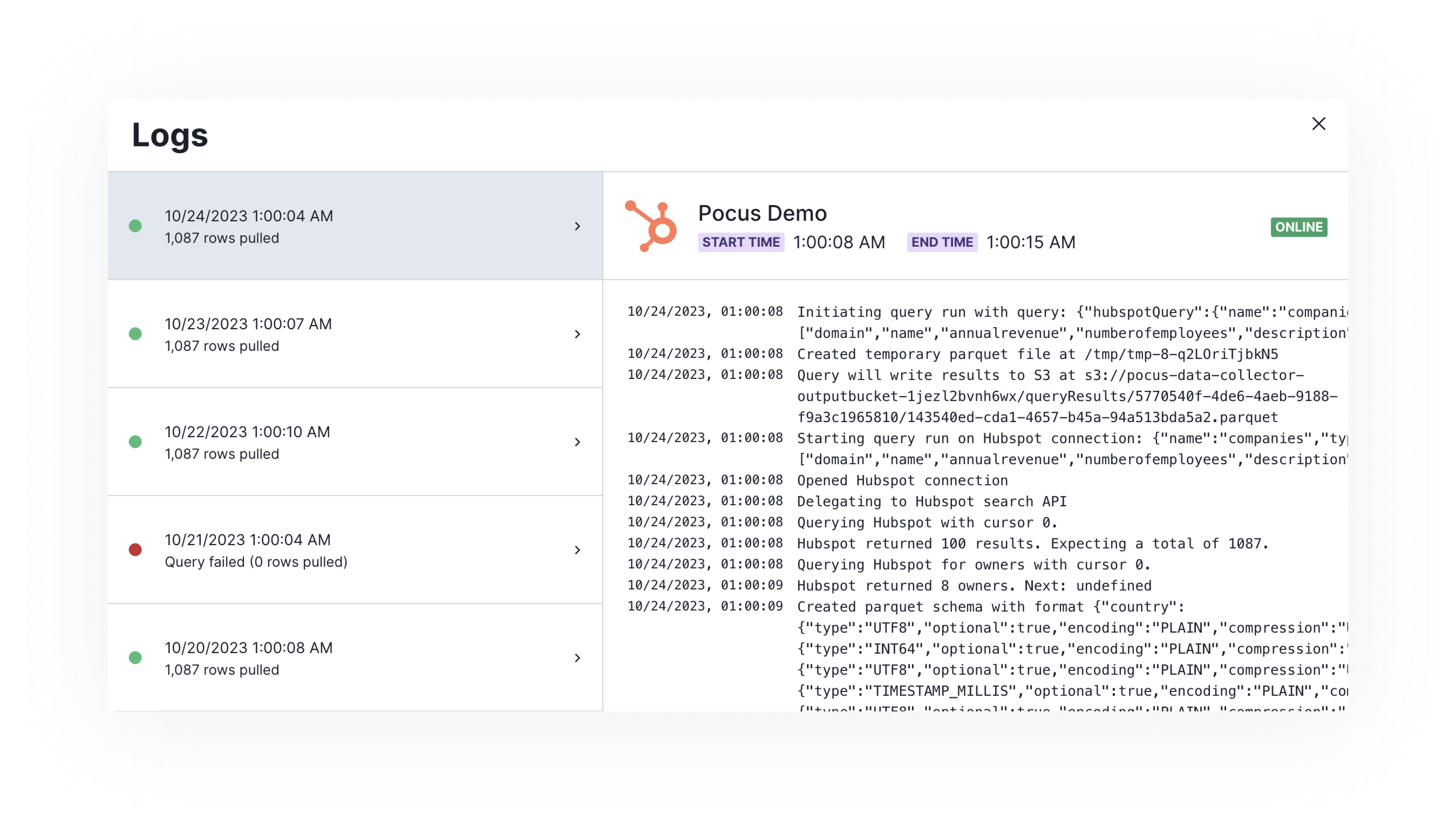
Every data refresh and all manual query runs will generate a query log. This query log will contain some technical details on the data collection process, the day of completion, the number of rows returned, the time it took the query to complete, and error messages if there are any. You can view query log details by selecting “View older runs” in the query settings page
You can also see an at-a-glance record of daily runs, as well as a list of fields present in the query, by clicking on the query in the data sources tab.
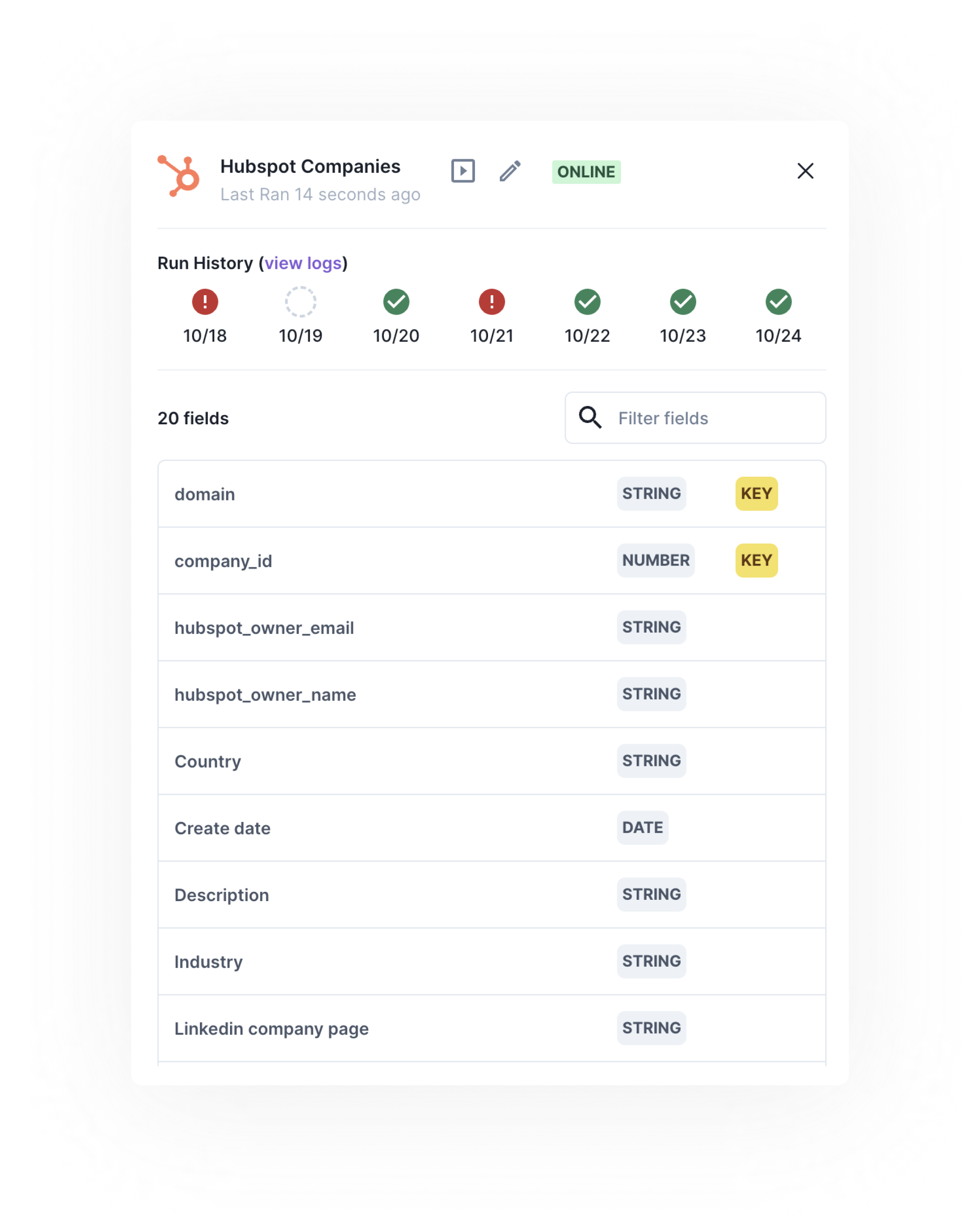
Error AlertingPocus can send Slack alerts or emails to your system to alert any time a query fails to run. Reach out to Pocus support team to configure alerting.
Updating Queries
To update an existing data source, click on the pencil icon on a data source node.
After making changes to the query, hit “Run Query” before saving to pull in any new data source fields or remove any dropped fields. New fields will automatically be added to the Fields tab. Dropped fields will become inactive and be flagged in an error state on the Fields tab.
In a case where the query is a SELECT * FROM Table and the table being referenced has had new fields added or fields dropped, you will need to click in to edit the query, manually hit Run Query, and Save in order to have these changes reflected in Pocus.
Updated over 1 year ago
What’s Next
Dive deeper into how to configure your individual queries