

Reverse ETL
Bulk update SFDC and Hubspot records with Reverse ETL in Pocus
Pocus allows us to regularly pass back any data pulled into or generated by Pocus to Hubspot or Salesforce. This is recommended when the desired behavior is keeping field values in sync, especially Scores and Signals generated in Pocus.
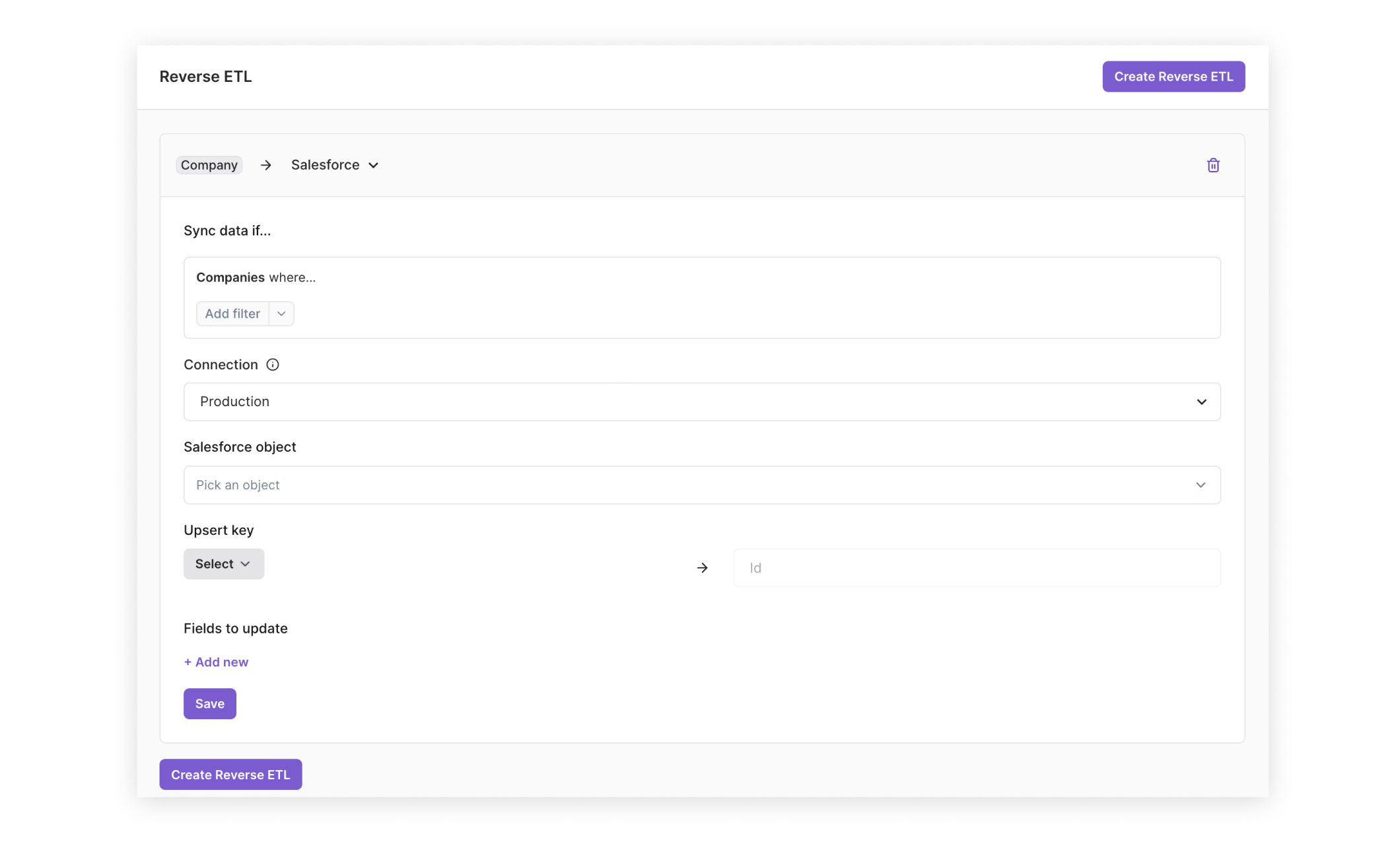
How to set up a reverse ETL
- Navigate to the Reverse ETL page under Workspace Settings.
- Click the Create Reverse ETL button.
- Select the Pocus object that you want to sync with your CRM.
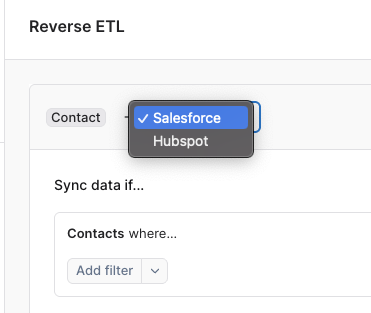
- Select your CRM
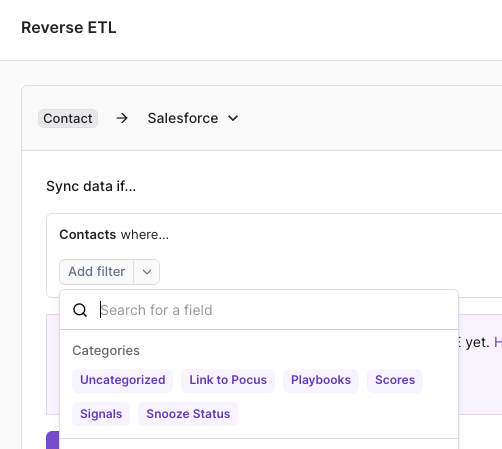
- Set the criteria that must be met to run the reverse ETL. Typically, you only need to keep a subset of records in sync, so use these criteria to define which records should be synced.
- Select the object you want to sync to.
- Select the Upsert Key. This must be a SFDC Record ID or a Hubspot Object ID.
- Add fields to map between Pocus and your CRM.
- Save your Reverse ETL. This will run during your scheduled global refresh.
FAQs
When does the Reverse ETL run?
Reverse ETLs run on the same cadence as your full workspace refreshes. At this time, Pocus will attempt to run a refresh for any records that meet the criteria. If there are any recognized changes in value for the fields that are being passed through, then Pocus will pass an update to all mapped fields in the CRM.
Does the Reverse ETL create new records?
CRM sync is only used to update existing CRM records. New records are not created, and any records that cannot be matched on the Upsert Key will not be updated.
Why aren't my fields updating?
Confirm that the receiving data type matches the data values being passed in. CRMs can be strict about the data type being received.
Updated over 1 year ago