

Filter Deep-Dive
Filters are used throughout Pocus to specify what objects we want surfaced or included. While filters are used in a large variety of Pocus features (playbooks, goals, lists, signals, automations, etc.) their core functionality does not change, so mastering filters is key to getting the most out of Pocus!
Basic Filter Functionality
Filters work to only include items that match a set condition. Depending on the data type of the fields you are filtering on you will be presented with different filter options. For example, a date value will present you options like “Date Field is not more than X days ago”. All fields will have the options “Field is not empty” and “Field is empty”.
Averages and Percentages
Number data type fields will have the filter options “Is Above Average” and “Is Greater Than Xth Percentile”. These are values calculated by Pocus for the selected field across all objects of the same type. So filtering on Accounts with “ARR Is Above Average” will calculate the average ARR of all accounts in your workspace and only surface those that have an ARR value greater than this.
Filtering on accounts with “ARR Is Greater Than Xth Percentile” with a value of 80 will surface all accounts with an ARR that is greater than 80% of all other account ARR values.
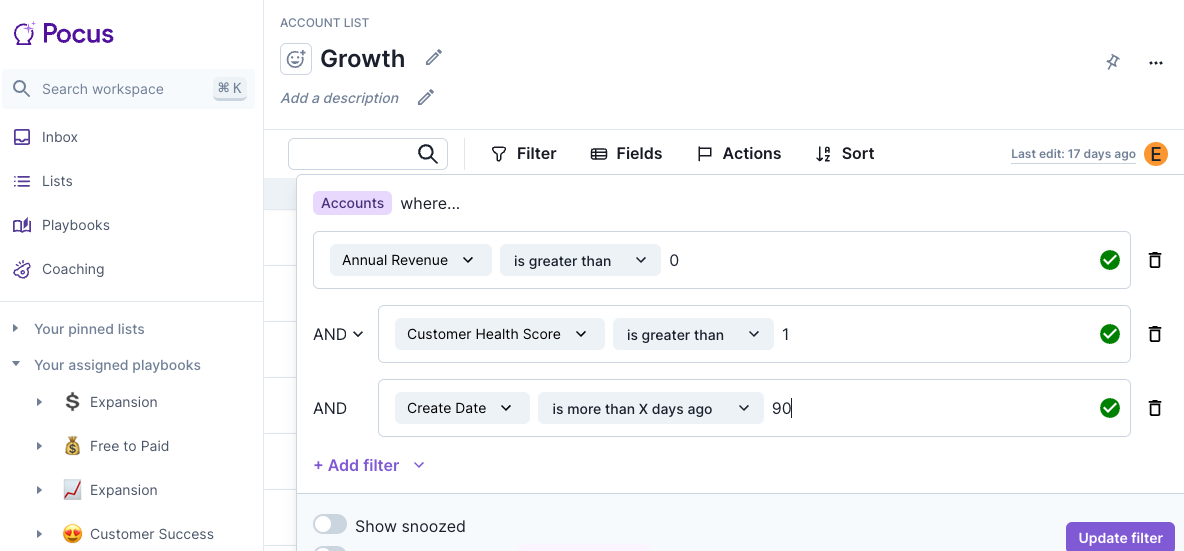
You can have multiple conditions on a filter linked by an “AND” or an “OR” condition. Multiple conditions connected by an AND will need all conditions matched for an item to surface, with an OR connection only atleast one will need to be true. You can have both AND and OR conditions in the same filter by making use of filter groups.
Filter Groups
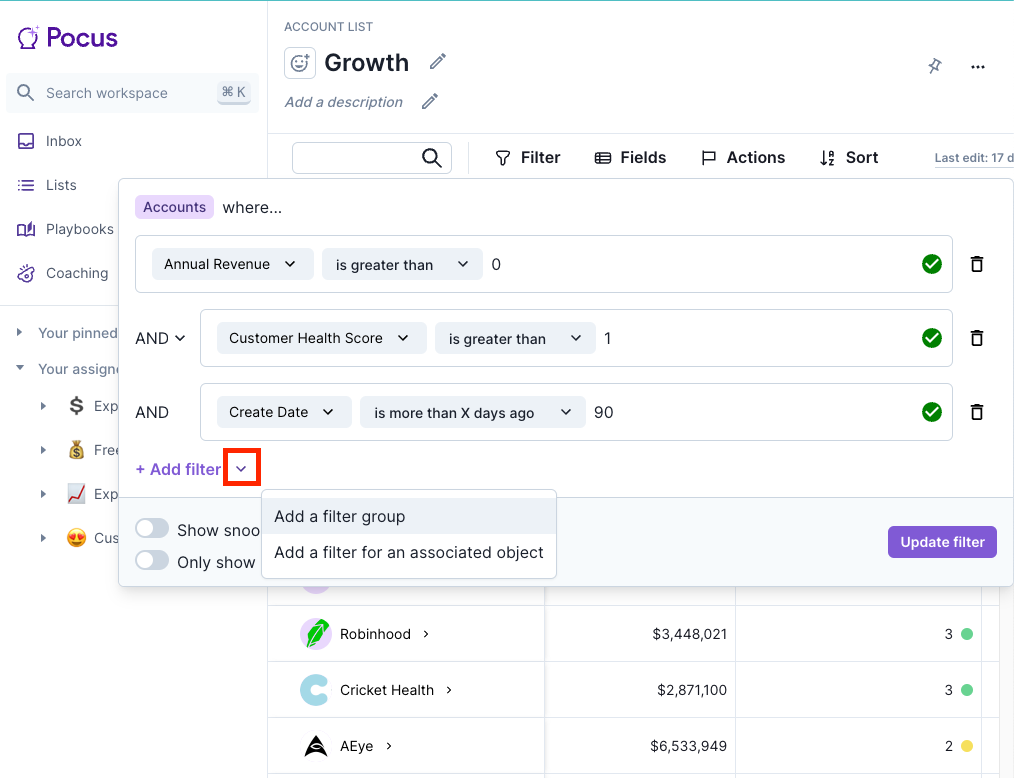
You can add a filter group by clicking the down pointing arrow next to the “+ Add filter” button.
A filter group allows us to use both AND and OR conditions by giving the conditions an order of operations. Each filter group can be thought as a “step down” from the top level conditions. So in the filter below, the filter group with the OR conditions will be evaluated first. If the item matches either of the conditions in this filter group, then the filter group will overall evaluate as True and then the remaining “top level” filter conditions will be checked!
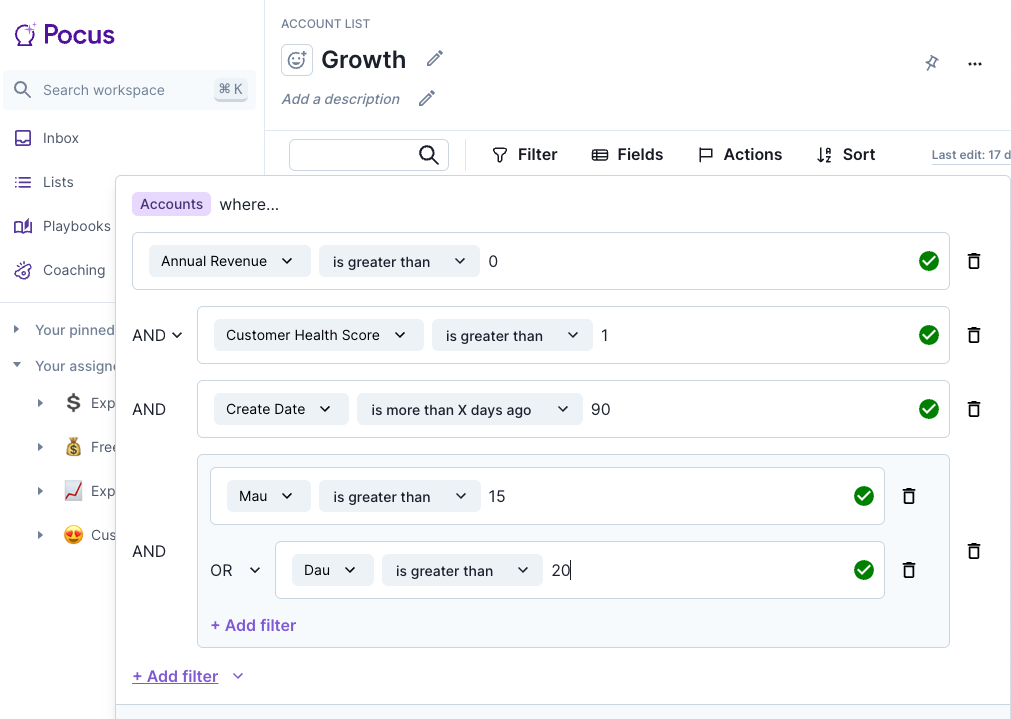
This same logic carries to filter groups within other filter groups, the lowest level filter group(s) will be evaluated first and so on until the top level conditions are evaluated.
Associated Object Filters
Filter groups are very useful for building more complex filter conditions, but they are still limited to just those fields available on the current object. By using Associated object filters we can also filter against the items that are associated to the item we are looking at in our list, playbook, goal, etc.
A common use case is wanting to filter on all users that are associated to an account that match certain ARR or activity conditions.
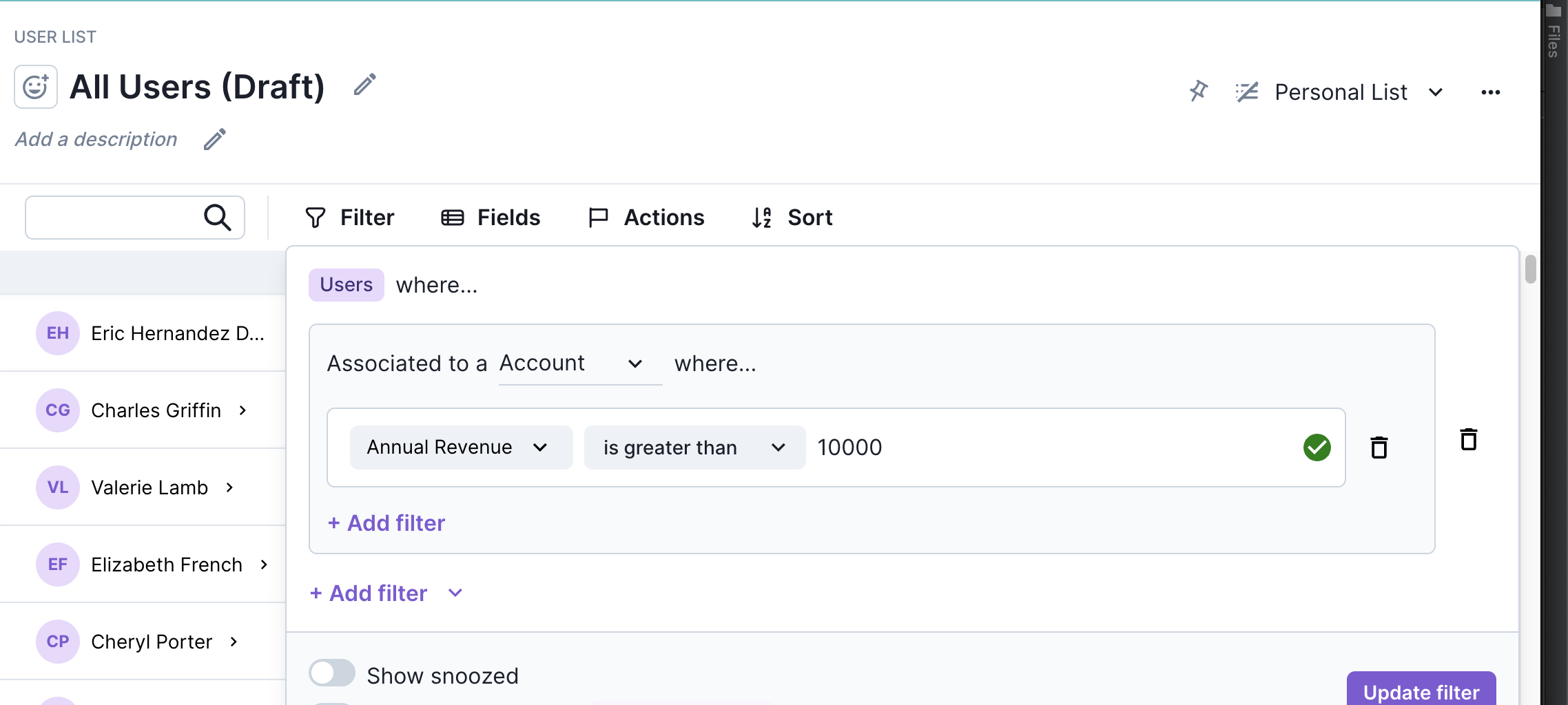
You can add an associated object filter from the same drop down menu that filter groups are added from.
Updated over 1 year ago