

Update Salesforce
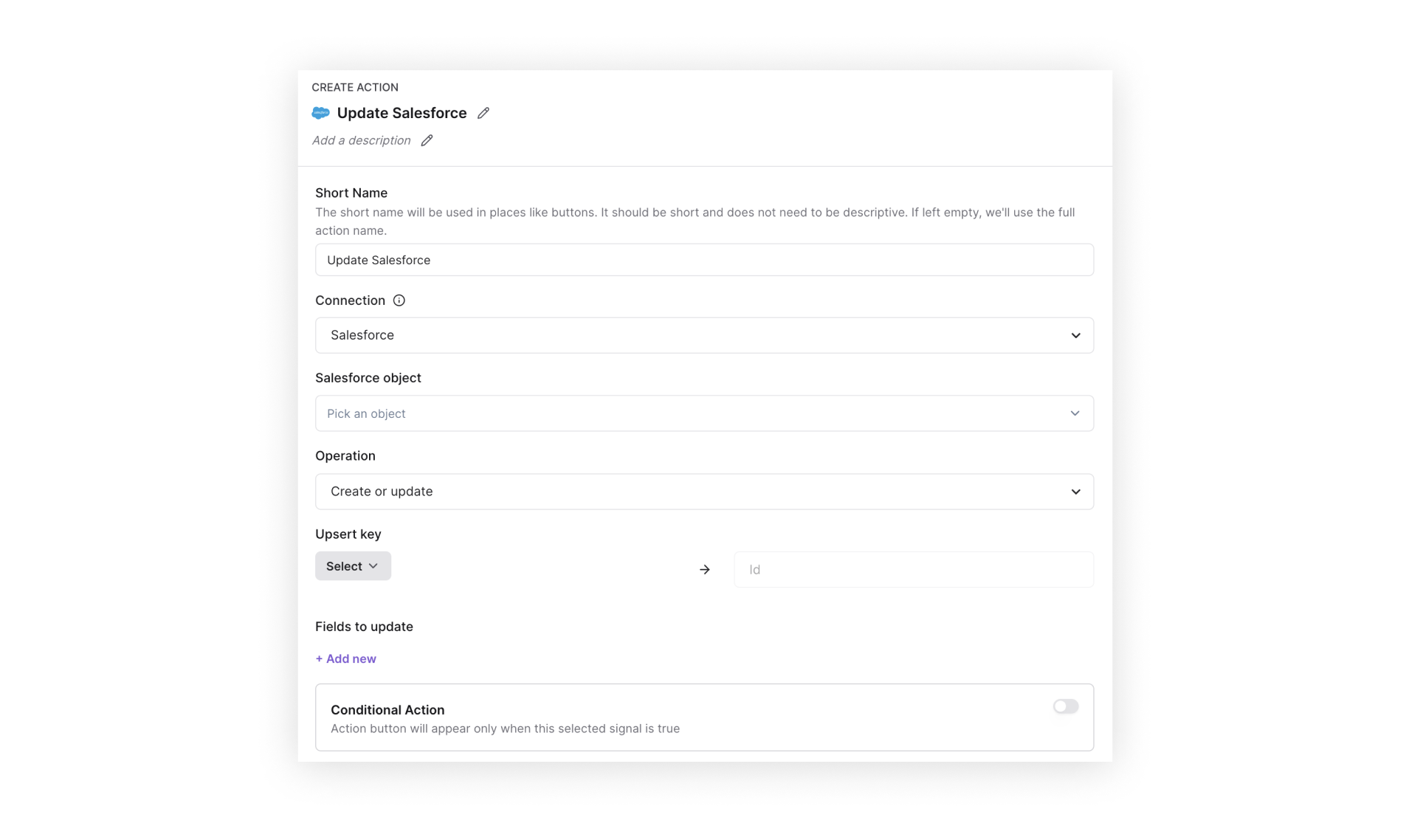
You can flexibly create, update, and upsert records into Salesforce with the Update Salesforce action in Pocus. We can use this to access default and custom objects, including all fields that are authorized for write access in SFDC. Here's how you configure it:
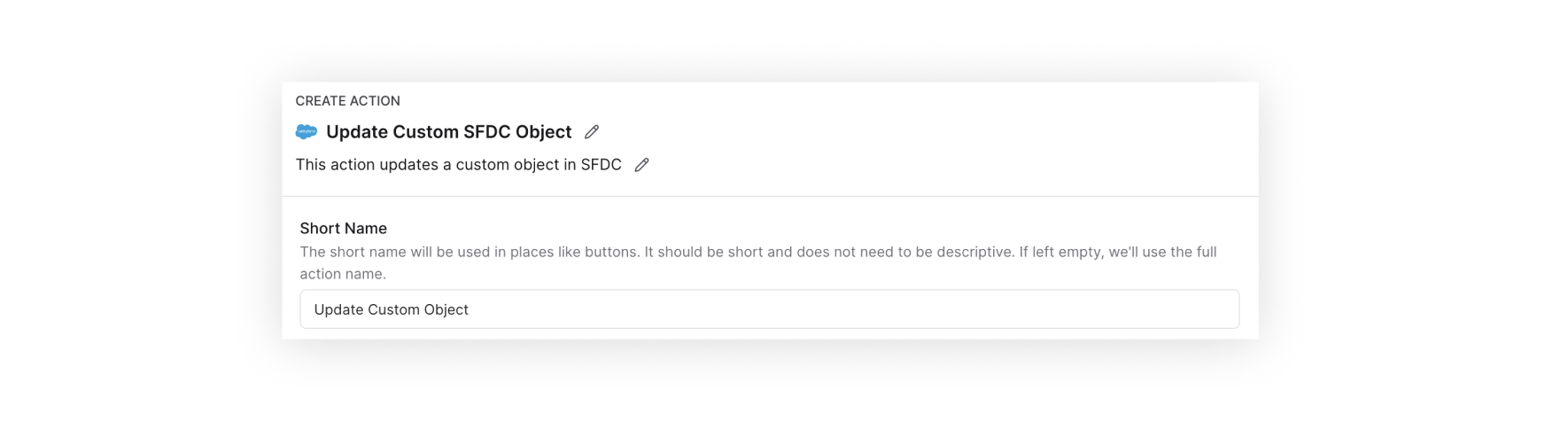
1️⃣ Name the action - The top-level name is the long version of the action name; this one can be more descriptive. Below there is a section where you can add a description of the action and what it does. The short name is the name that will be displayed on buttons in Pocus.
2️⃣ Pick an object - Select from a list of all objects in your connected SFDC instance. If the object type you're searching for is missing, it may not available for the Pocus integration user to write or update via API. Contact Pocus support and your SFDC admin to investigate the configuration.

3️⃣ Select an operation - There are three operation types available in SFDC:
- Create new: create a net new record in SFDC, passing in the configured data from Pocus
- Update existing only: search for an existing SFDC record, usually based on ID, and update the configured fields
- Create or update (upsert): search for an existing record to update, and create a new record if it doesn't already exist

4️⃣ Select upsert key - If you are updating or upserting existing records, you'll need to indicate a Salesforce ID field in Pocus that will be used to look up the existing record in SFDC.

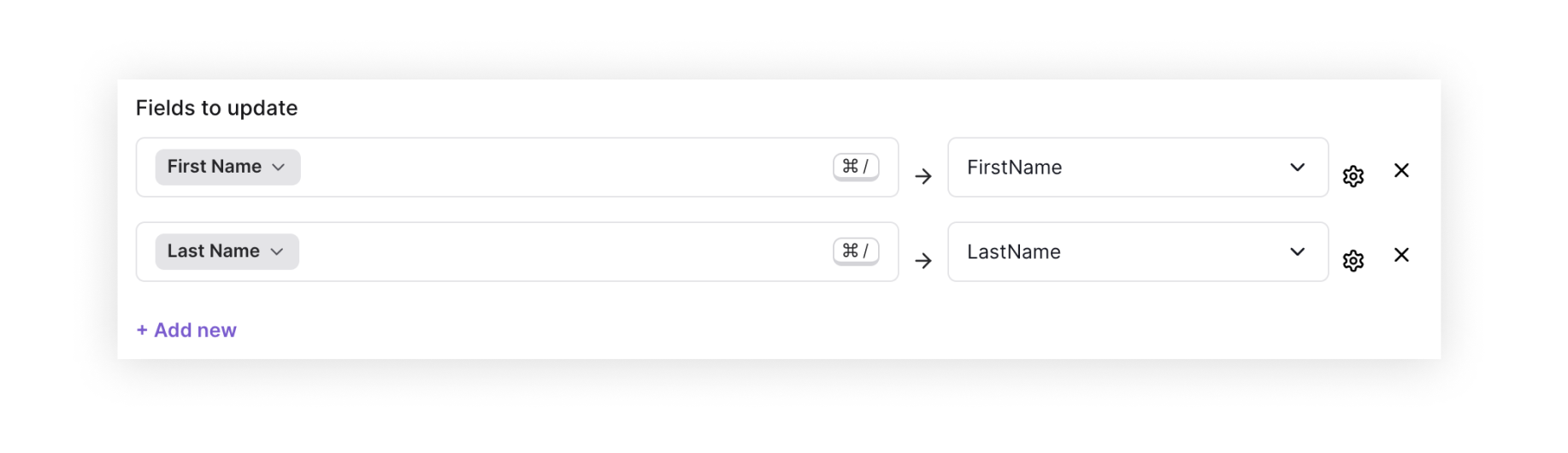
5️⃣ Configure fields - Select fields from Pocus that you want to update in Salesforce, then map them to existing fields on your SFDC object.
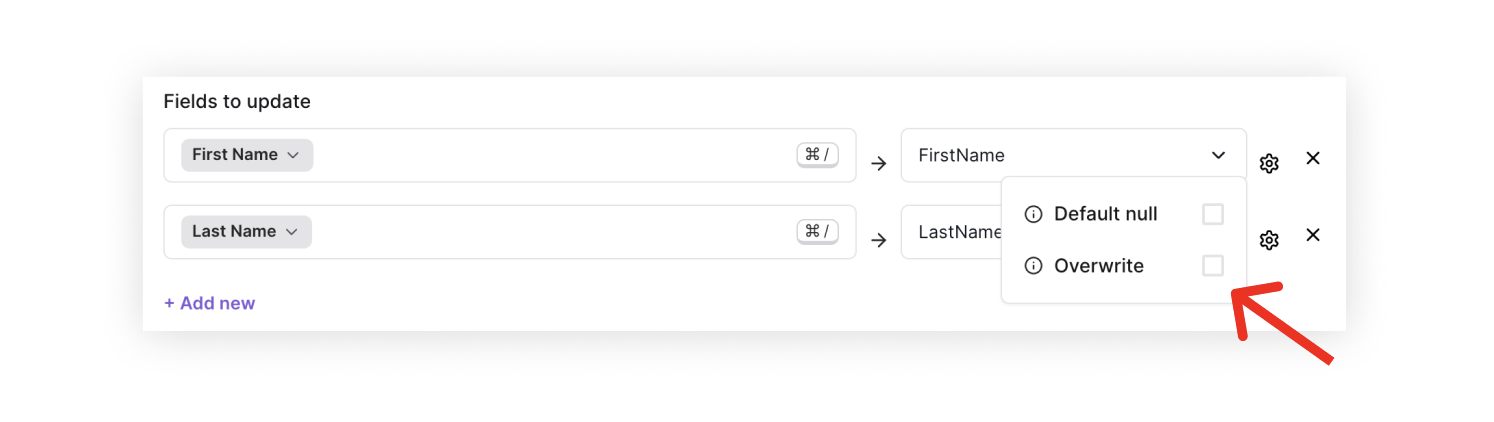
You can specify whether you want Pocus to overwrite existing values for individual fields, or if you want the action to pass "UNKNOWN" or NULL if the field is empty.
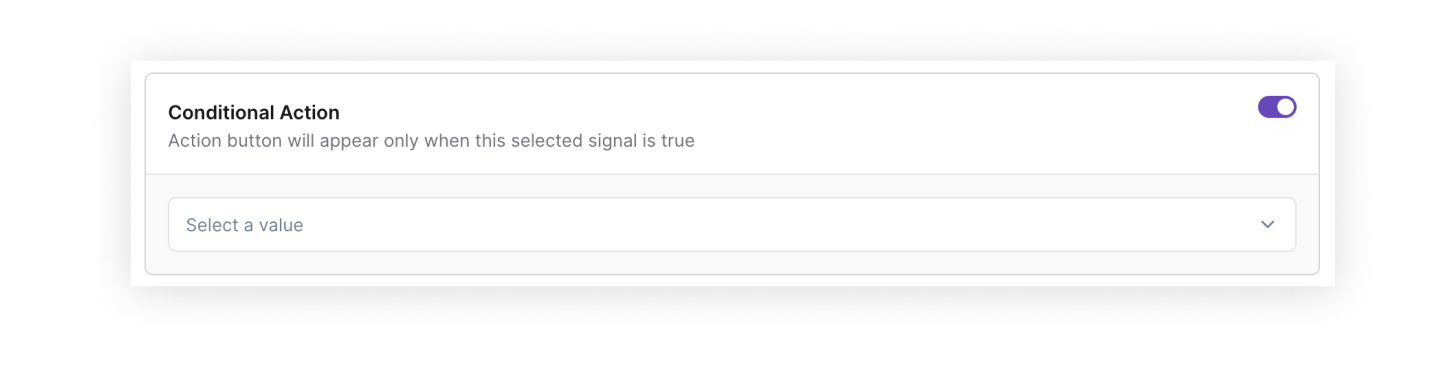
6️⃣ Conditional action - Pocus allows you to make actions conditional; this means the action button will appear only if a certain condition is true. You can set the condition via a signal.
Updated over 1 year ago