

Signals
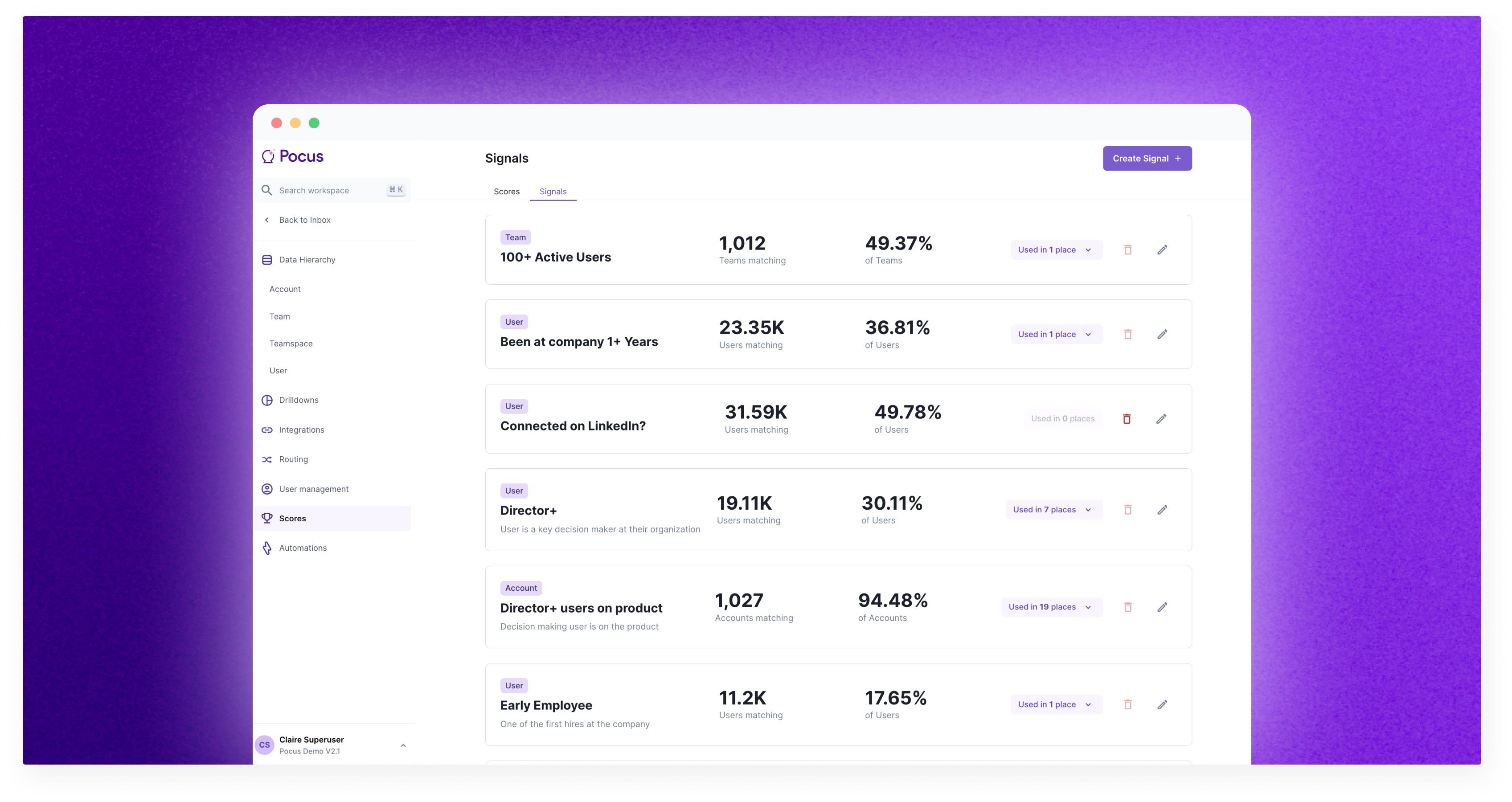
What are Signals?
Signals are positive or negative attributes about your accounts, users, or any custom object. They are used to inform Scores and can be leveraged in filters throughout Pocus or included in lists like any other field.
Signals are especially useful as a one-time configuration of complicated filters that can then be applied multiple times. The only limitation here is that Signals cannot reference other Signals.
Here are some Signals we see used by many Pocus customers:
- Personal Emails: Use a “contains” condition on an email field and list common personal email domains i.e. Gmail, outlook, proton to create an easy-to-reference flag for filtering out users not on a company domain
- Director+: Use a “contains” filter on a user role field to include all the high-value roles to easily flag decision makers on your product in your Goals and Playbooks
Accessing Signals in Pocus
1️⃣ Enter the workspace settings and select “Scores”
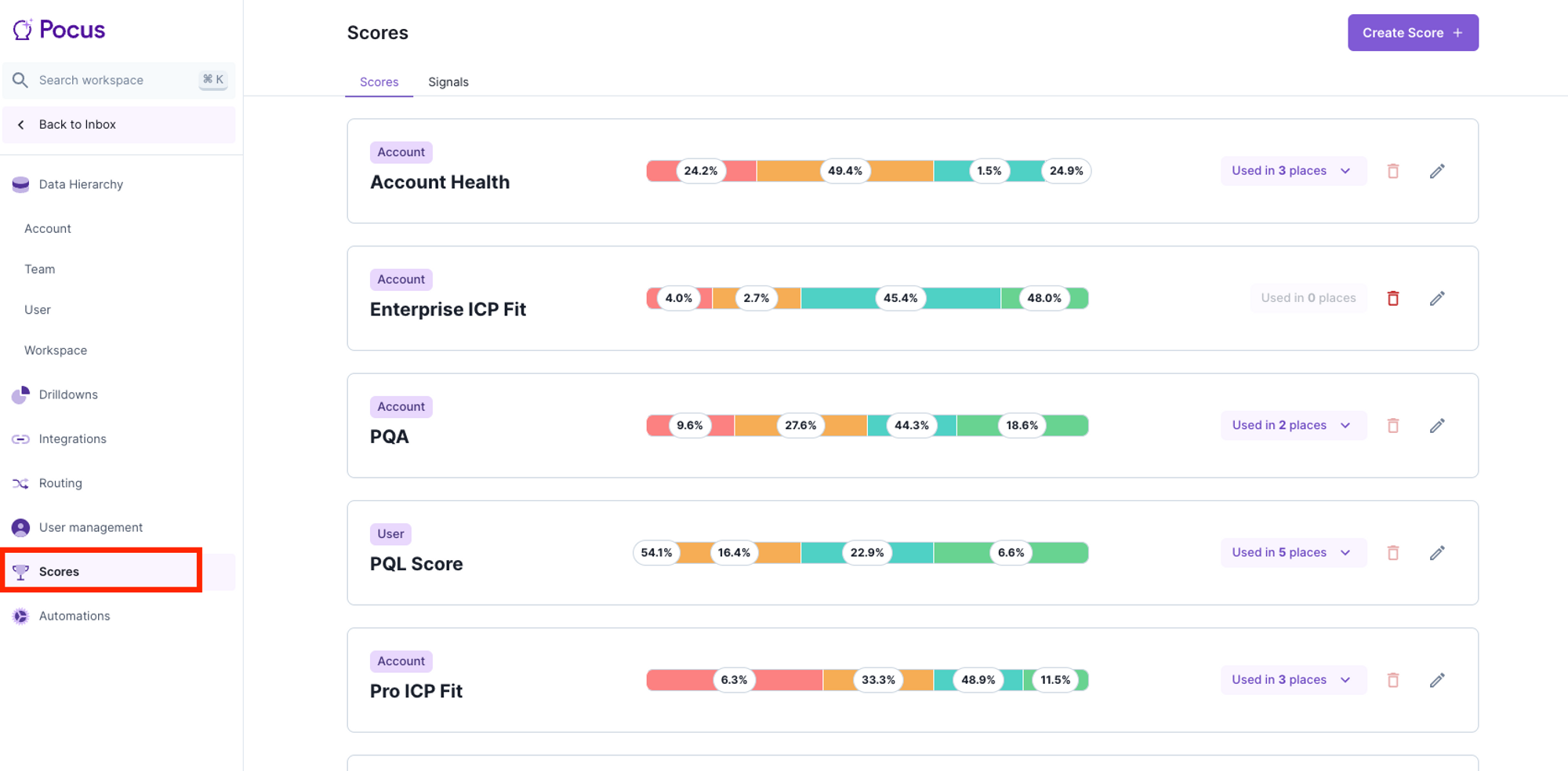
2️⃣ Navigate to the signals tab to create, update, delete, or view the usage of Signals
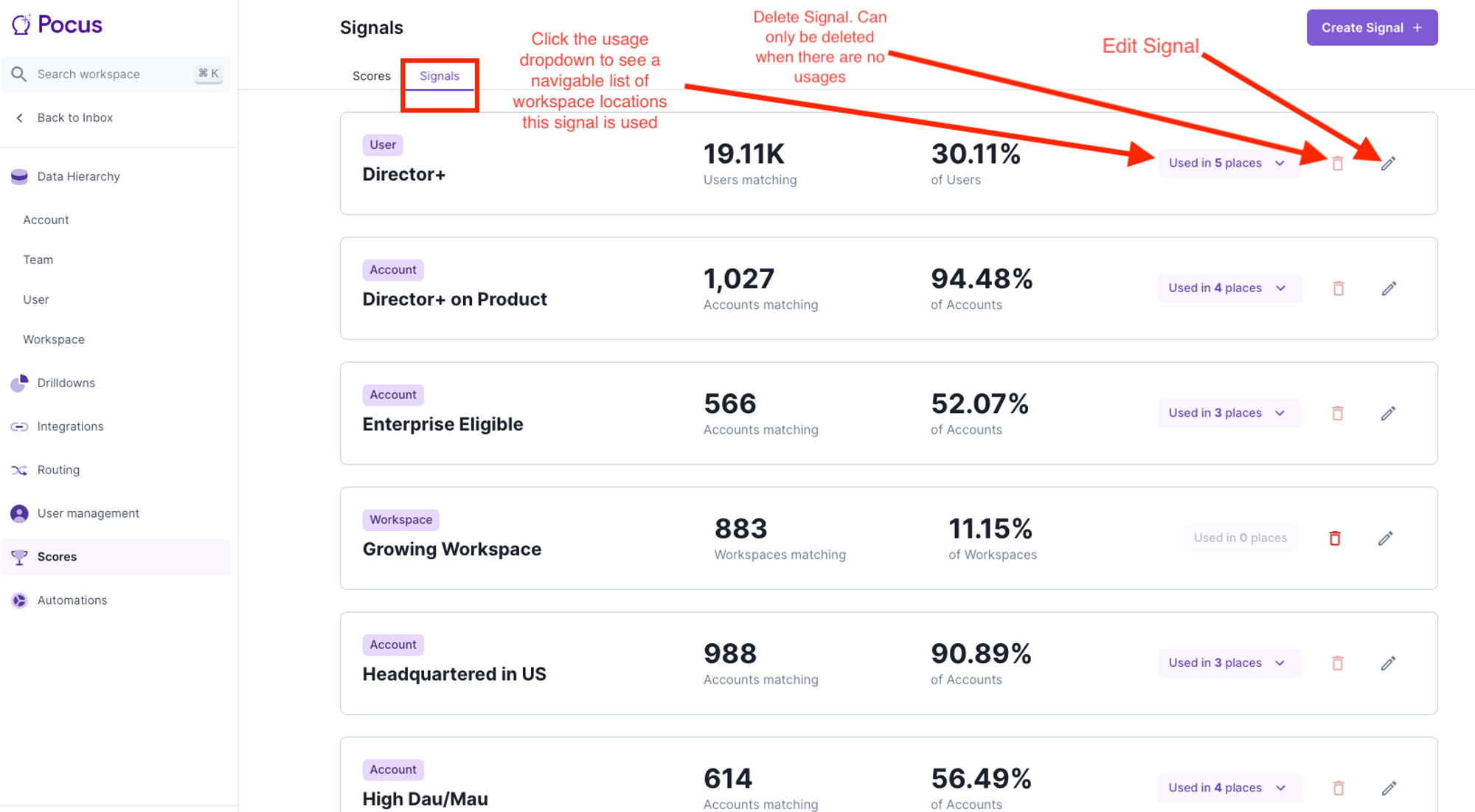
Alternatively, you can navigate directly to the Signals by using the Cmd+K Signals navigation shortcut
Creating Signals
Click the Create Signal button in the top right to get a drop-down of all objects in your workspace. Select an object on which to make your Signal. Note that Signals are always specific to a single object.
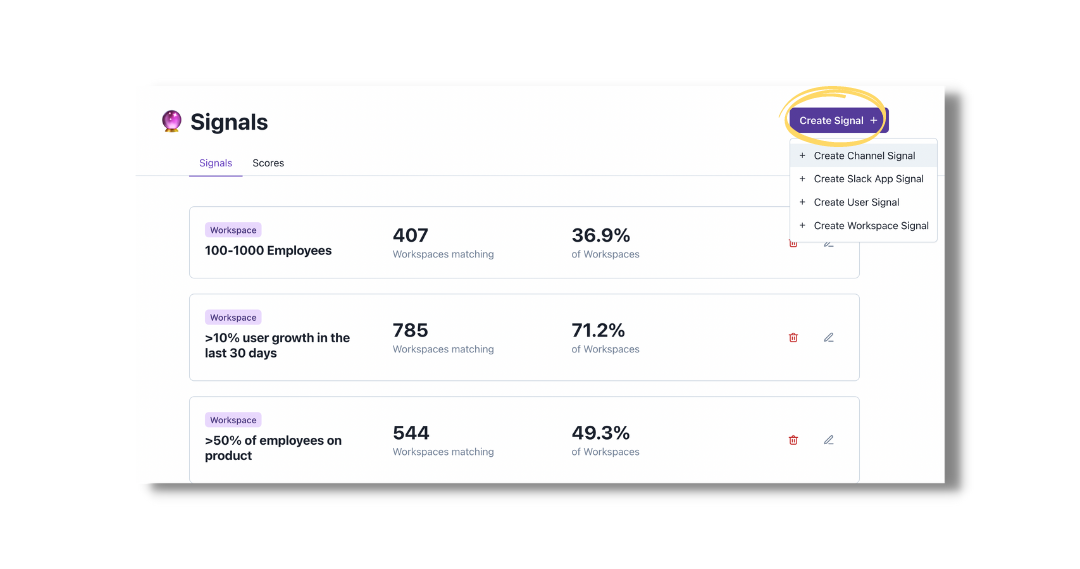
Having selected the object you want to create a signal for, give your Signal a name and short description that will be helpful to others if they need to understand the context. This description will be available by hovering over the ? in any lists or widgets in which the Signal is referenced.
Configuring your Signal Conditions
Signal conditions are configured much in the same way as List filters. Instead of excluding and including records of the relevant object, you are creating a new field available on all records of the selected object. The field value will show “True” if the object record matches all Signal conditions and “False” if it does not match one or more of the conditions.
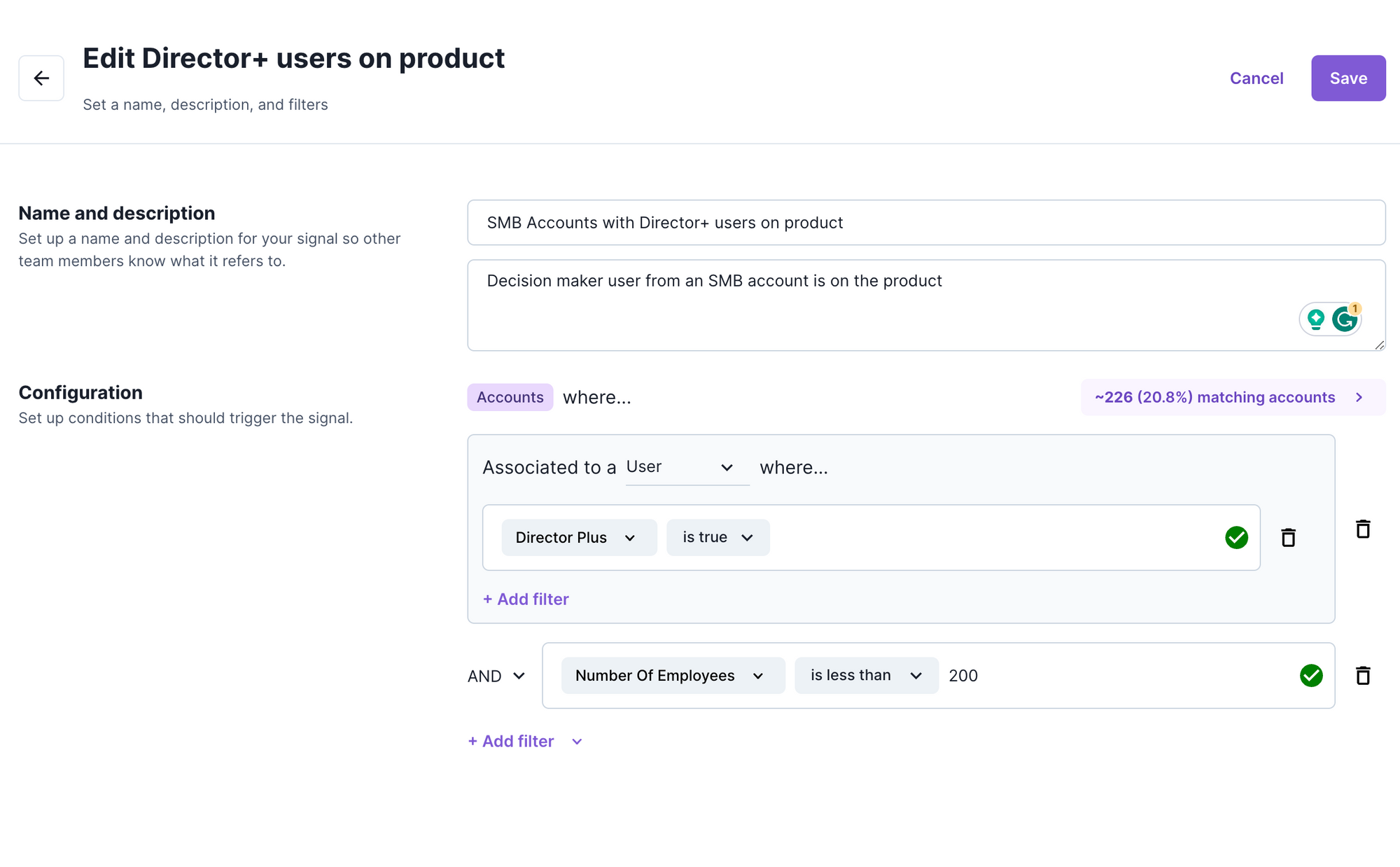
The example above creates a Signal field available on accounts. It will be true for any accounts that have less than 200 employees AND have at least 1 user associated with them with a Director + title.
The conditional logic in Signals can leverage condition groups and associated object filters in the same way that Goal, Playbook, and List filters can. To learn more about using these condition features please refer to the filters deep dive support article.
Using Signals throughout Pocus
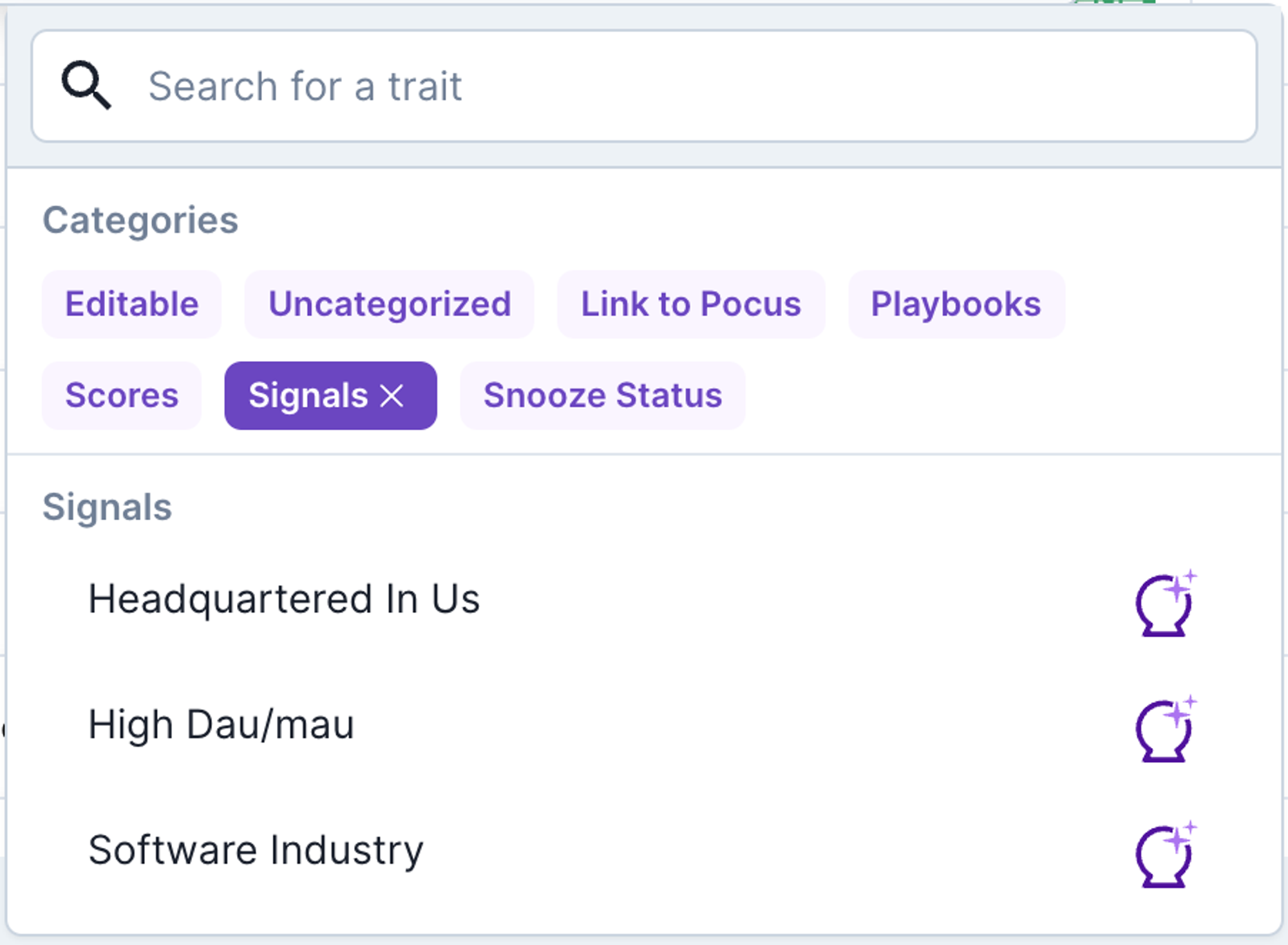
After building a library of Signals, they can be used anywhere fields are used. In the field selector, there’s a category for Signals that will help you narrow down your results to your signal library.
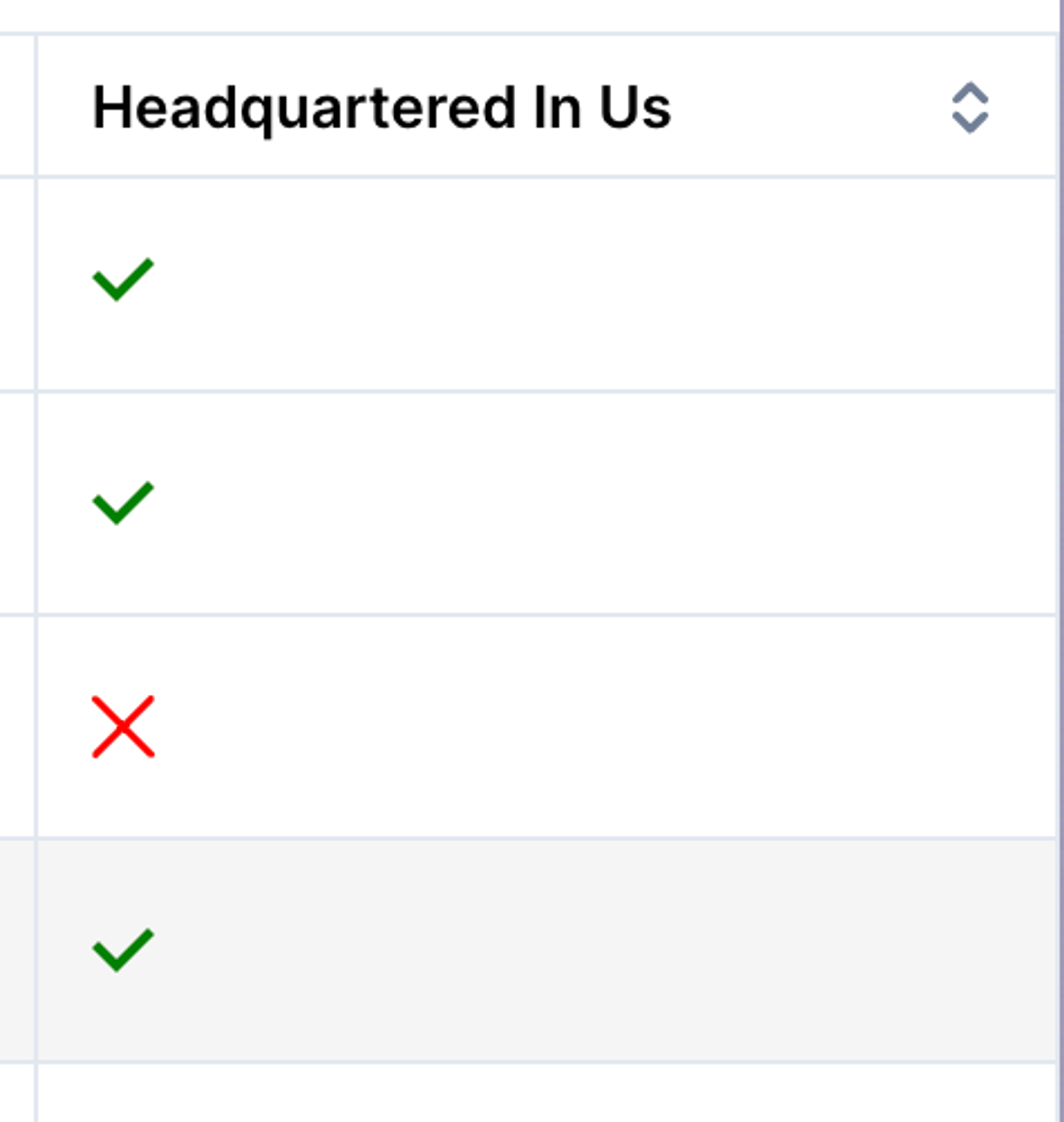
These fields are true/false fields and will display throughout Pocus with a ✅ or ❌ depending on the filter.
TipSignals can be a quick way to pull data across your different objects. Want to know if a workspace renewal is coming up at the account level? Create an account signal to say
Associated to a Workspace where... Renewal date < 30 days from now
🔑 Key Signals 🔑
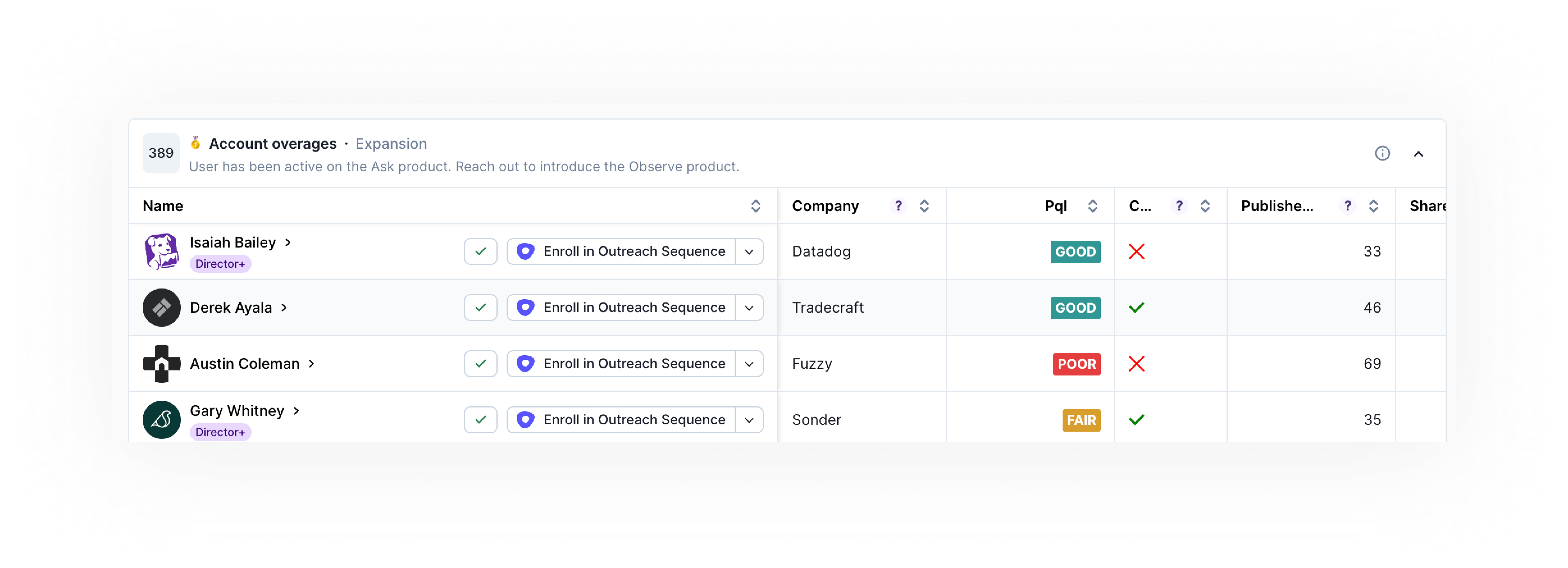
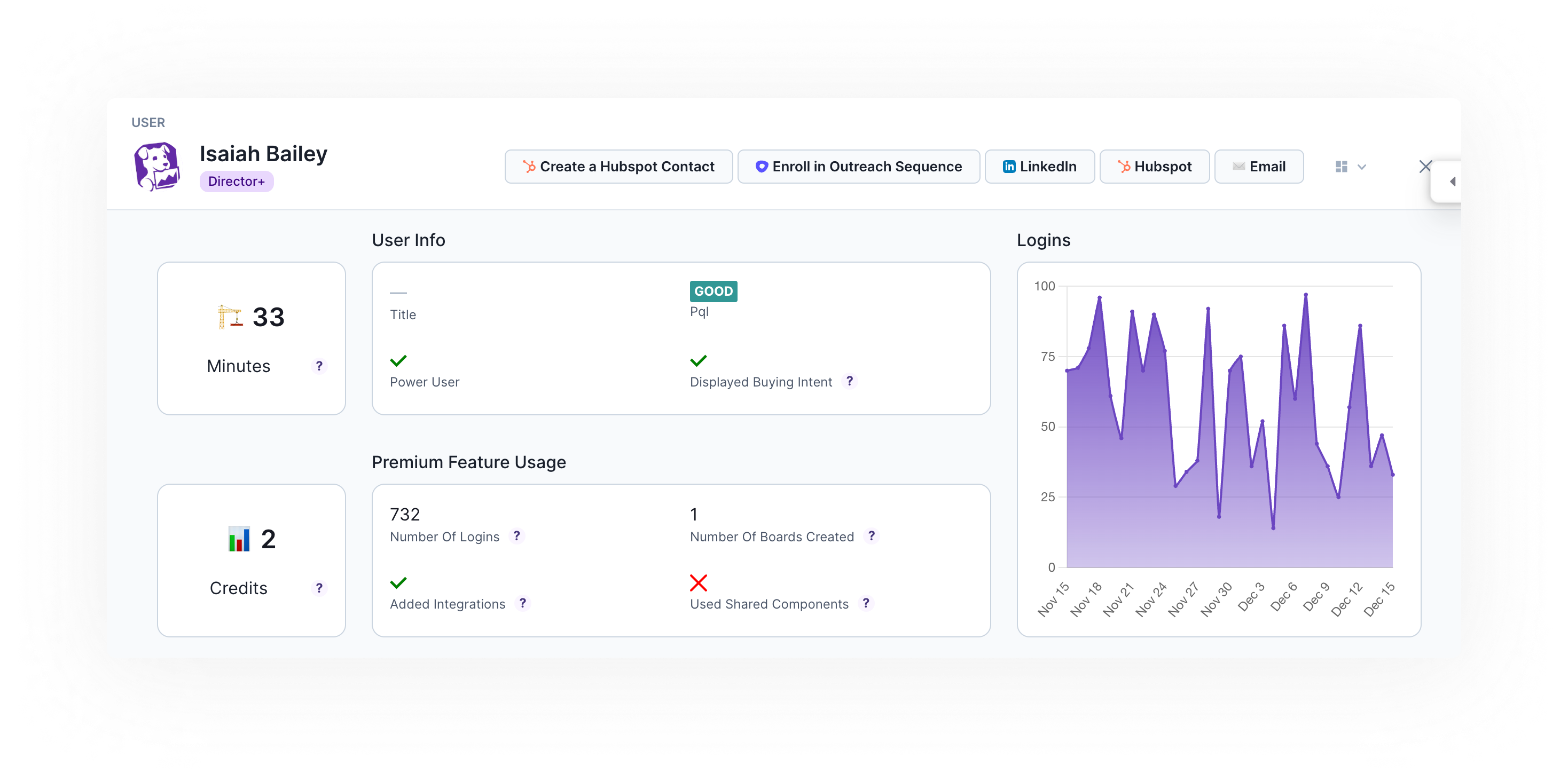
Have a signal that you want to have more prominently displayed throughout Pocus? Toggle on the Key Signals toggle and select a badge color. Key Signals will automatically appear anywhere those records are shown.
In the Inbox & Lists:
In Drilldowns:
Get inspired by our favorite Key Signals:
- 💼 Director +
- Product Champion 🍾
- Early Adopter ☀️
- ICP Persona 👤
- Power User 💪
Updated over 1 year ago