

Salesforce
Why connect Salesforce and Pocus?
Aside from syncing your SFDC data into Pocus, the Salesforce integration can be used for various create and update actions. Because the user that creates the Pocus Salesforce integration will have their permissions applied to these actions it is essential that they have properly scoped read and write access to any objects you may want Pocus to interact with.
You will set up two Salesforce integrations during setup:
- Salesforce - This is the standard required Salesforce integration that will allow us to read and write to the scoped objects.
- Salesforce (activities) - This is a separate integration that will allow us to read Salesforce Events and Tasks. The same integration user can be used for both integrations.
Overview
Pocus's Salesforce integration enables bidirectional data flow through the Salesforce API without the need for a managed package installation.
While all permissions and access are configurable by workspace, most Pocus customers utilize the following:
- Read key object information from your Salesforce instance (e.g., Account, Contact, Lead, Opportunity)
- Write data back to your Salesforce instance via create, update, or upsert (e.g., Account, Contact, Lead, Campaign)
We can support unidirectional data flows as well (reading from Salesforce and writing elsewhere or vice versa). We can also read from and write to any customer objects you may utilize.
Setup Integration User
We recommend creating a dedicated Pocus integration user with properly scoped read and write permissions. These can be tailored to your workspaces needs, but traditional include:
- Read: Account, Contact, Lead, Opportunity
- Write: Account, Contact, Lead, Campaign
Integrating Into Pocus
Once the integration user is created, follow the below steps to create the integration in Pocus with oAuth.
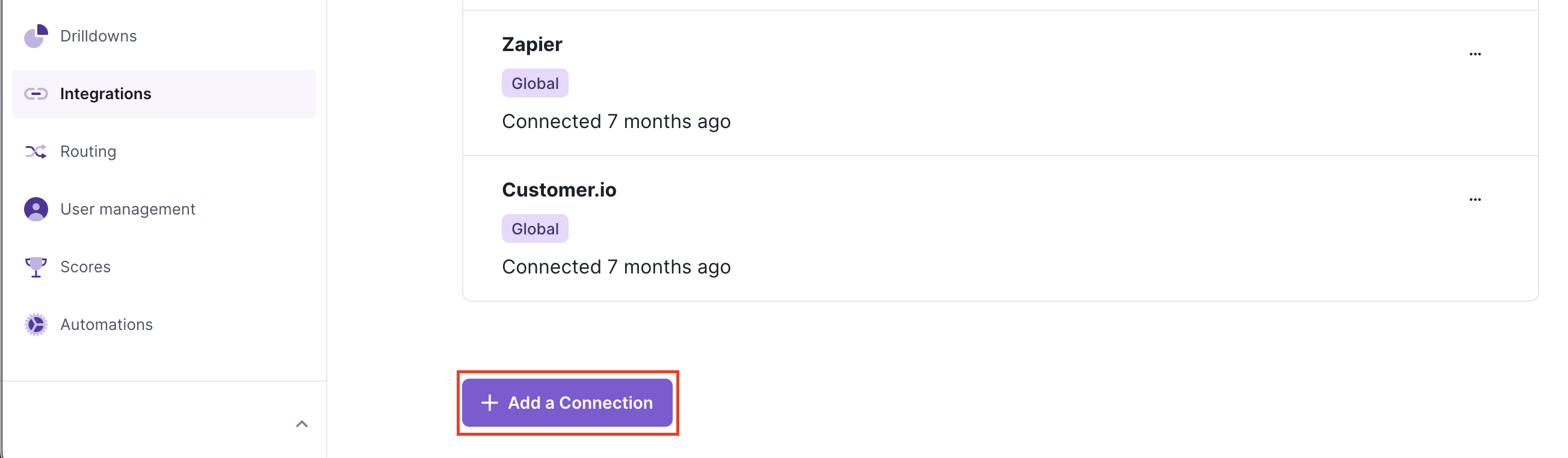
- Navigate to the Pocus Integrations Page and press Add a Connection
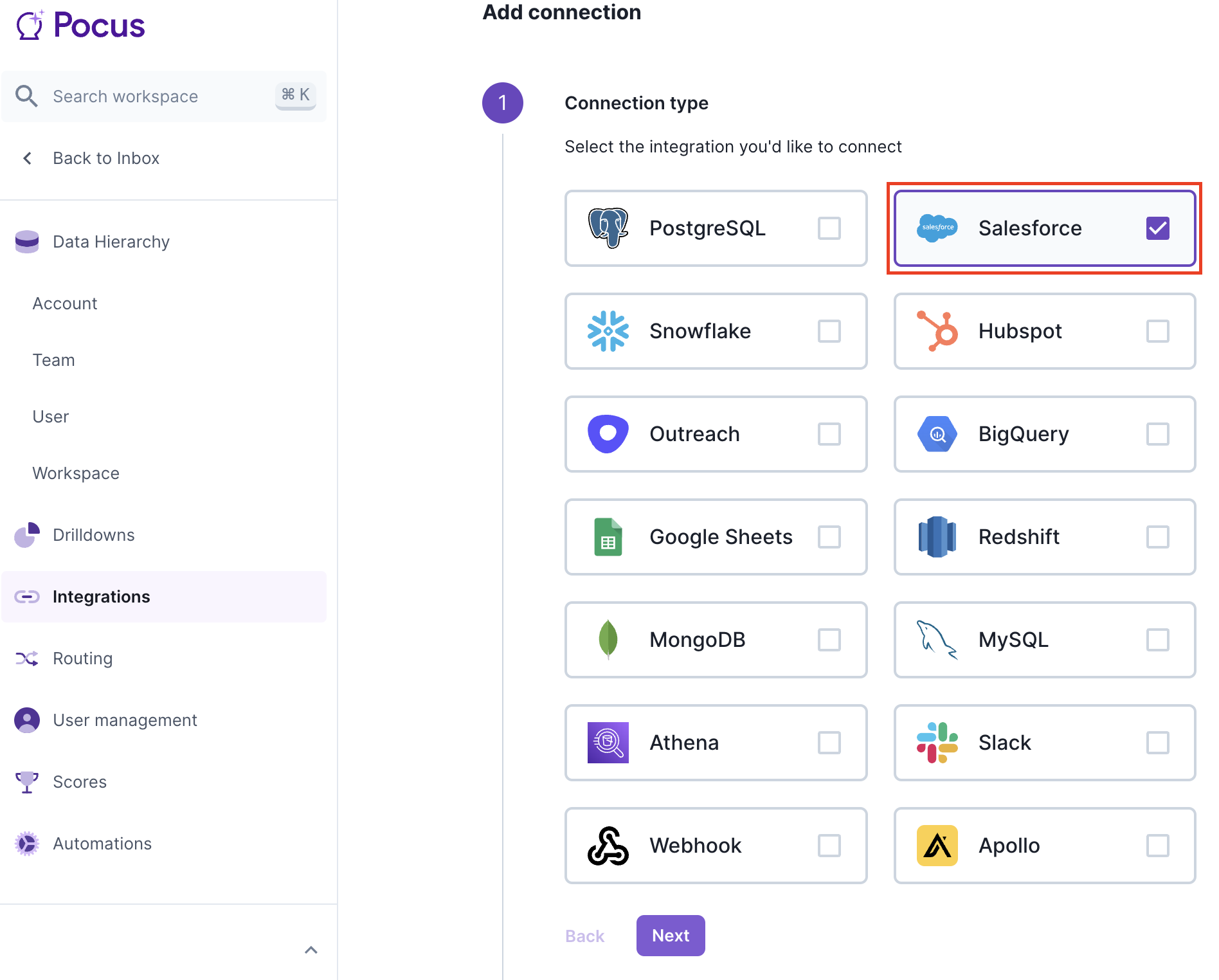
- Select the Salesforce connection type and press Next
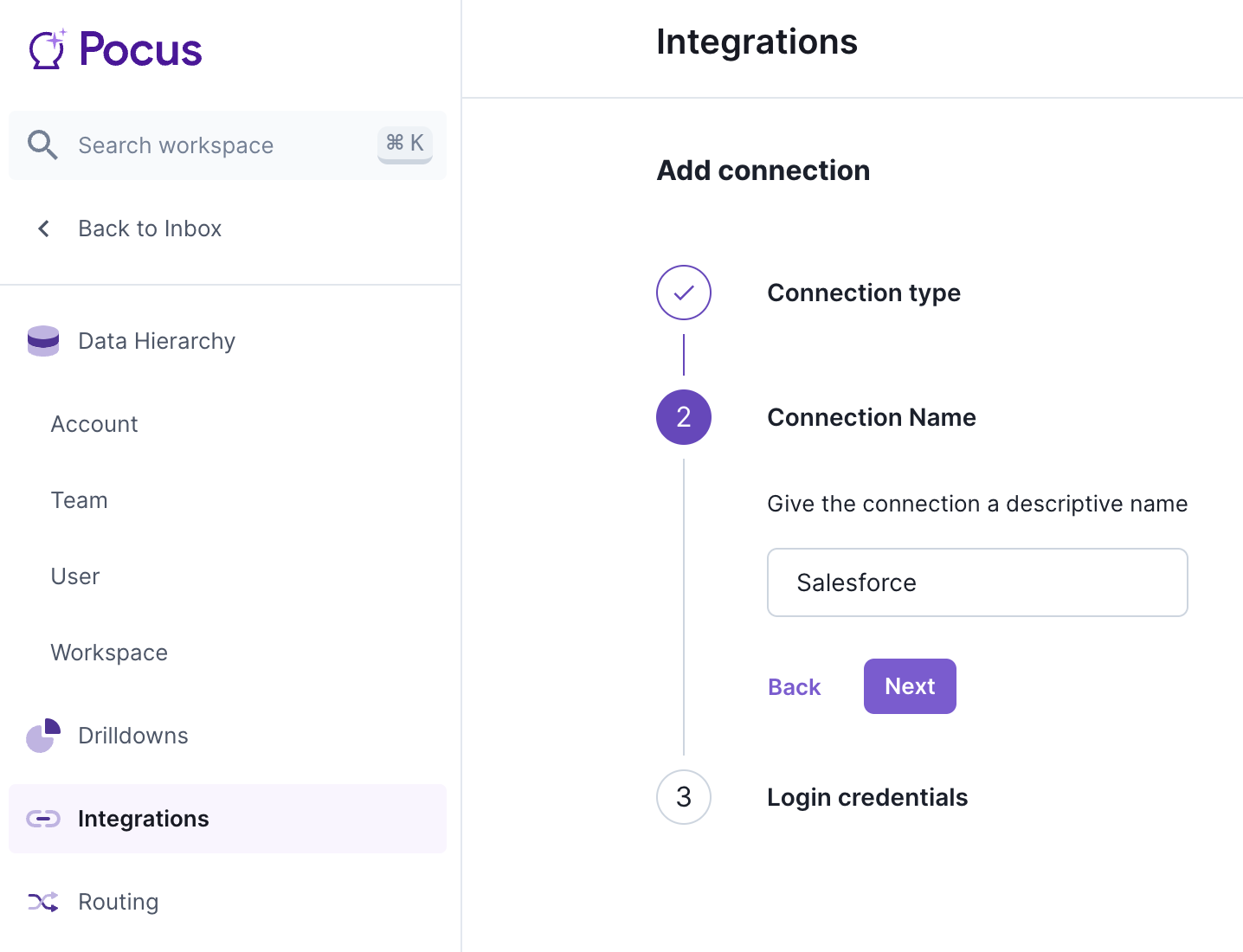
- Enter the name for this Salesforce instance. It can be helpful to include the integration user name here, and press Next
- Press Login with Salesforce and, if prompted, log in with your Salesforce credentials
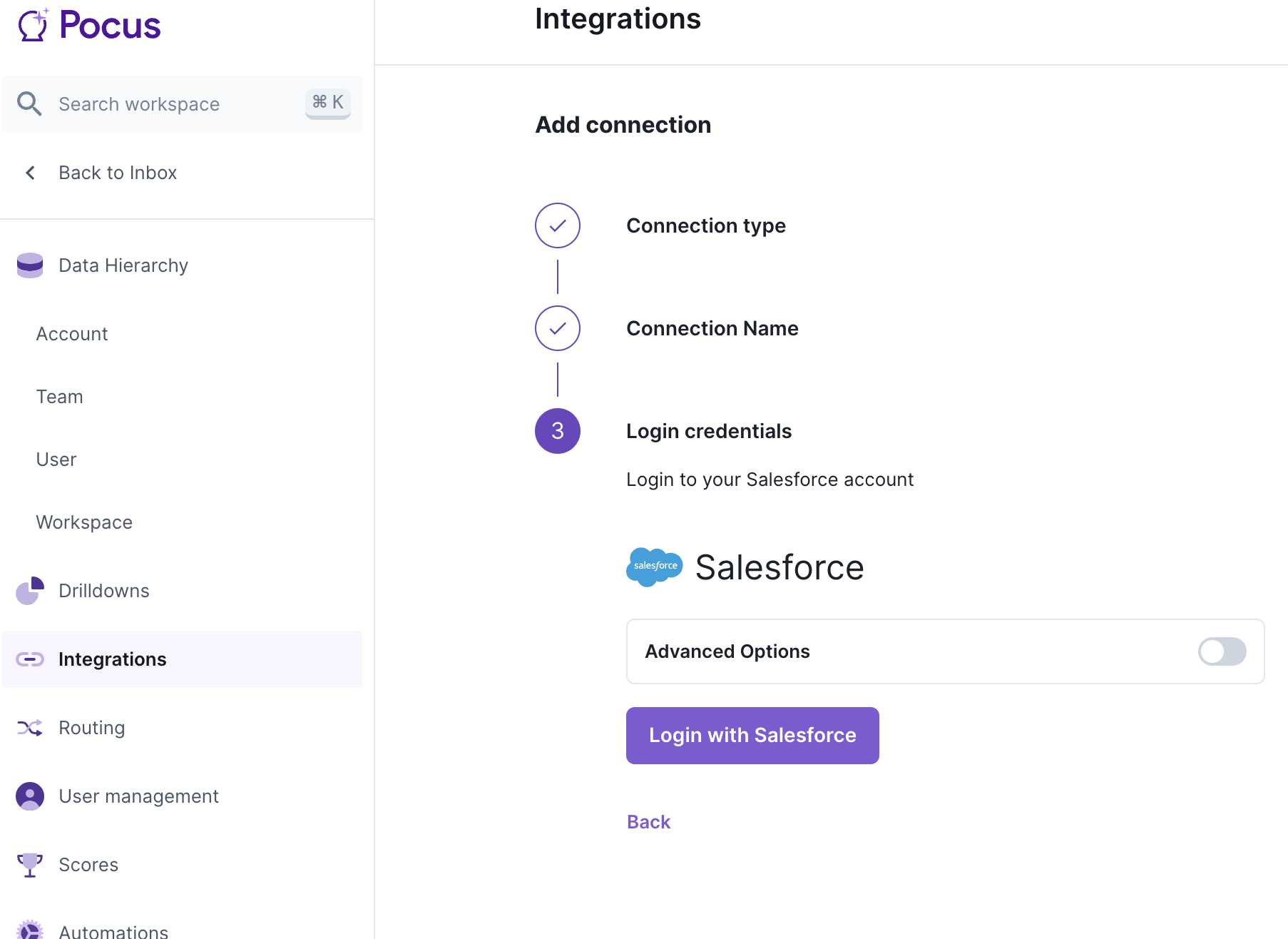
The Advanced Optionstoggle will allow you to sign into a Salesforce sandbox. This is useful for testing Pocus features before having them change production data––particularly useful when creating automations that have the potential to touch many items in you SFDC Account.
- Press Allow
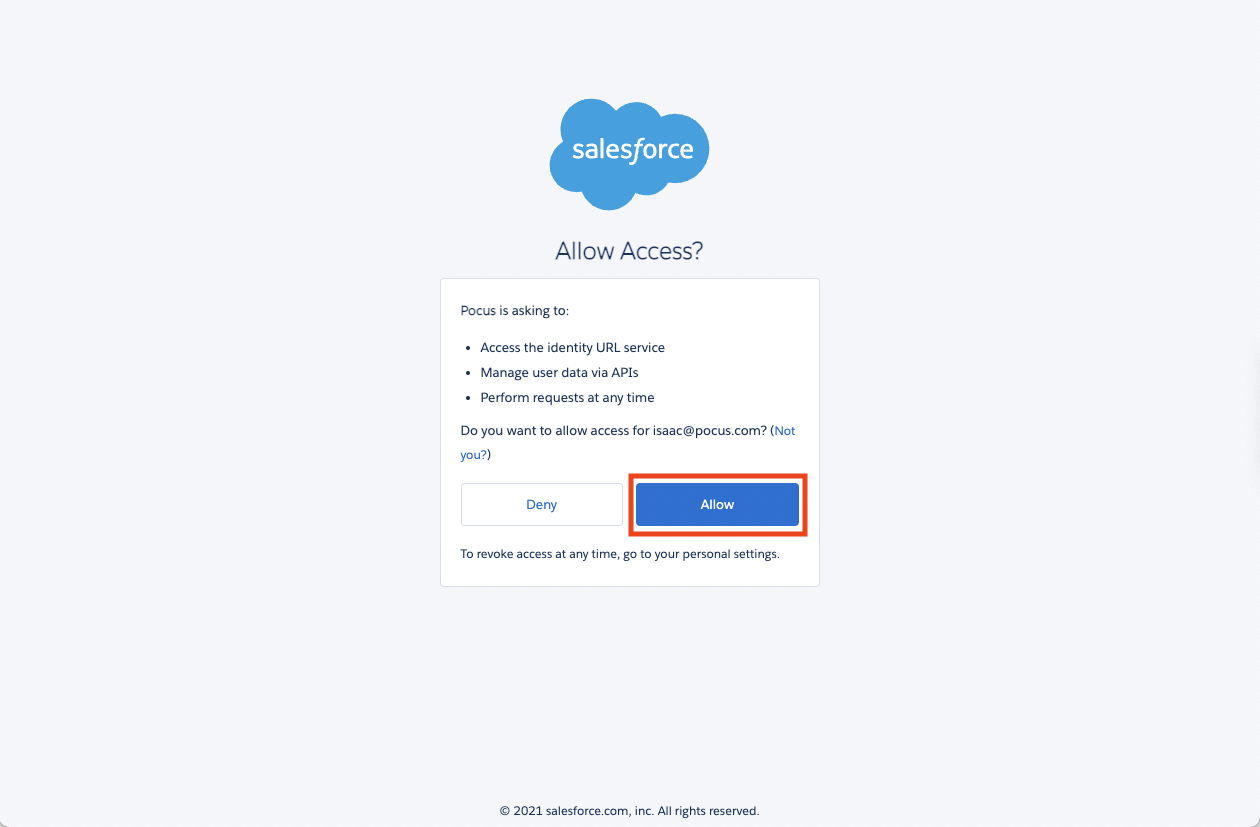
- Repeat steps for the Salesforce (activities) integration.
Please reach out to your Pocus support team if you are looking to support multiple SFDC connections at the same time.
Validating the connection with Pocus
- Navigate to the Pocus Integrations Page and press the menu button next to the newly created Salesforce connection.
- Press the
Validatebutton
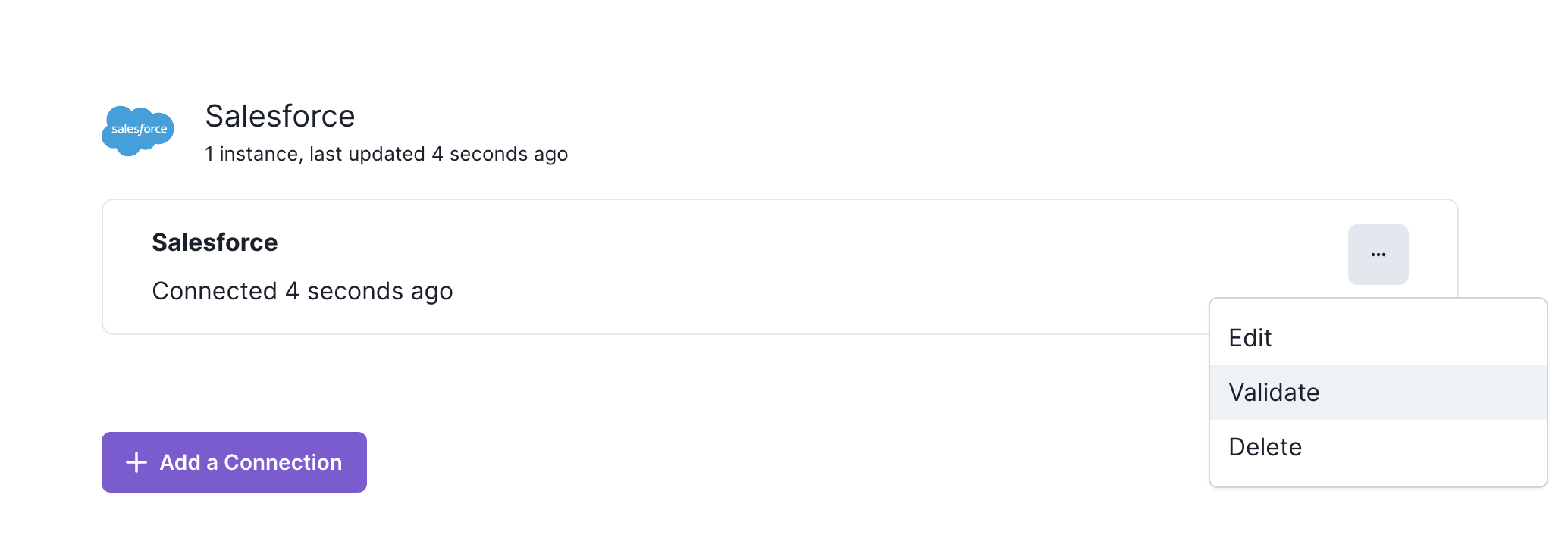
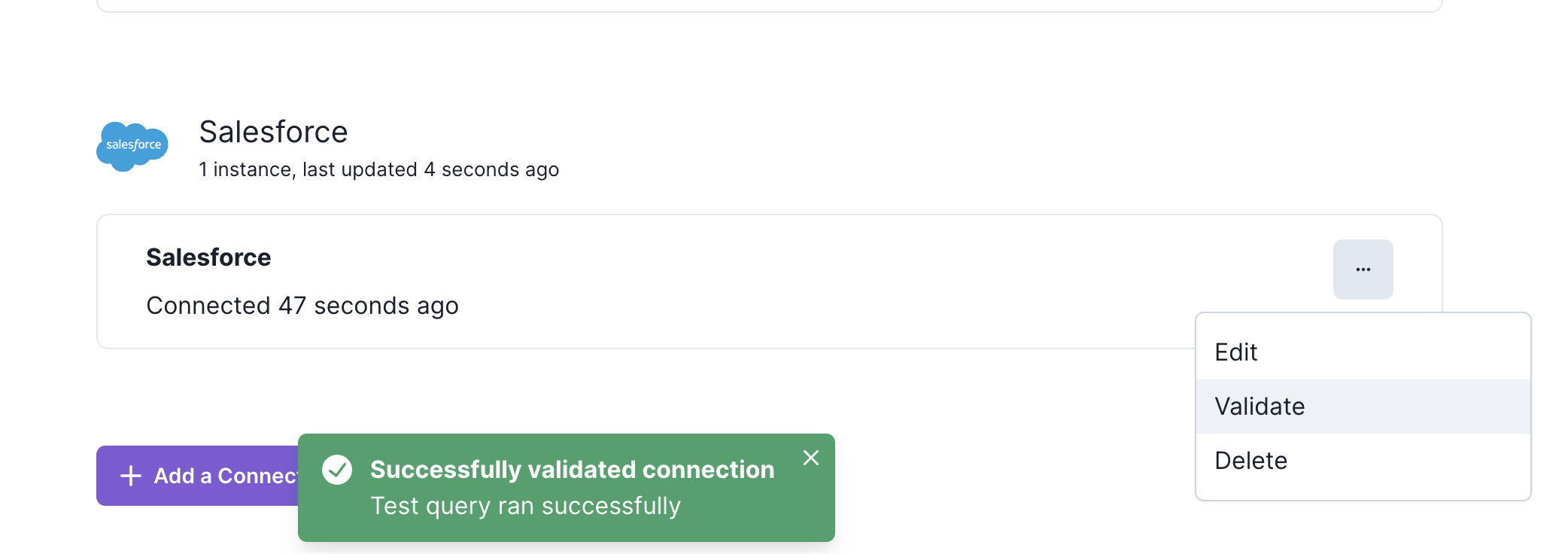
- If the connection with Salesforce is set up correctly, you will see a green notification at the bottom of your screen. If an error appears, please contact our team for assistance.
Updated 10 months ago