

SmartMap
SmartMap is available to all Pocus AI PlansReach out to your CSM or on your Pocus Slack channel to learn more!
SmartMap shows you exactly who you're talking to, and who you're not, at any account. This AI-built org chart lights up departments green where you've got traction and red where you need more love. No more manual updates; it evolves as you work. Spot gaps, find hidden prospects, and reach out directly from the view.
Watch a tutorial on Pocus SmartMap
How To Access SmartMap
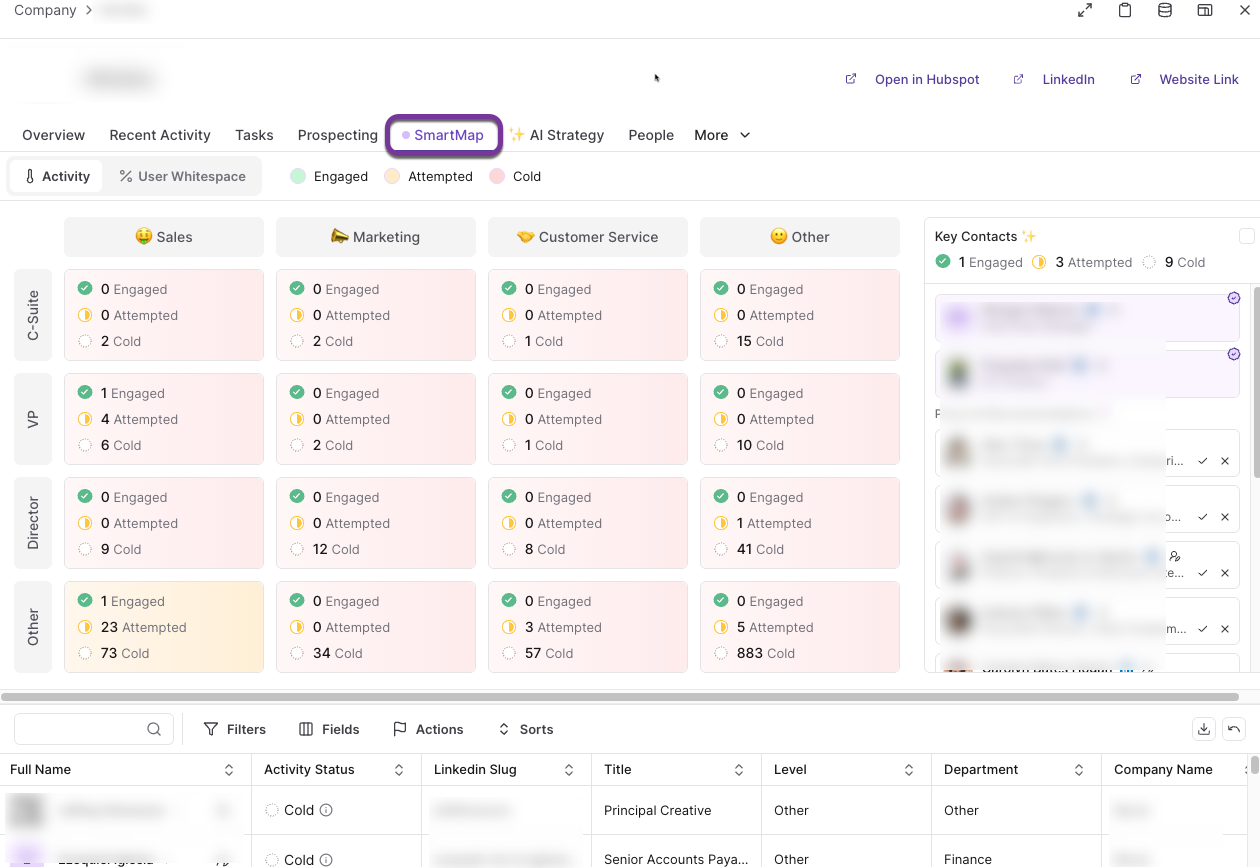
Access the SmartMap tab from the company/account drilldown
How It Works:
SmartMap automatically imports and maps contacts from your CRM and data warehouse, enriches the data with department and seniority details, and generates interactive visualizations that update as engagement occurs. It also integrates with Pocus' prospecting to provide access to all relevant profiles at the account, even those not yet in your systems! You can take immediate action directly from the SmartMap view.
Each contact in the organization map will fall into one of the three following status:
- Cold: a person is defined as "cold" if they have not engaged with your company, or if the last engagement was a considerable time ago.
- Attempted: a person is defined as "attempted" if they have been recently contacted by your company but they have not responded.
- Engaged: a person is defined as "engaged" when they have recently responded to some form of outreach (e.g. attended a meeting, replied to an email, attended a webinar, etc)
The SmartMap feature is divided into three main sections:
A. Heat Map
This section shows the organization divided into their different departments and levels. The Heat Map section offers two views:
-
Activity and Engagement Heat Map:
This section visualizes rep activity and prospect engagement levels across the organization. Color-coding highlights hot and cold areas within the account.
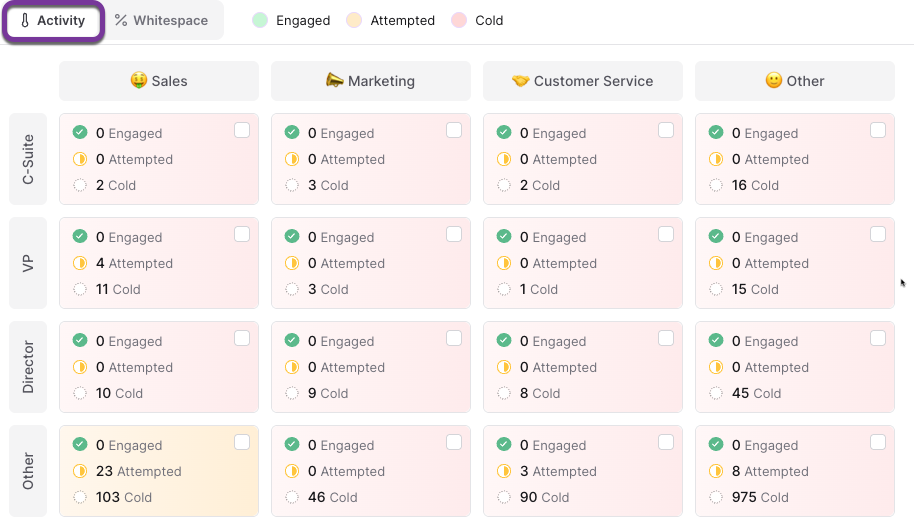
Each card categorizes the people in that department and level into: Engaged, Attempted, and Cold. Each card is color coded based on these categorizations:
- Green: 40% or more engaged OR at least 4 engaged
- Orange: 40% or more attempted OR at least 10 attempted
- Red: Green or Orange criteria has not been met. Predominantly Cold categorization.
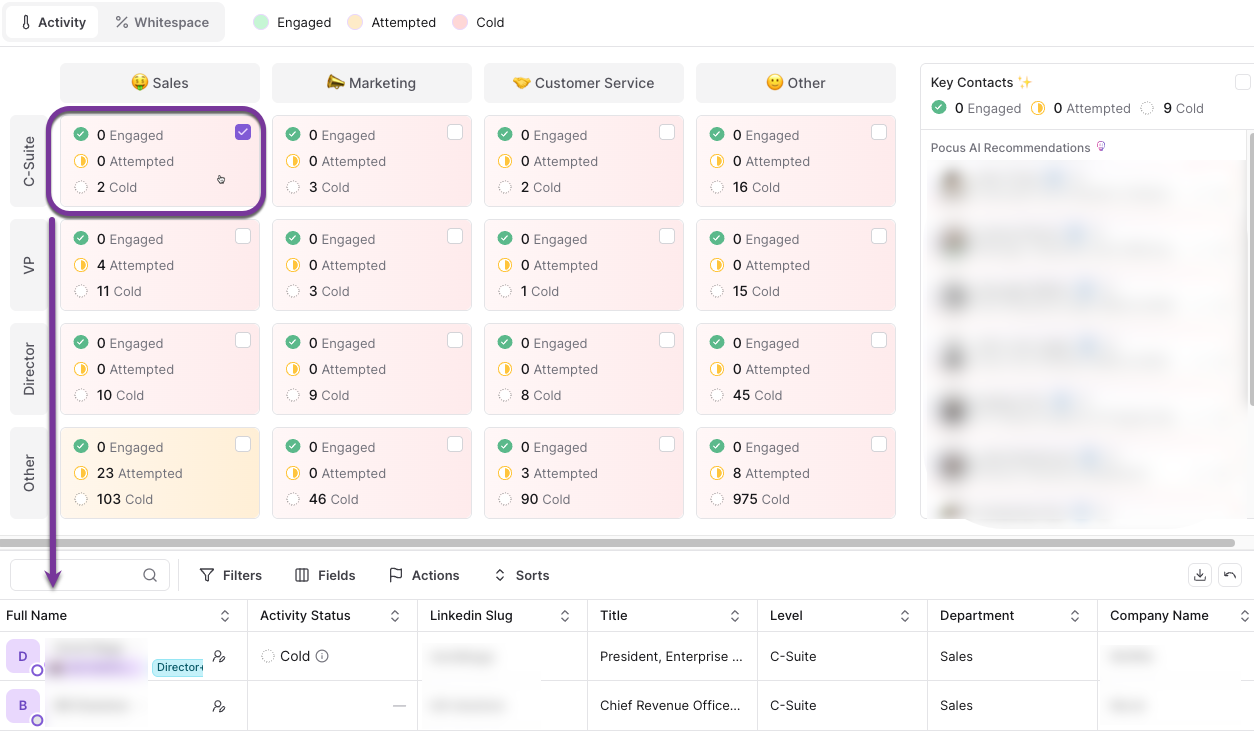
Selecting a card will update the Prospecting Table at the bottom of the screen to reflect the people within that segment.
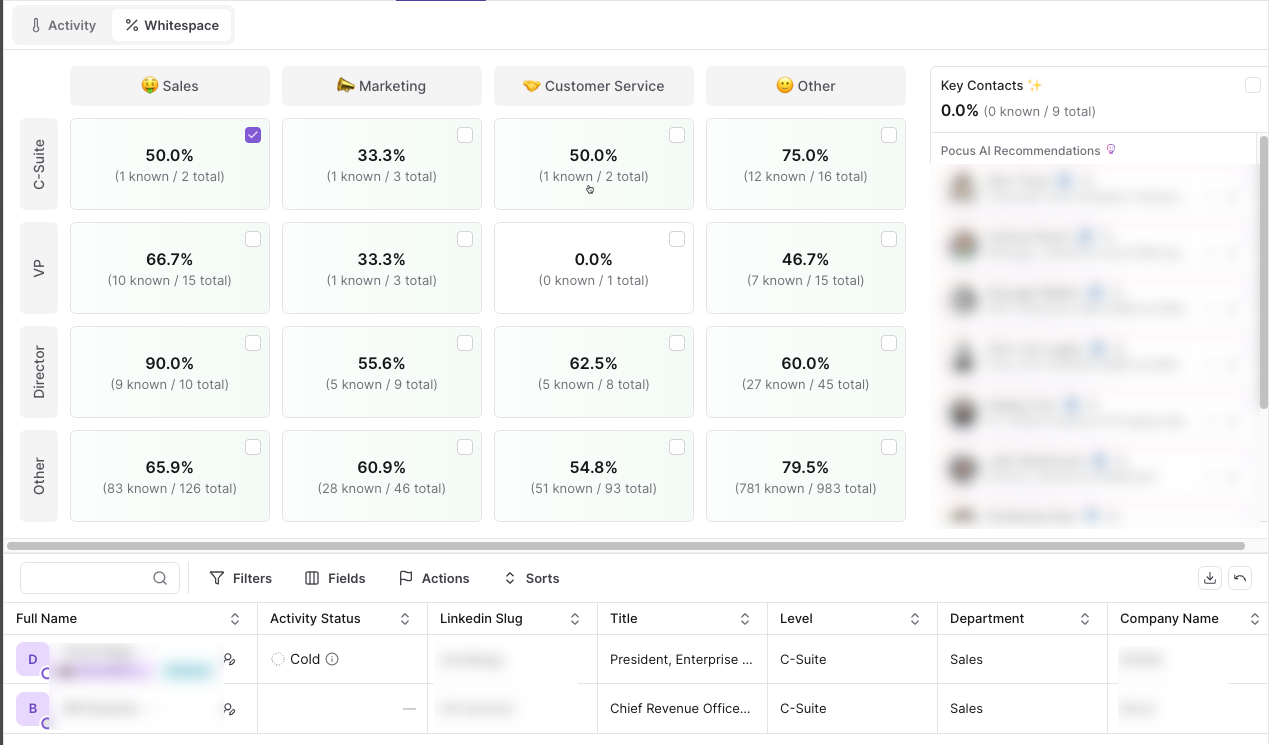
- Whitespace Analysis:
This section shows product adoption coverage by displaying the ratio of current users to total addressable prospects within each department and seniority level. The analysis here will utilize your own internal data plus 3rd party enrichment data to display how many people are known from your CRM data / the total people within that department/ role segment.
Similar to the Activity Heat Map view, you can select a card to view the relevant people from the segment. Color coding is also applied to help you visualize engagement levels.
B. Prospecting Table
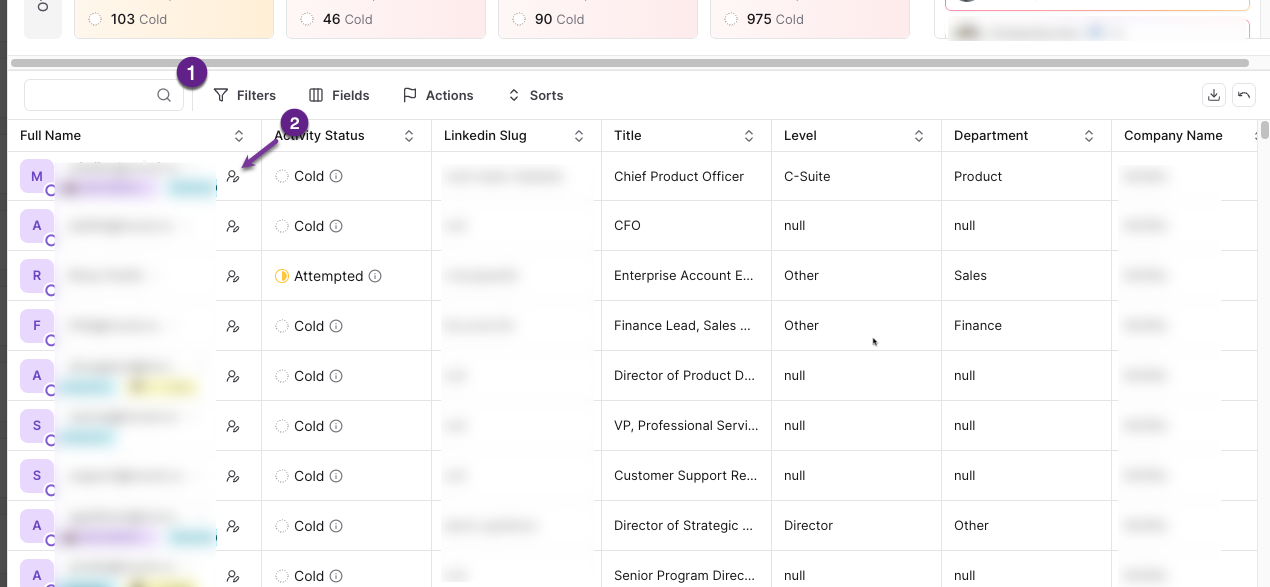
Beneath the Activity Heat Map, you will find a table of prospecting contacts. The default view will display all people for the organization. Selecting a card from the Activity Heat Map or Whitespace views will adjust the results based on that segment.
-
You can add additional Fields and Filters to further refine the results here, just as you would when working with a list or playbook view!
-
Select the Edit Person icon next to the prospect to interact further. From this tile, you can also select Generate Message to leverage the Pocus AI Email Generator.
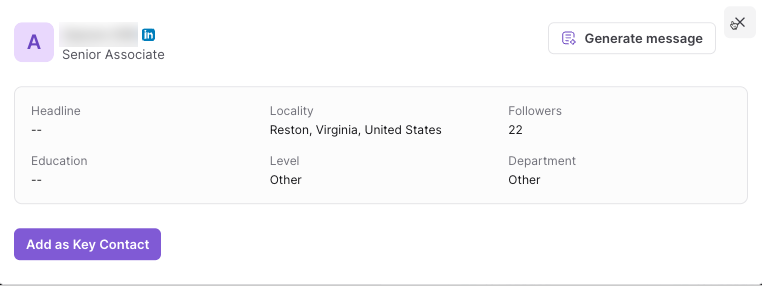
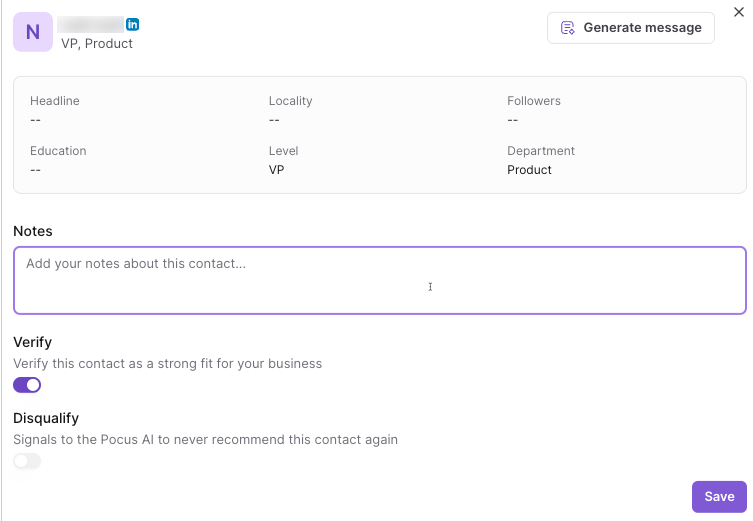
Select Add as Key Contact to add this person to the saved list of Key Contacts. You can also enter notes about the contact, as well as verify they should be saved as a key contact, or disqualify them from being recommended going forward.
C. Key Contacts
This easy to access list highlights people at the organization that are important to contact. Pocus AI will generate an initial list.
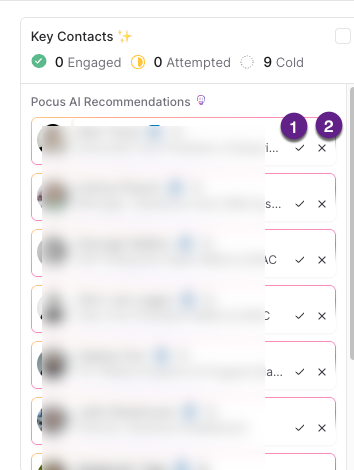
- Select the checkmark to save this person as a key contact.
- Saving an individual as a Key Contact will keep them at the top of your list until they're removed.
- The list of Pocus AI Recommended contacts will show you new contacts you may want to add as a Key Contact. These recommended contacts can be refreshed as you add or remove them.
- You can also click the Add Key Contact icon in the Prospecting table to save to your Key Contact list
- Select the X mark to to remove them from the list of Key Contacts
FAQs
How often is SmartMap updated?
The data is updated with your regular Workspace refresh
How do I take action on prospects that are not in our system?
SmartMap reveals LinkedIn profiles not yet in your CRM and provides one-click options to add them to your CRM, assign them to a sequence, or connect via email.
Can I share these visualizations with my team?
The visualizations are accessible to all team members with appropriate Pocus permissions, but there is currently no export functionality. Users need to log in to view SmartMap directly in the platform.
How can I adjust the configuration of SmartMap?
There are customization options available for SmartMap. Visit the SmartMap Configuration page to learn more!
Updated over 1 year ago