

Redshift
Creating a Pocus user in your Redshift cluster
We'll need to create a new user in Redshift for Pocus to use. You will need to connect to Redshift with a SQL client as an admin user to run these commands. The commands can also be run directly from the AWS console, using the Redshift query editor.
We recommend using the following commands to create a read-only user for Pocus. Note that you will have to replace the following values:
<table>should be replaced with the name of your Redshift table<schema>should be replaced with the name of the Redshift schema that Pocus should use<password>should be replaced with a randomly generated password (which you will need later)
You can modify the GRANT statements to limit the scope of Pocus permissions, or optionally choose to give Pocus access to all tables for the given schema(s). Examples of both commands are provided below.
-- Create a new user for Pocus
CREATE USER pocus_redshift_svc_acc WITH PASSWORD '<password>';

-- Grant access to the Pocus user to access the schema (always required)
GRANT USAGE ON SCHEMA <schema> to pocus_redshift_svc_acc;

-- Option 1: Grant the Pocus user read-access to all tables in the schema
GRANT select ON ALL TABLES IN SCHEMA <schema> to pocus_redshift_svc_acc;

-- Option 2: Grant the Pocus user access to specific tables (repeat as necessary)
GRANT select ON TABLE <schema>.<table> to pocus_redshift_svc_acc;
Setting up the Redshift connection in Pocus
- Open the AWS console and login to the account that contains the Redshift cluster. Navigate to Redshift -> Cluster ->
cluster-name-> Properties- Copy the values for
Endpoint,Database name, andPortPocus needs these values to connect to your Redshift cluster.
- Copy the values for
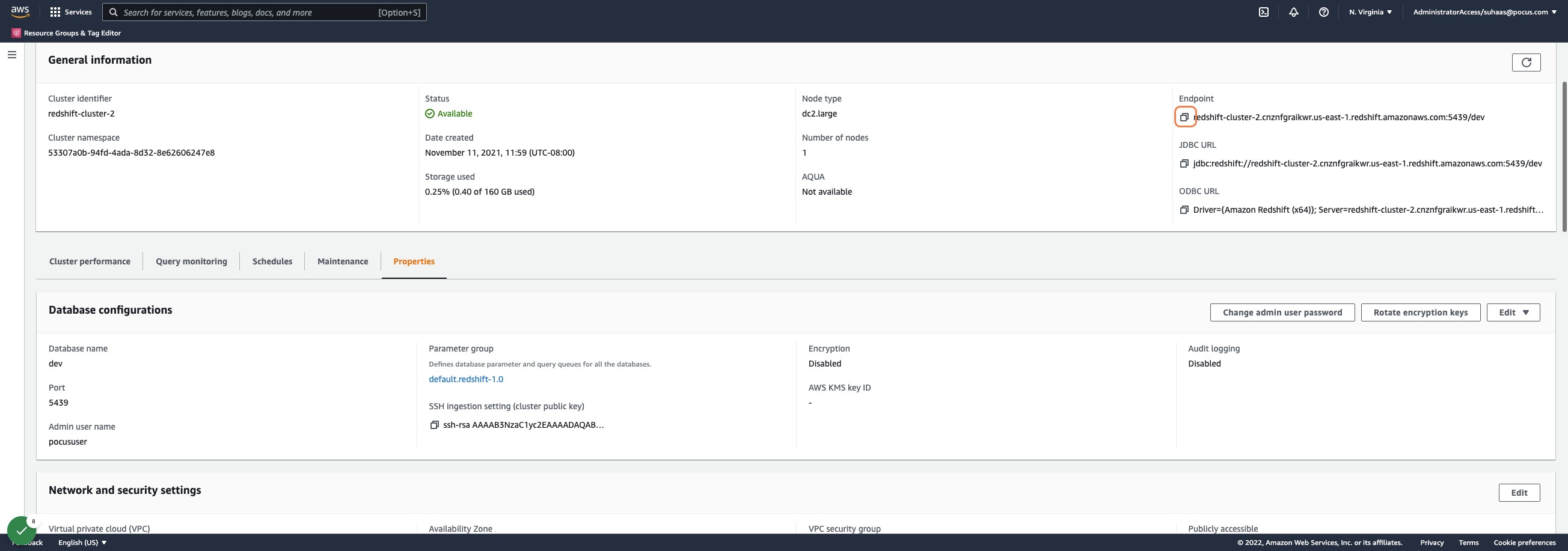
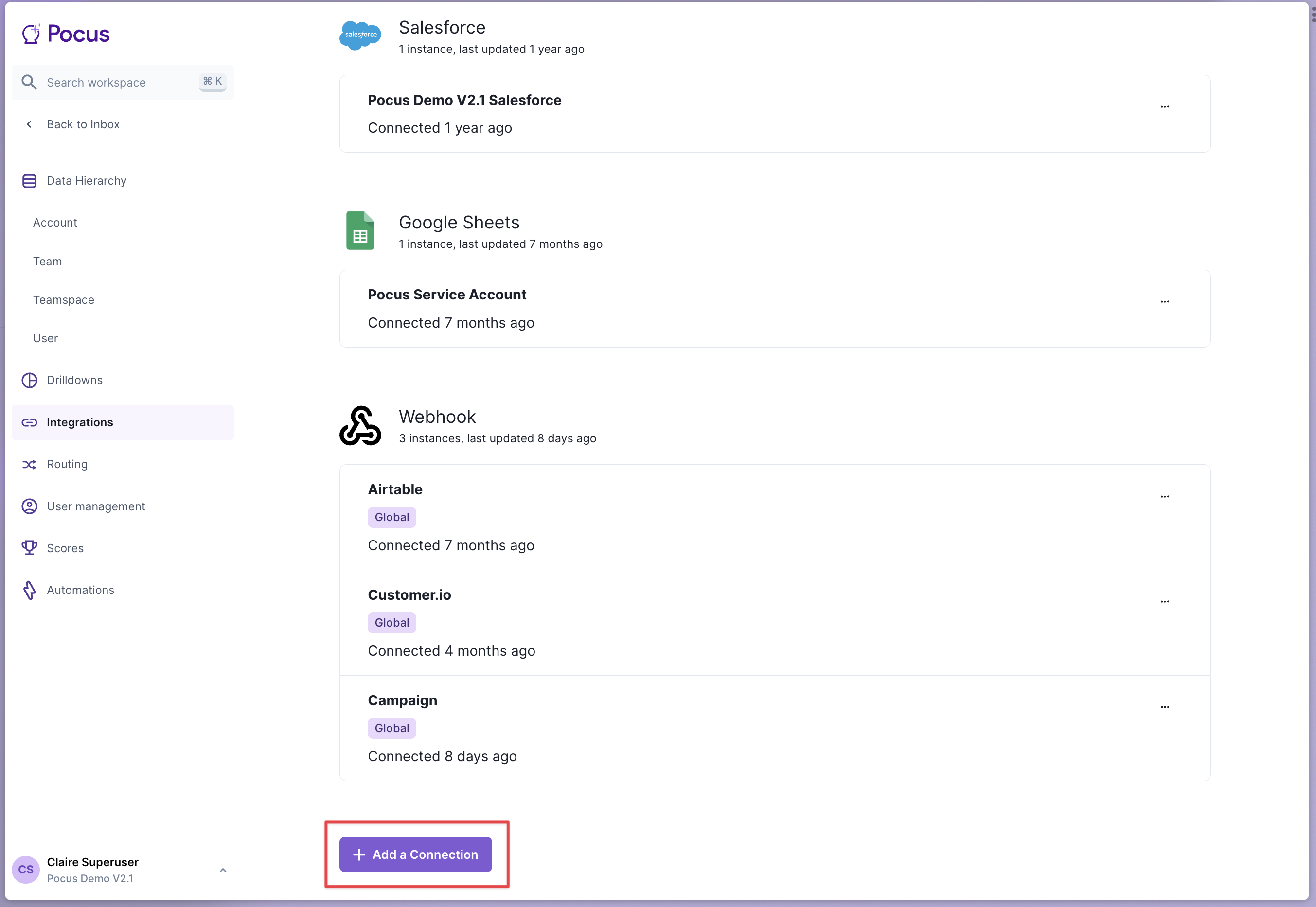
- Navigate to the Pocus Integrations Page and press Add a Connection
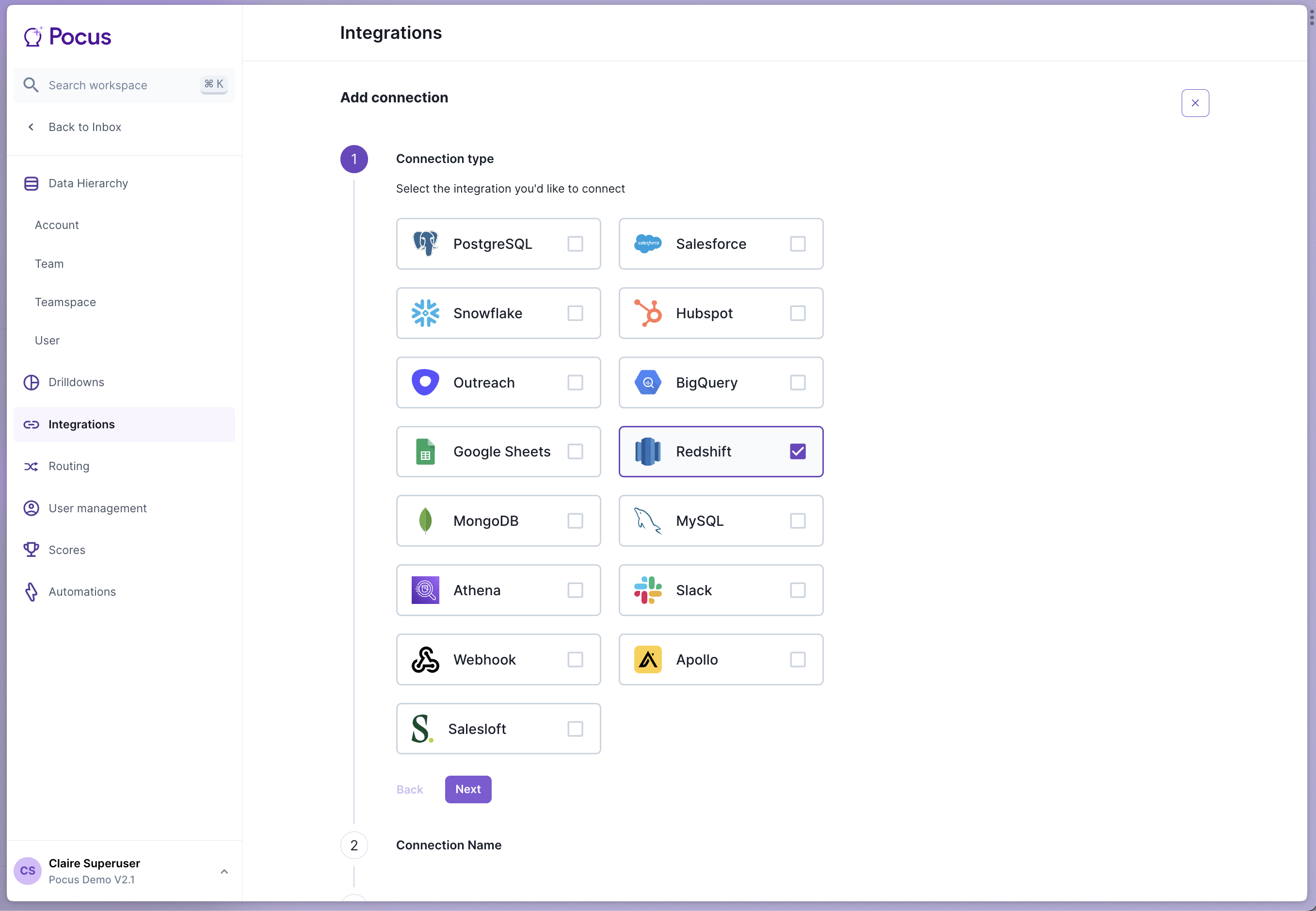
- Select the Redshift connection type and press Next
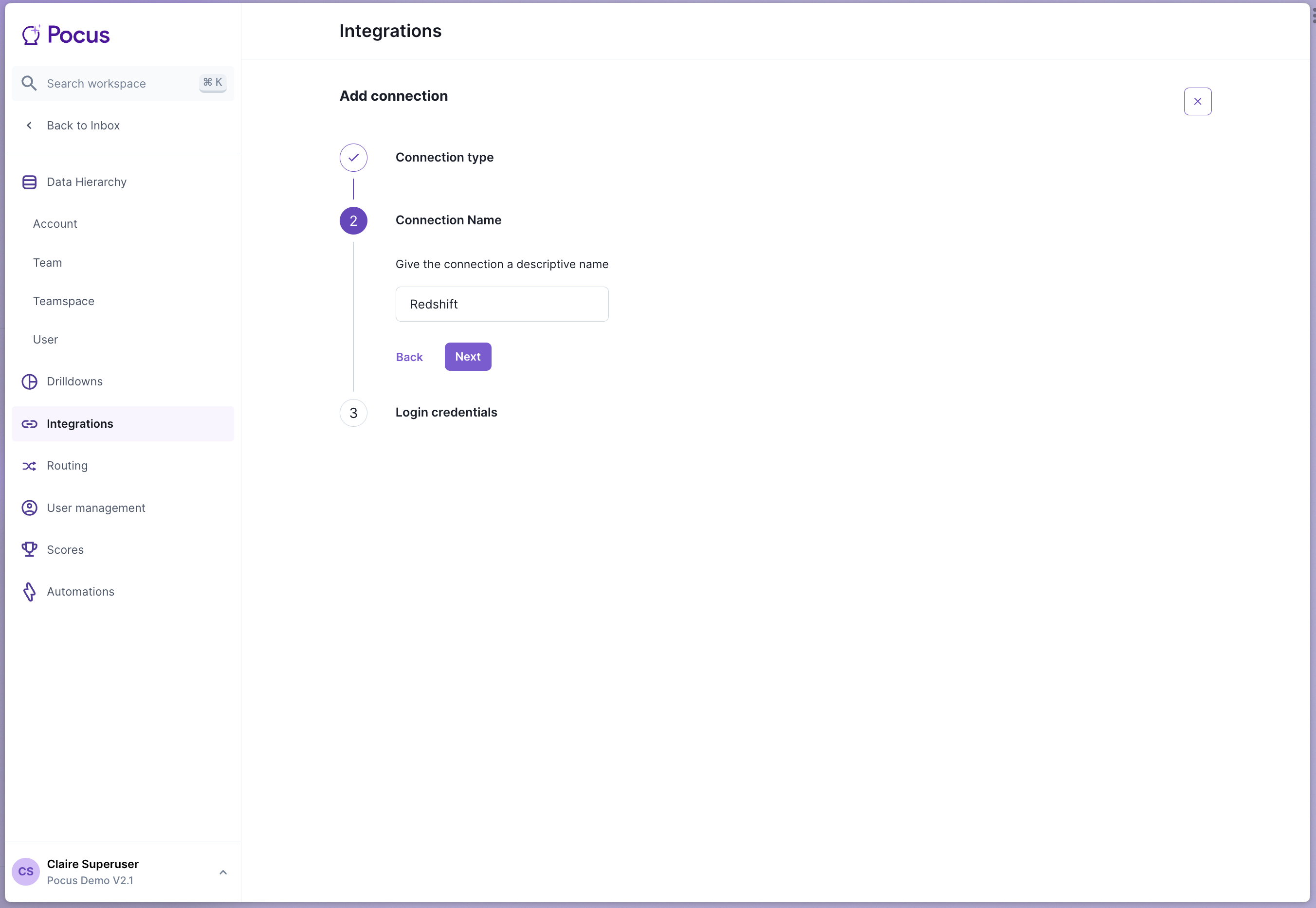
- Enter a name for this Redshift integration (something like
Redshiftis fine) and press Next
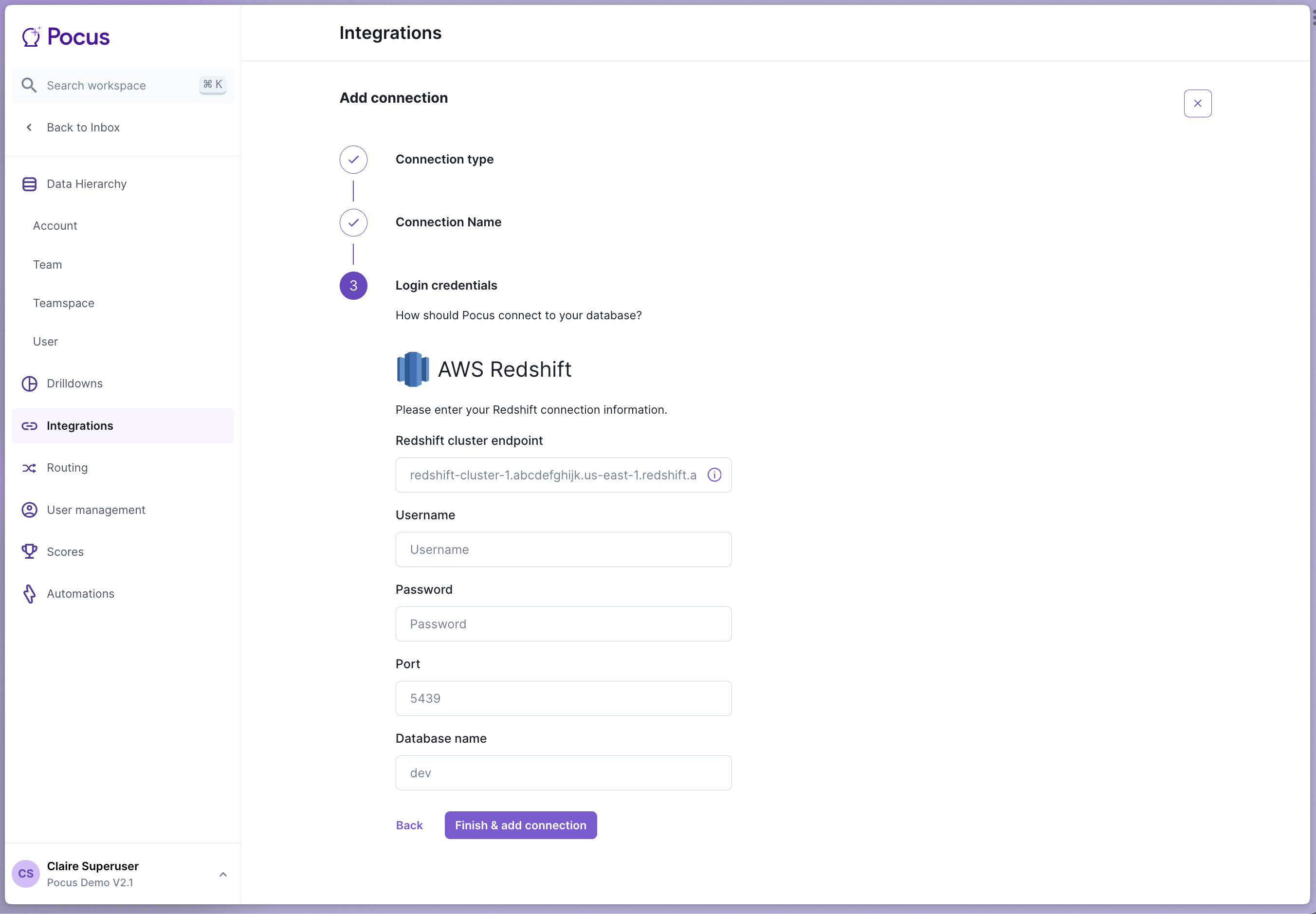
- Enter the connection details and credentials:
Redshift cluster endpoint,Database name, andPortare the values we copied from the AWS console.Usernameandpasswordare copied from the read-only user we created in the Redshift cluster in Step 1.
Validating the Redshift connection with Pocus
- Navigate to the Pocus Integrations Page, and press the menu button next to the newly created Redshift connection.
- Press the Validate button
If the connection with Redshift is set up correctly, you will see a green notification at the bottom of your screen. If an error appears, please contact our team for assistance!
Note that timeouts often indicate a networking problem, so be sure to check your AWS firewall settings to ensure that our data collector can access the Redshift cluster.
Troubleshooting
- Could not connect to Redshift cluster: getaddrinfo ENOTFOUND:
This error indicates Pocus is having trouble reaching your Redshift cluster. Most often, this is due to VPC issues. Ensure the Pocus data-collector VPC can reach the Redshift cluster, or make the Redshift cluster accessible via the whitelisted IP provided in the credentials form.
IP WhitelistingThe dedicated IP for your workspace is provided in the credentials form. If required, ensure this IP is whitelisted as all queries will come from this IP.
Updated over 1 year ago